
1. What photos work best?
Use bright, front-facing photos with clear subjects. Balanced exposure and minimal motion blur give the AI pixel art generator enough edge detail to rebuild characters and props without muddy gradients.
Transform uploads into branded pixel scenes with an AI pixel art generator that remembers palettes, crops, and approvals.


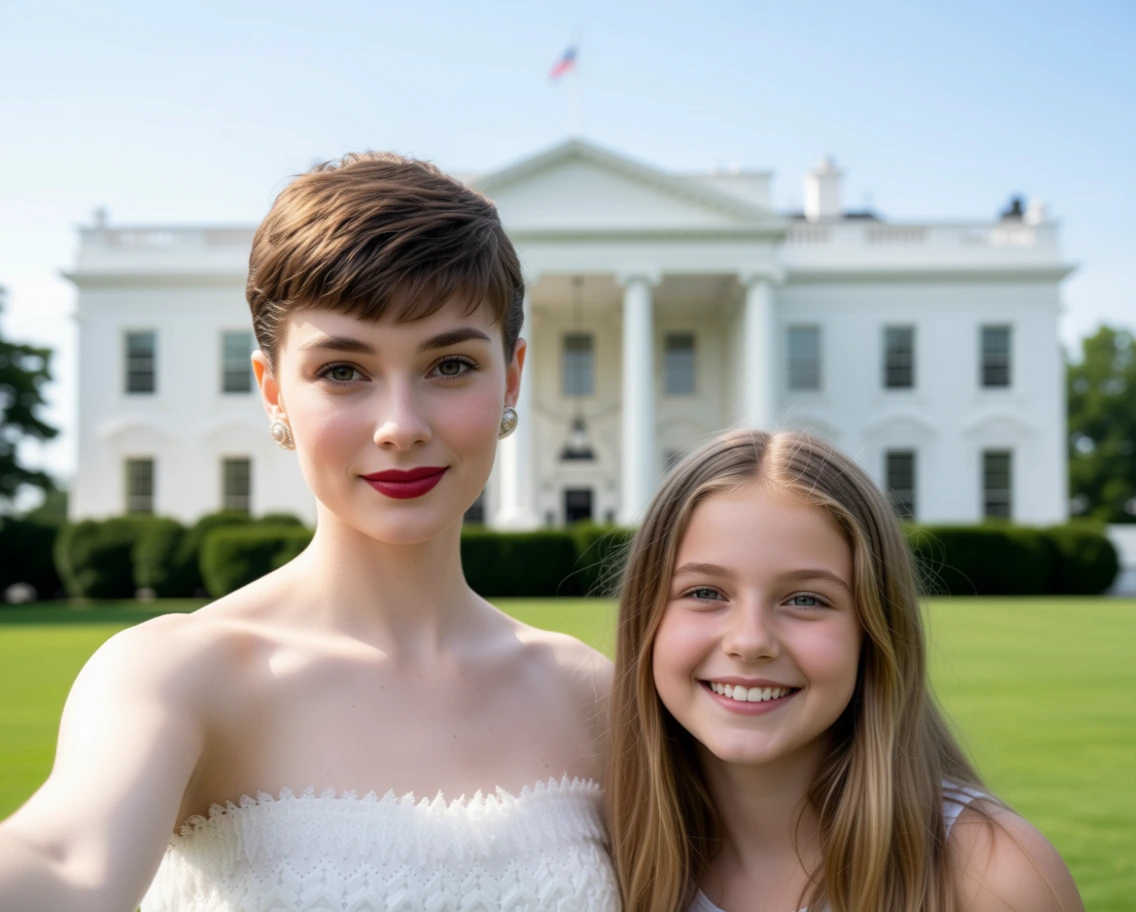
Portrait retouched by the AI pixel art generator with layered shading beside the original photo
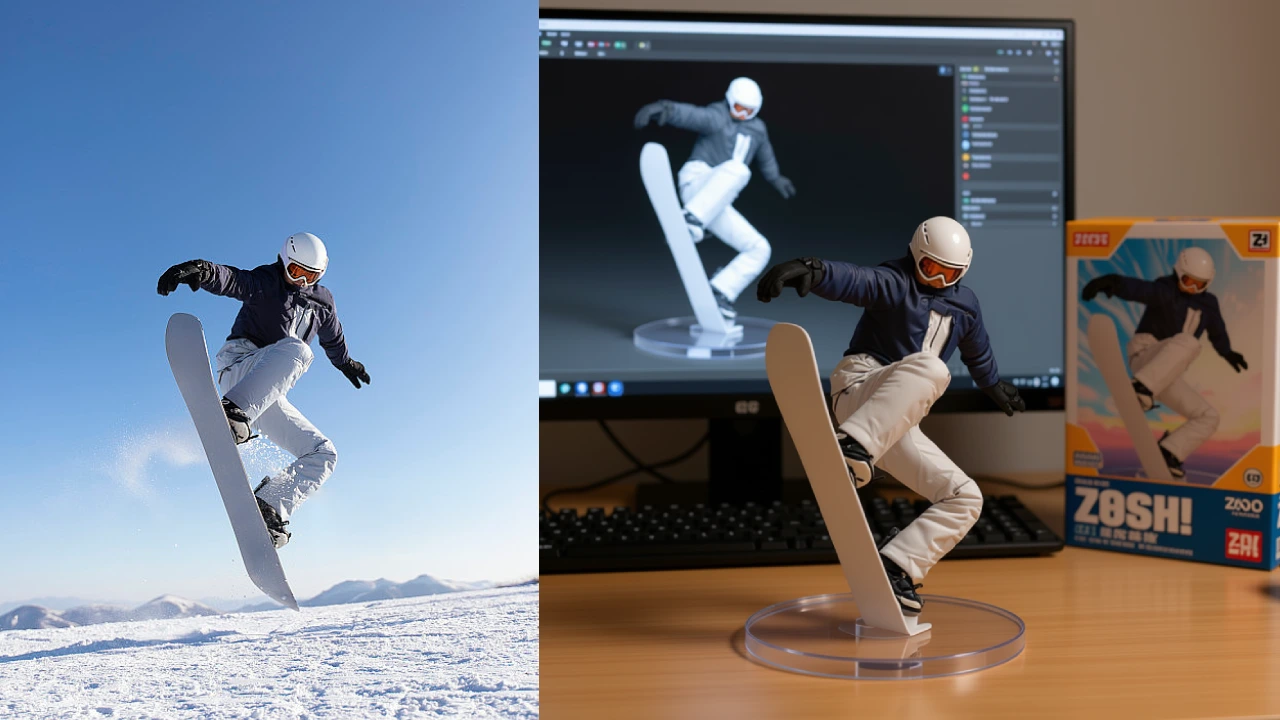
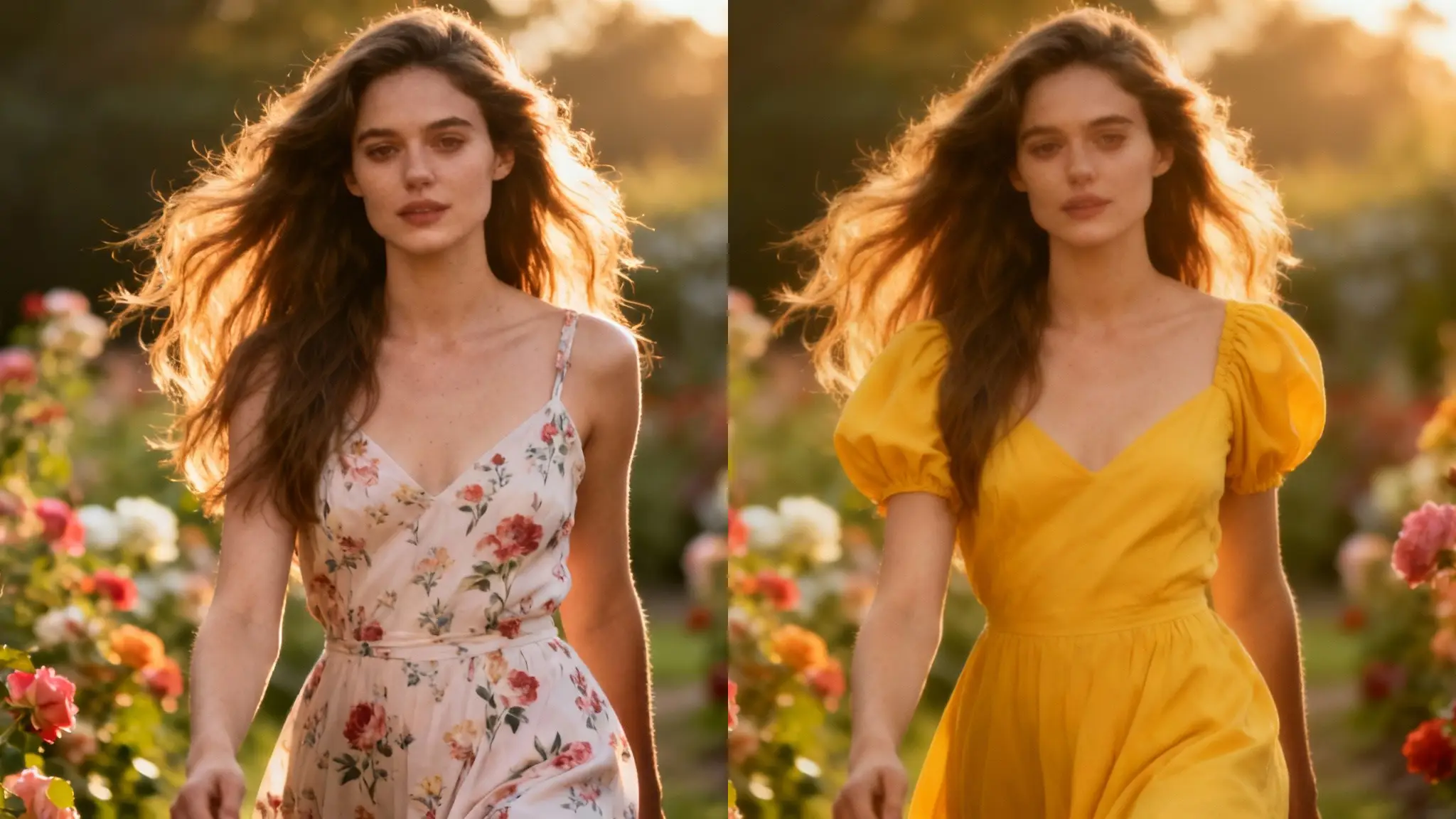
Examples show the target style. Your result depends on the chosen model and reference photo.
Upload a photo or short prompt, and the AI pixel art generator automatically rebuilds it tile by tile. Lighting, outlines, and typography stay readable even when you shrink graphics for avatars or stickers.


The generator studies your upload to detect lighting, materials, and camera angles so gradients stay smooth while outlines remain crisp—perfect for avatars, thumbnails, or mini stories.

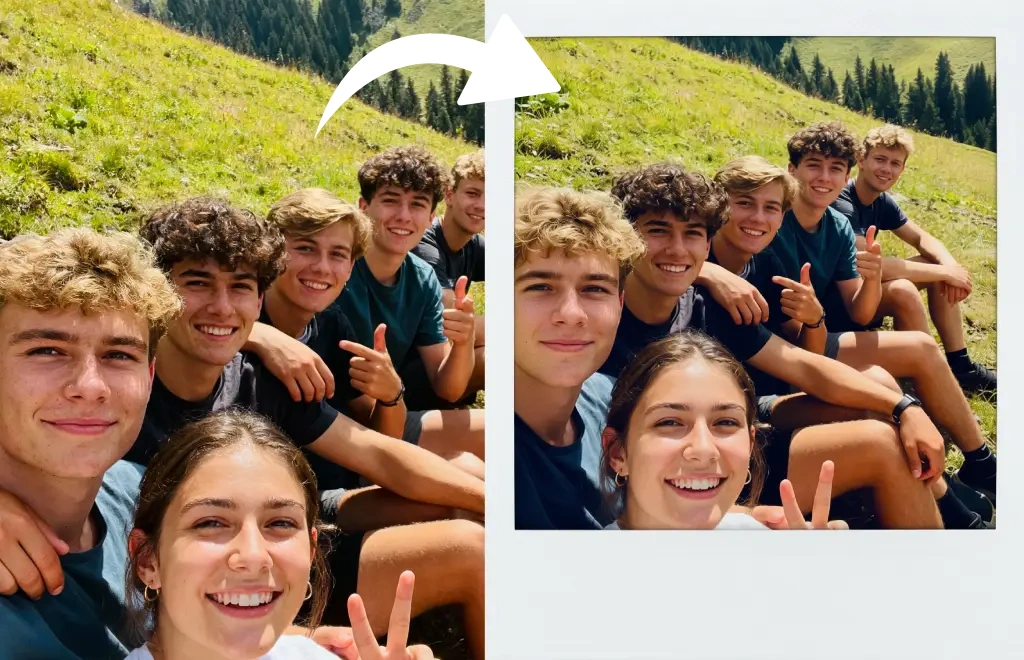
The accompanying shot compares a camera photo with its pixel-art remake using the same slider you get in this template, so visitors immediately understand they can upload real scenery and end up with game-style frames.

Use a well-lit portrait or product shot so the generator has sharp edges to follow.
Enter a short prompt if you want to suggest mood, props, or lighting—otherwise skip this step and keep your upload as-is.
Preview the pixel render, make small tweaks if needed, then export PNG, JPG, or PNG.
Use bright, front-facing photos with clear subjects. Balanced exposure and minimal motion blur give the AI pixel art generator enough edge detail to rebuild characters and props without muddy gradients.
Yes. It samples tones, lighting, and texture from your upload, then rebuilds the scene in pixel blocks without asking you to pick a palette manually.
Use the optional prompt field to suggest moods, props, or camera notes. The app blends that guidance with your photo to keep likeness while changing the vibe.
Generation time depends on the model, image size, and queue. Check the task status on this page.
Download PNG, JPG, or PNG. Pick whichever format fits avatars, lesson slides, or storefront previews.
Absolutely. Clone the previous result, change the prompt if needed, and generate again while keeping the same upload.
Sign in to access your generation history. See our privacy policy for image handling details.
Teachers, marketers, and hobbyists use it to turn real-world scenes into retro slides, trading cards, or lesson material with almost no setup.
Lesson plans often start with a class photo or mascot. Teachers upload the reference, jot a short prompt like 'science fair poster', and then embed the exported PNG into slides or worksheets so students see a consistent retro look across the unit.
Yes. Keep reusing the same upload while changing prompts such as 'neon city ad' or 'holiday promo'. Each run produces a new take without requiring fresh photos, making it easy to A/B test thumbnails or campaign badges.
Export the high-resolution PNG option and drop it into your layout app. Because the AI pixel art generator preserves sharp edges, you can scale posters up to 11x17 inches without blurring the tiled look.
Choose PNG when you need sticker-style assets. The system keeps the transparent background from your upload, so you can stick the pixel art onto merchandise mockups without extra masking.

Drop in a photo, add an optional prompt, and export production-ready pixel art in just a few clicks.