
1. How many images can I upload?
Upload one photo per render to keep the Pixar-style details stable.
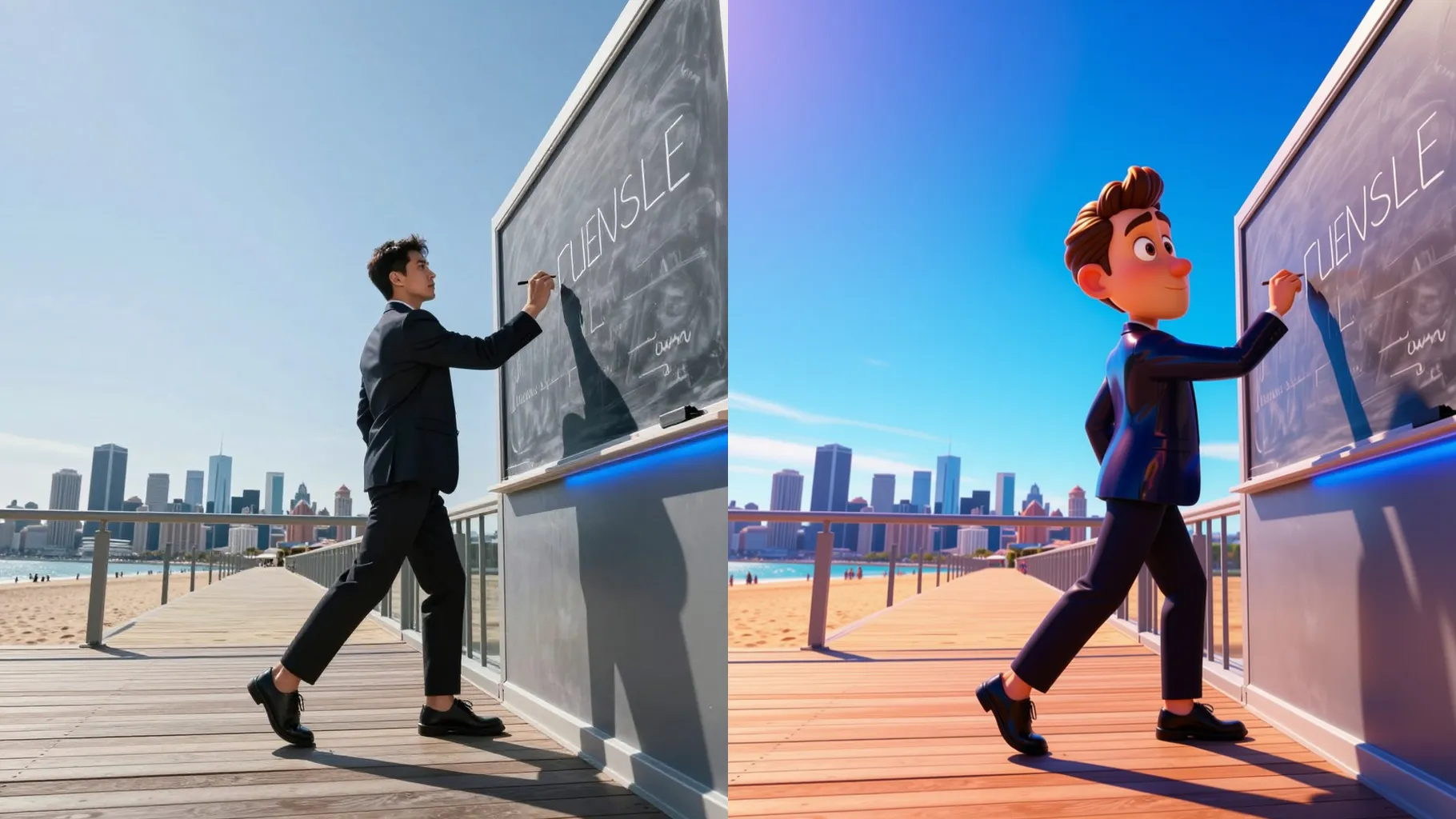
Turn one photo into a Pixar-style 3D render with glossy lighting, rounded forms, and bright colors.
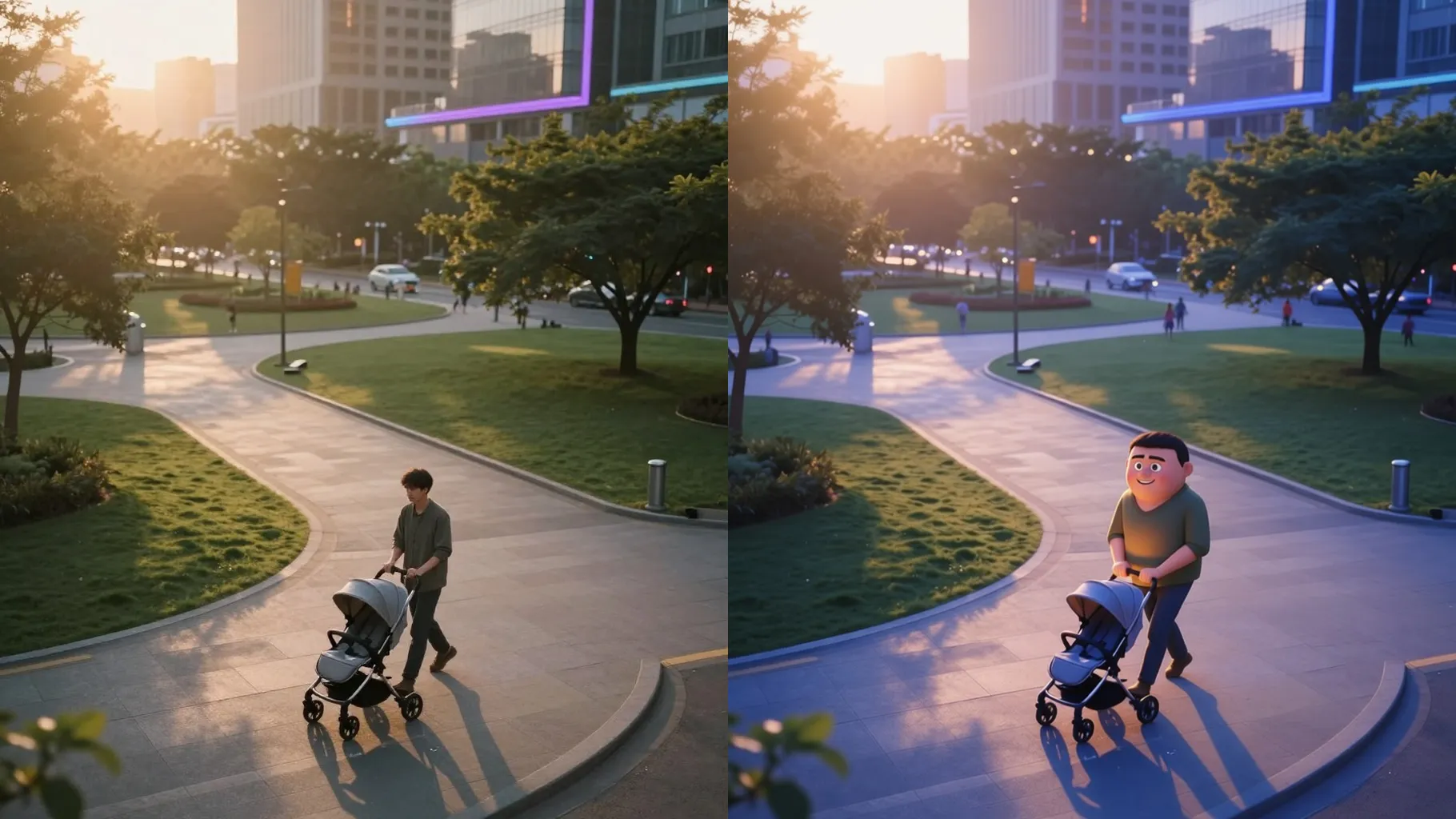
Transform one selfie into a Pixar-inspired 3D character with glossy shading, bright colors, and rounded forms.
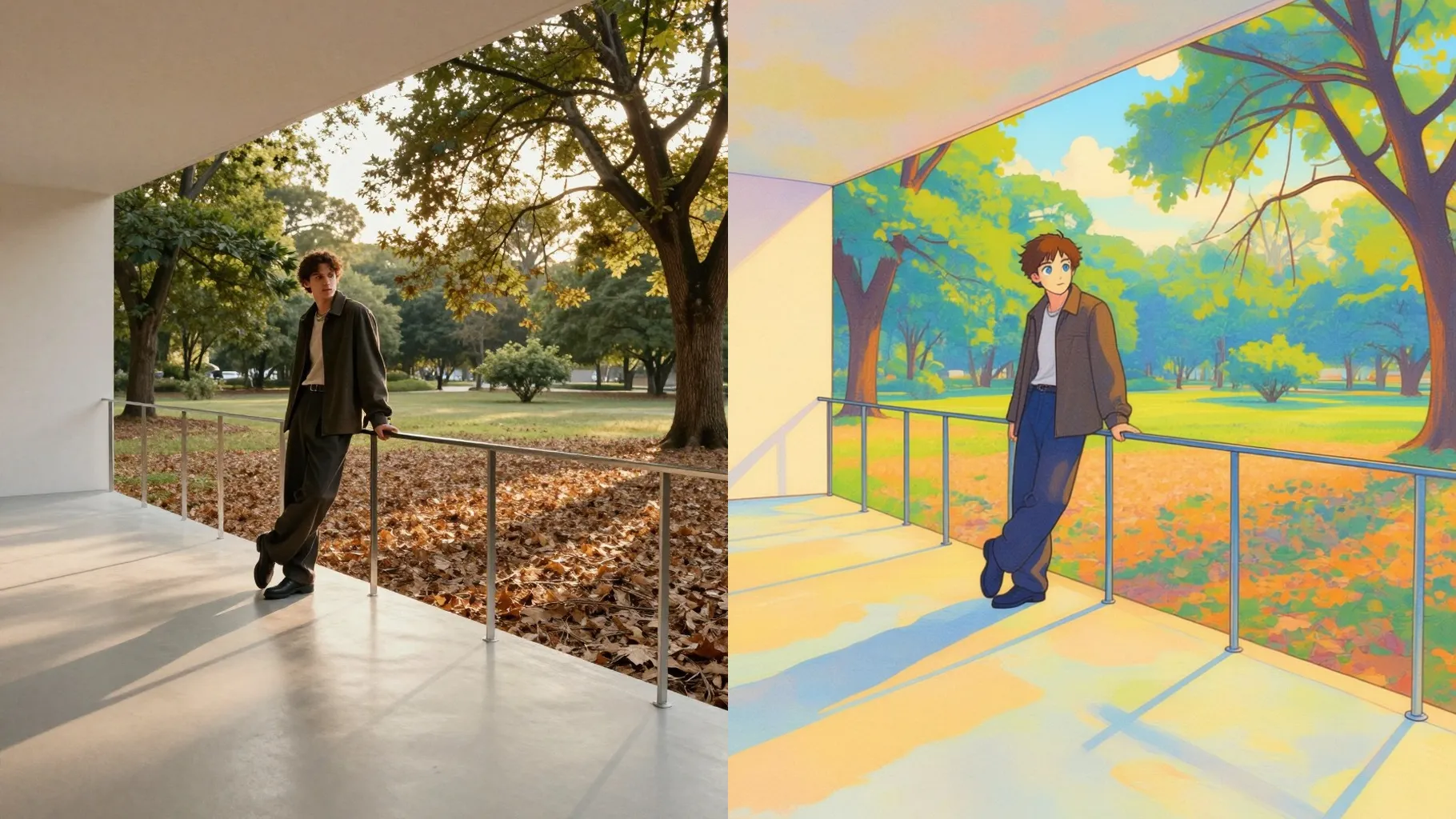
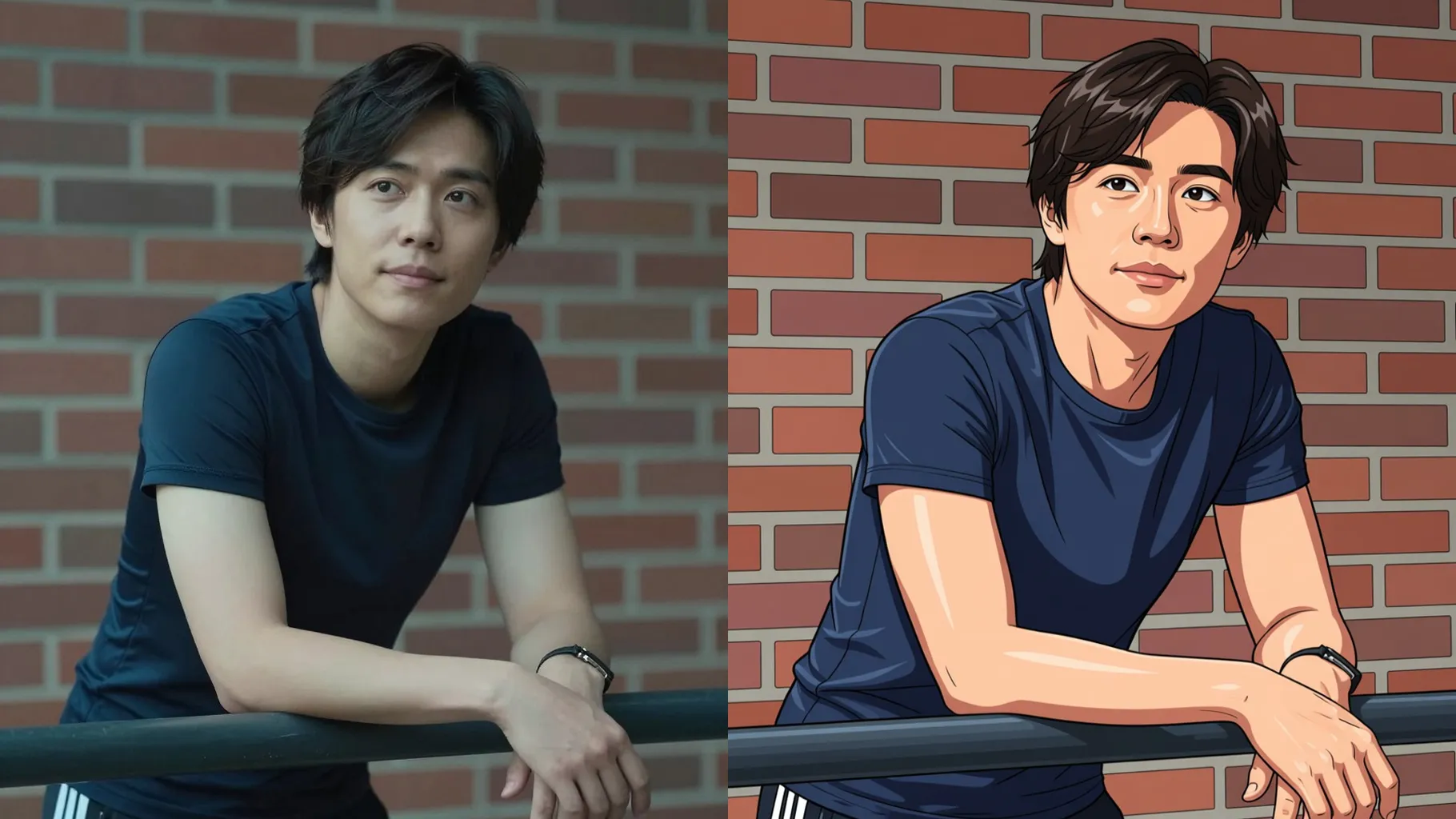
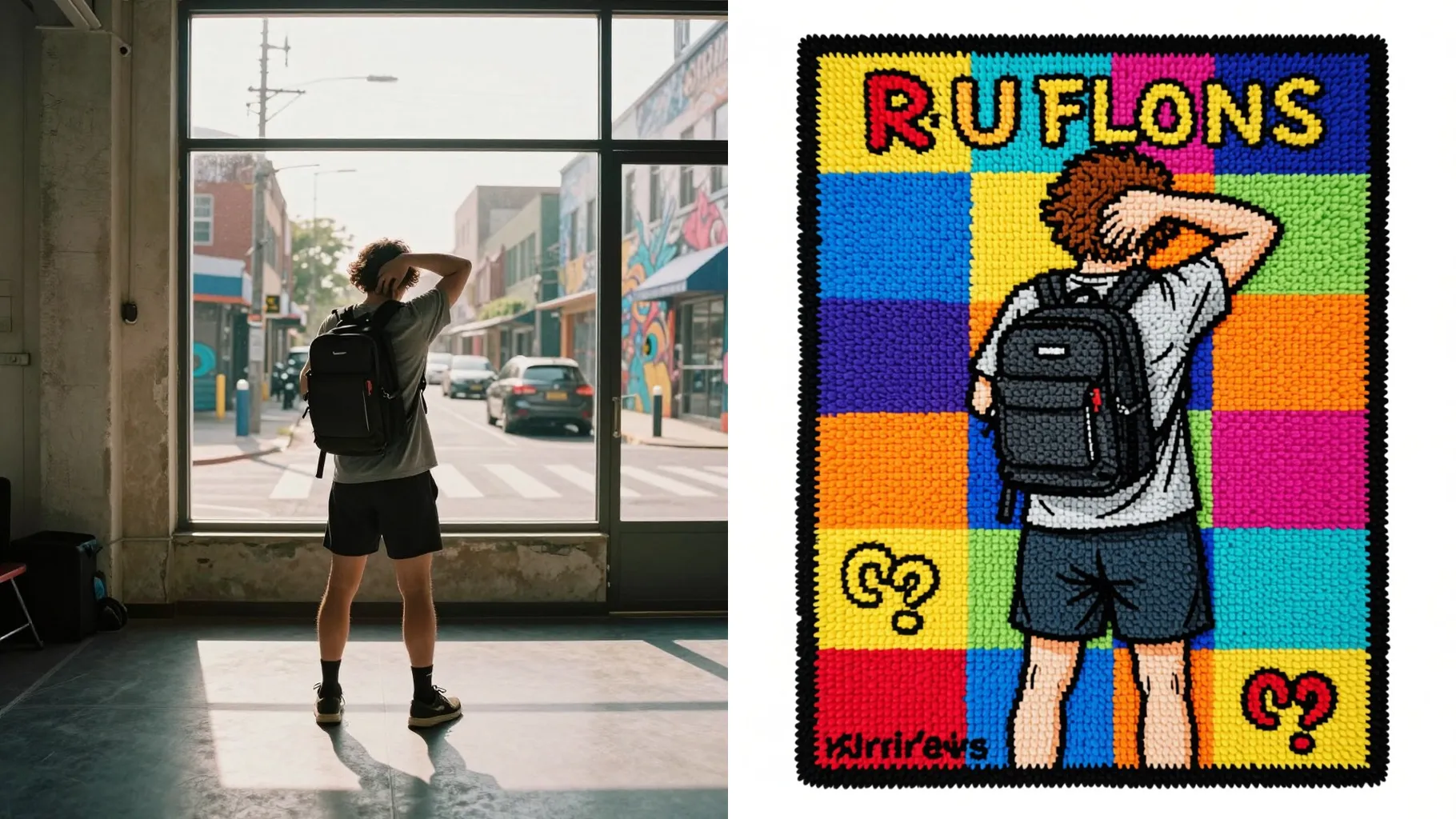
Examples show the target style. Your result depends on the chosen model and reference photo.
Upload one photo to get a Pixar-inspired 3D portrait with rounded shapes, expressive eyes, and vibrant lighting.
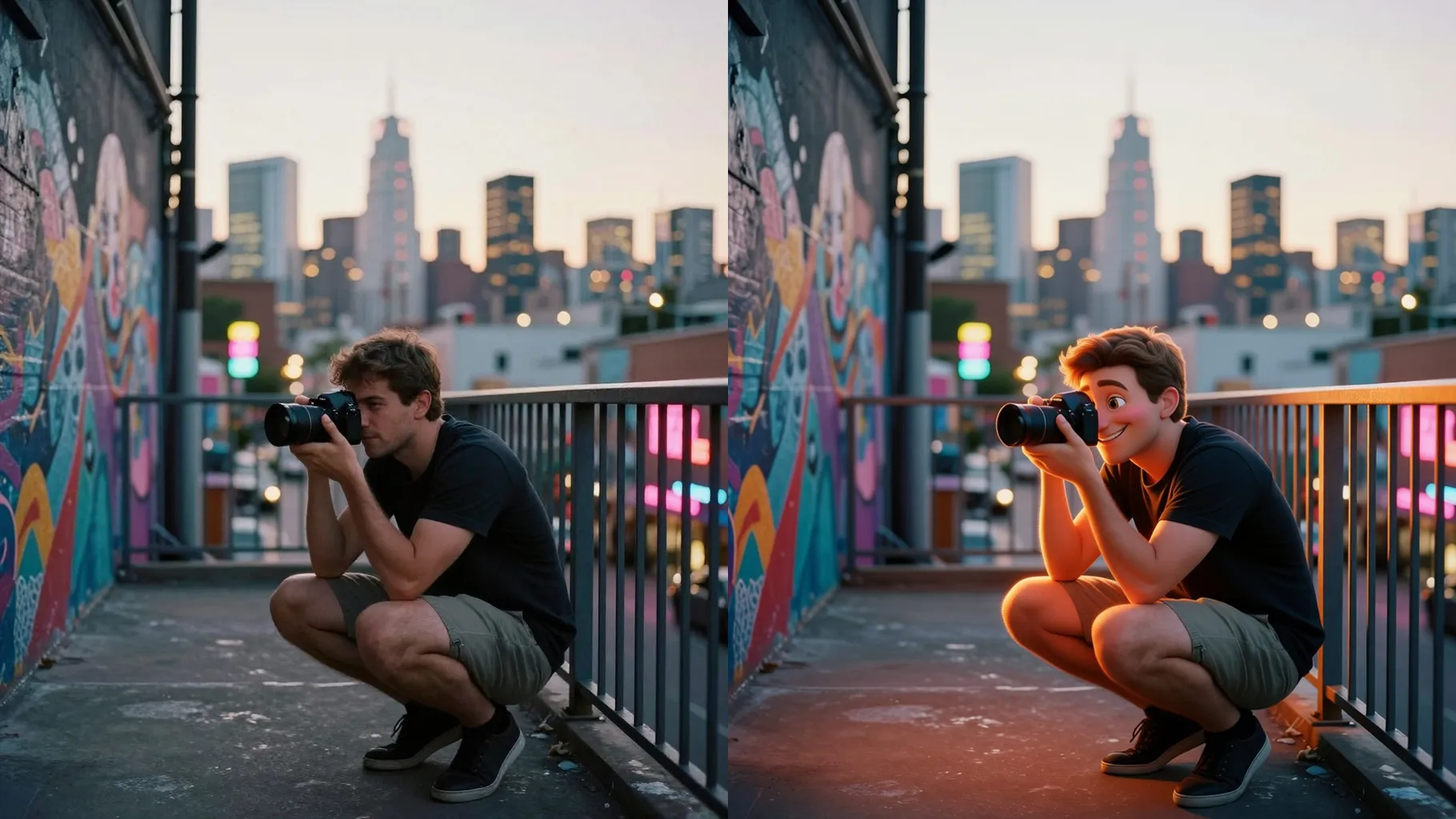
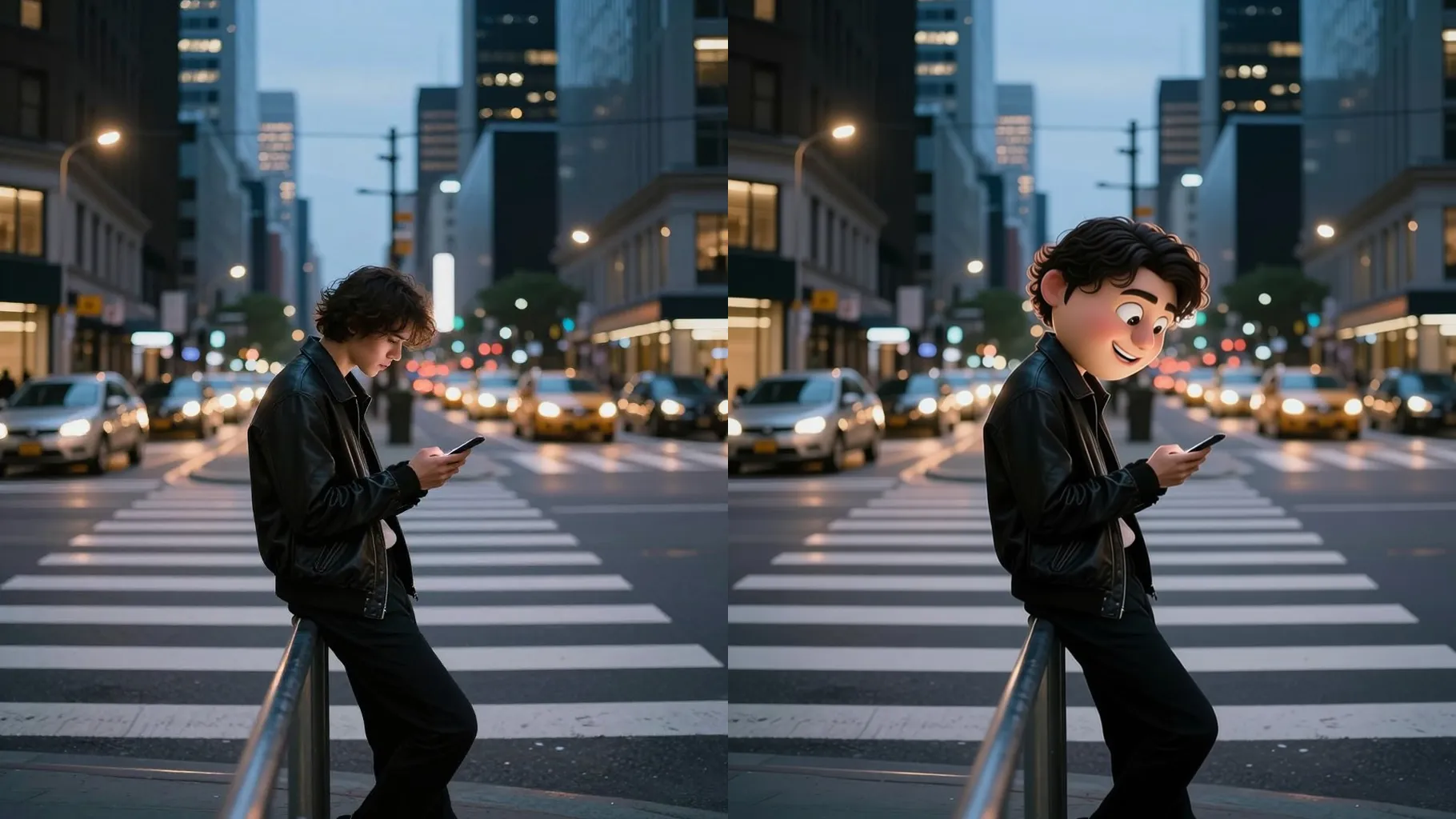
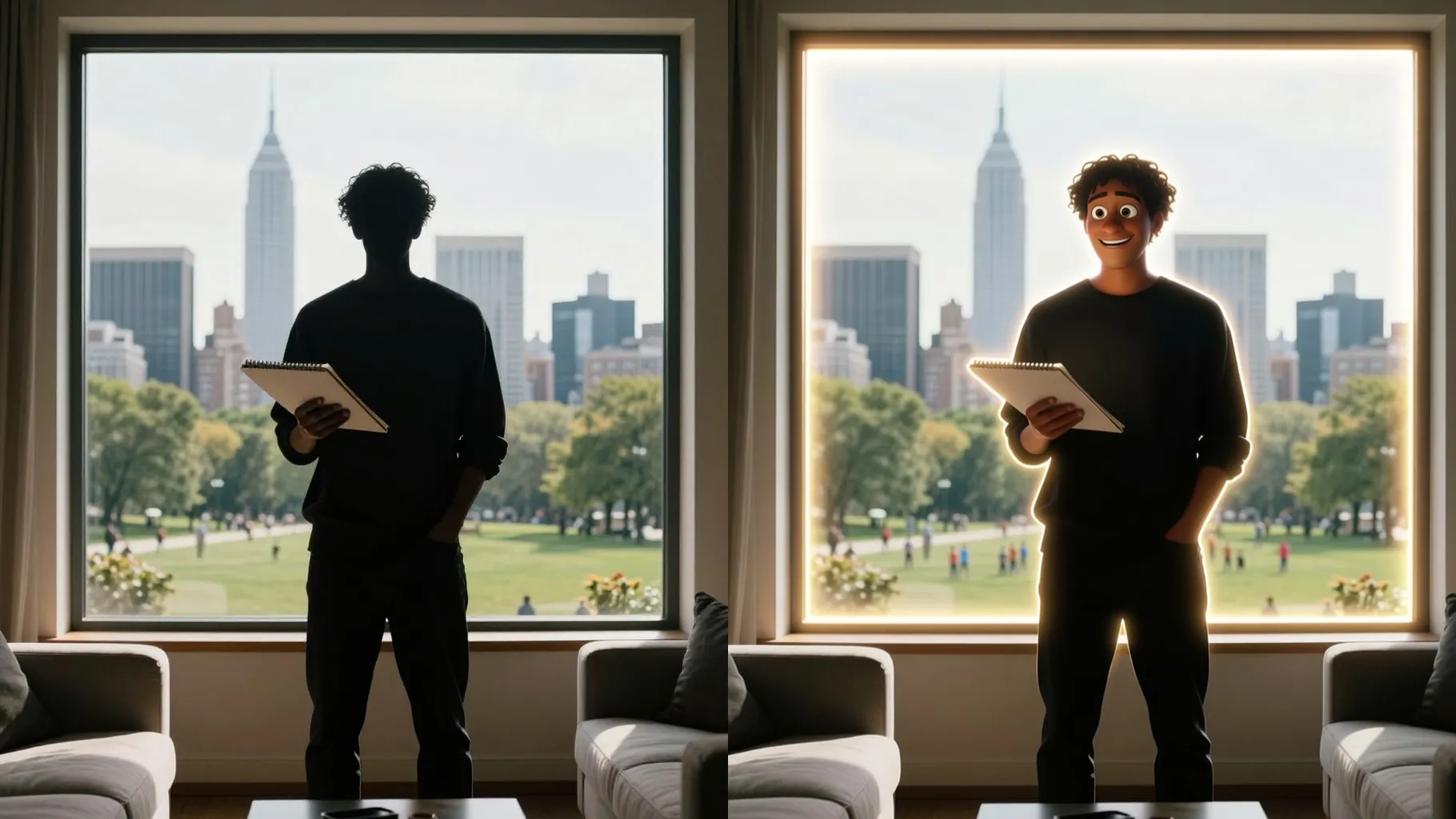
Keep your proportions while adding glossy textures, softened skin, and depth so it feels like a Pixar frame.
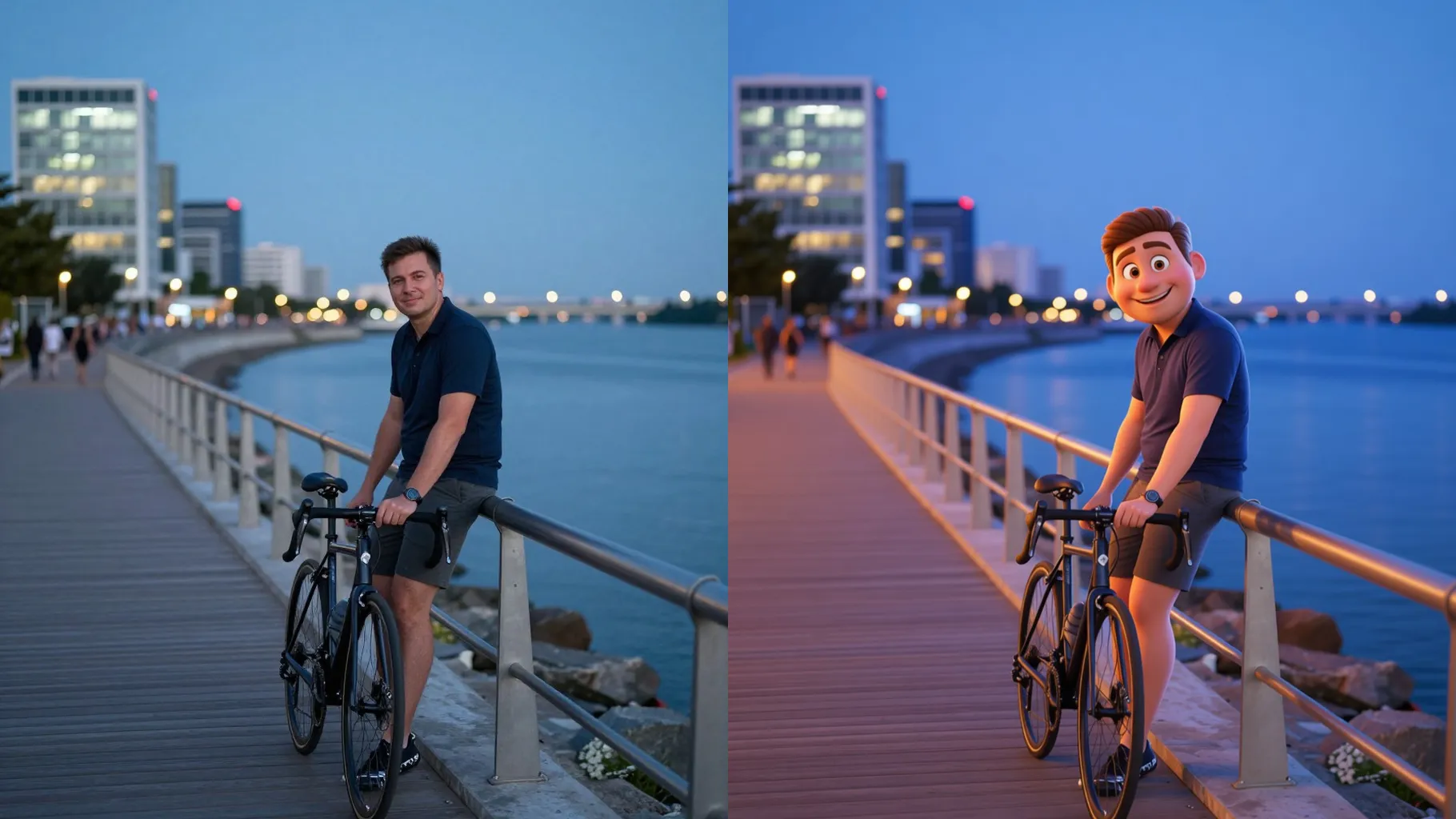
Balanced key and rim lights, subtle bloom, and simple backdrops make the render ready to share without extra edits.
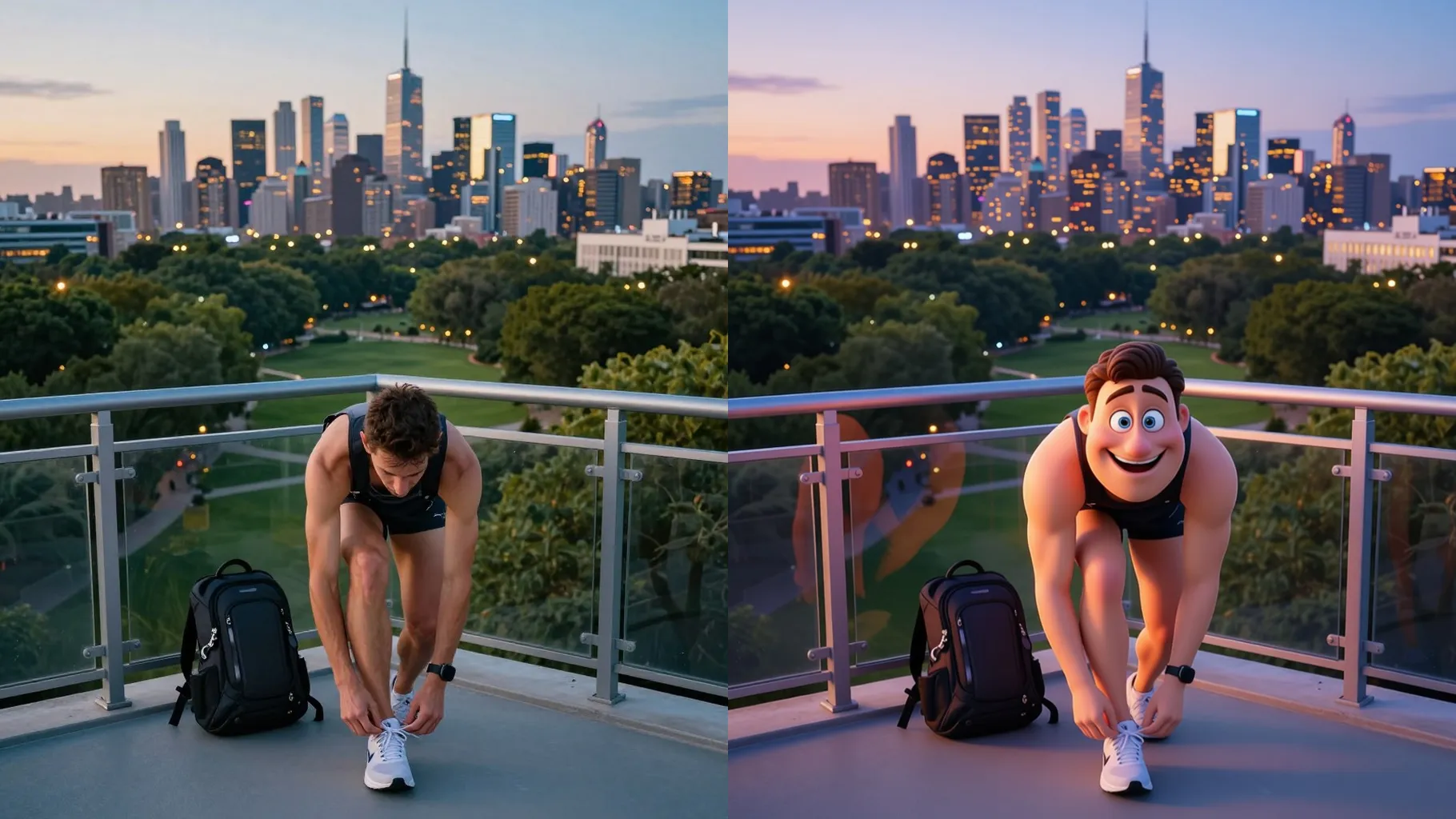
Centered, well-lit subjects keep the Pixar look clean and detailed.
Mention mood, outfit, or props in one line to guide the character style.
Preview the 3D Pixar render, choose your favorite frame, and save it instantly.
Upload one photo per render to keep the Pixar-style details stable.
A short prompt helps with outfits or mood, but keep it brief so the likeness stays accurate.
Aspect ratio is fixed for consistency. Crop your photo first if you need a different frame.
Model switching is disabled to preserve the Pixar lighting and material style.
Yes. It smooths textures while keeping proportions, expressions, and key details recognizable.
Generation time depends on the model, image size, and queue. Check the task status on this page.
JPG, PNG, or WebP under 10MB process fastest with clean 3D shading.
Yes. Clear front-facing photos of pets or figures also convert well to the 3D Pixar look.
The generator outputs a simplified clean background automatically; manual swapping is not included.
No. This is an image-to-image effect and needs one uploaded photo to start.

Generation time depends on the model, image size, and queue. Check the task status on this page.