
1. How many images can I upload at once?
This template works best with one photo per run to keep details stable.
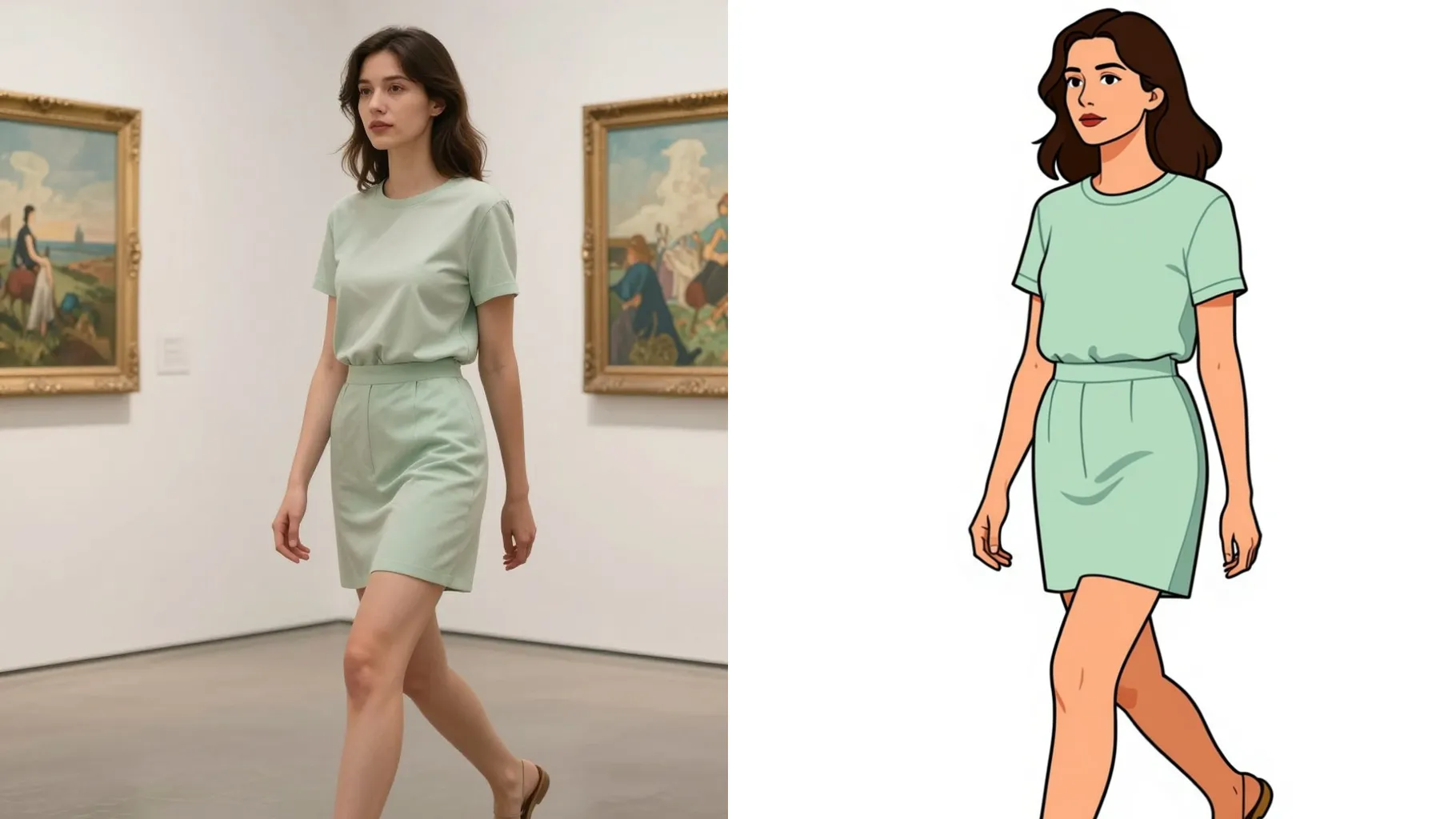
Turn a single photo into a Pixar-style 3D render with bright colors and cinematic depth.
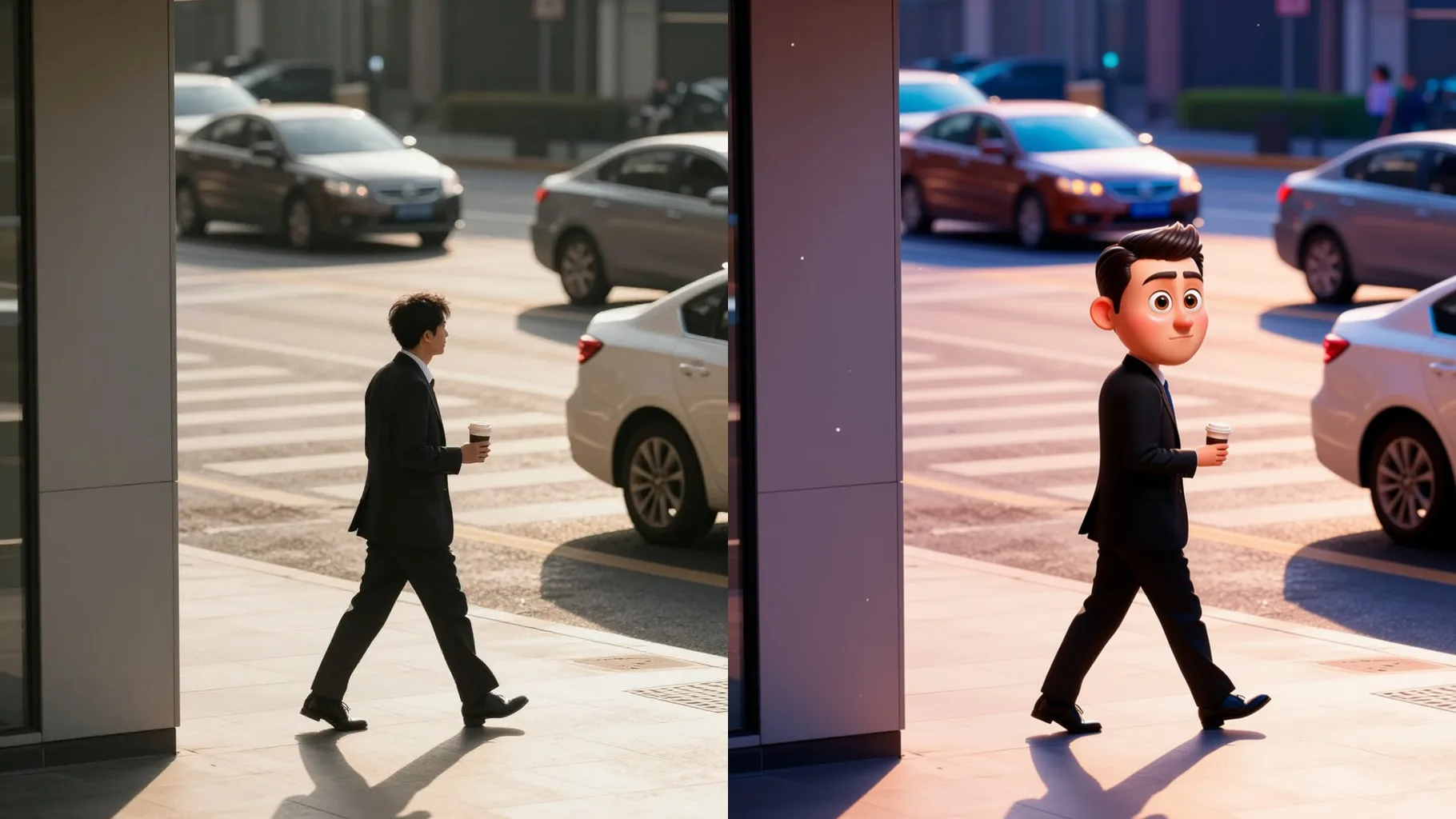
Turn portraits into 3D Pixar frames with glossy textures, soft depth of field, and bright key lights.
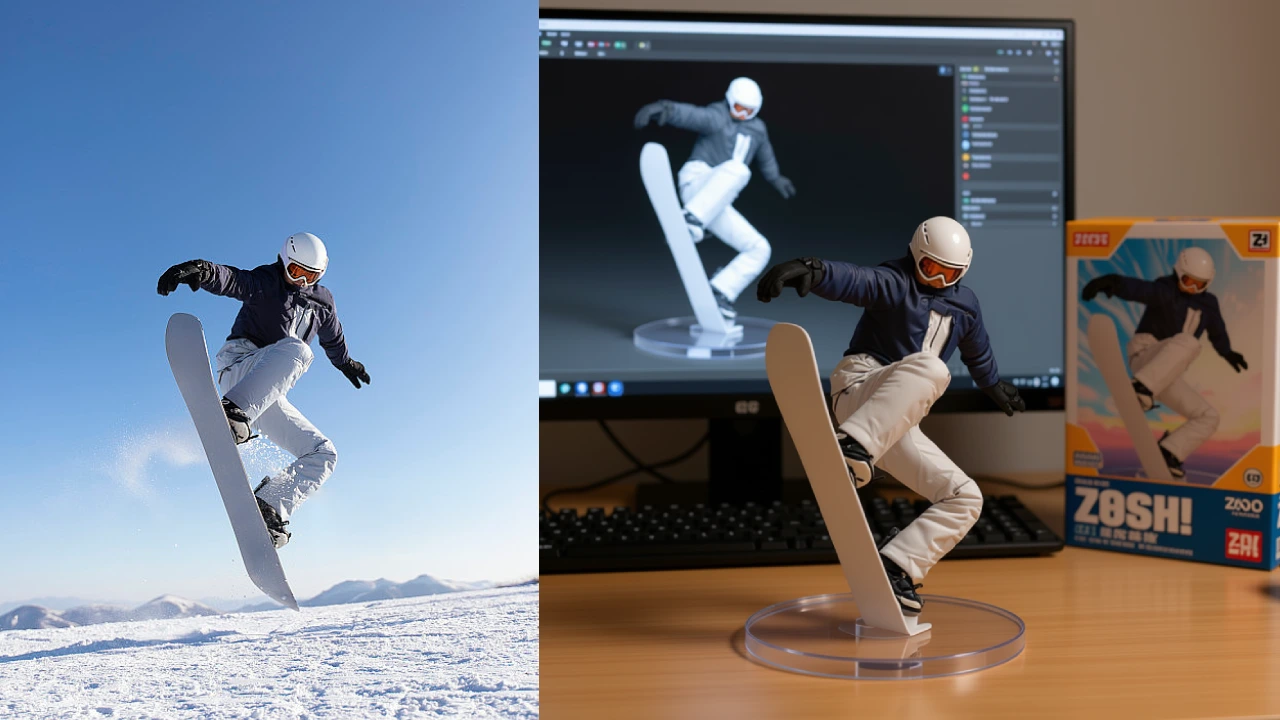
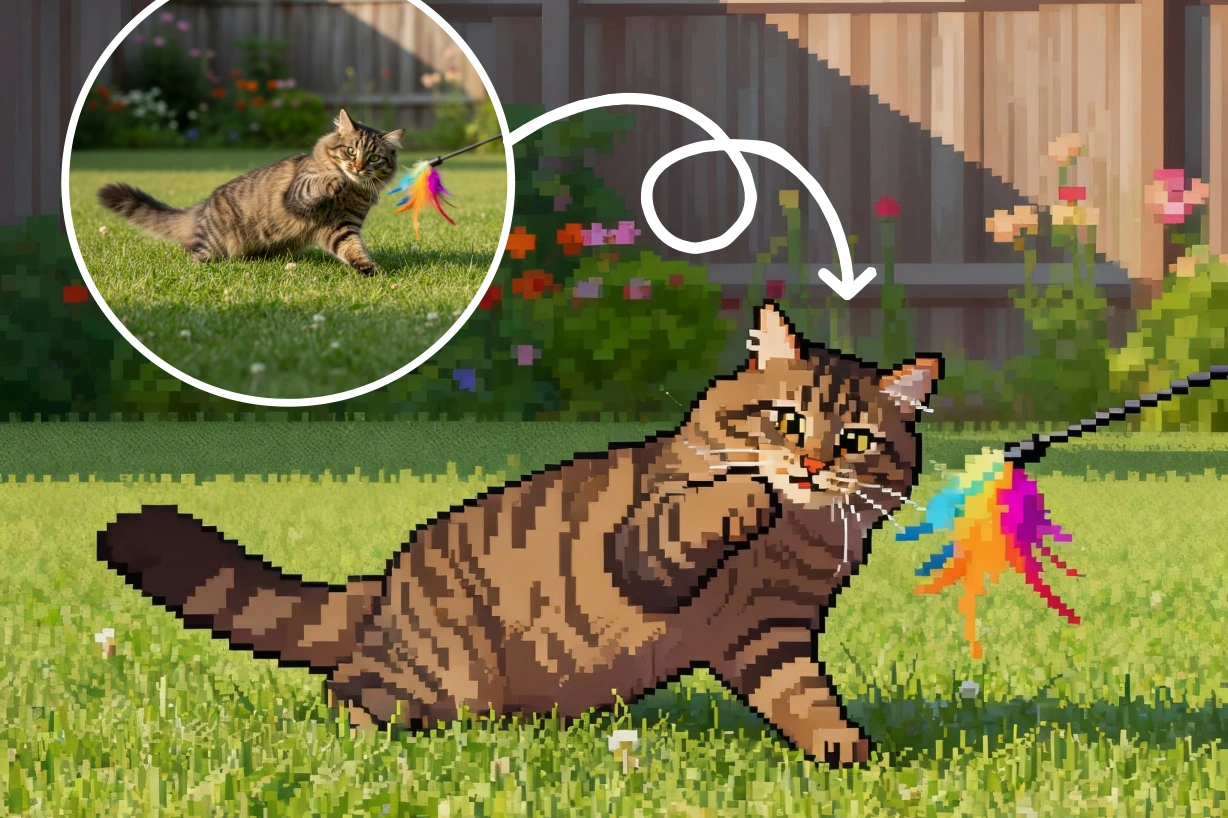
Examples show the target style. Your result depends on the chosen model and reference photo.
Upload a photo to turn it into a 3D Pixar-style render with rounded edges, big eyes, and bright studio light.
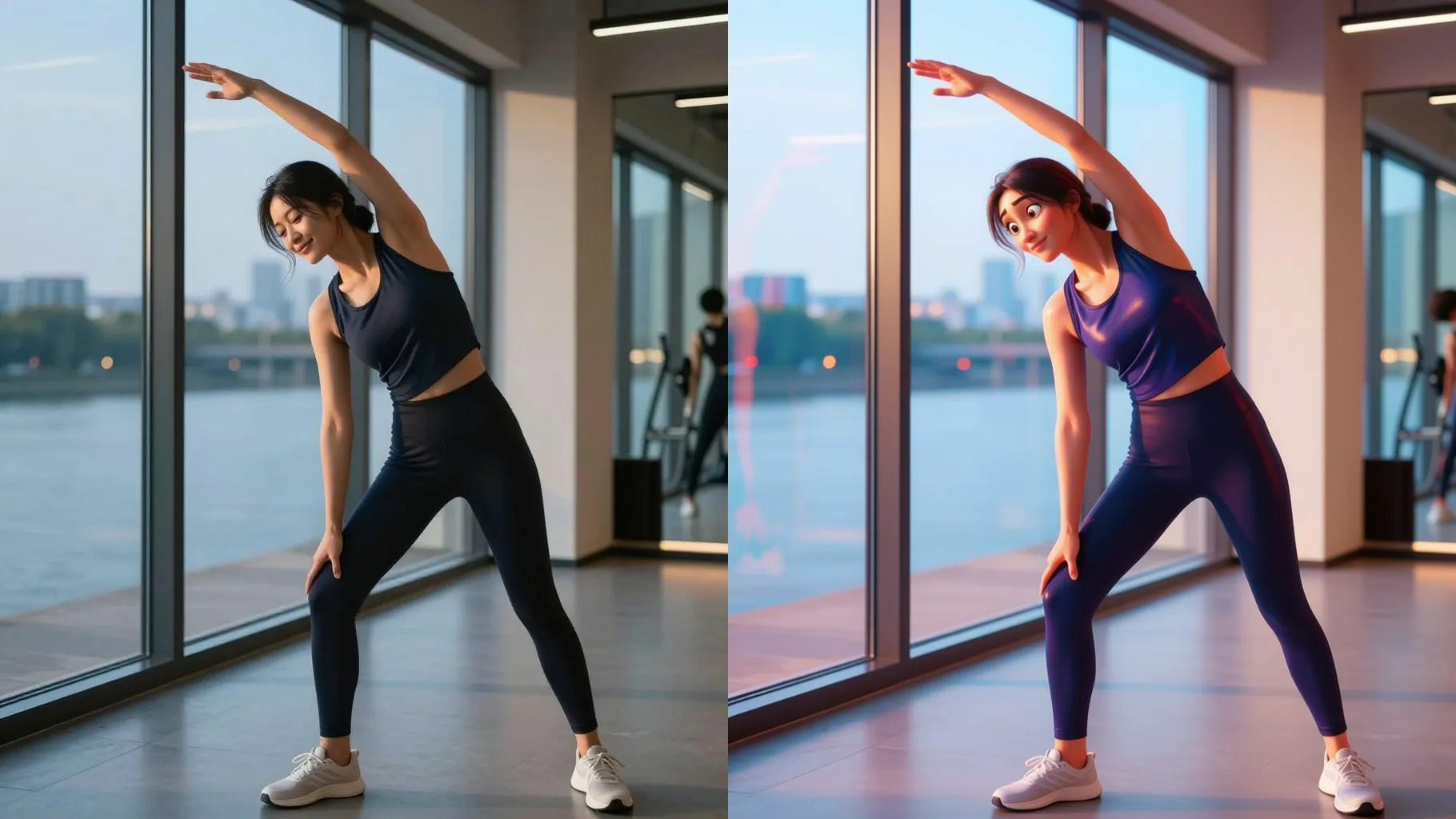
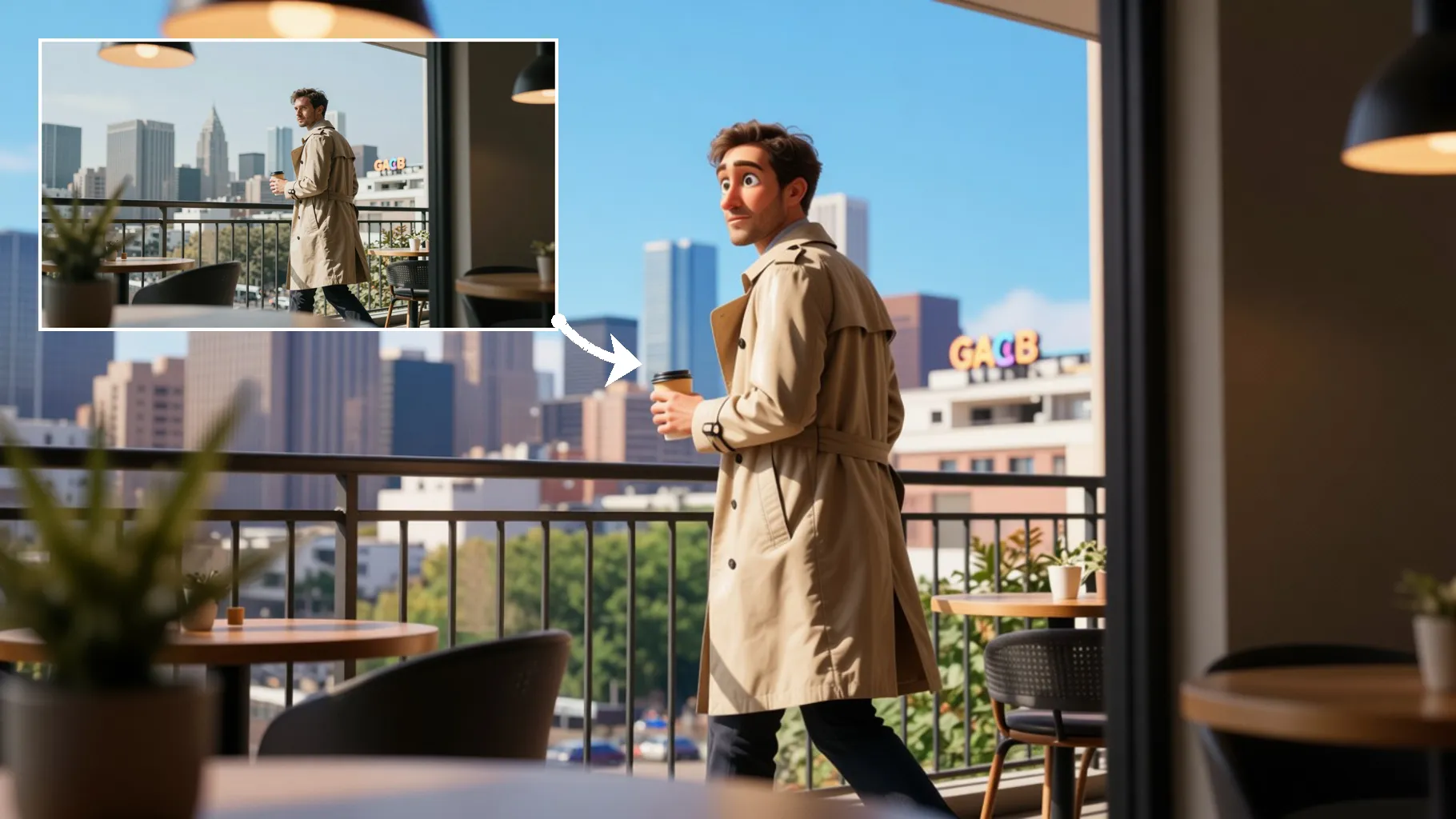
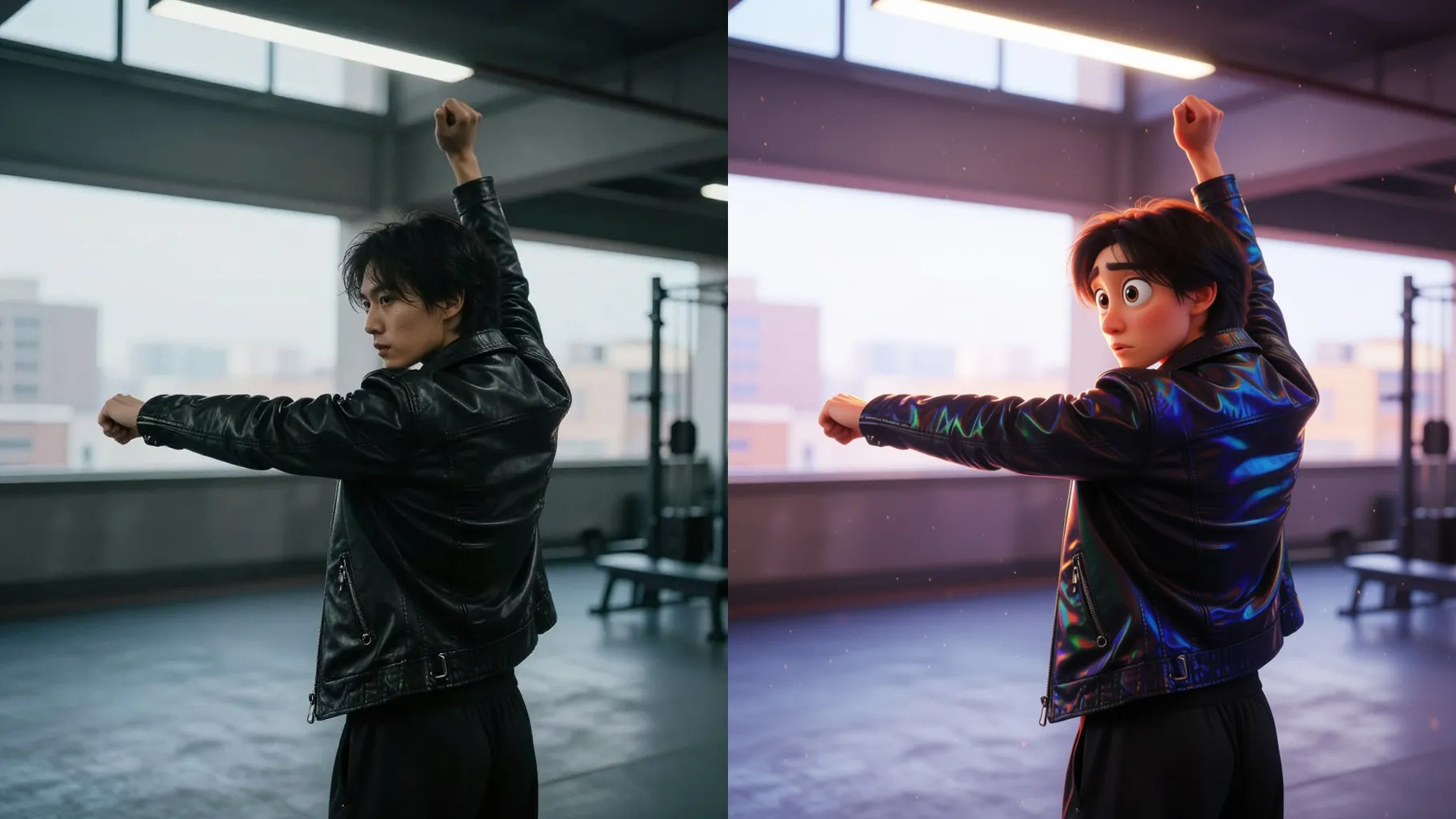
Add rim and key lights, soft bounce, and gentle depth of field so the render feels like a Pixar frame while keeping facial details clear.
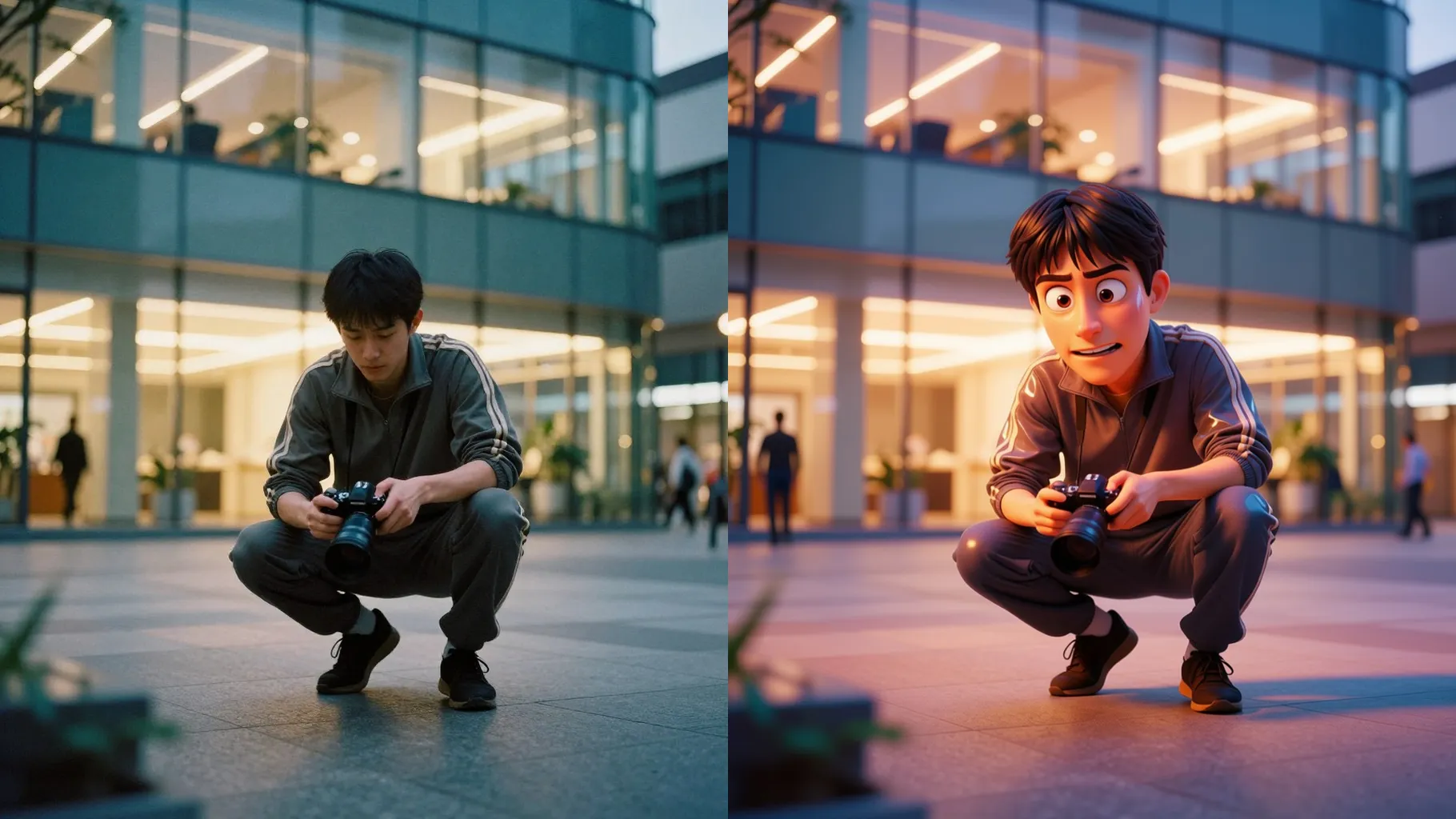
Boost saturation, polish skin, and simplify backgrounds to mimic animation-friendly materials without losing likeness.
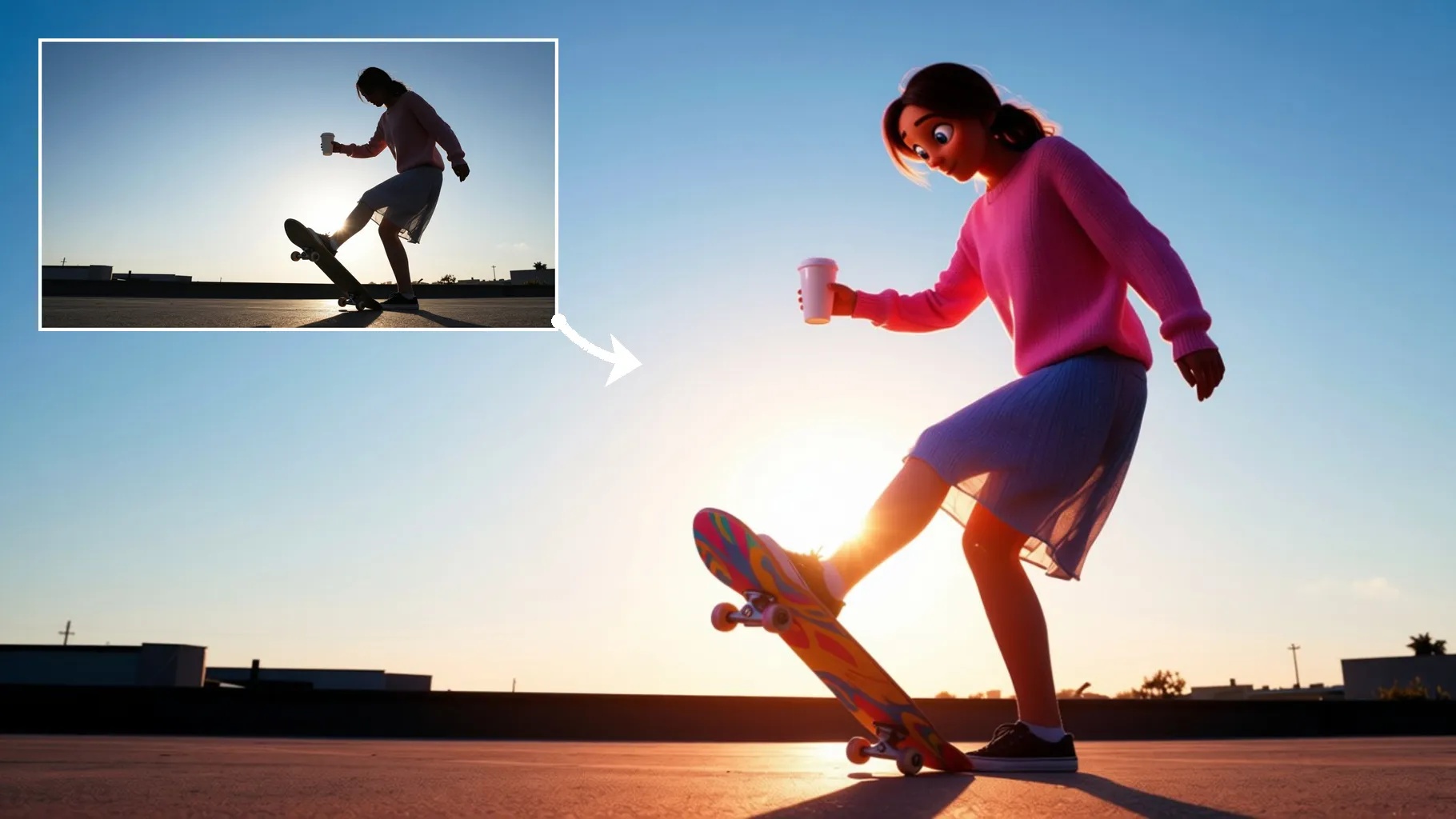
Use a centered, well-lit subject so the 3D look stays crisp.
Mention mood, setting, or camera angle to guide the render without overloading it.
Preview the Pixar-style output, pick your favorite, and save.
This template works best with one photo per run to keep details stable.
A short line about mood or scene is enough; concise prompts keep the Pixar style consistent.
JPG, PNG, or WebP under 10MB process fastest while keeping textures clean.
Around 1024px on the long edge balances speed and detail; very small images may look blurry.
This preset stays square for stability; crop your photo beforehand if you need another ratio.
Model switching is disabled to keep the Pixar look consistent across results.
Yes. The render smooths surfaces but preserves facial proportions and key features.
Generation time depends on the model, image size, and queue. Check the task status on this page.
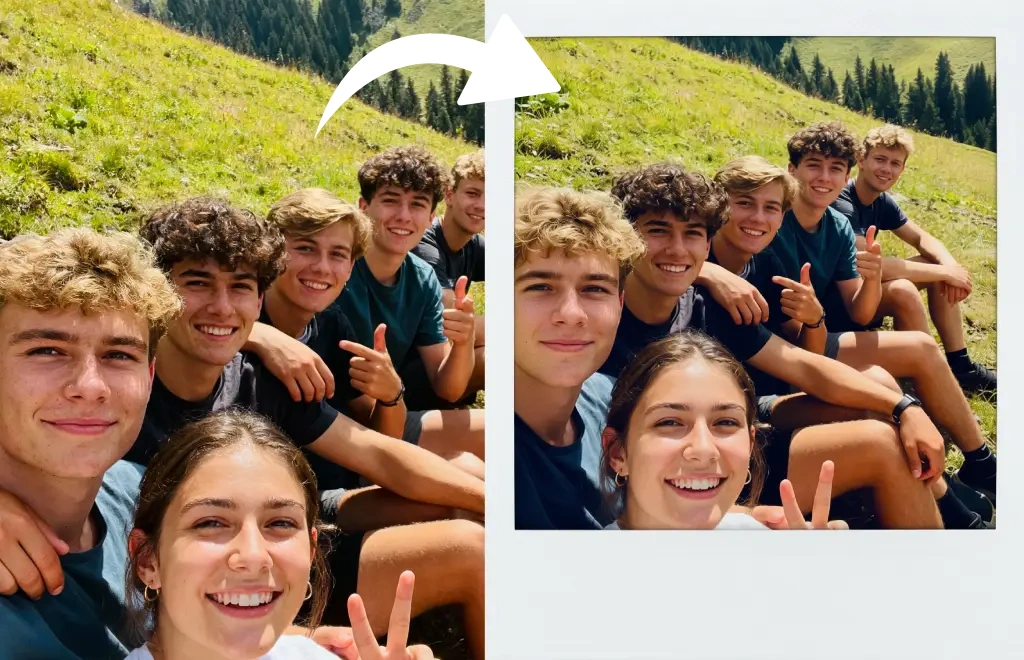
Single subjects give the cleanest 3D look. Multiple faces may merge in this style.
No. This effect is image-to-image and needs one upload to start.

Upload one photo, add a quick direction, and get a bright 3D character image ready to download.