
1. How many photos can I upload at once?
This template is optimized for one image per run to keep the cover layout clean and focused.
Turn one photo into a square album cover with bold lighting, textured grain, and space for titles.
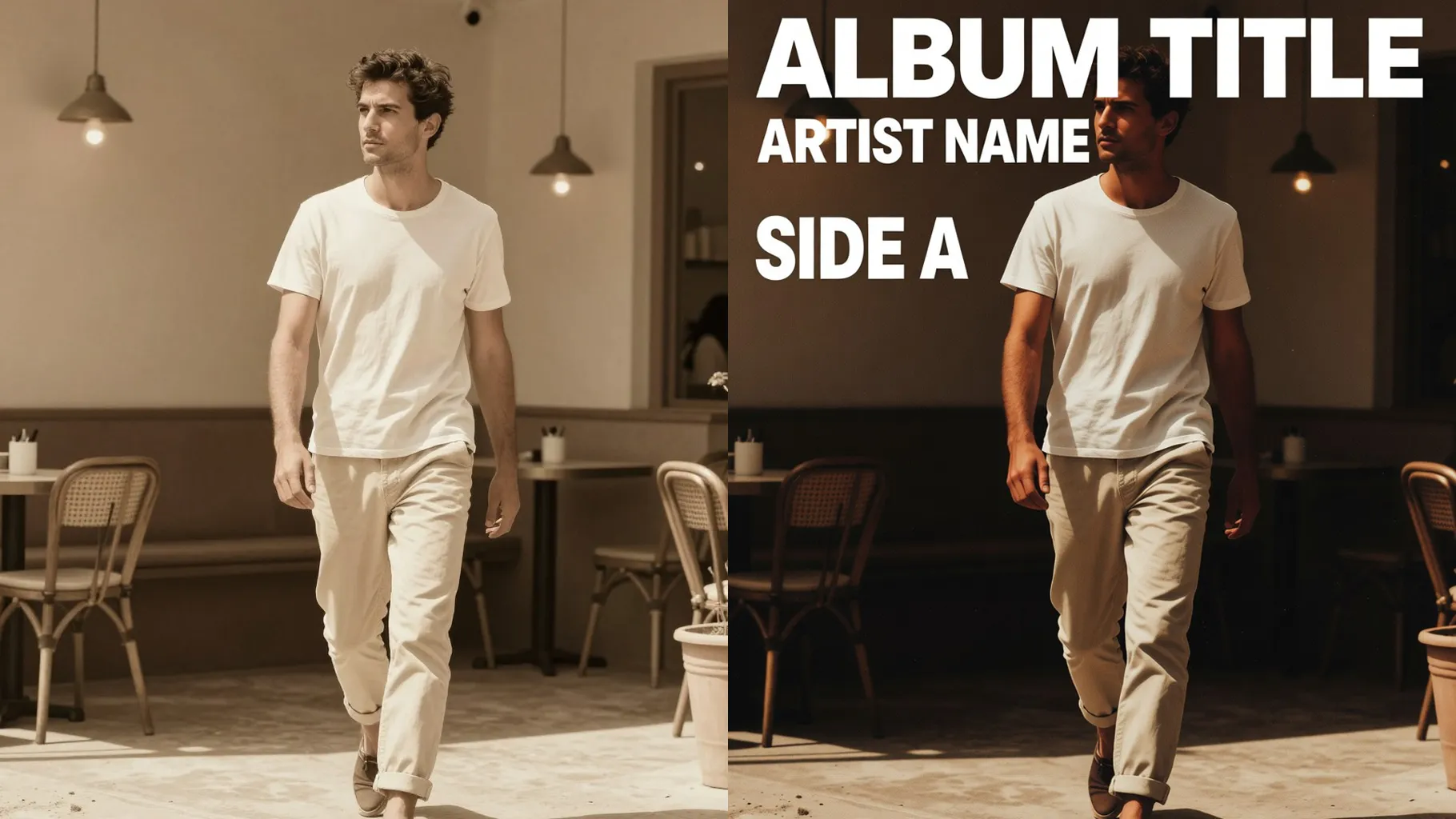
Turn portraits into gritty square album covers with dramatic lighting and bold type.
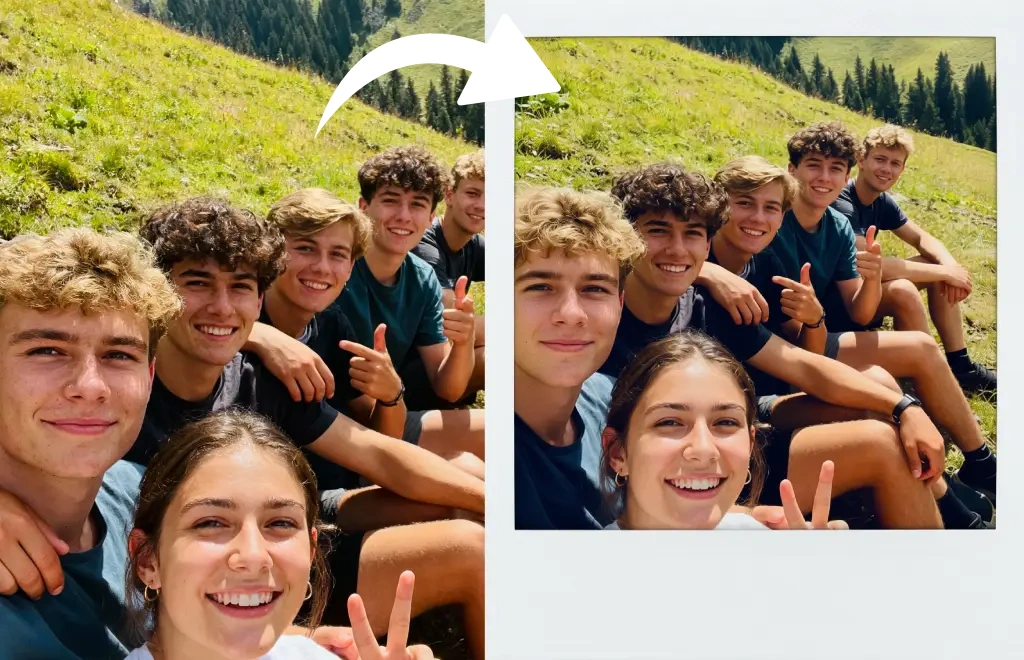
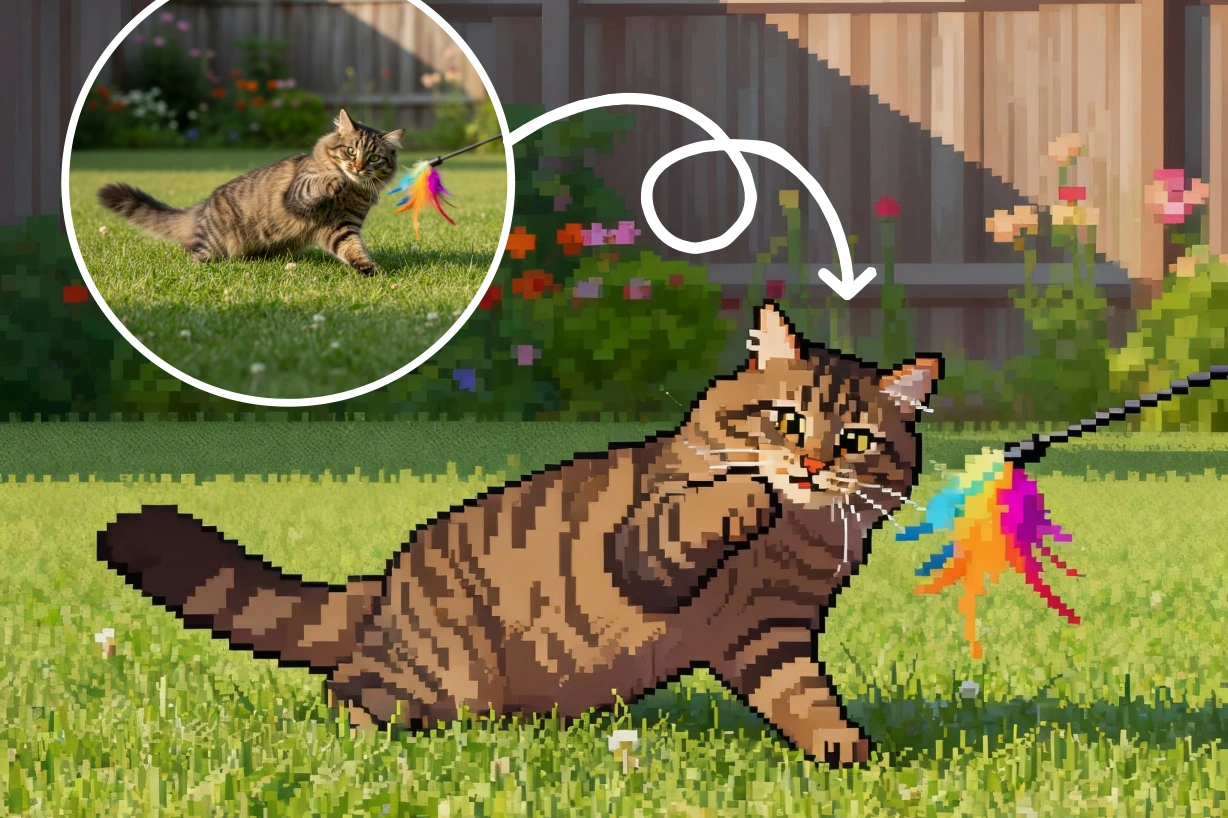
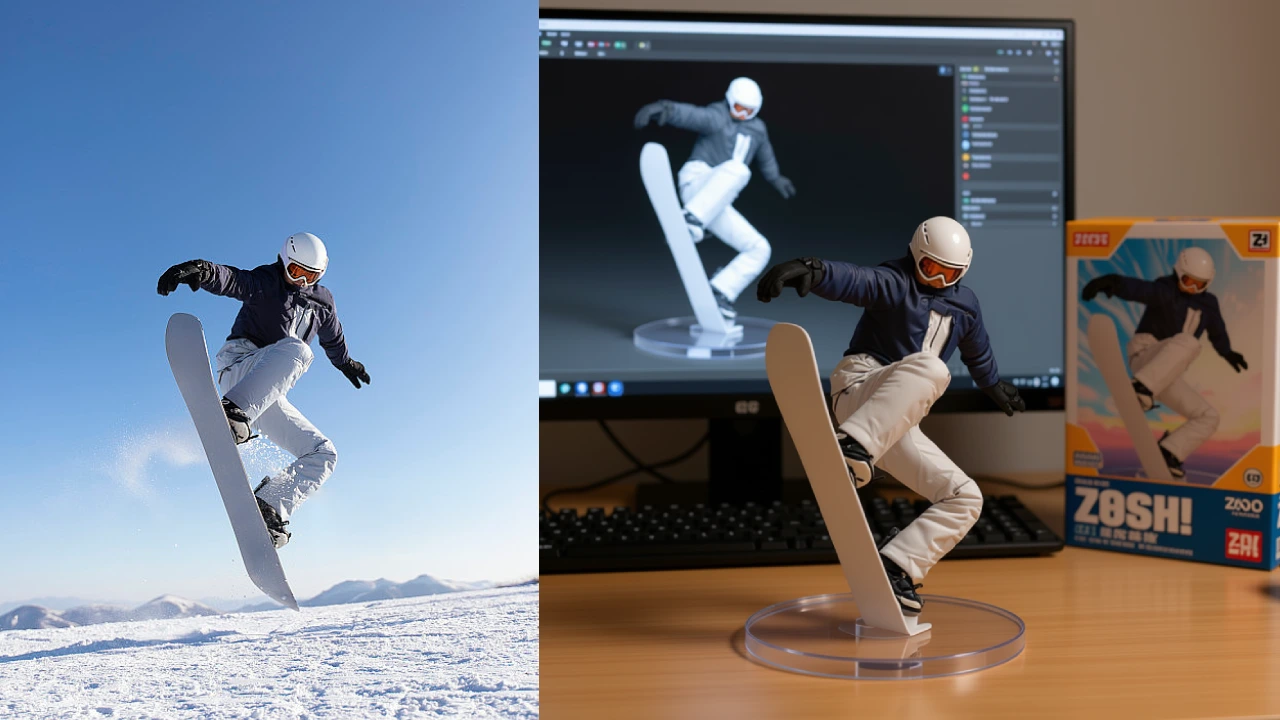
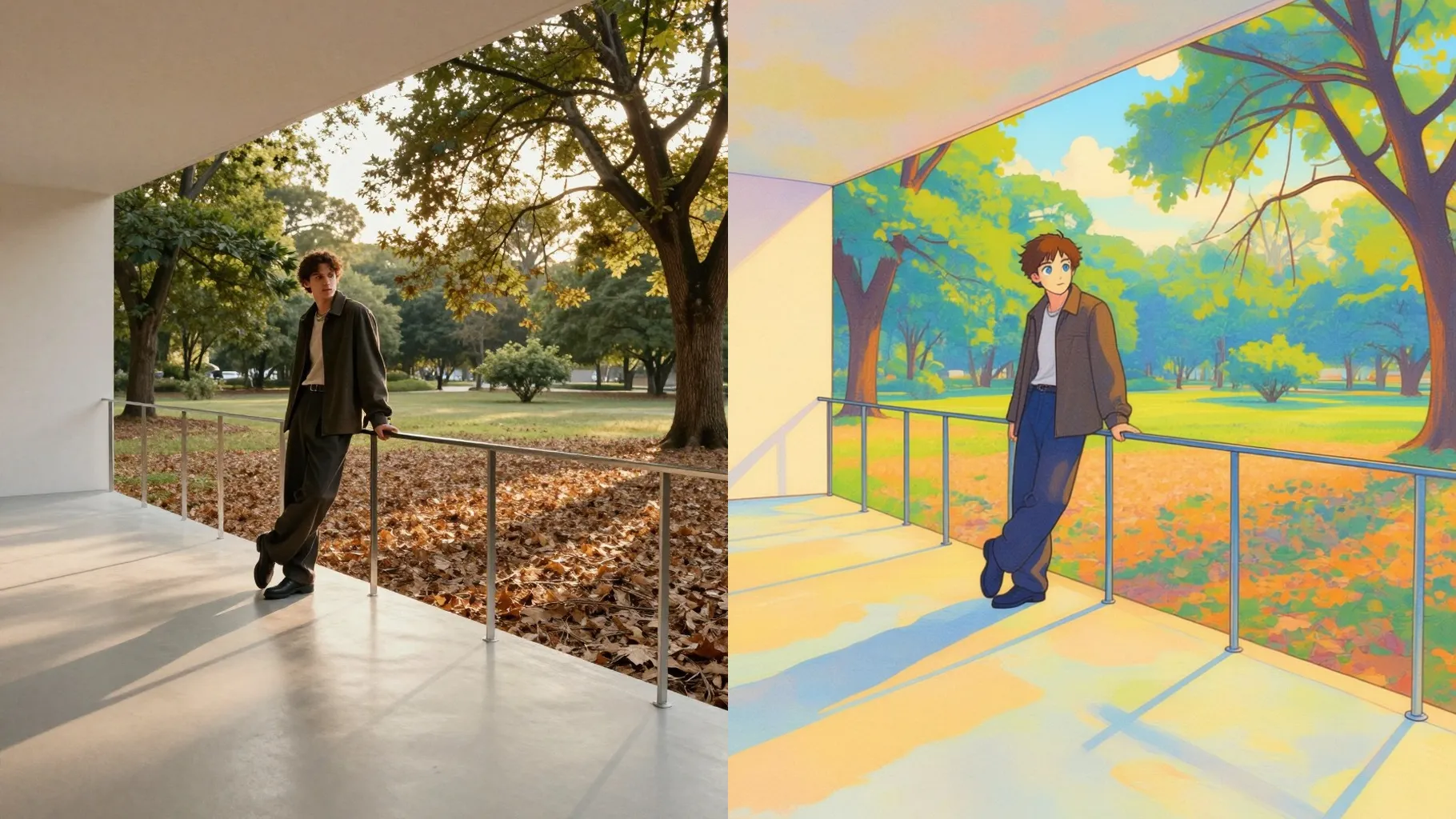
Examples show the target style. Your result depends on the chosen model and reference photo.
Upload one photo to design a square, music-inspired album cover with stylized lighting, textures, and bold typography.
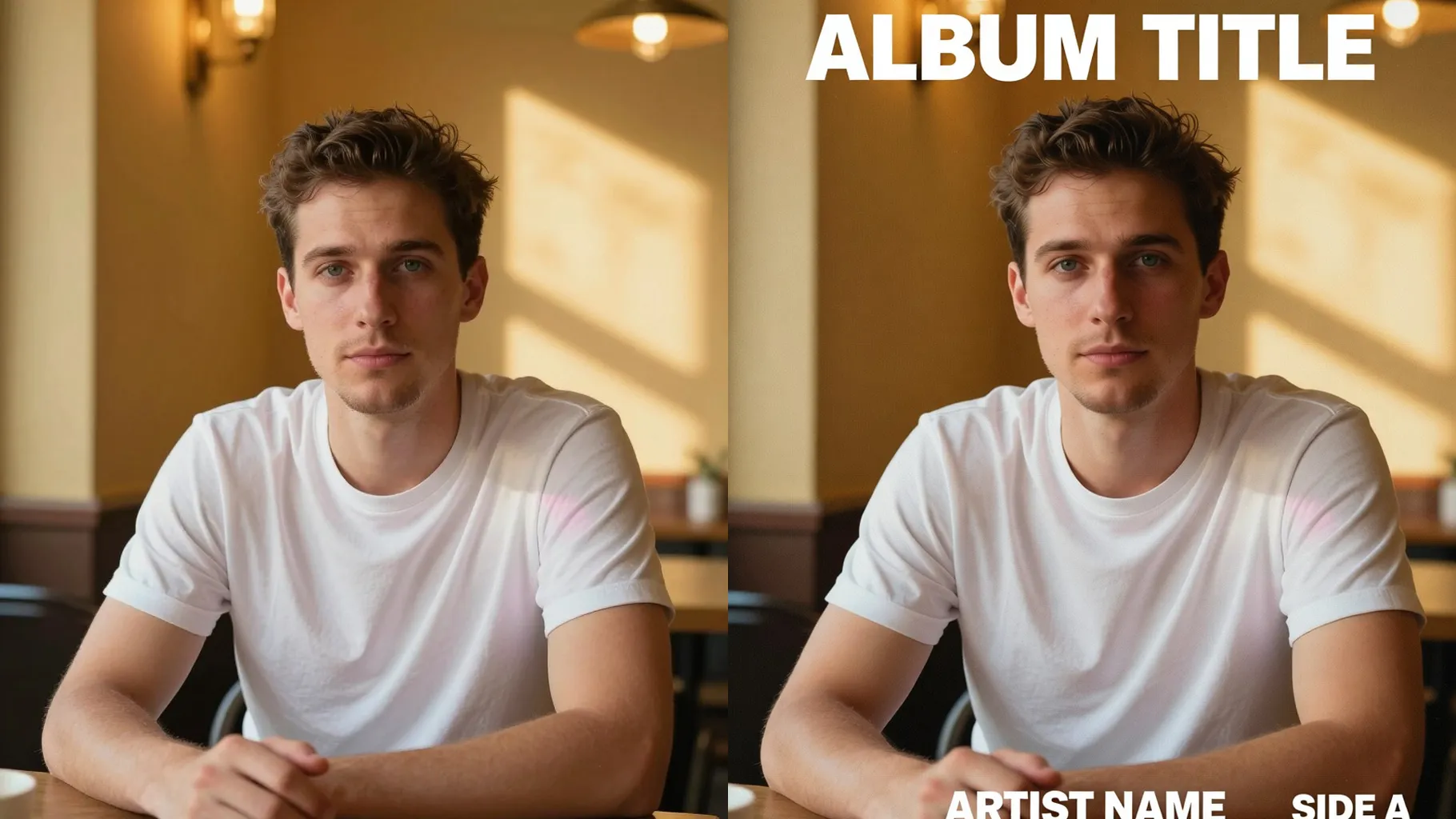
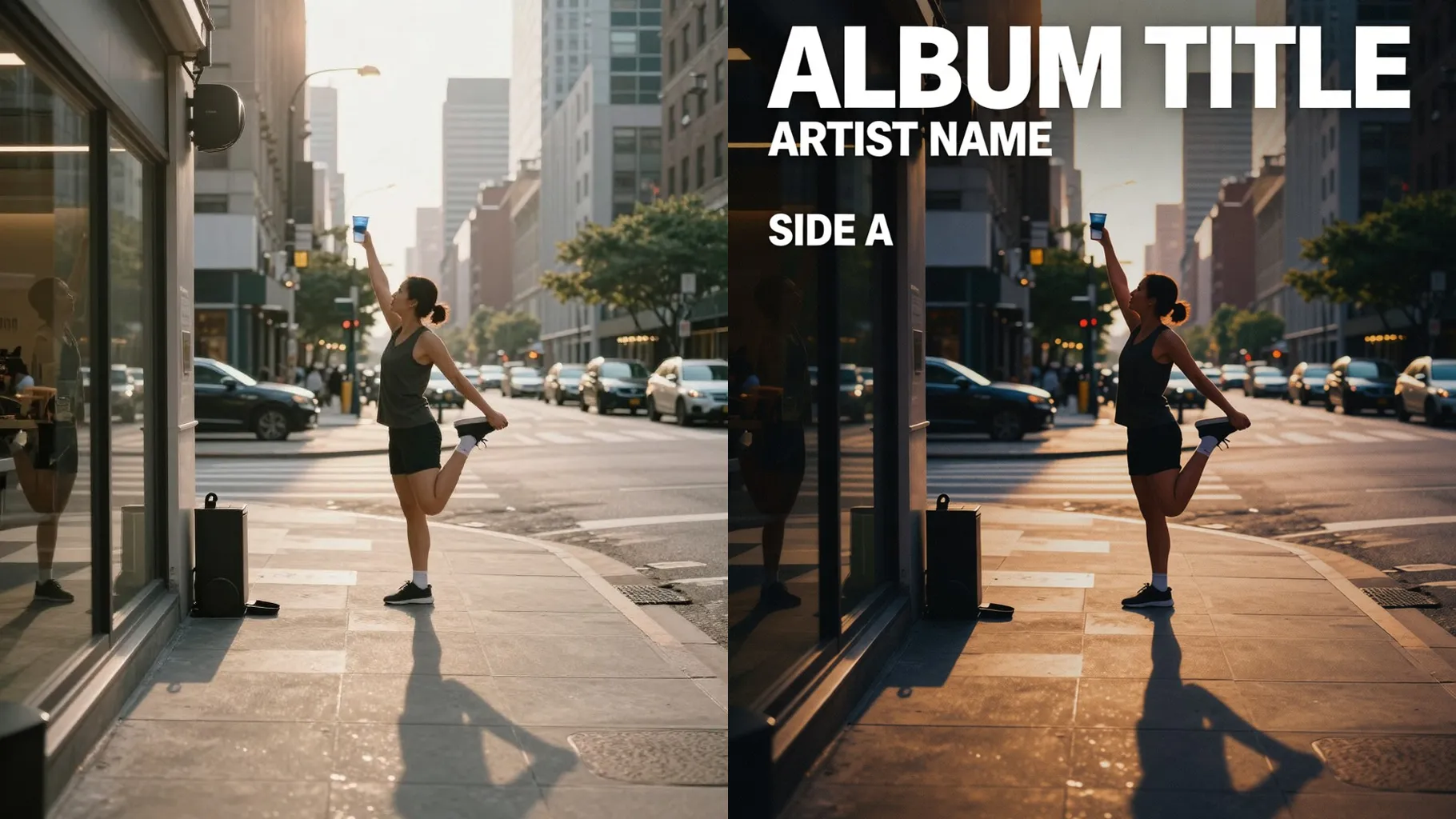
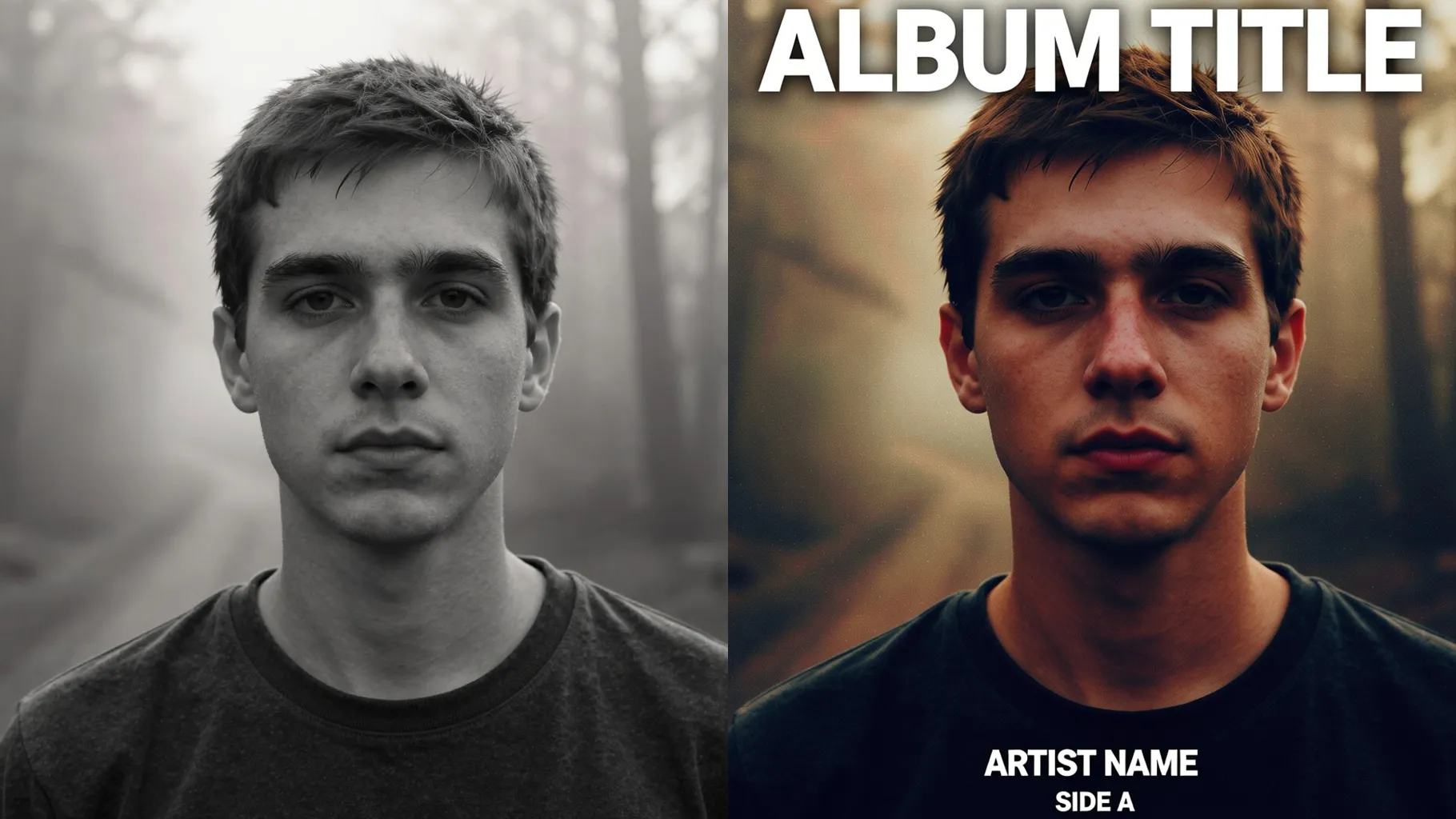
Add dramatic key light, color gels, and vignette framing so your portrait feels like a real album shoot while keeping faces clear.
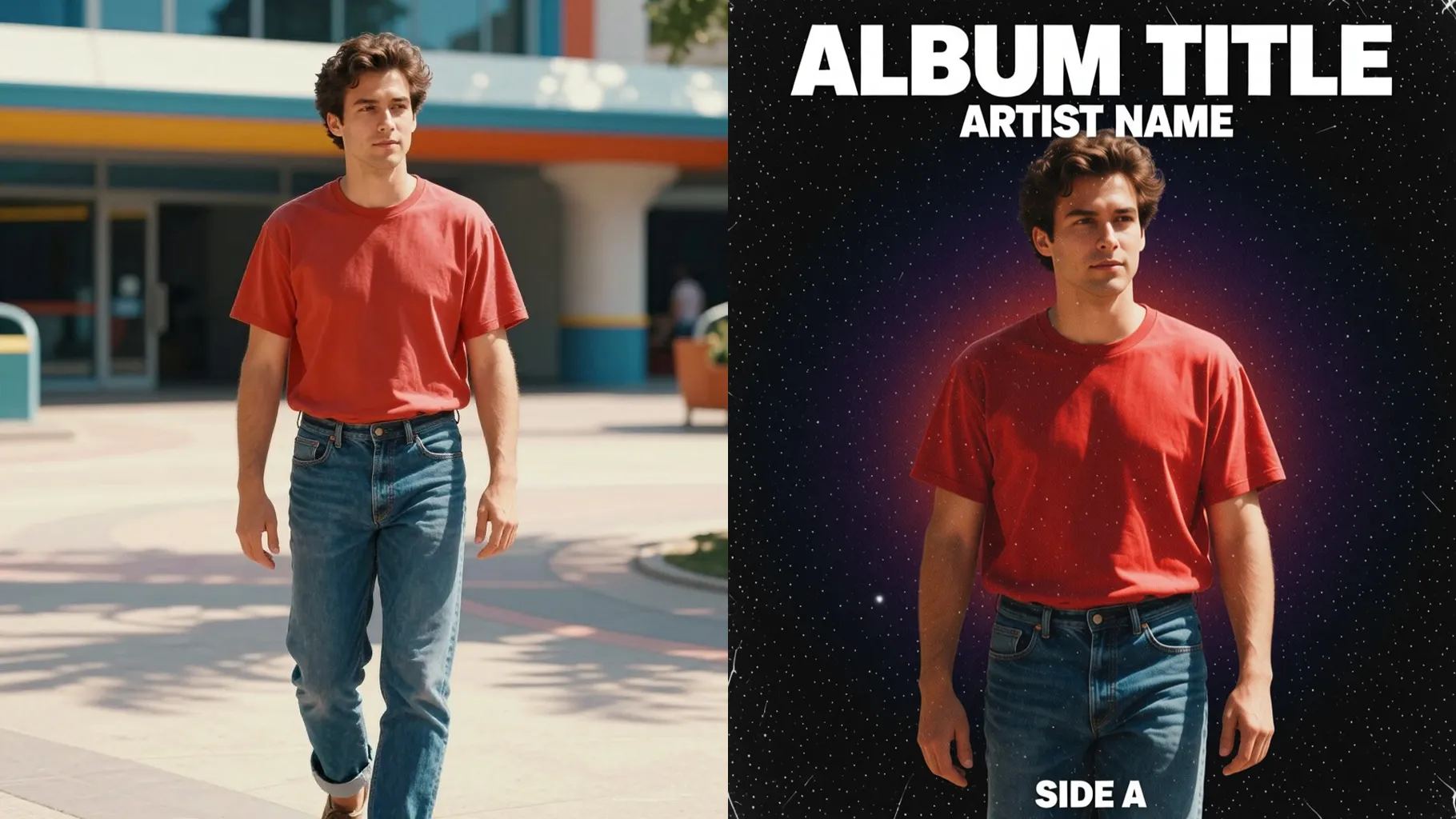
Keep space for artist names or titles with balanced negative space, clean layering, and square-safe composition.
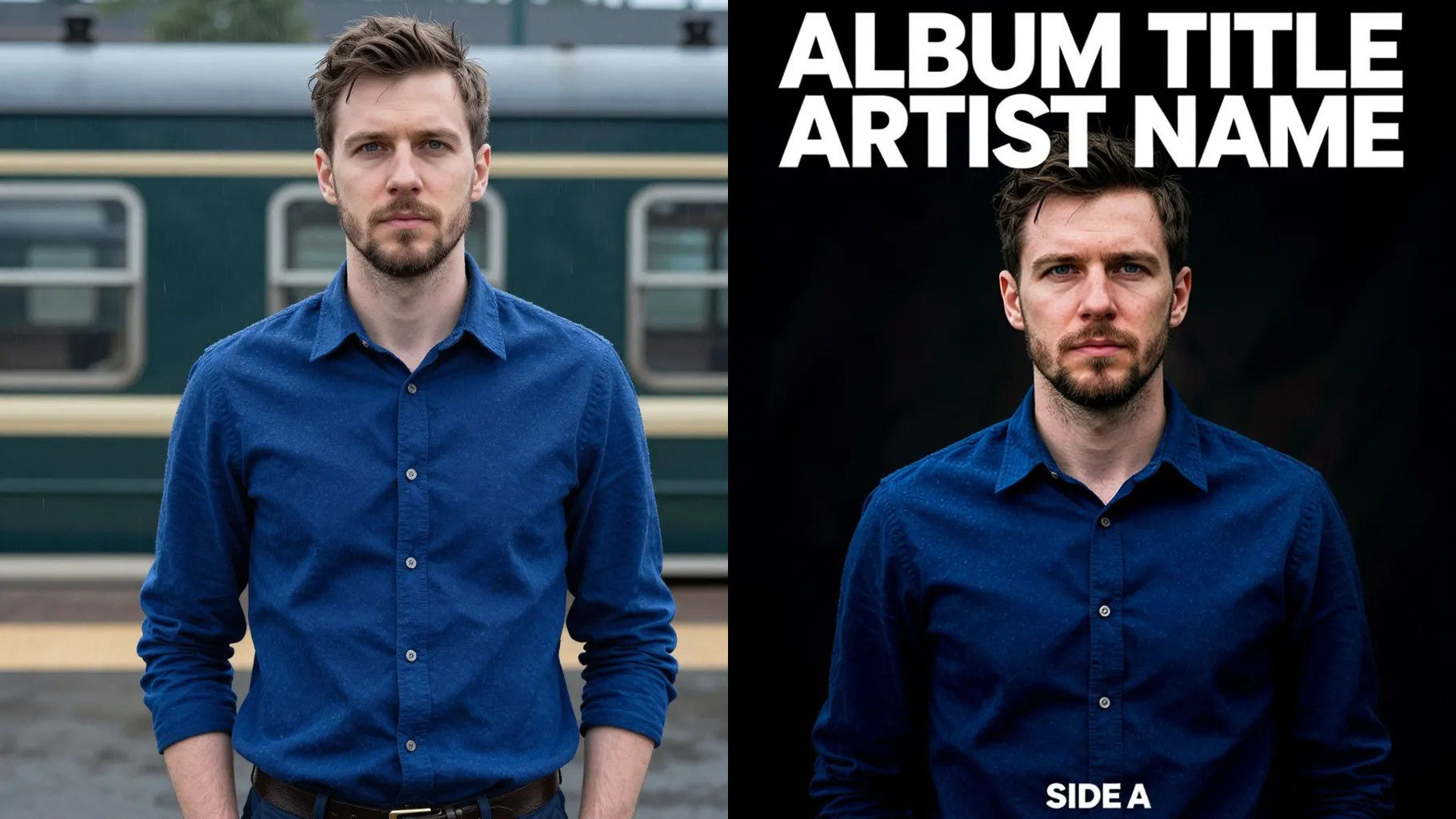
Use a centered, well-lit subject so lighting effects stay crisp after styling.
Add a short prompt about genre, colors, or attitude to guide the design direction.
Review the square cover render, then save the version that fits your release.
This template is optimized for one image per run to keep the cover layout clean and focused.
No. A short note about genre, lighting, or mood works best to steer the cover without over-stylizing.
Upload JPG, PNG, or WebP under 10MB for faster processing and smoother textures.
Album covers stay square for stability. Crop your photo before upload if you need another ratio.
Model switching is disabled to keep the album-cover styling consistent across results.
Yes. The effect adds lighting and texture while preserving key facial proportions.
The layout leaves room for titles, but you'll add exact wording afterward to keep outputs clean.
Generation time depends on the model, image size, and queue. Check the task status on this page.
Well-lit shots give the best results, but casual photos also work if the subject is clear.
No. This is an image-to-image effect and needs one photo to start.

Upload one photo, add a quick genre cue, and get a square album cover ready to share.