
1. How many images can I upload per run?
One portrait per run keeps the masking precise around your eyes.
Switch any portrait to clear blue eyes while keeping lashes, brows, and skin tone realistic.
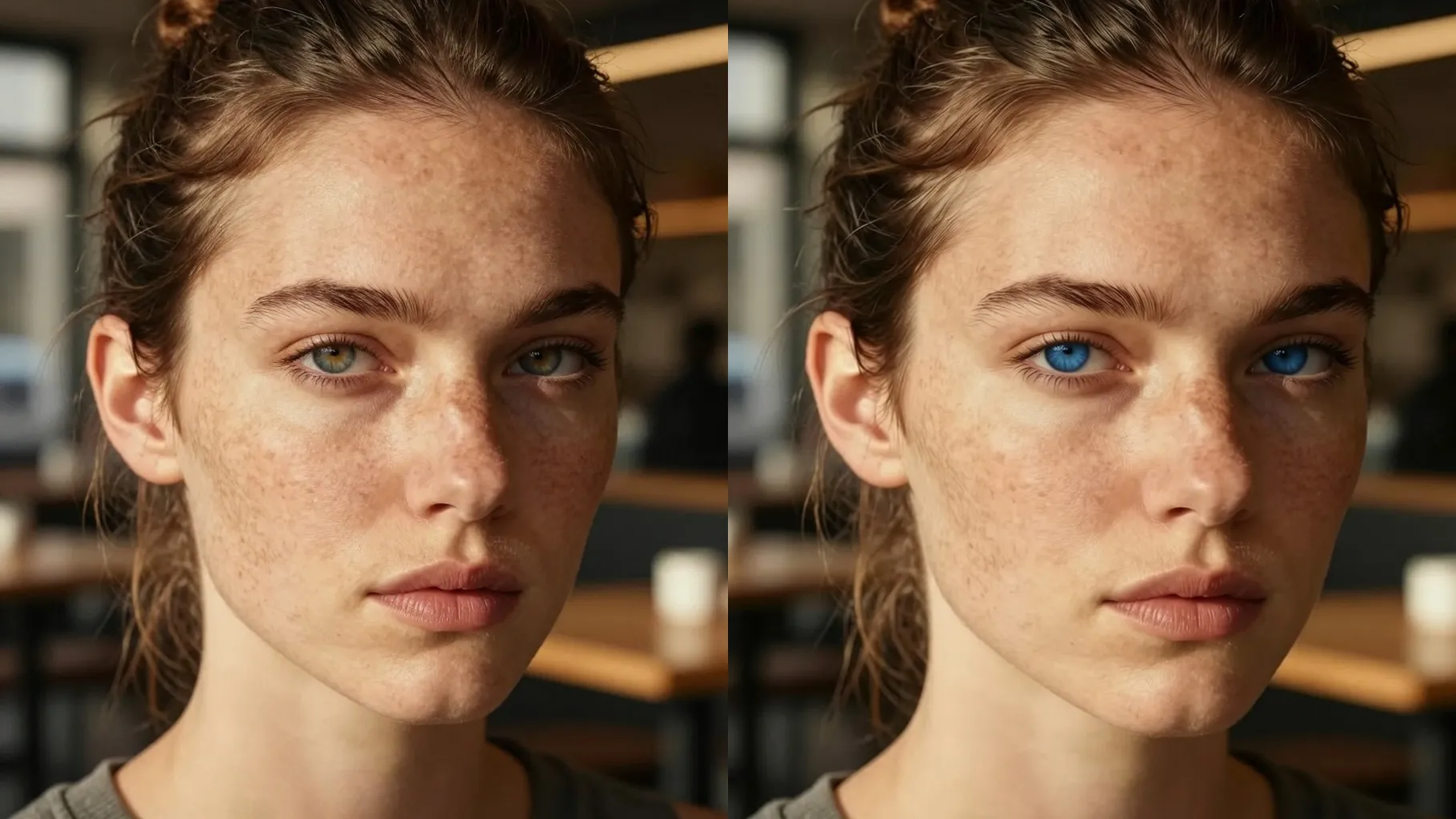
Swap brown eyes to clear blue while keeping skin tone and lashes realistic from one portrait upload.
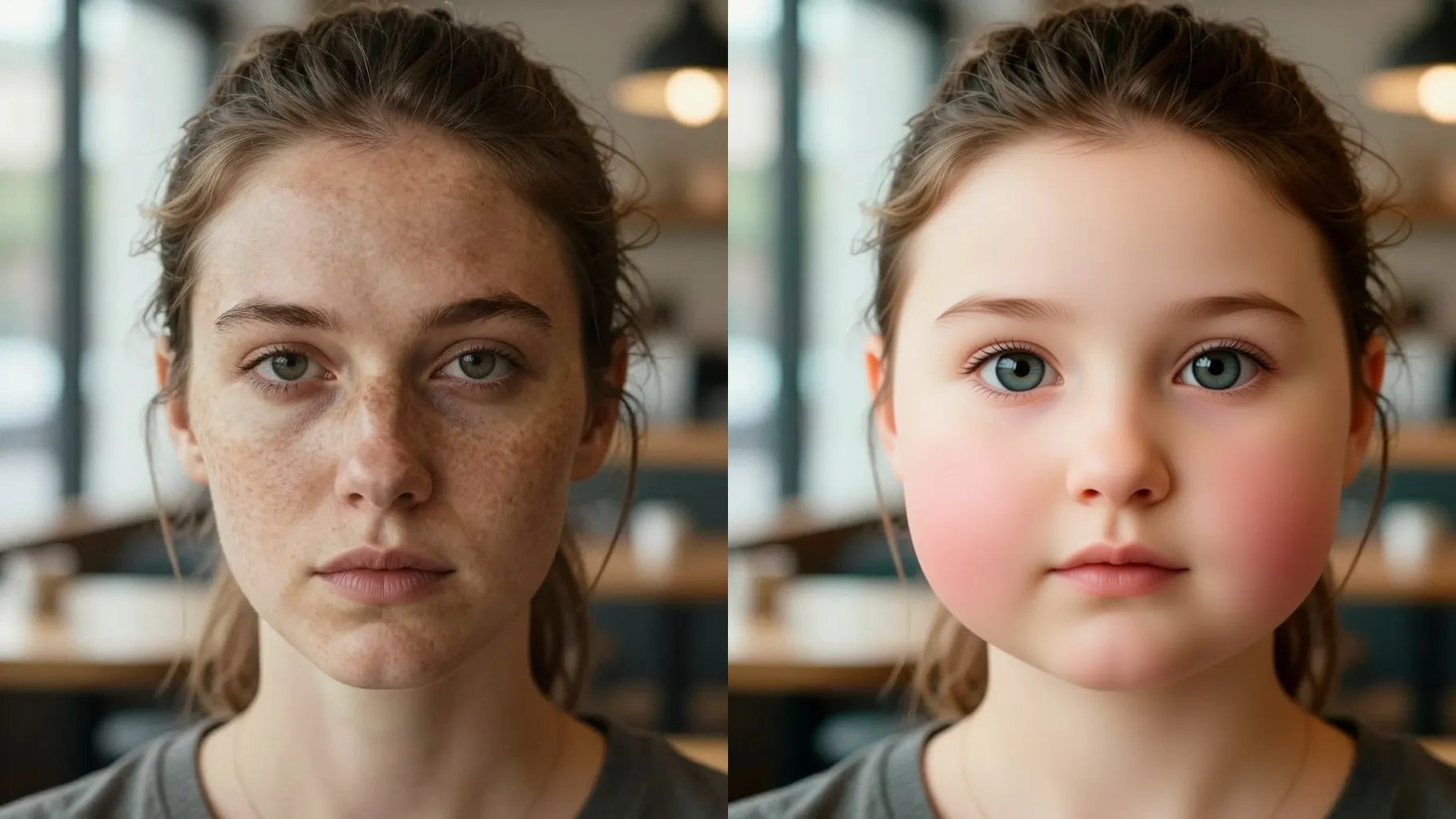
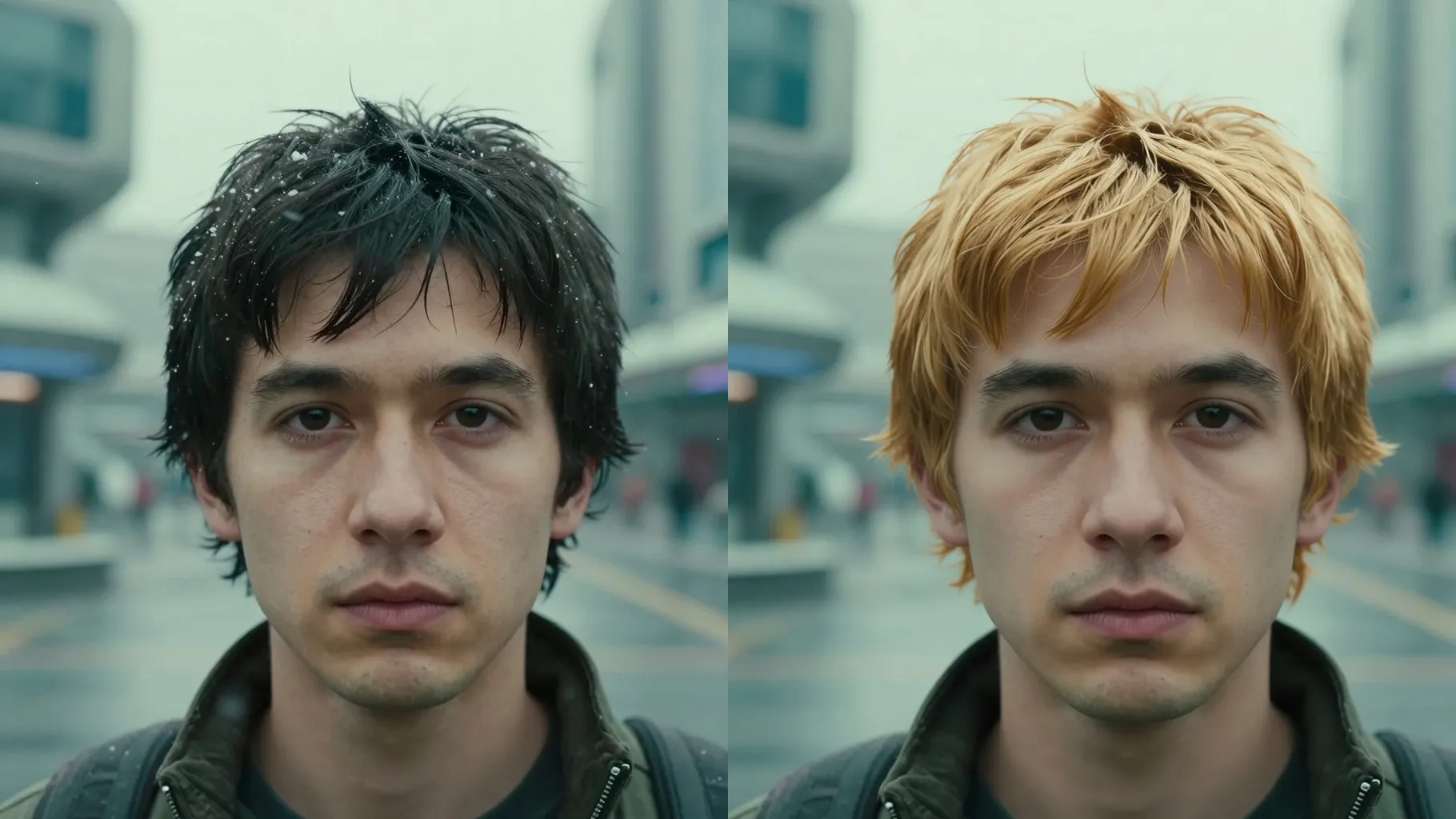
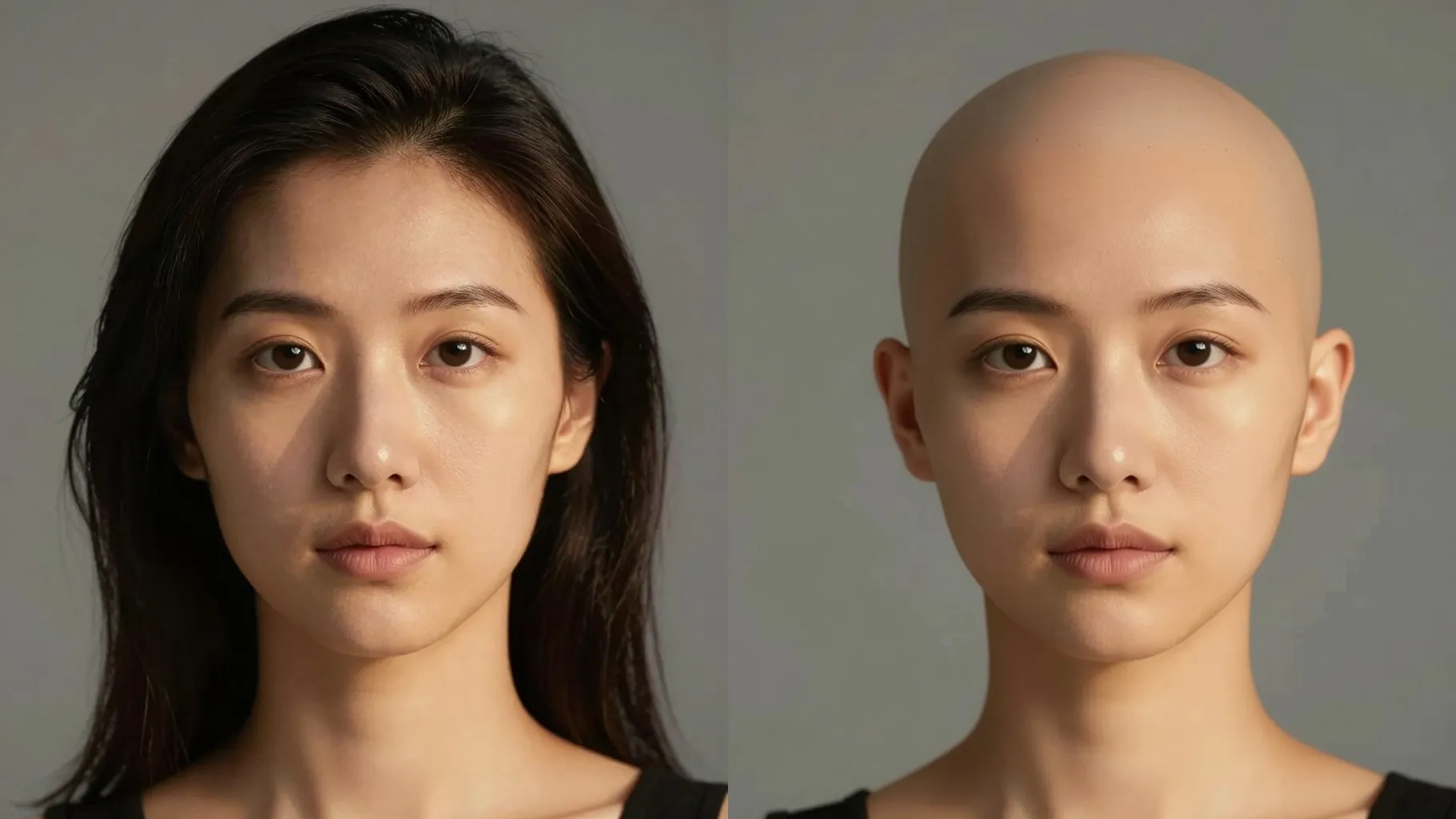
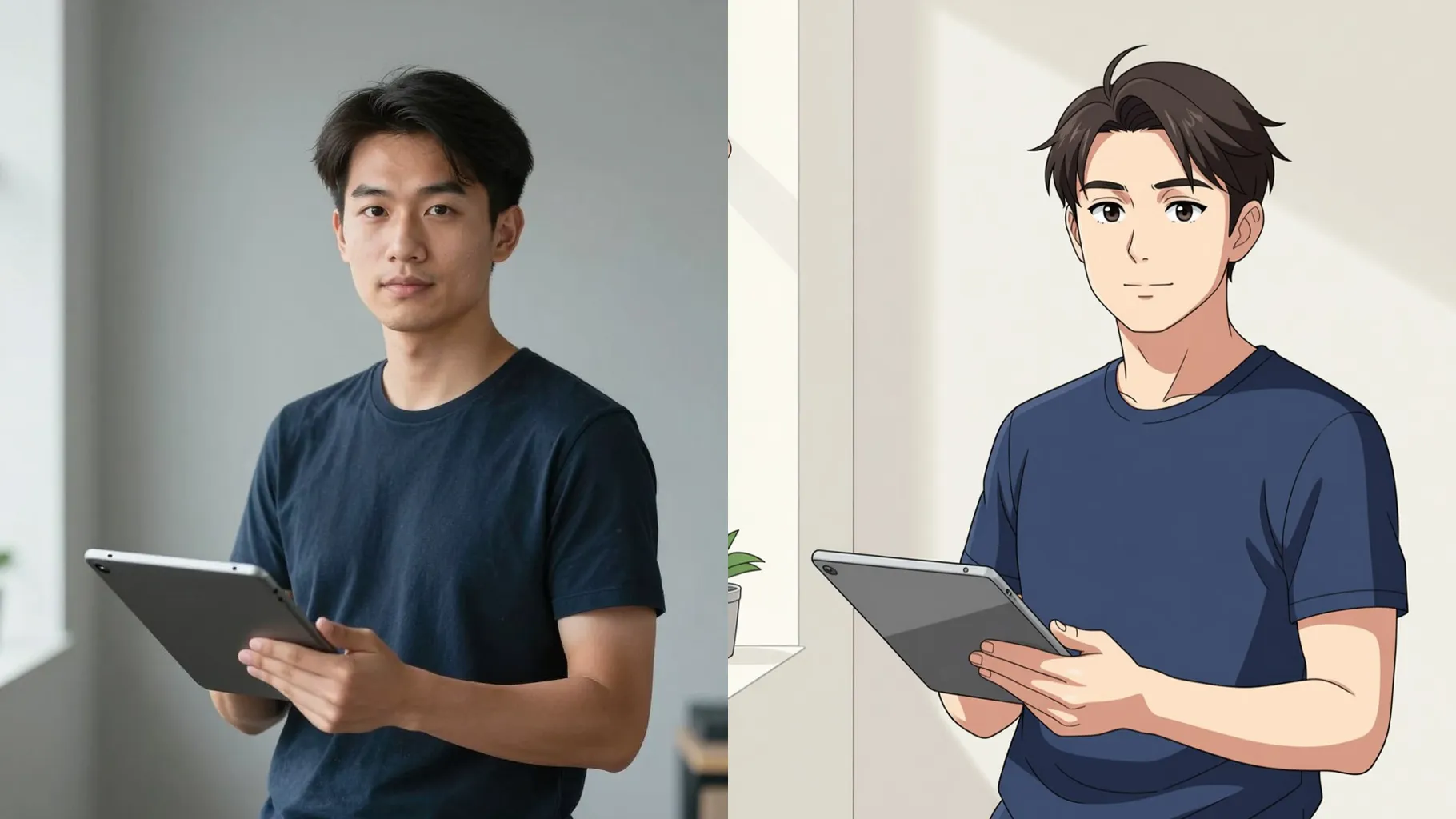
Examples show the target style. Your result depends on the chosen model and reference photo.
Upload one portrait to preview vivid blue irises that stay true to your face shape, lashes, and overall lighting.
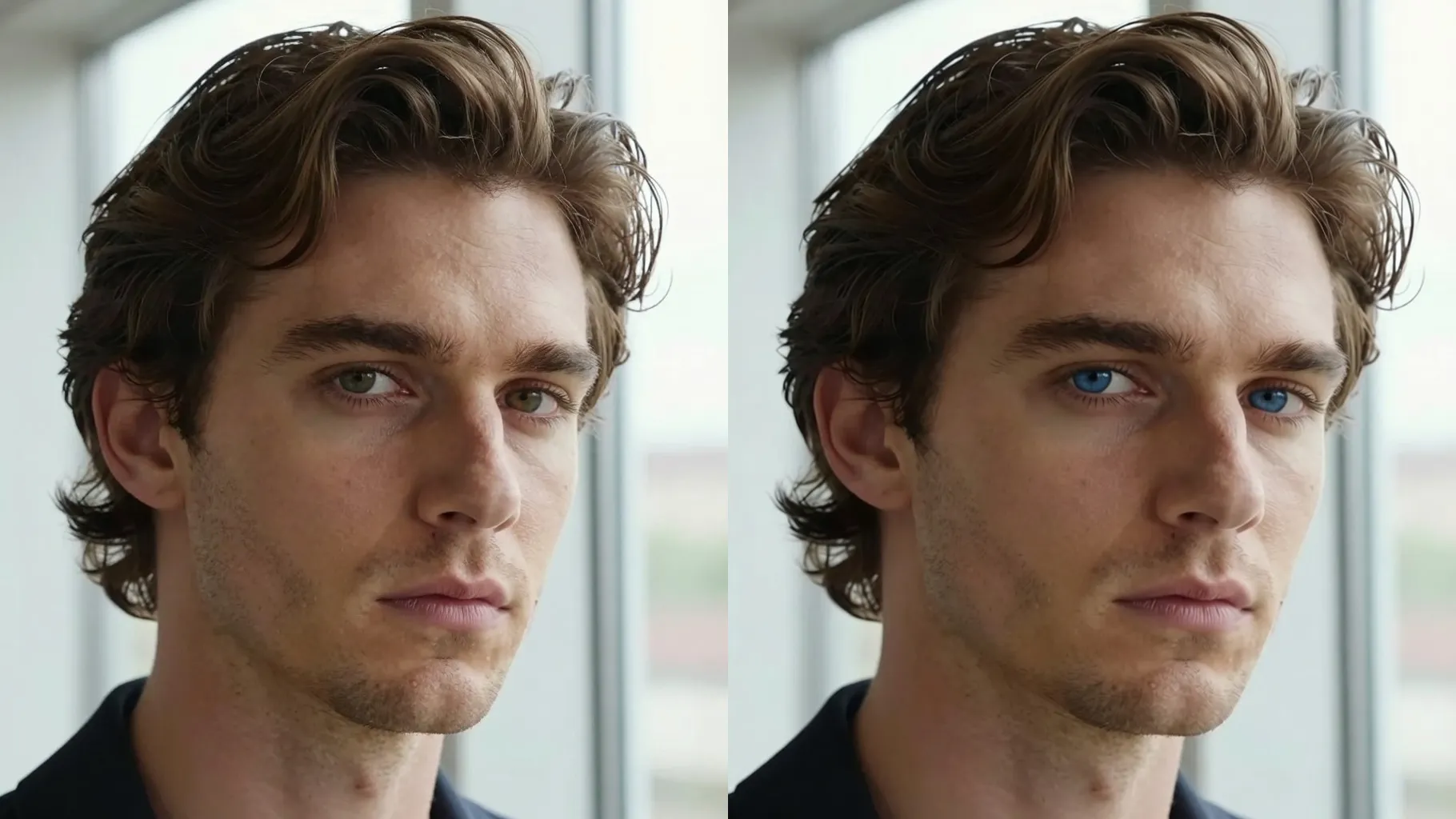
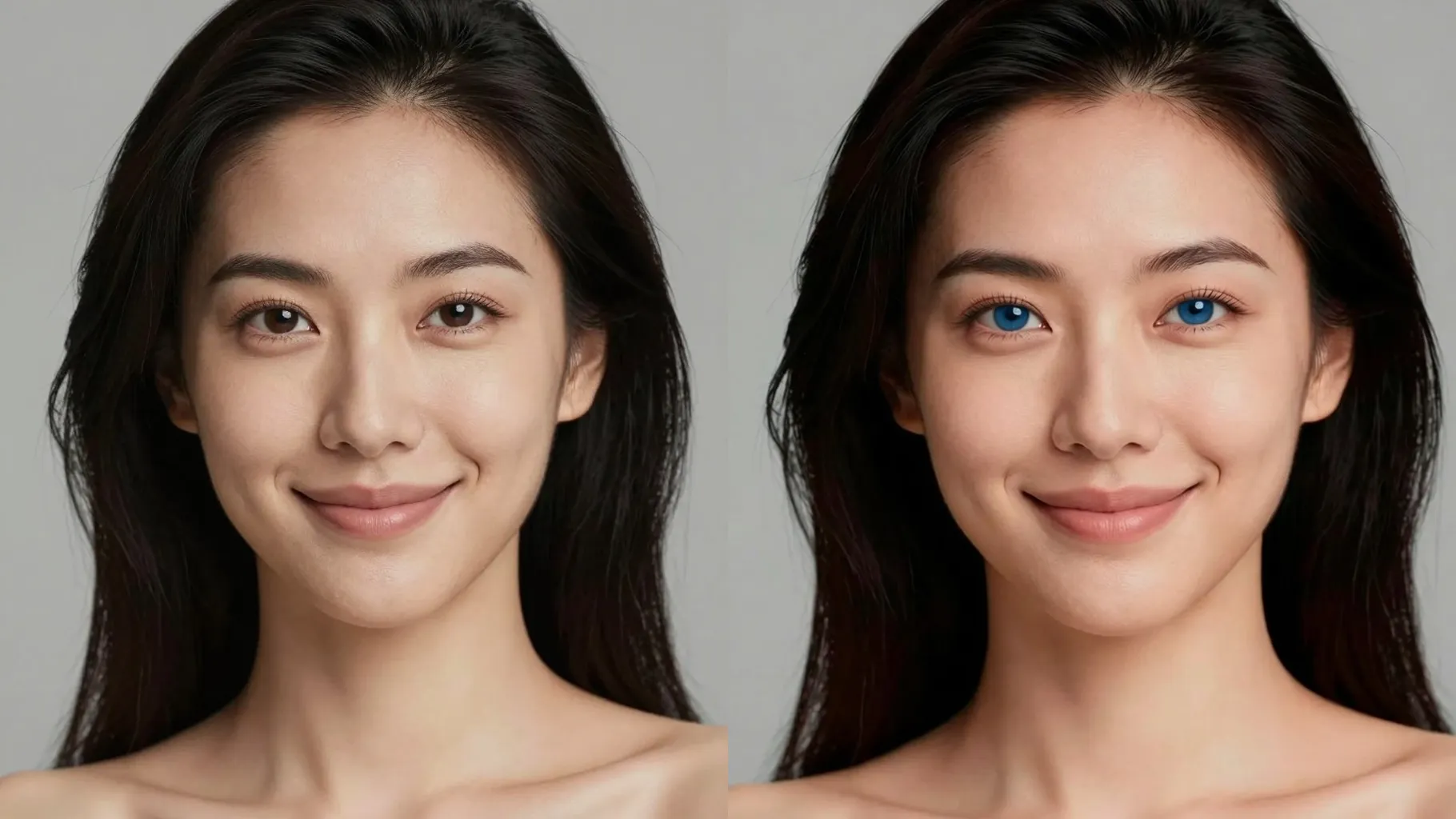
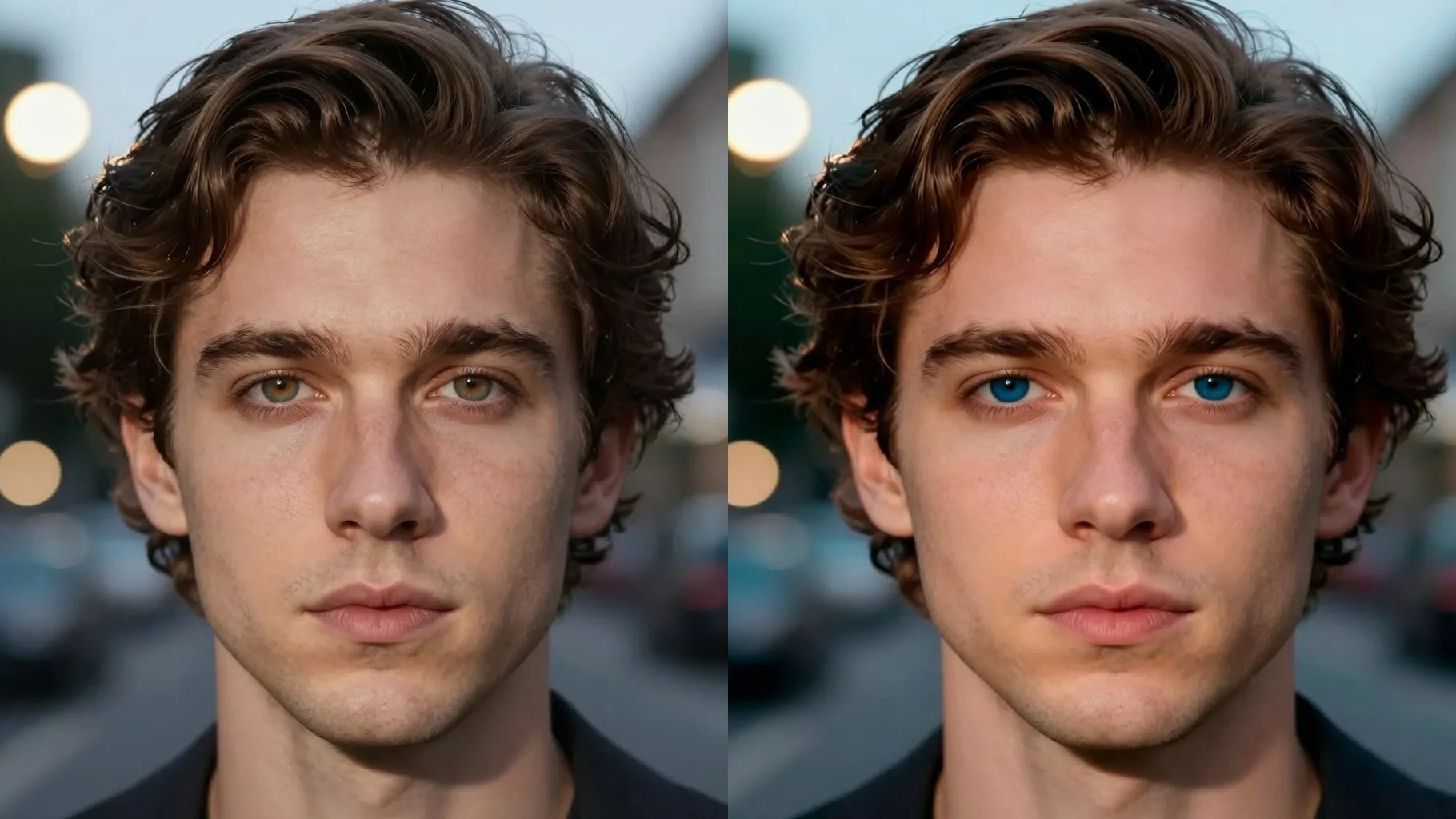
Enhances blue color with sharp pupils and subtle highlights so the eyes look clear rather than artificial.
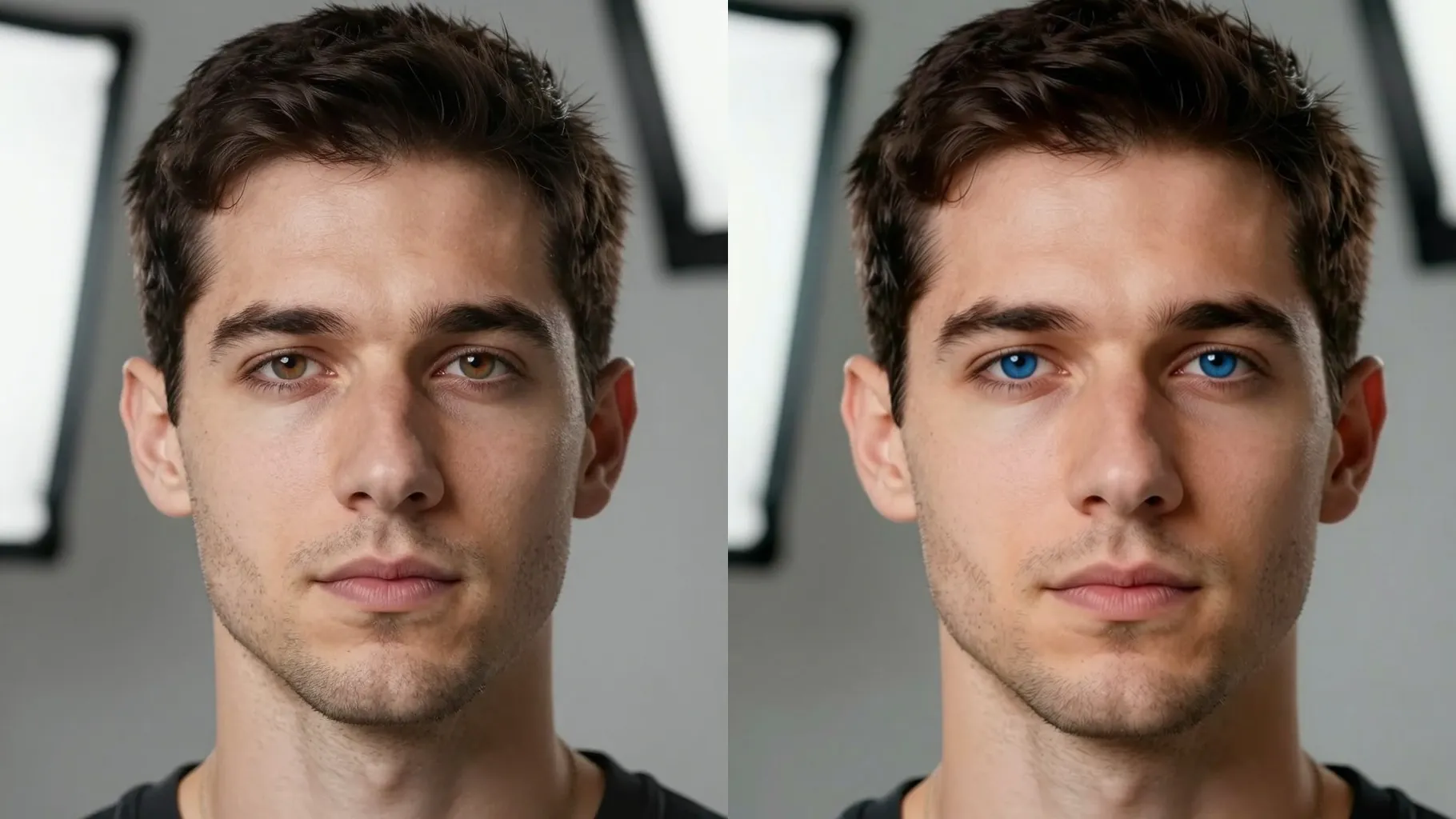
Keeps your complexion, brows, and lashes intact while only shifting the eye color.
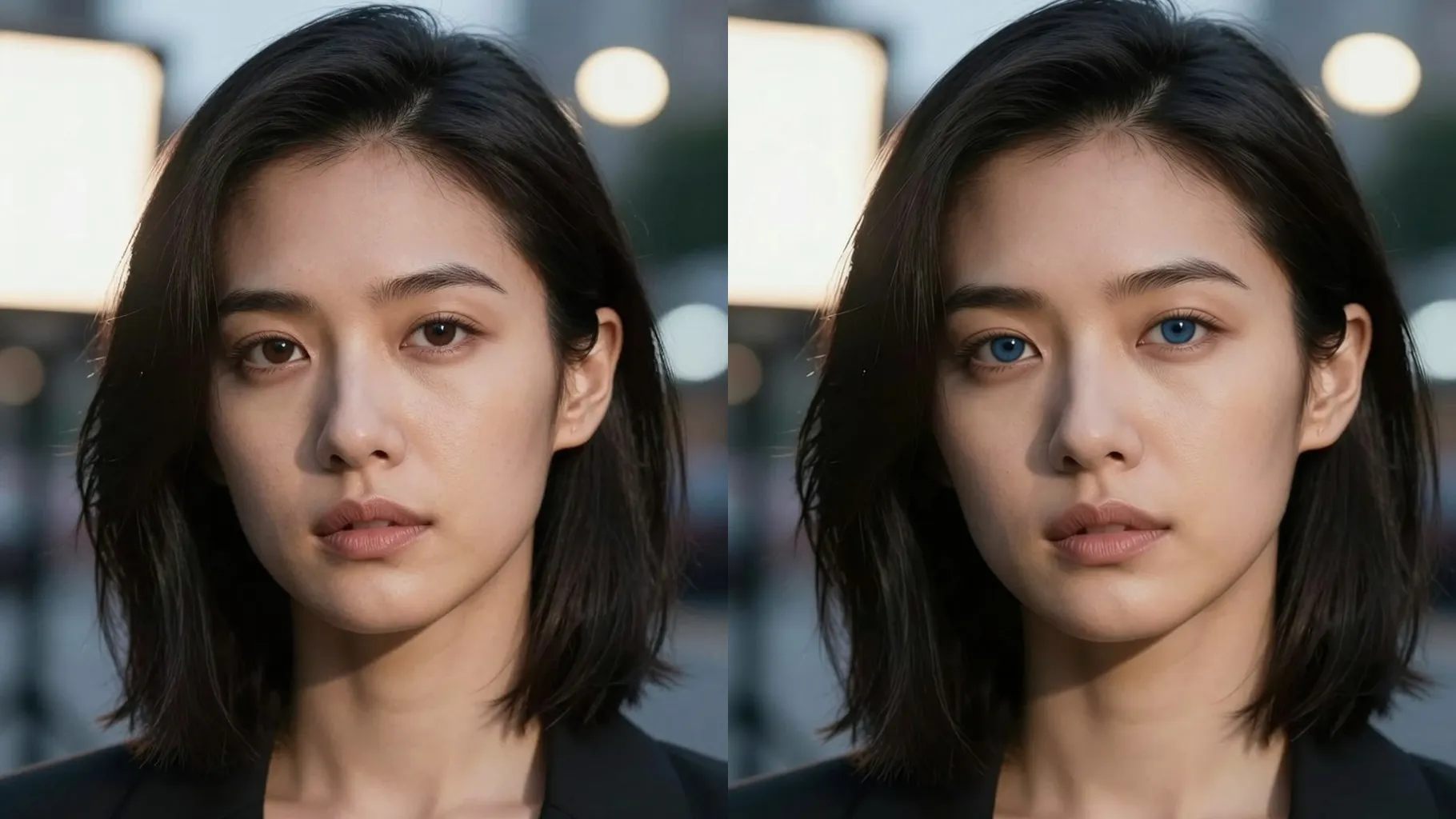
Choose a front or slight-angle headshot where both eyes are visible and not covered by glasses glare.
Mention sky blue, aqua, or deep sapphire plus lighting preferences to guide the render.
Review the blue-eye preview, rerun for variations, and save the version you like best.
One portrait per run keeps the masking precise around your eyes.
No. This is an image-to-image filter and needs one uploaded portrait.
No. It focuses on eye color while keeping skin tone, brows, and hair untouched.
JPG, PNG, or WebP under 10MB works best; clearer eyes yield sharper blue details.
Yes. Add notes like light blue, aqua, or sapphire in the prompt to steer the shade.
Aspect ratio and model switching are off to keep results consistent.

Generation time depends on the model, image size, and queue. Check the task status on this page.