
1. How many photos can I upload per run?
Upload one smiling portrait per run for accurate bracket placement.
Add realistic orthodontic braces to your smile from one upload while keeping natural skin and lighting.
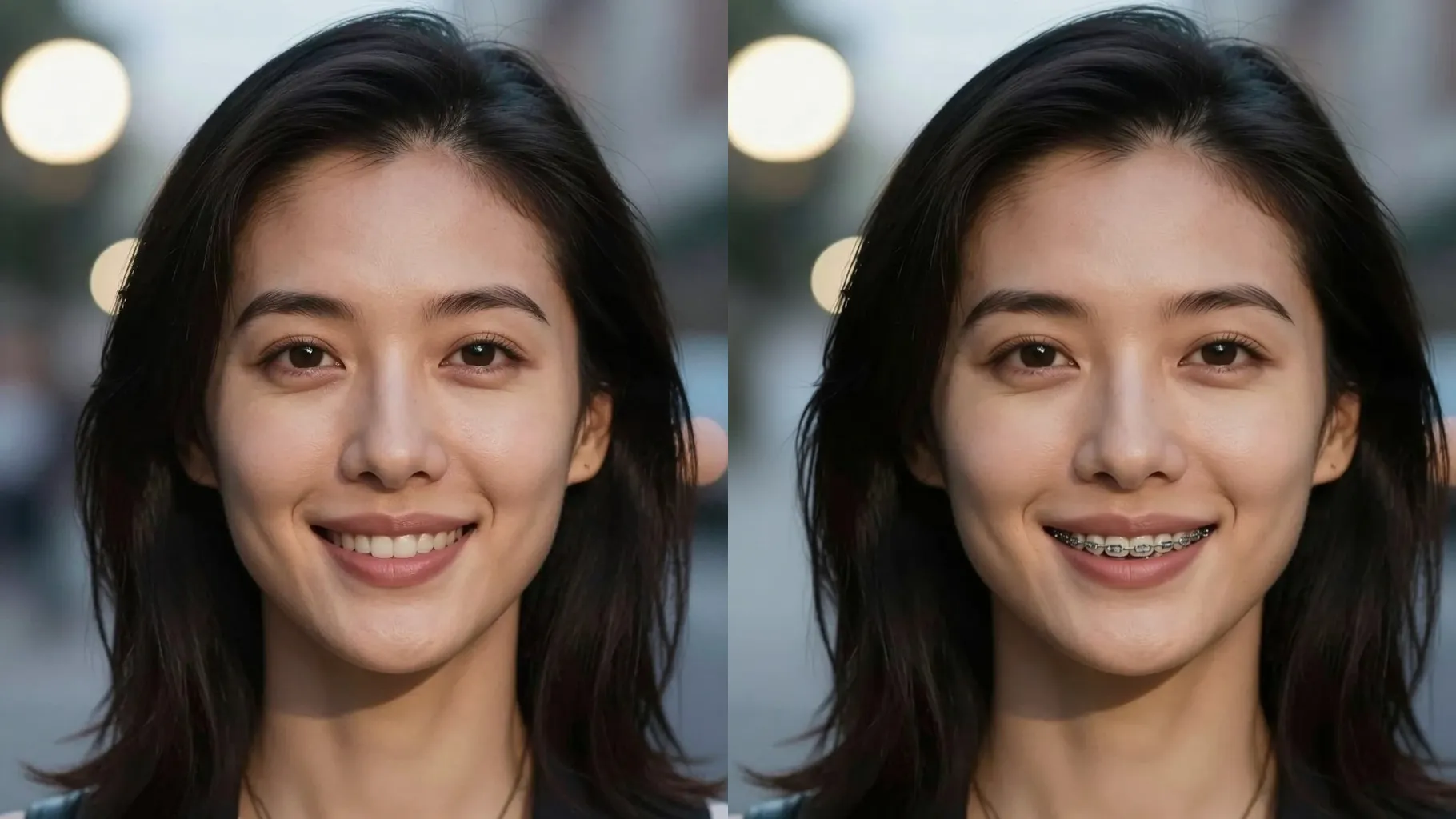
Adds realistic orthodontic braces across your teeth while keeping face shape, skin tone, and lighting consistent from one upload.
Examples show the target style. Your result depends on the chosen model and reference photo.
Upload one smiling portrait to preview realistic orthodontic braces while keeping your natural face and lighting.
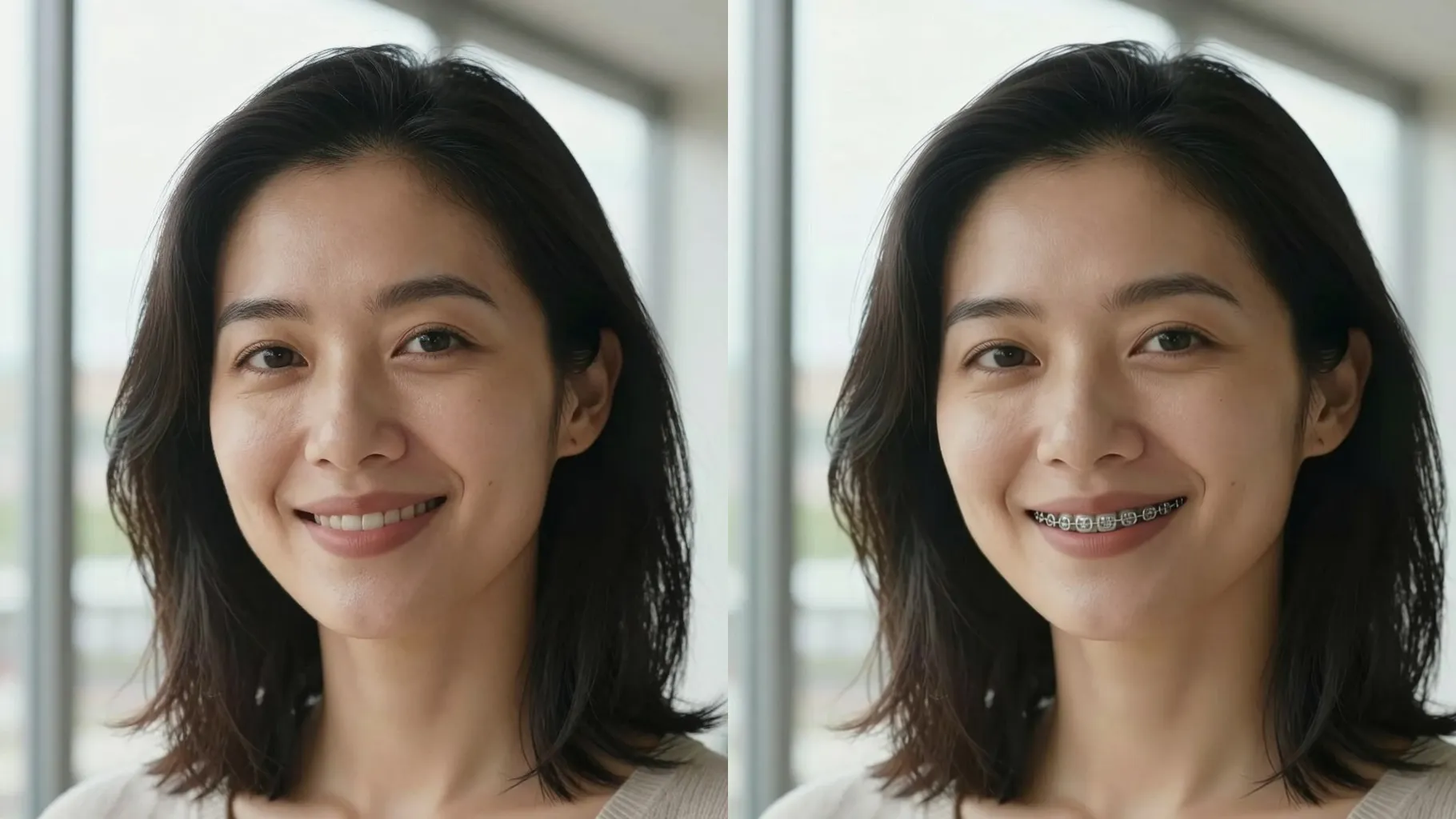
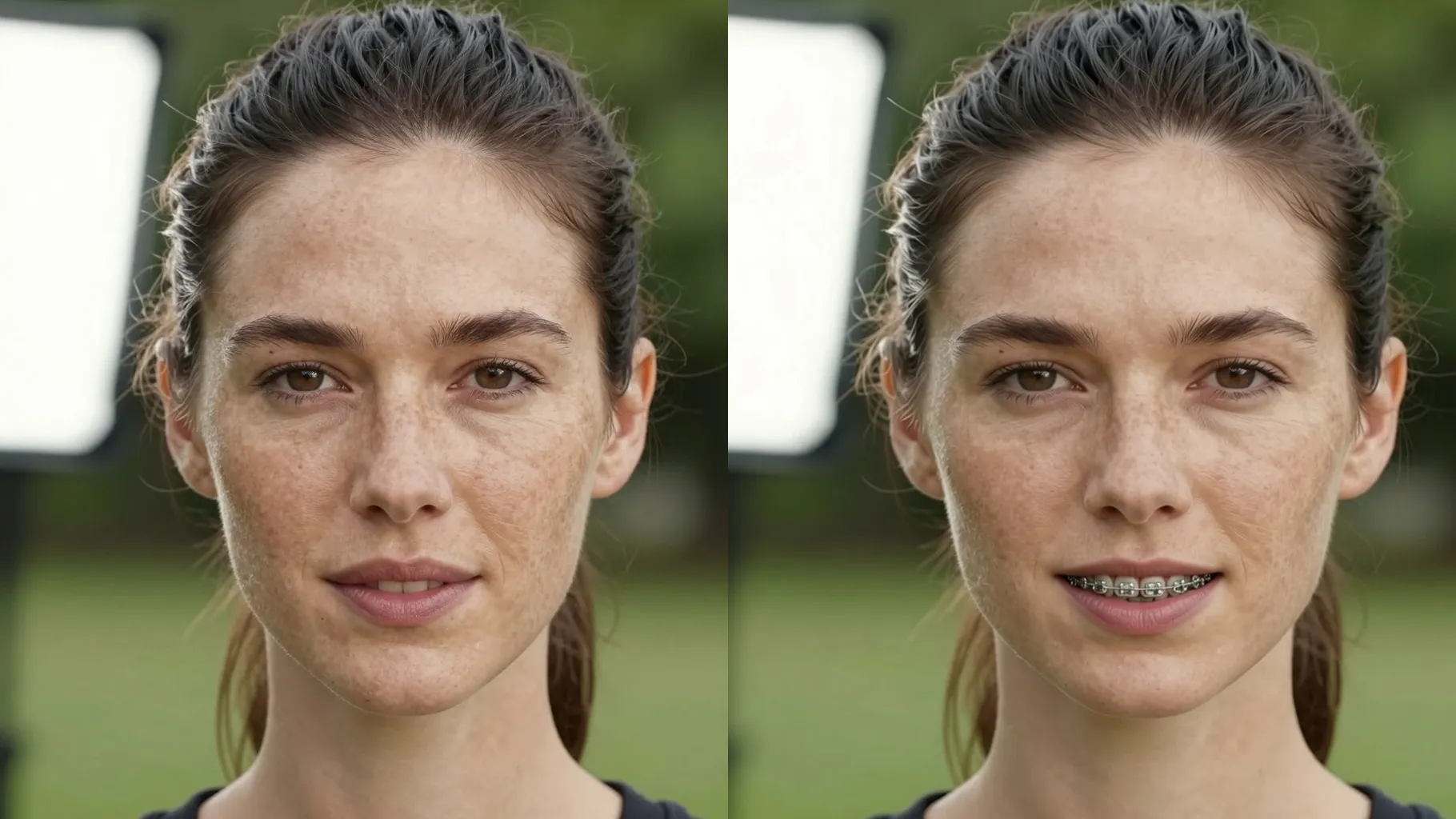
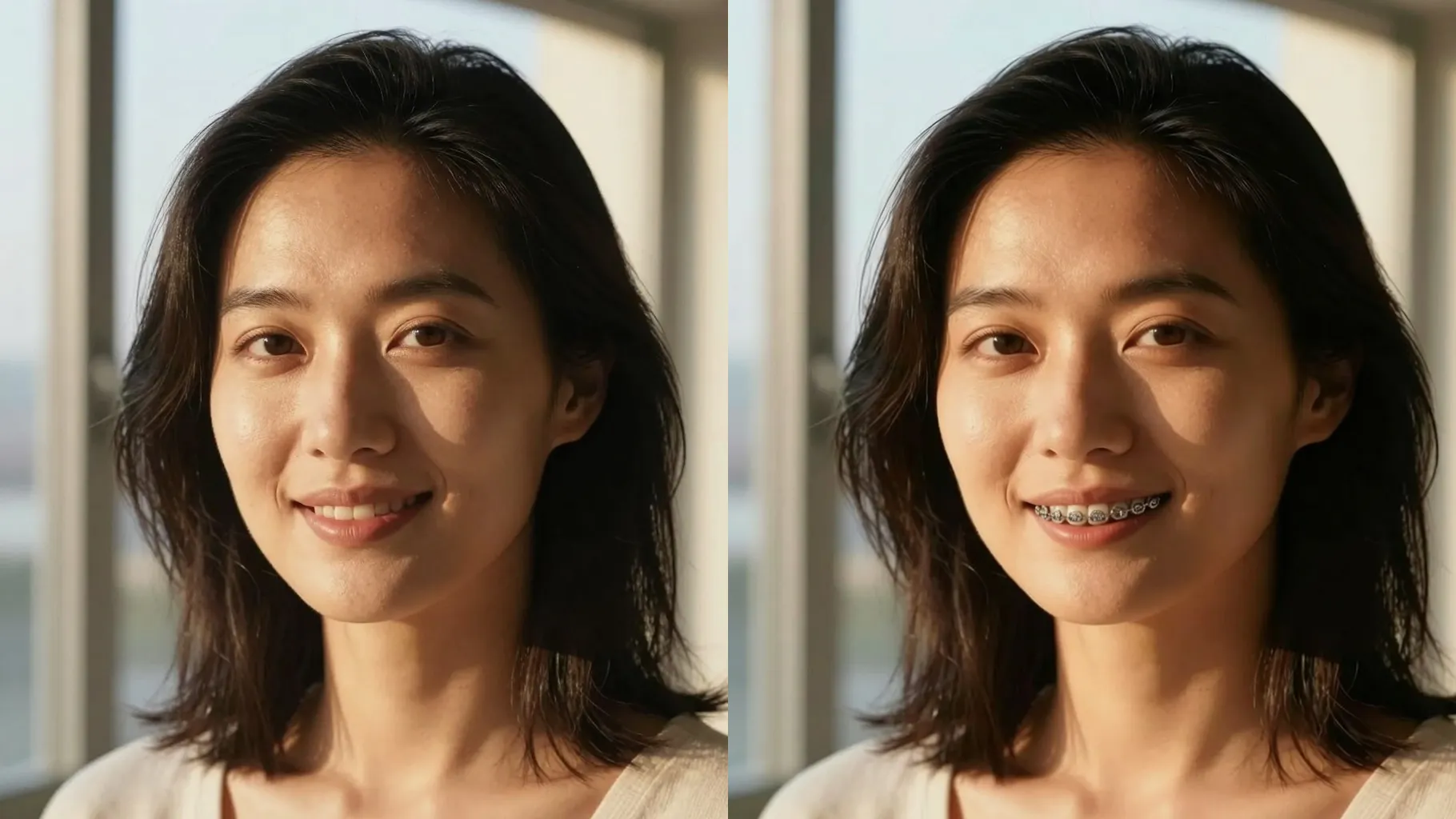
Adds metallic braces to visible teeth with highlights and shadows so they look like a real orthodontic set without warping your mouth.
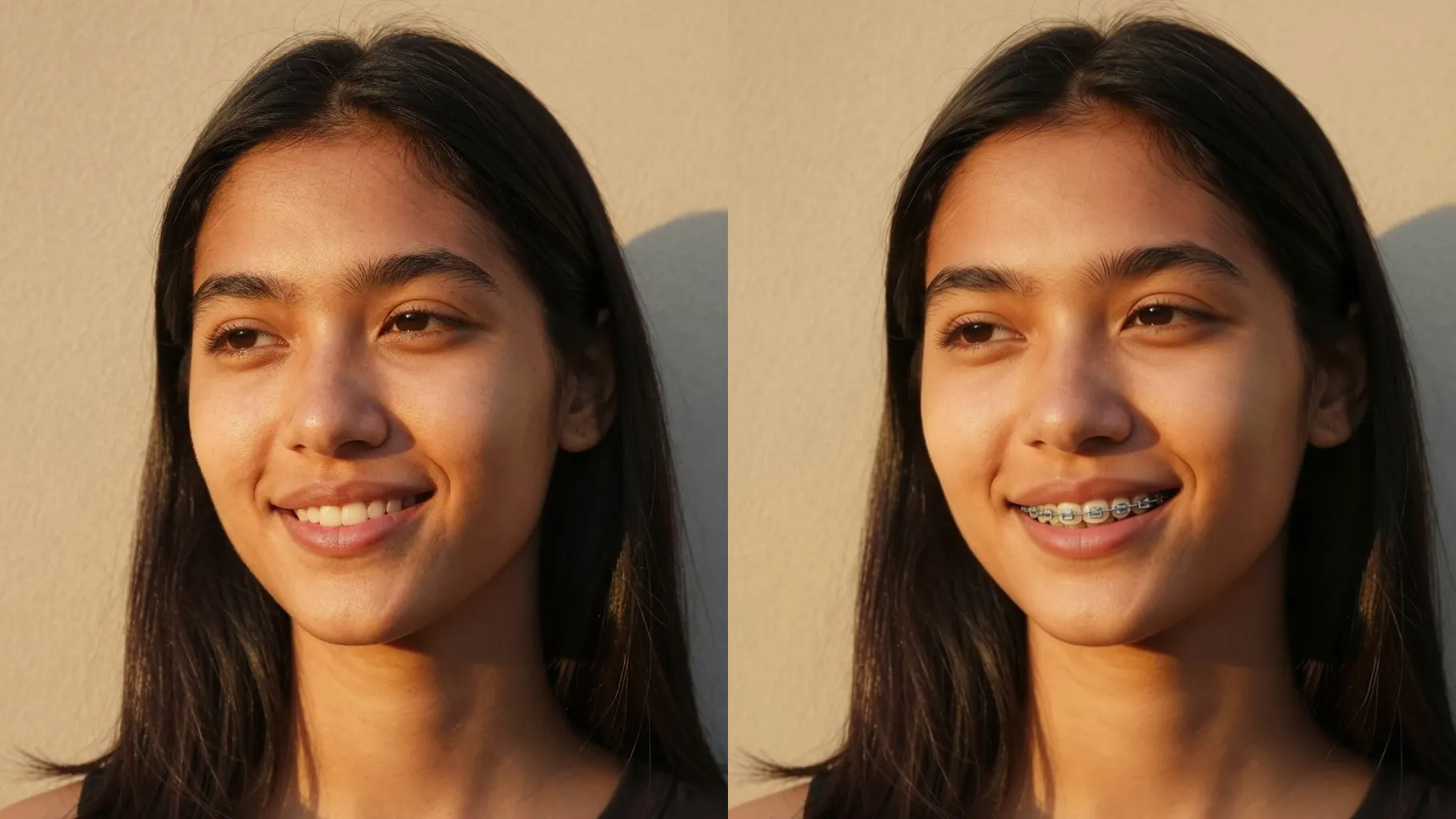
Preserves lips, gums, and skin tone while only altering teeth, so the braces preview still looks like your own photo.
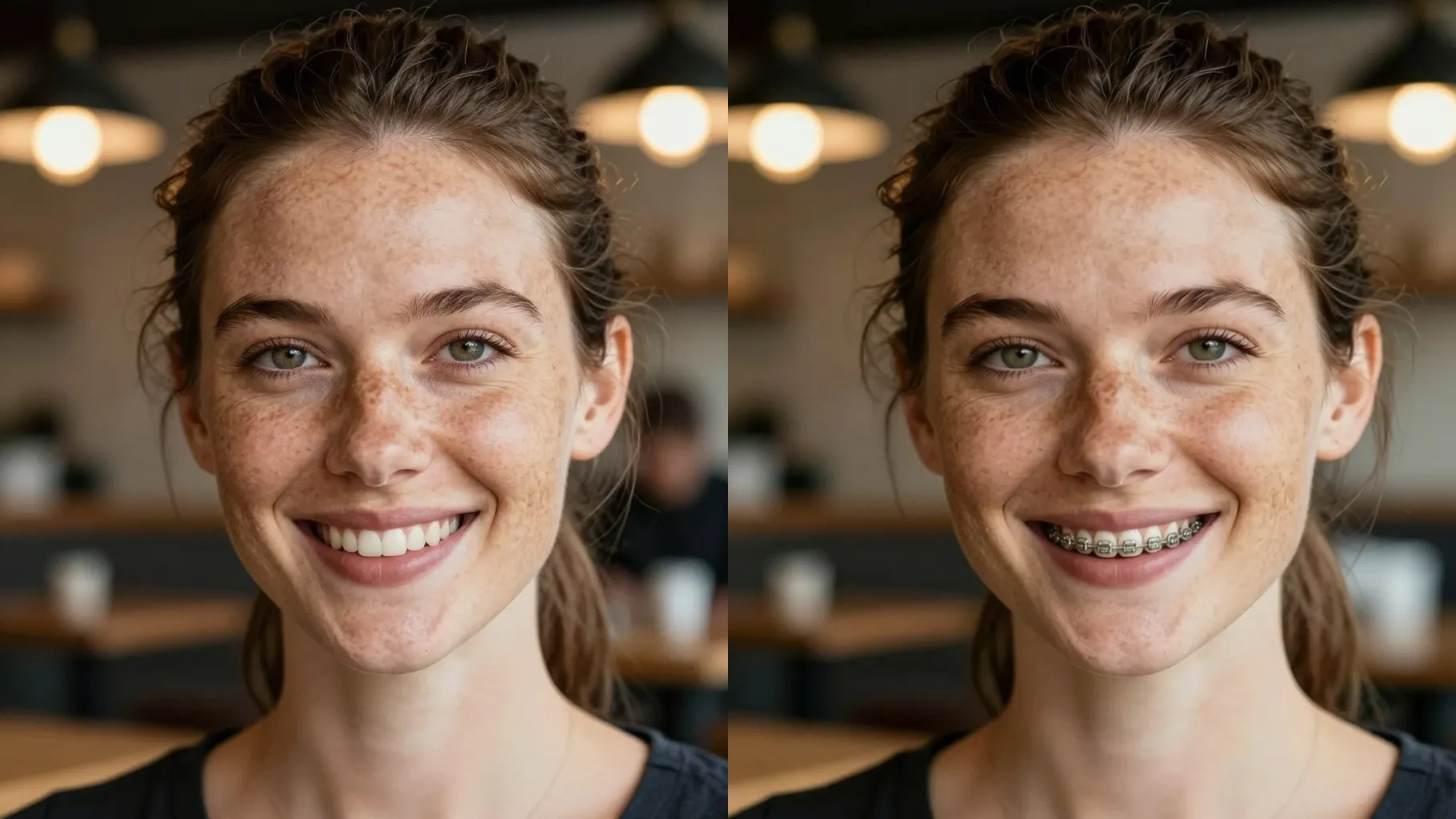
Use a well-lit photo where upper and lower teeth show; avoid hands, masks, or objects blocking your mouth.
Optional: mention metal braces, ceramic vibe, studio light, or neutral background to guide the render.
Run the filter, review the braces preview, rerun for variations, then save the version you like best.
Upload one smiling portrait per run for accurate bracket placement.
No. This braces filter is image-to-image and needs one uploaded photo.
It focuses on your teeth and braces while keeping lips, skin tone, and face shape intact.
Default output uses metal braces; add notes like \"ceramic braces\" or \"subtle brackets\" in the prompt to steer the look.
JPG, PNG, or WebP under 10MB process quickly while keeping detail around your mouth.
Aspect ratio and model switching are off to keep braces results stable.

Generation time depends on the model, image size, and queue. Check the task status on this page.