1. How many images can I upload per render?
Upload one image at a time so the comic outlines and halftone dots stay consistent.
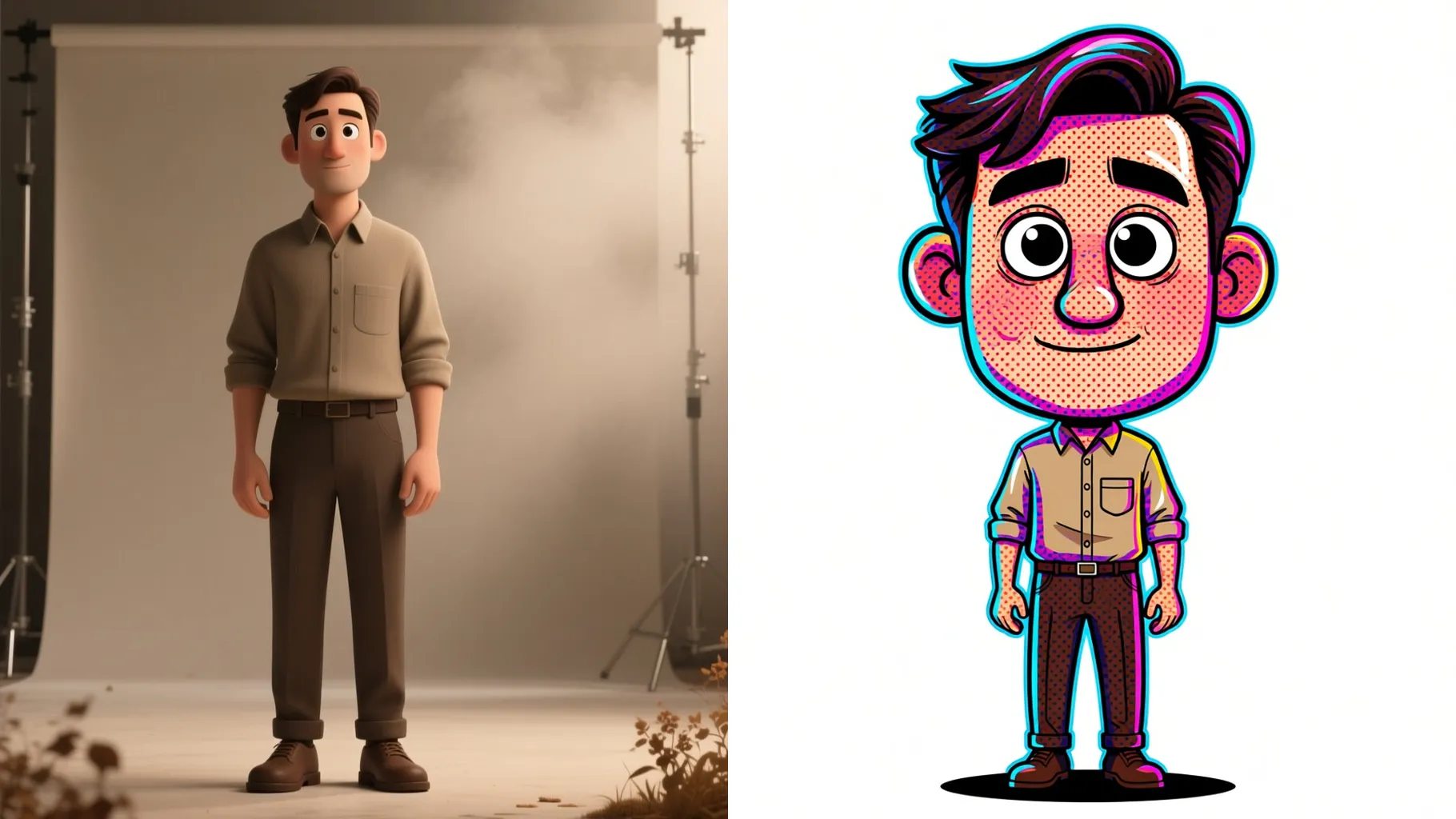
Upload one photo to get bold ink outlines, halftone dots, and saturated comic-book colors instantly.
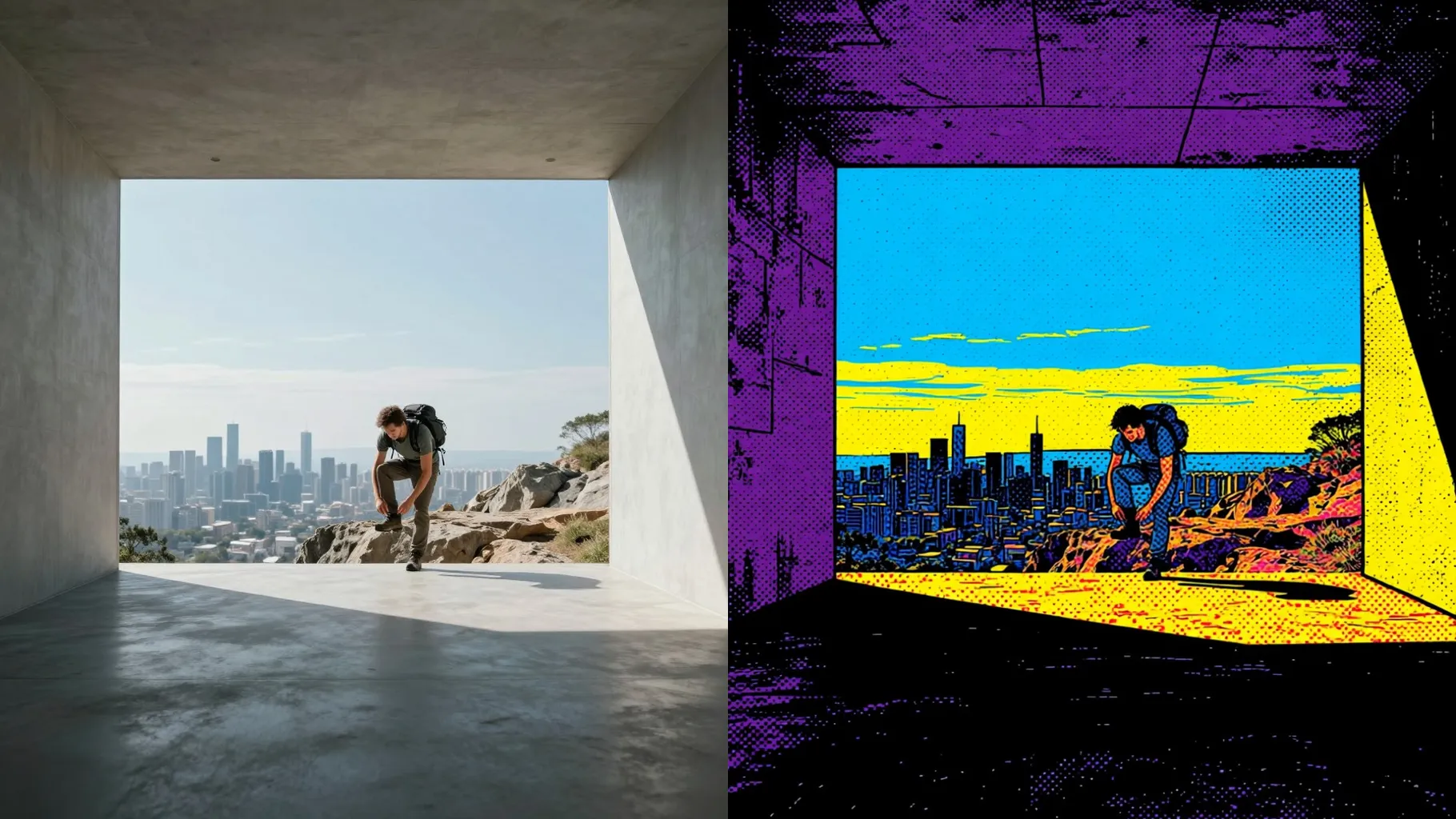
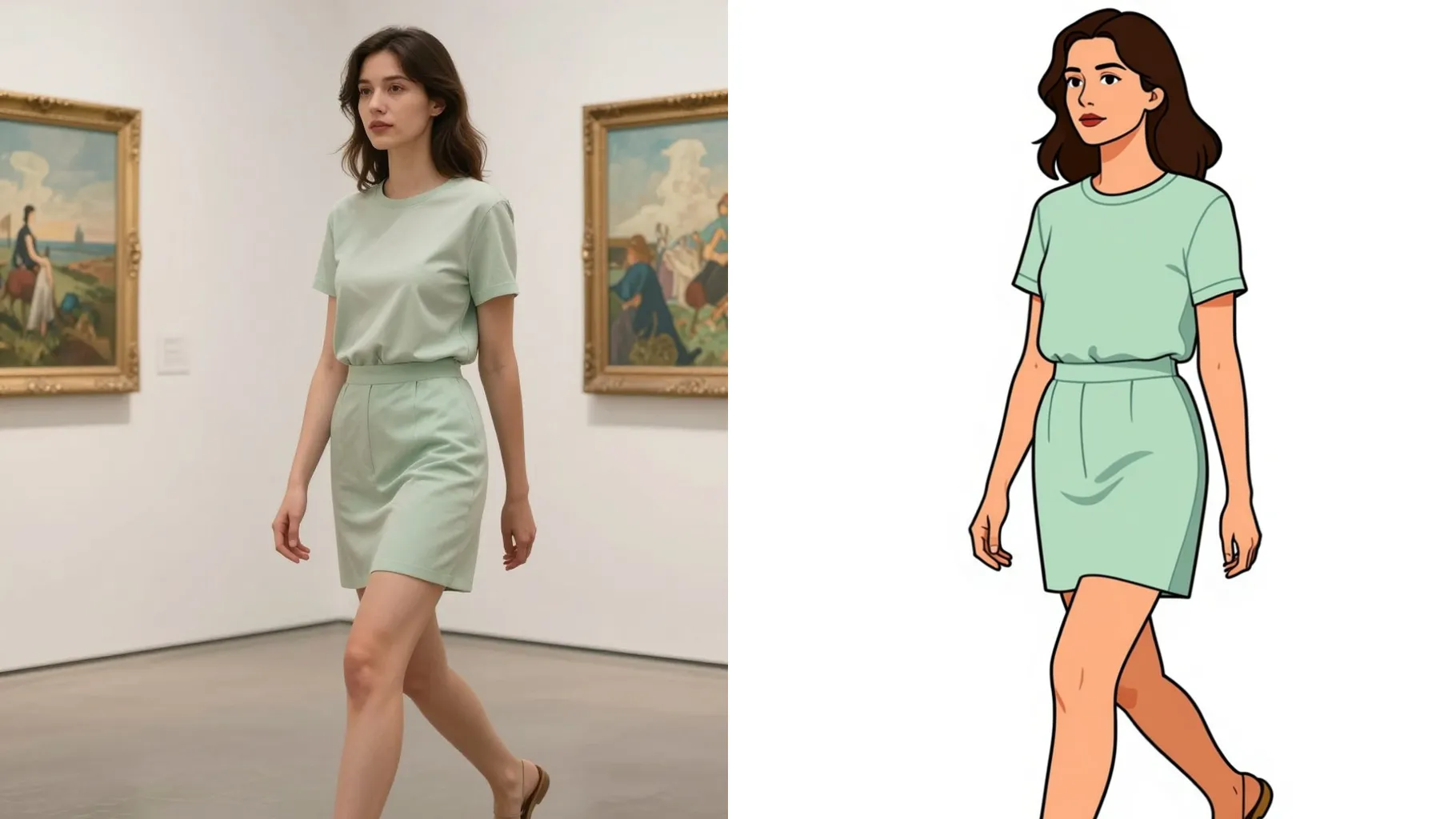
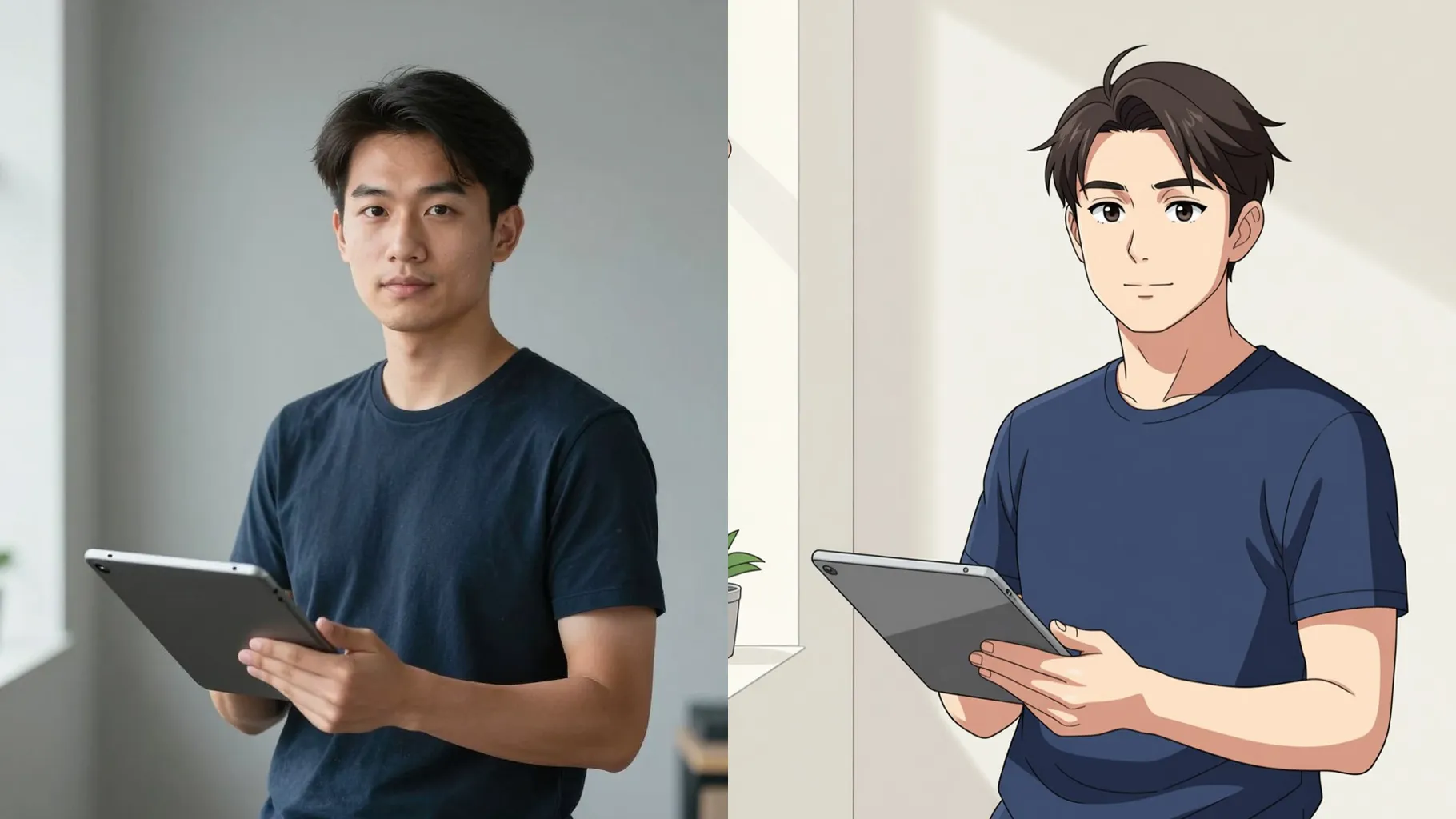
Bold ink lines and flat shading turn your portrait into a classic comic frame while keeping facial details clear.
Examples show the target style. Your result depends on the chosen model and reference photo.
Upload one image to turn into comic-style art with inked outlines, halftone dots, and bright panels.
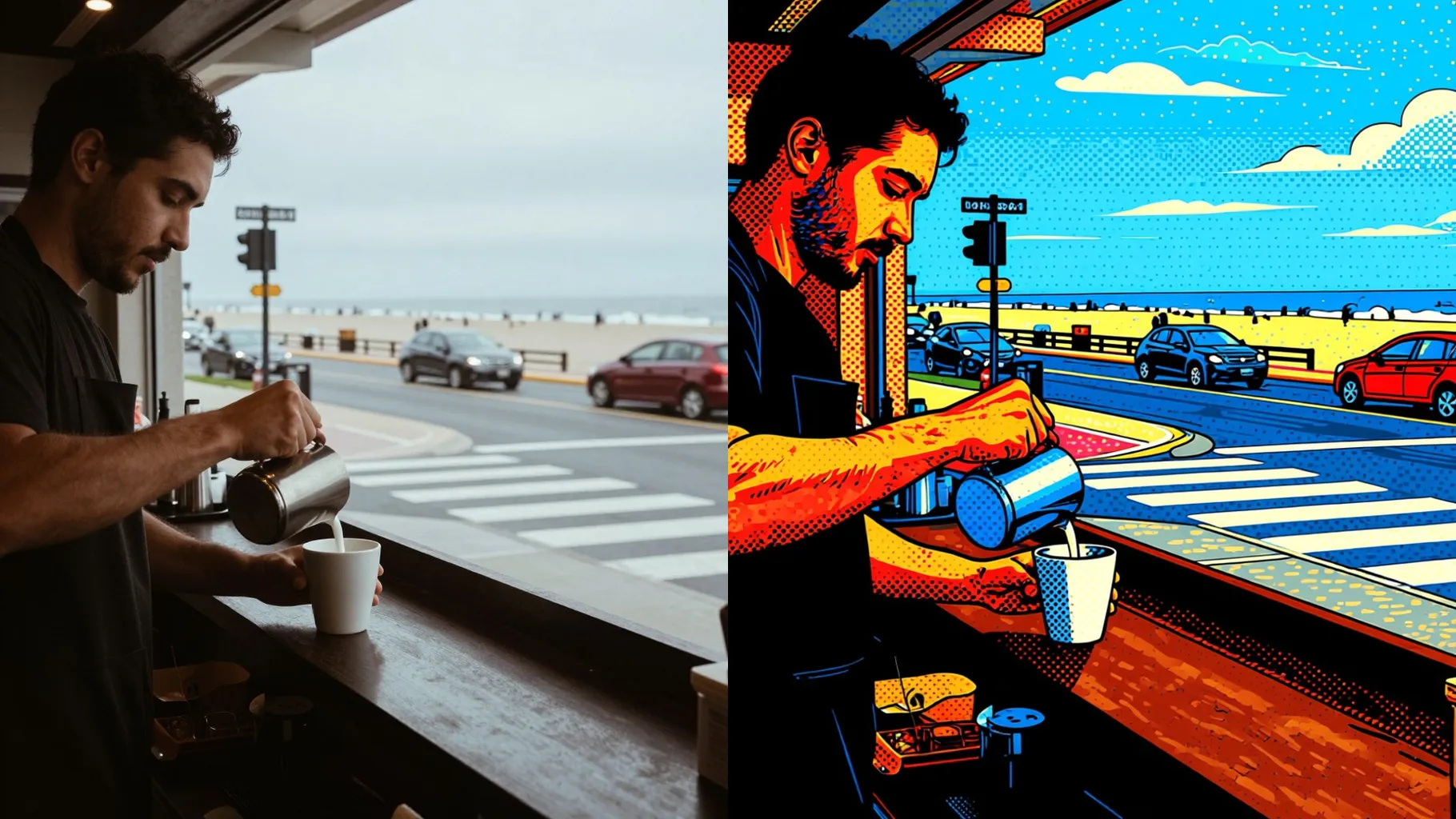
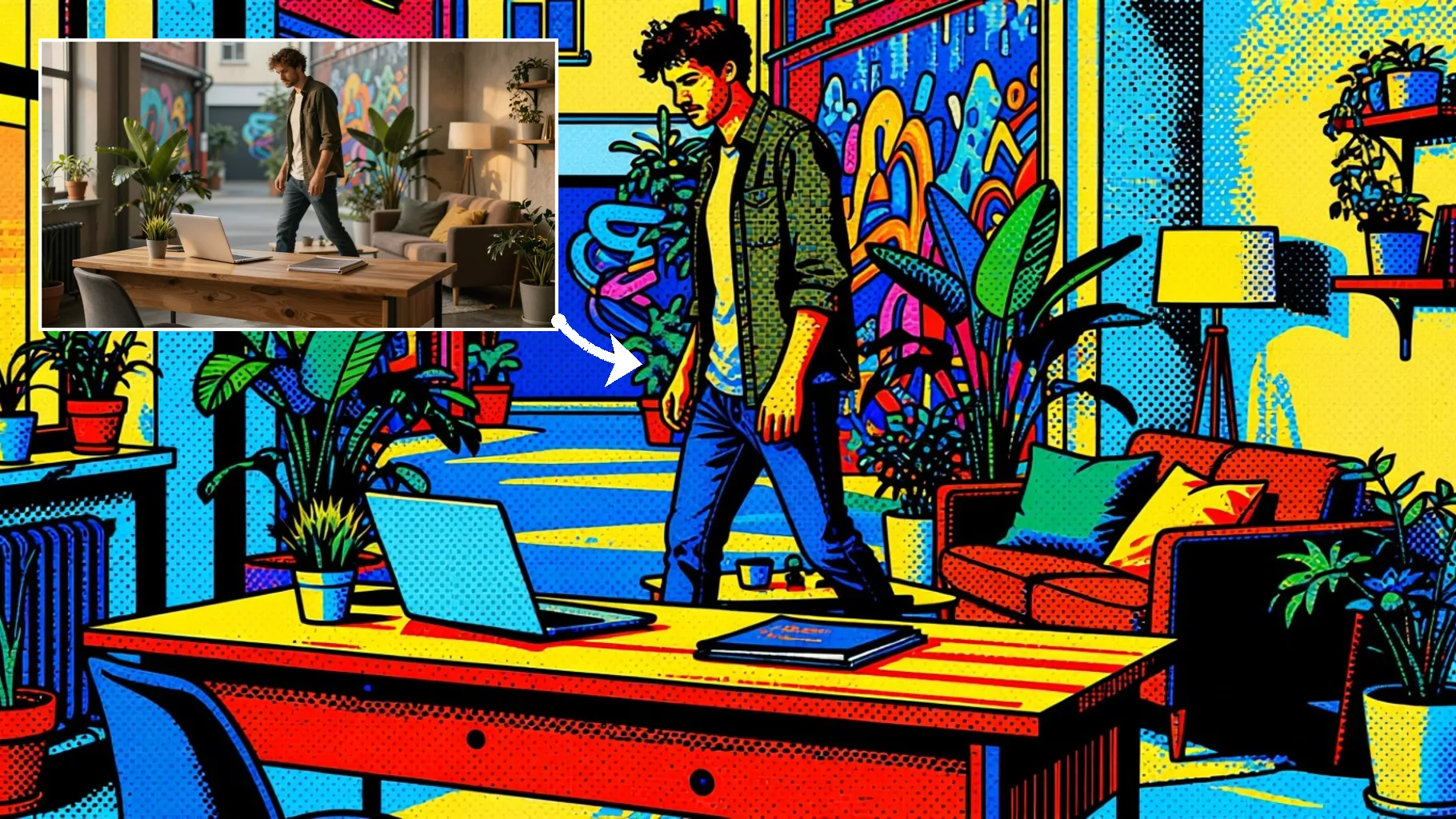
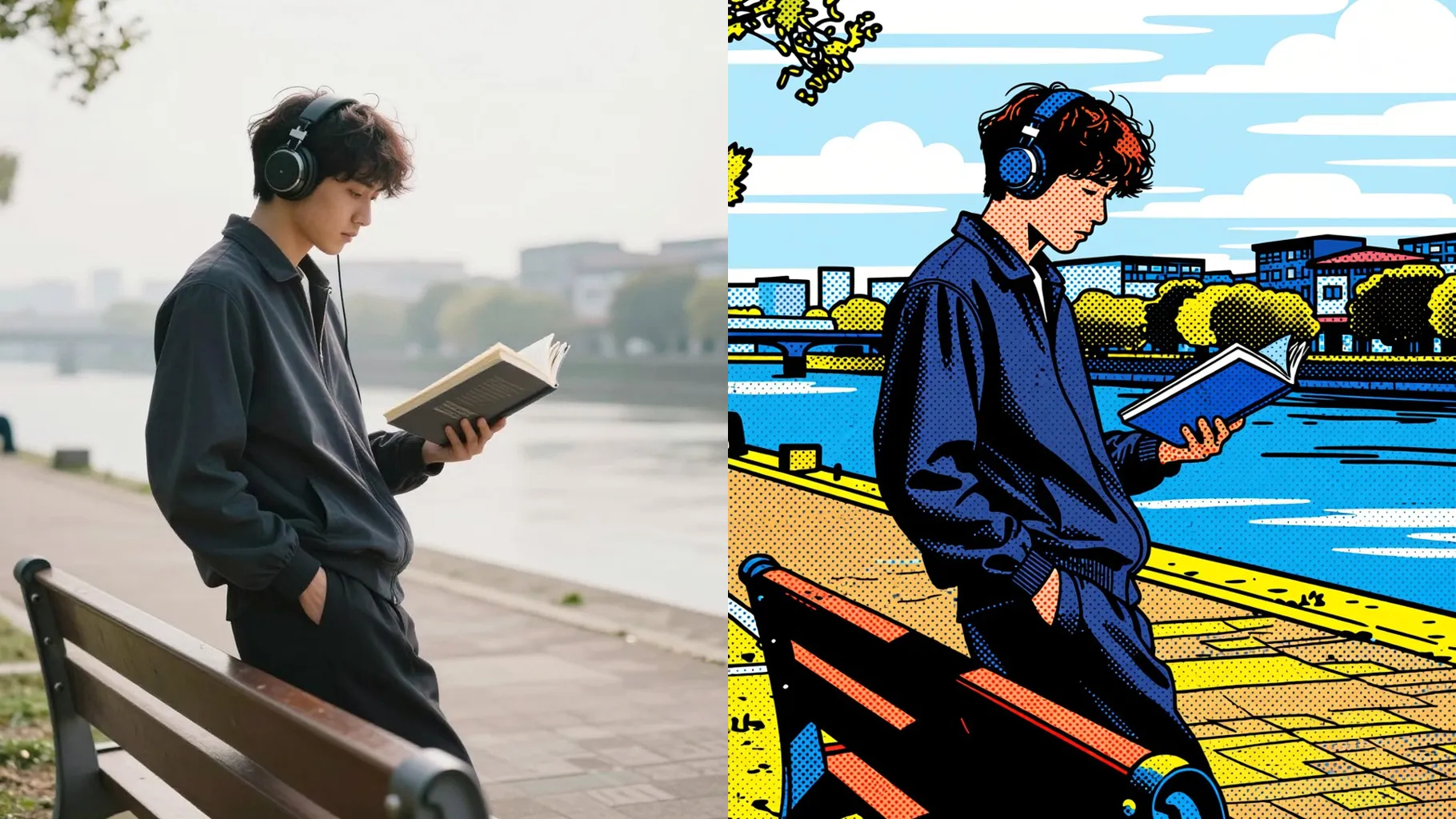
One upload keeps your likeness while adding crisp outlines, simple shading, and clean backgrounds.
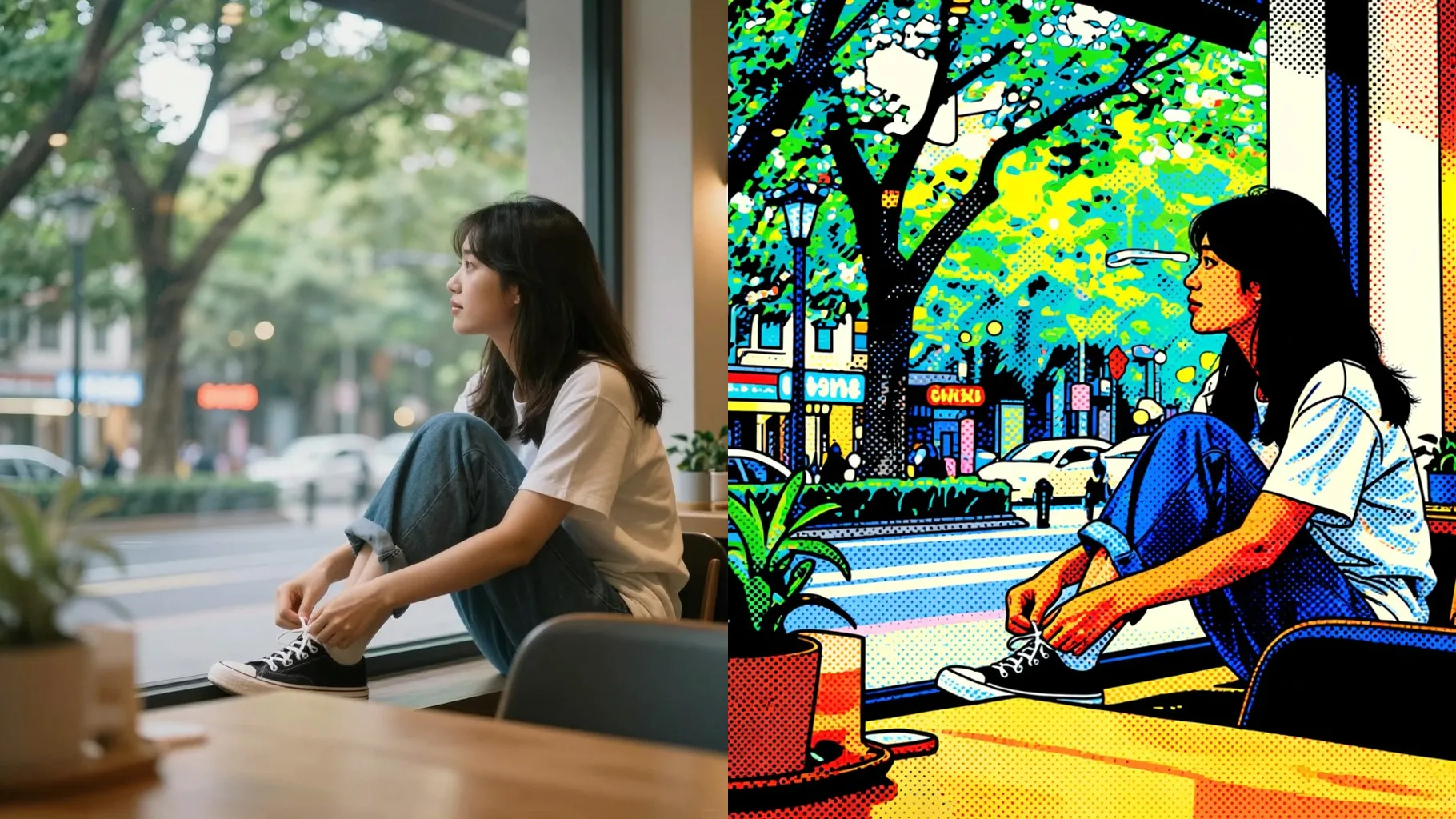
Halftone dots and saturated color blocks give the render a true comic print feel without extra editing.
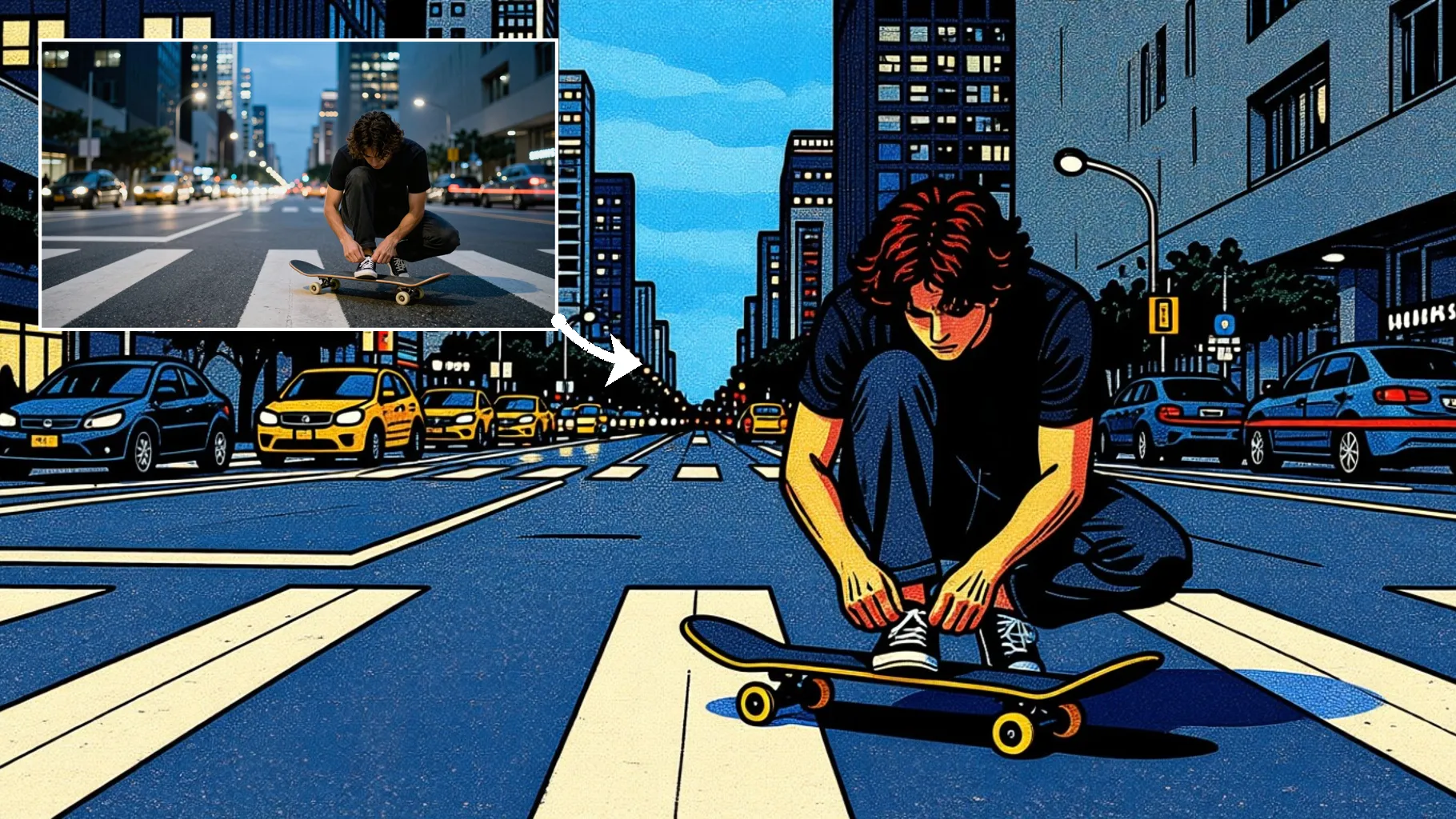
Front-facing or slightly angled shots with even lighting keep the ink strokes clean.
Mention mood, colors, or background in one line to steer the comic book vibe.
Preview the comic render, rerun if you want another take, and save instantly.
Upload one image at a time so the comic outlines and halftone dots stay consistent.
Prompts are optional. A short hint about color, mood, or background helps steer the panel.
Clear portraits with one subject and even lighting give the cleanest ink lines and color blocks.
Aspect ratio control is disabled here. Crop your photo first if you want a specific frame.
Model switching is off to keep the ink weight and halftone texture consistent across renders.
Yes. Single-subject pet or object shots also convert well into comic-style panels.
Generation time depends on the model, image size, and queue. Check the task status on this page.
Upload JPG, PNG, or WebP under 10MB for the fastest, cleanest results.

Generation time depends on the model, image size, and queue. Check the task status on this page.