
1. How many images can I upload per render?
Upload one image at a time to keep the monochrome conversion aligned to your subject.
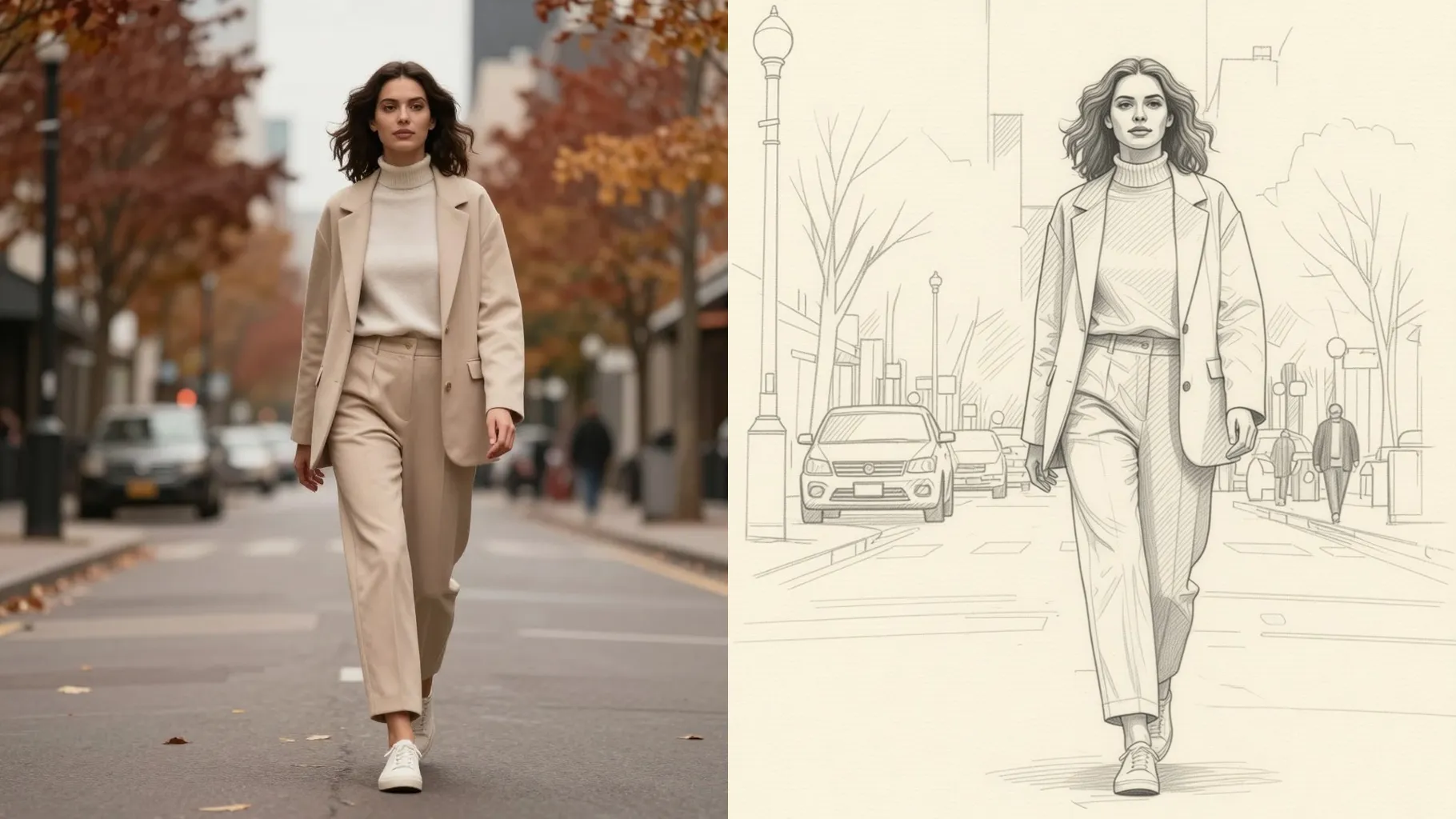
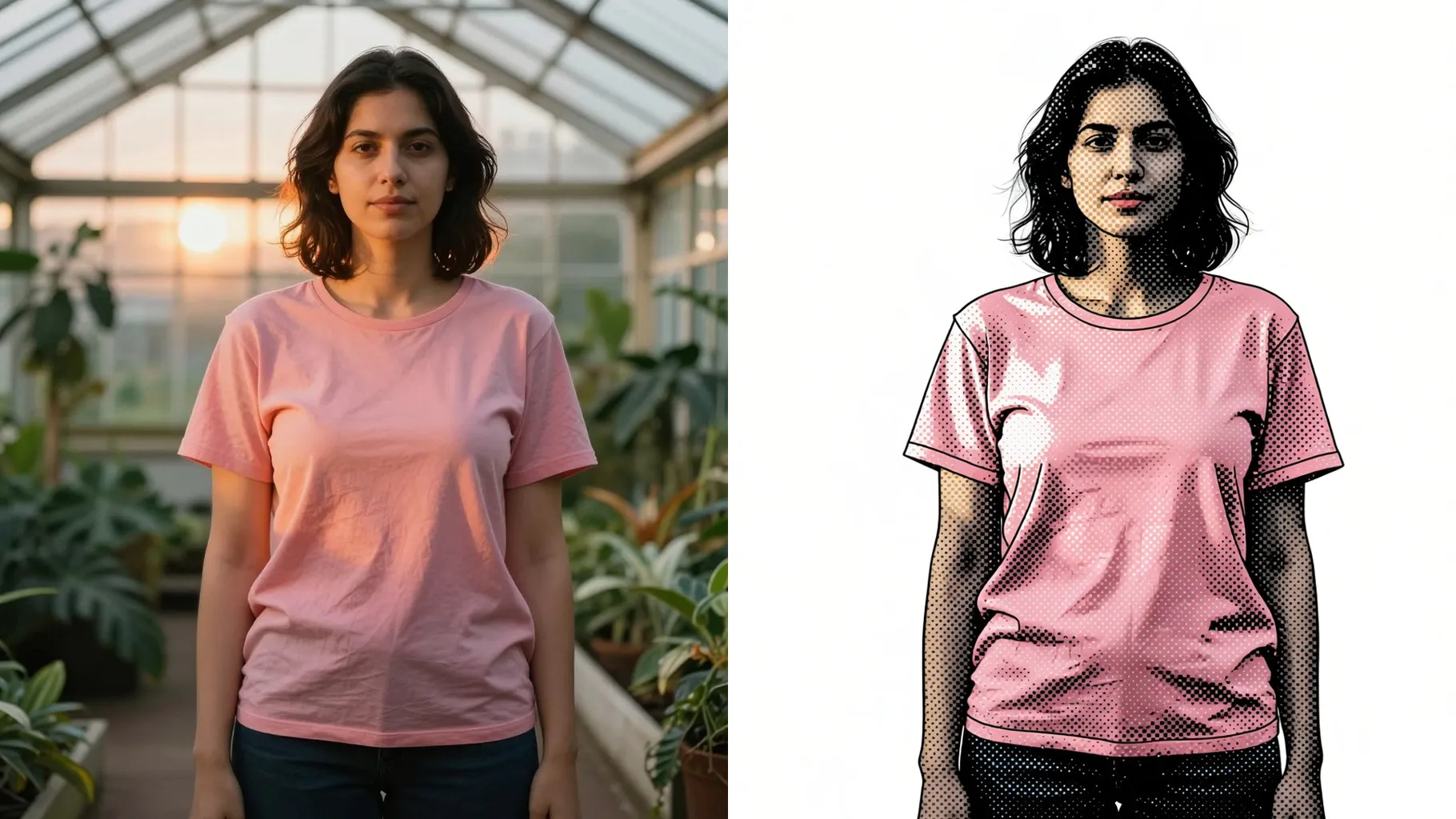
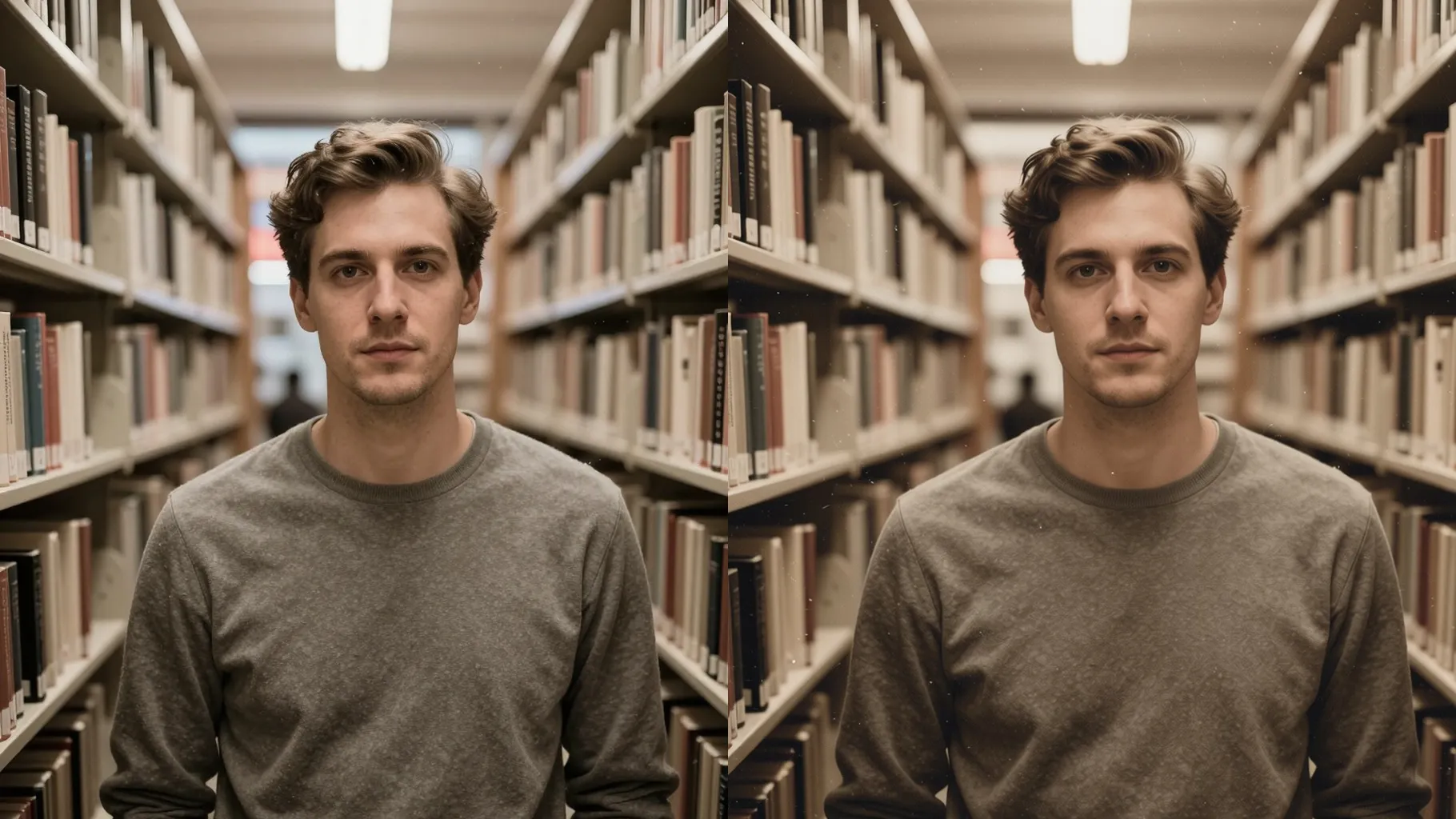
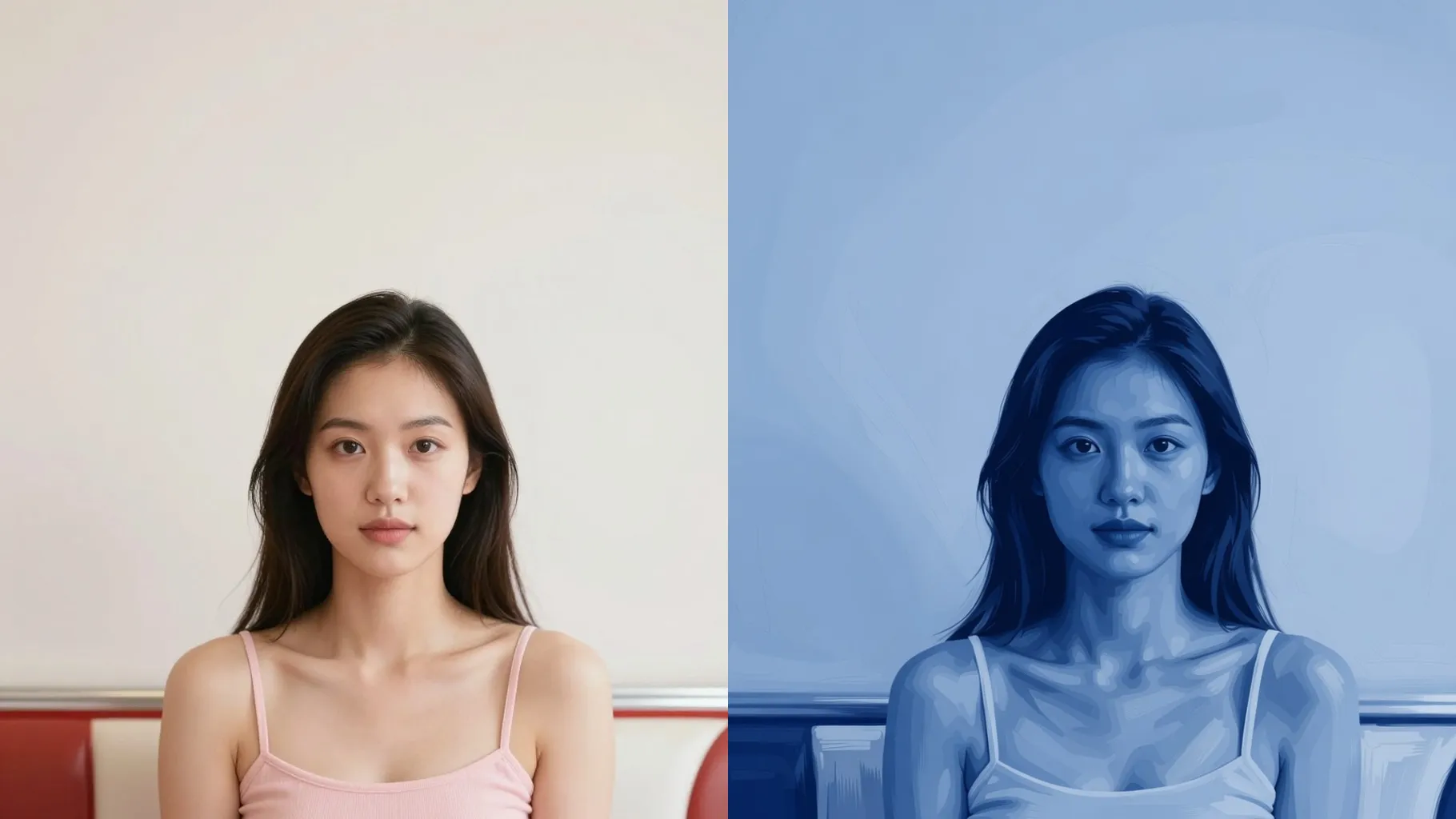
Transform one photo into crisp black and white portraits with cinematic contrast and soft film grain.
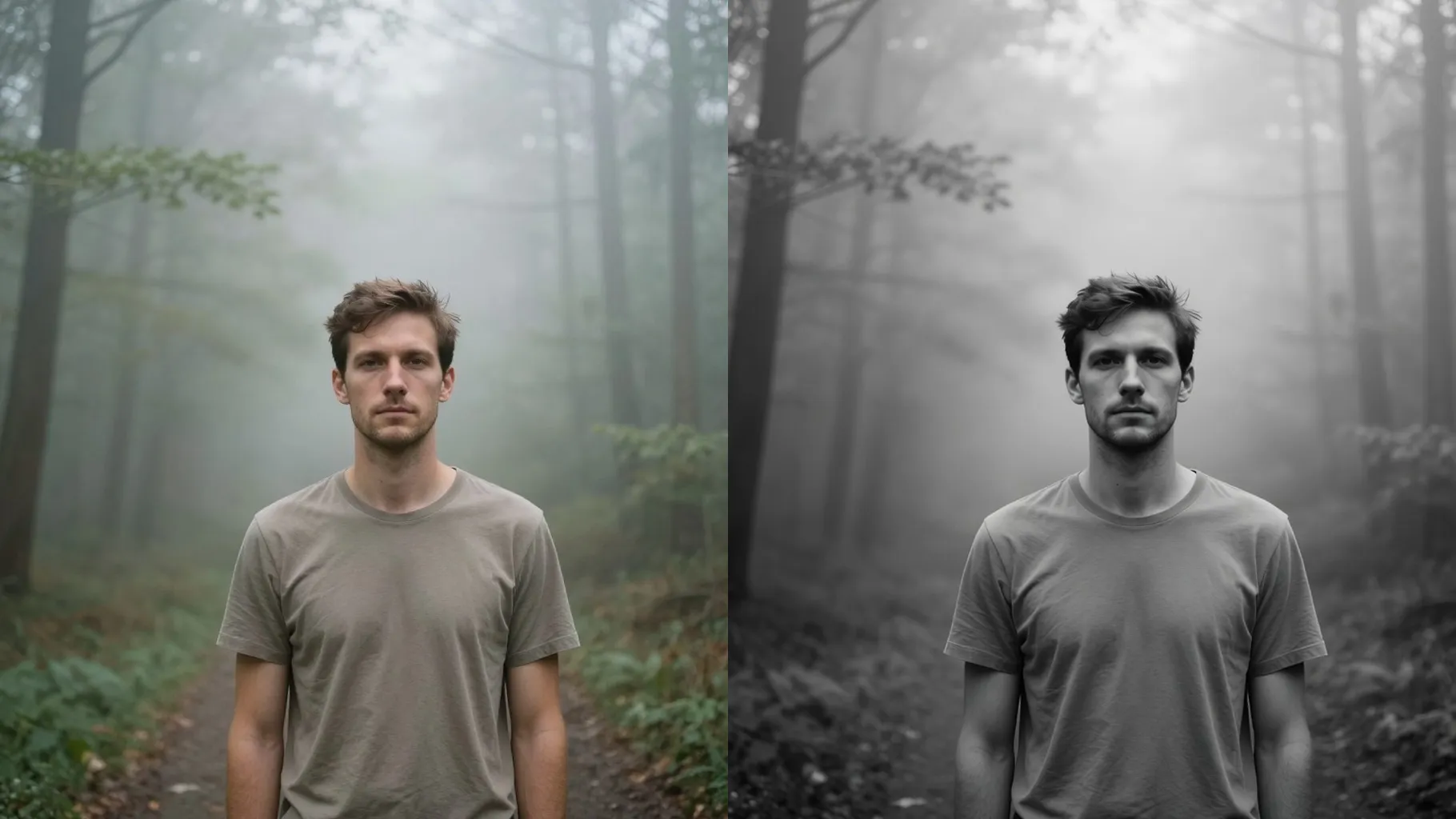
Color portrait becomes balanced black and white with crisp highlights, deep shadows, and intact facial structure.
Examples show the target style. Your result depends on the chosen model and reference photo.
Upload one photo to convert it into grayscale portraits with even contrast, smooth detail, and film-like mood.
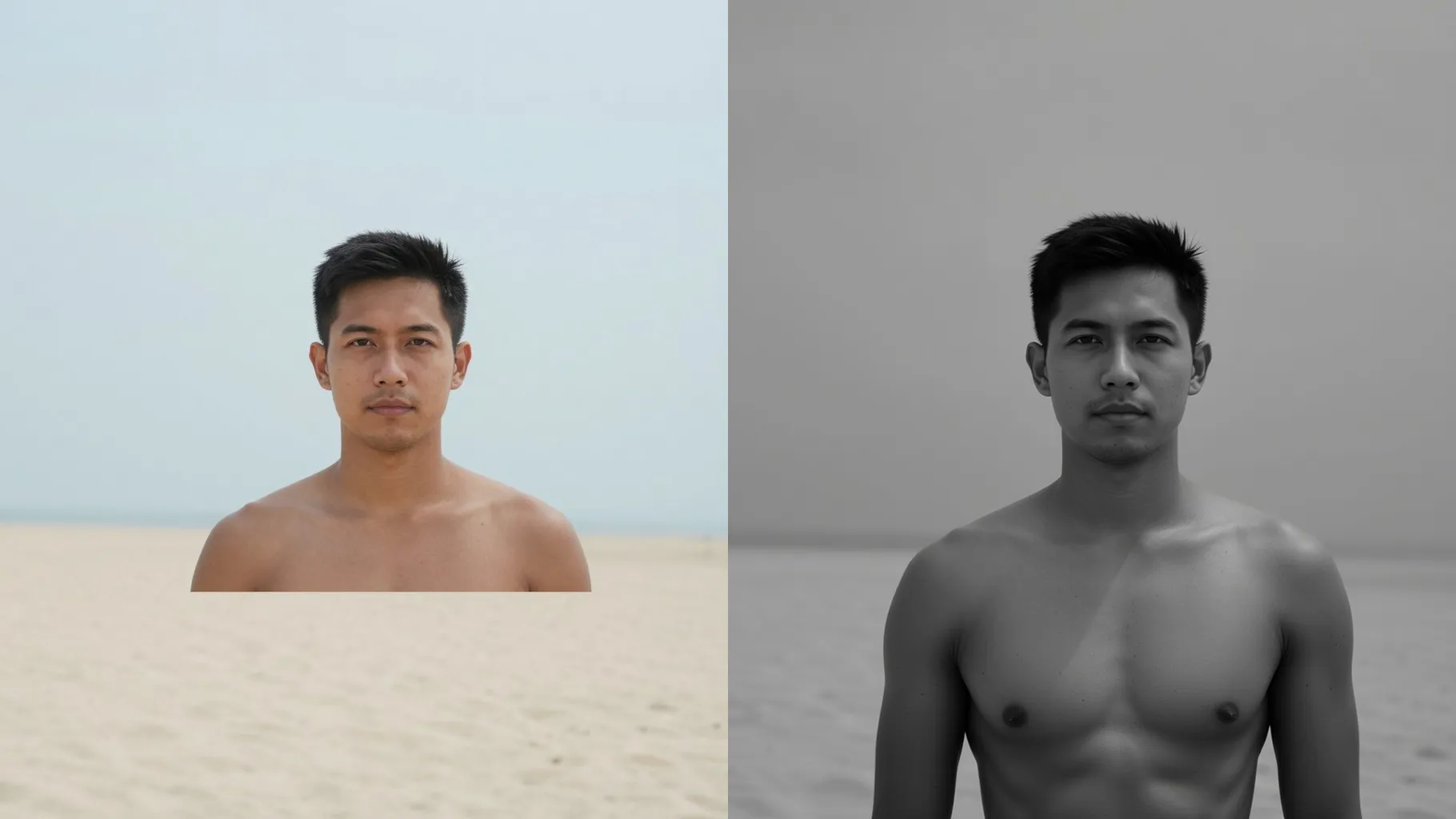
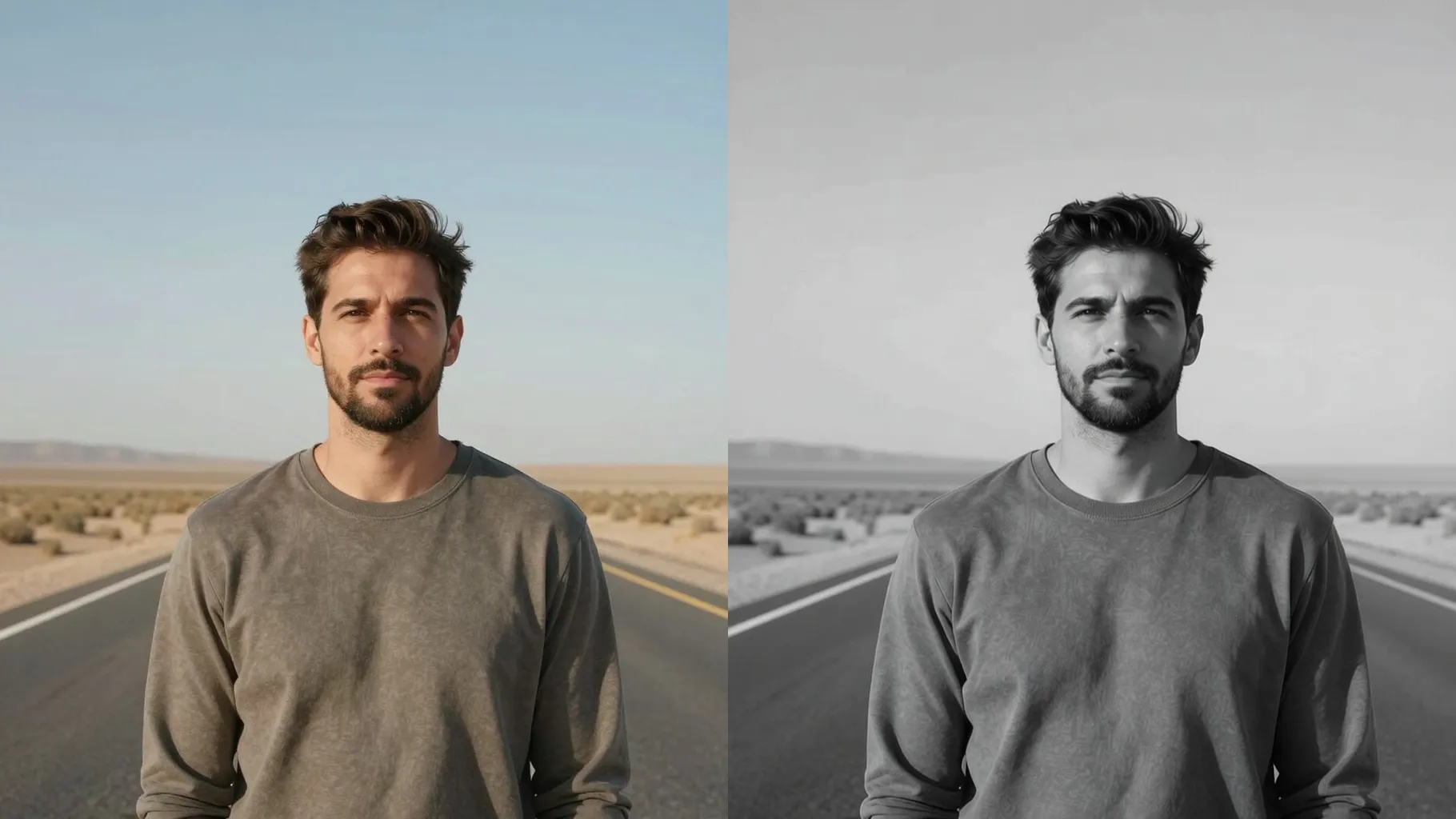
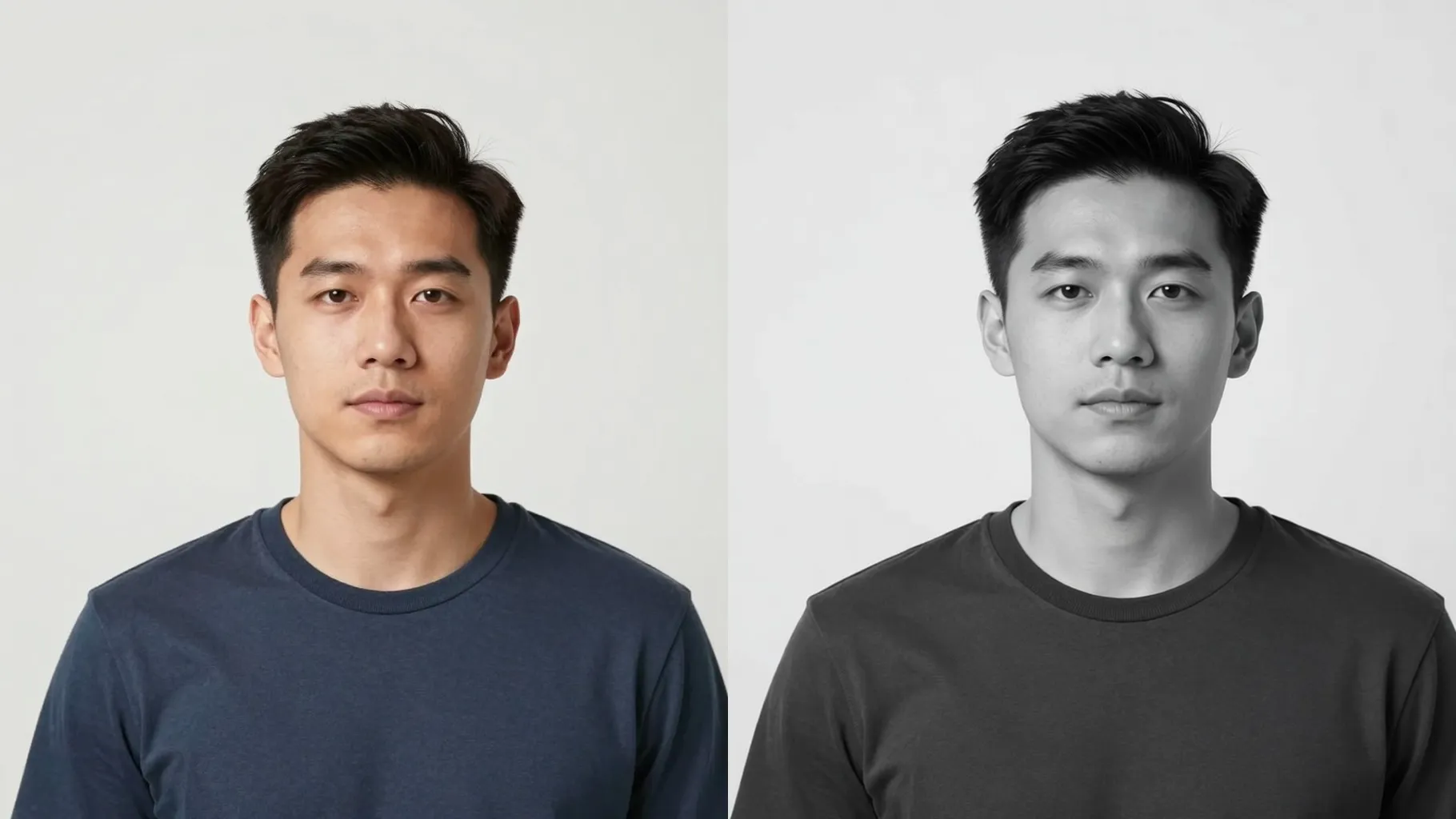
One upload stays true to expressions and proportions while converting skin tones into clean highlights and deep shadows.
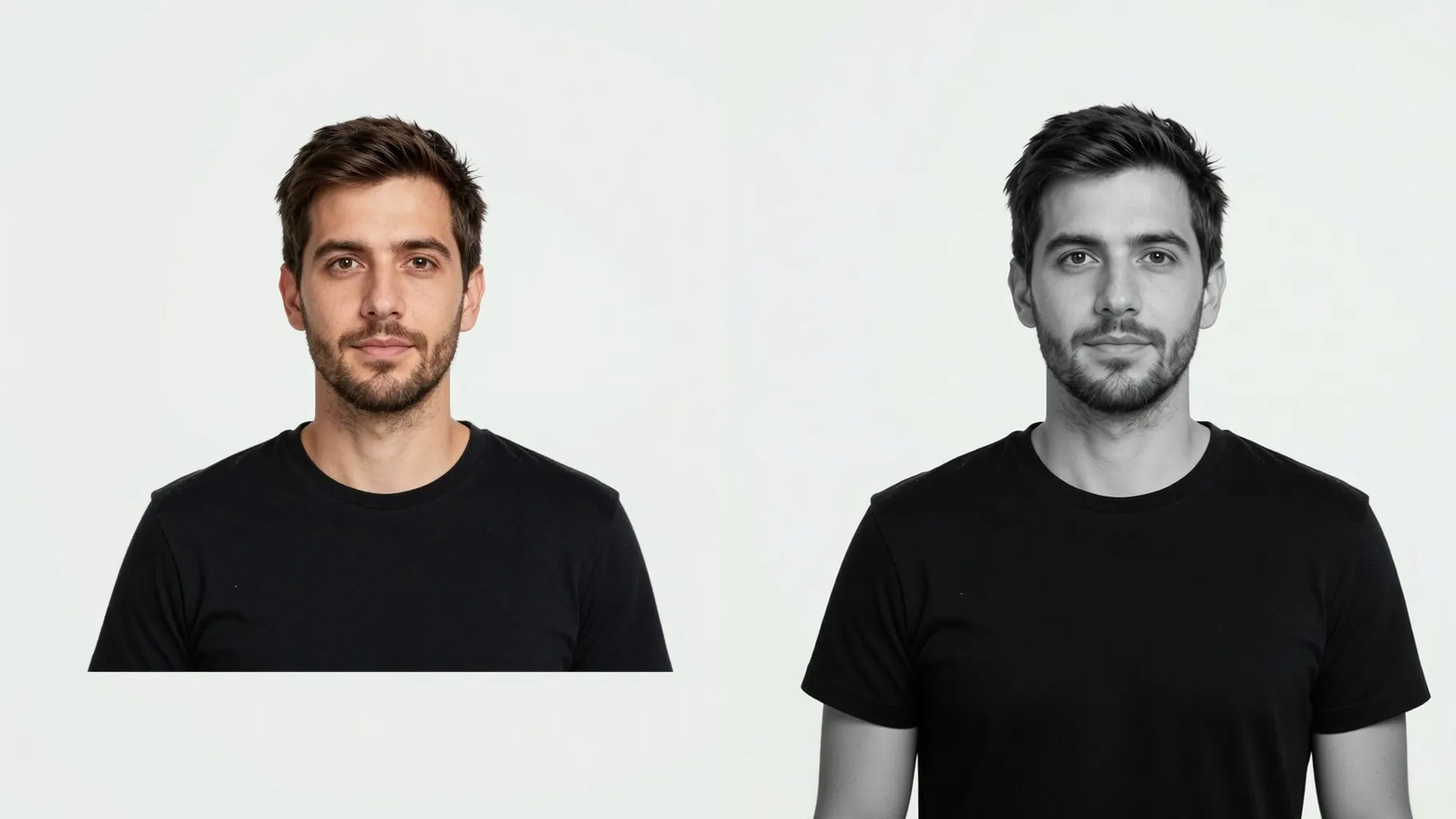
Add a note like soft studio light or moody street to nudge contrast and background while staying monochrome.
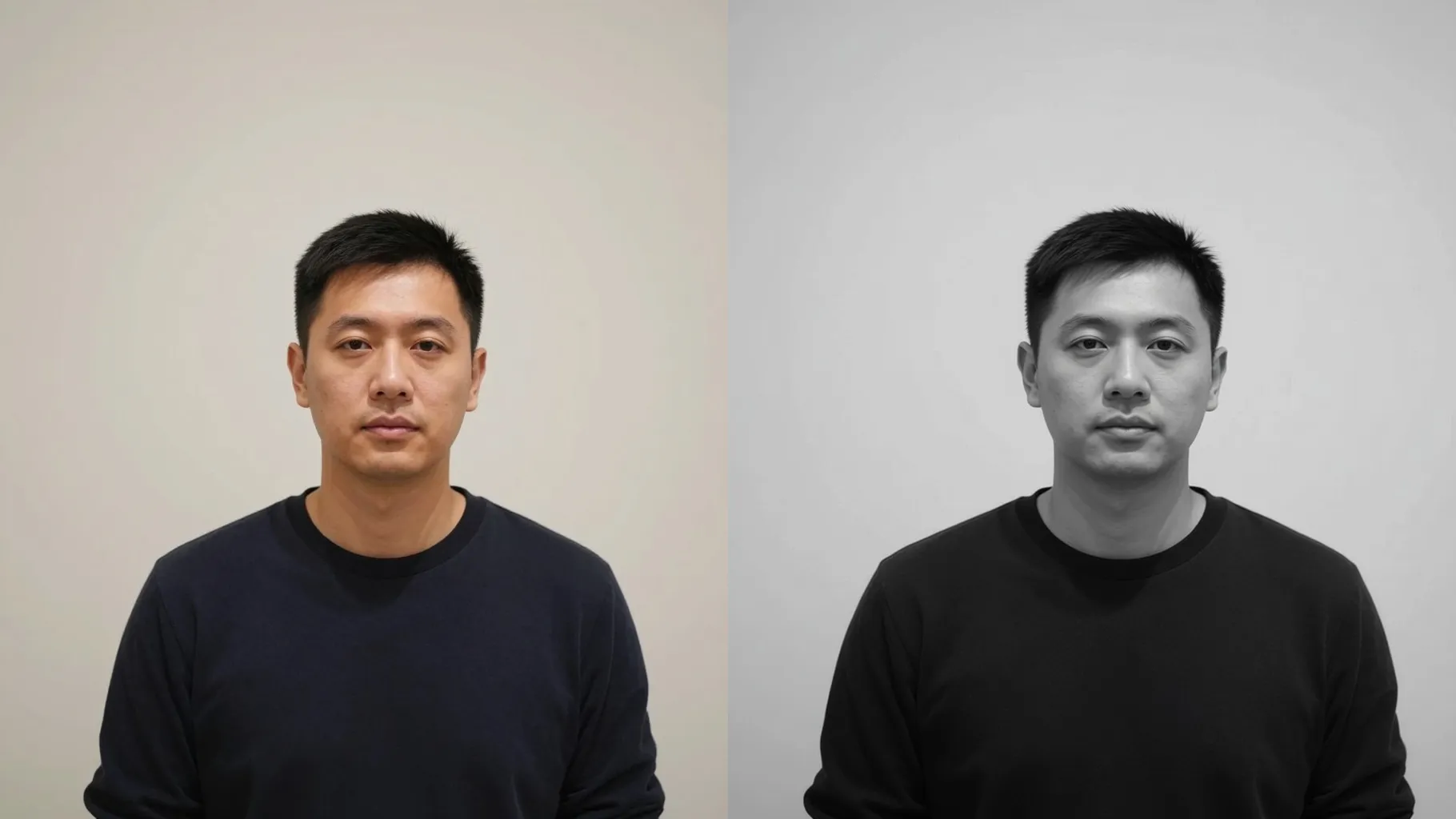
Centered portraits with even lighting keep edges sharp and gradients smooth.
Mention mood, light, or texture in one line; the filter stays grayscale without distorting faces.
Render the monochrome portrait, rerun if you want a different mood, then save the version you like.
Upload one image at a time to keep the monochrome conversion aligned to your subject.
This template is image-to-image; upload a picture for the AI to convert into black and white.
Prompts are optional. Leaving it blank still outputs black and white; a short cue just steers mood or texture.
Aspect ratio and model switching are disabled to keep the grayscale style stable. Crop before upload if needed.
Front or 3/4 portraits with balanced light and minimal clutter give the cleanest contrast and detail.
Use JPG, PNG, or WebP under 10MB for quick uploads and smooth rendering.

Generation time depends on the model, image size, and queue. Check the task status on this page.