
1. How many photos do I need?
Just one upload. The template converts a single image into a pencil sketch without extra references.
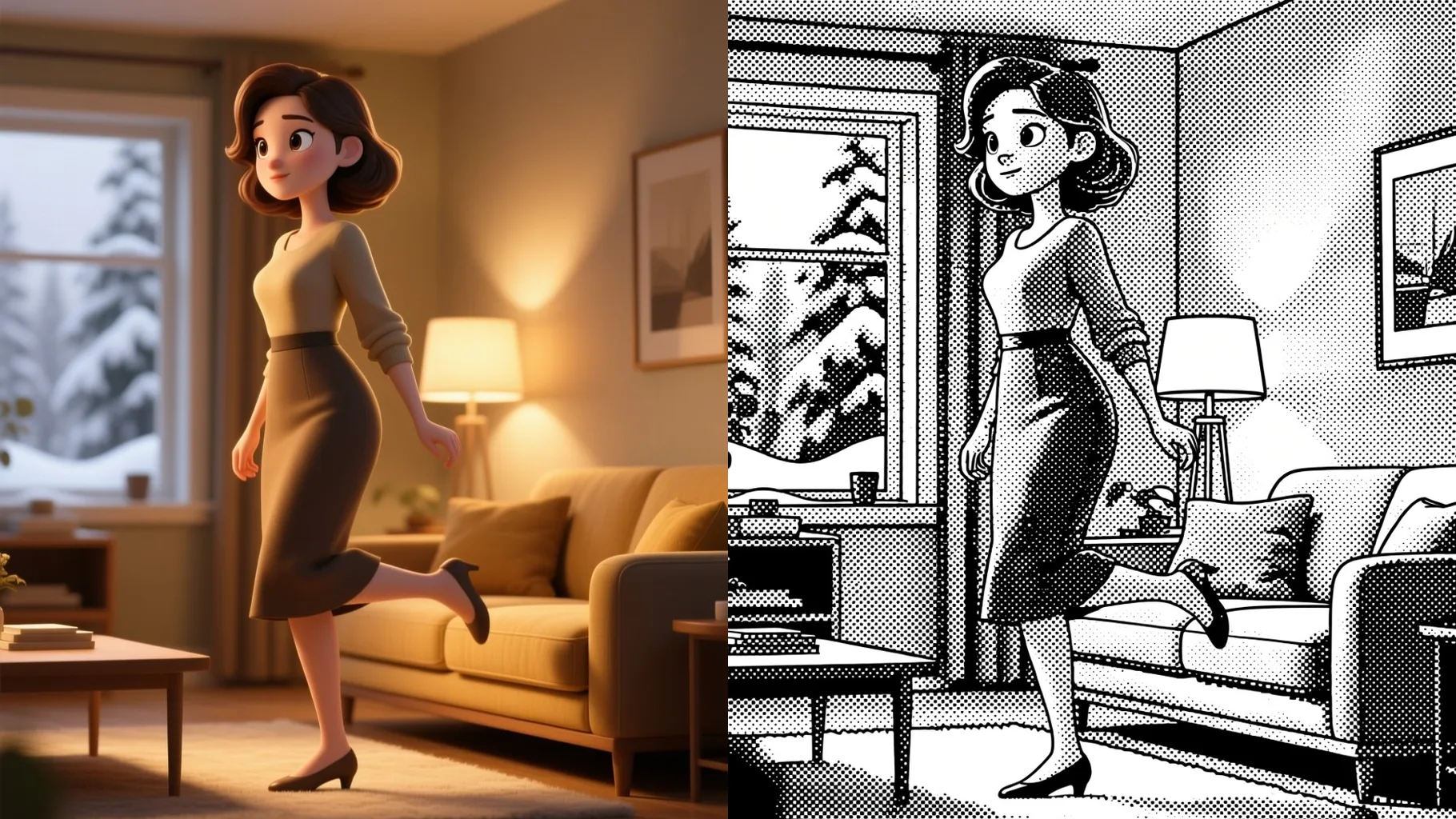
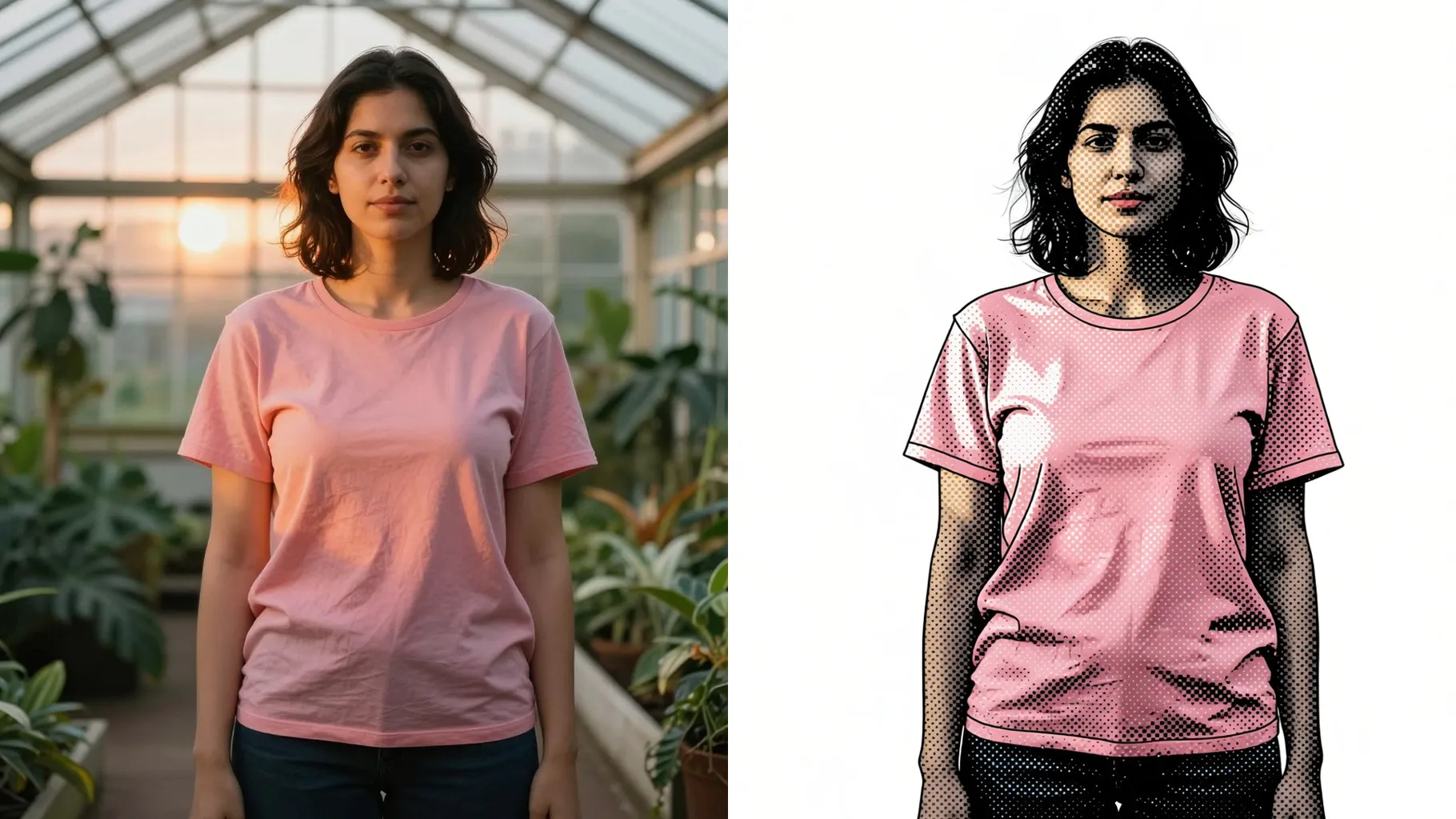
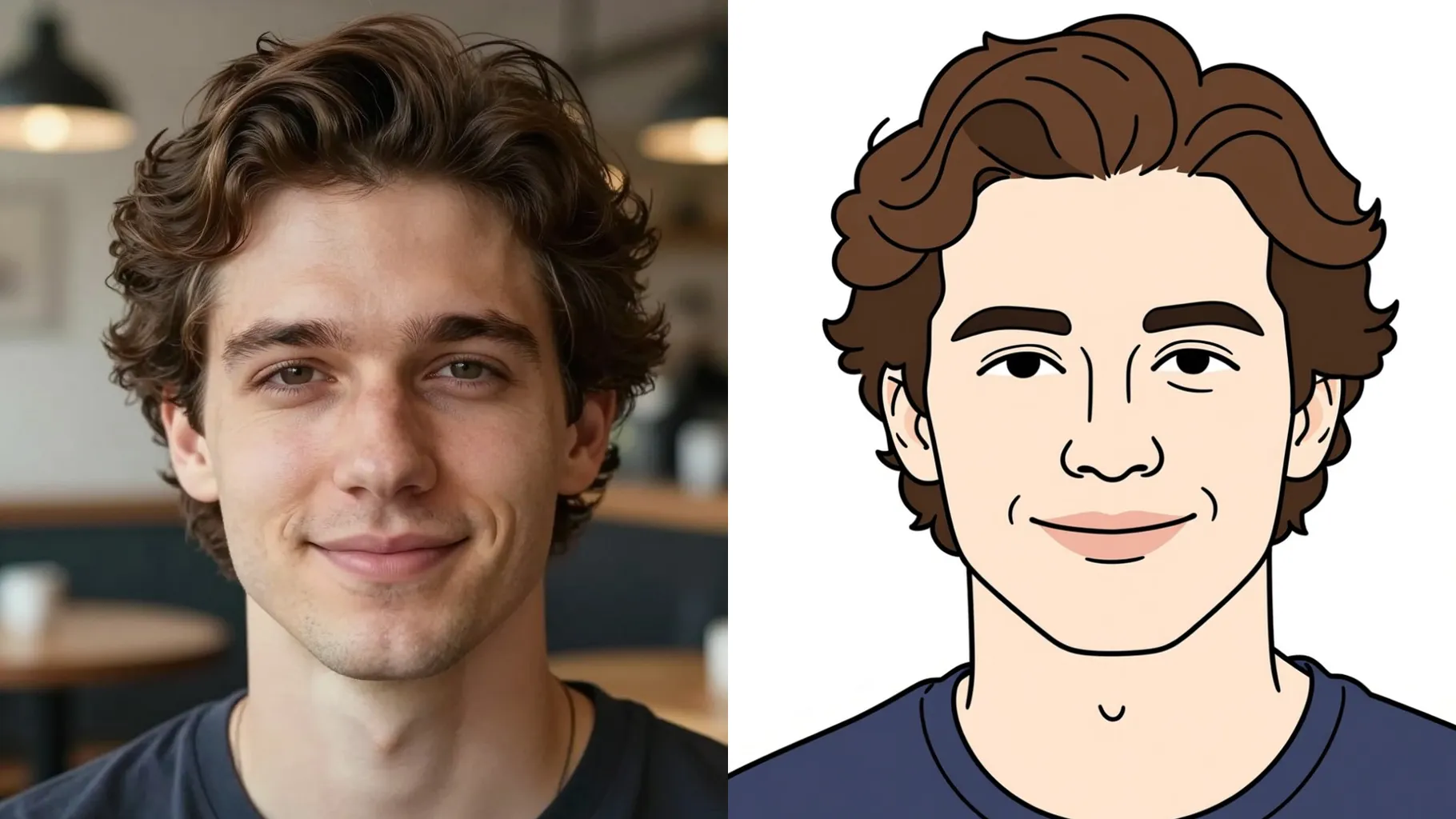
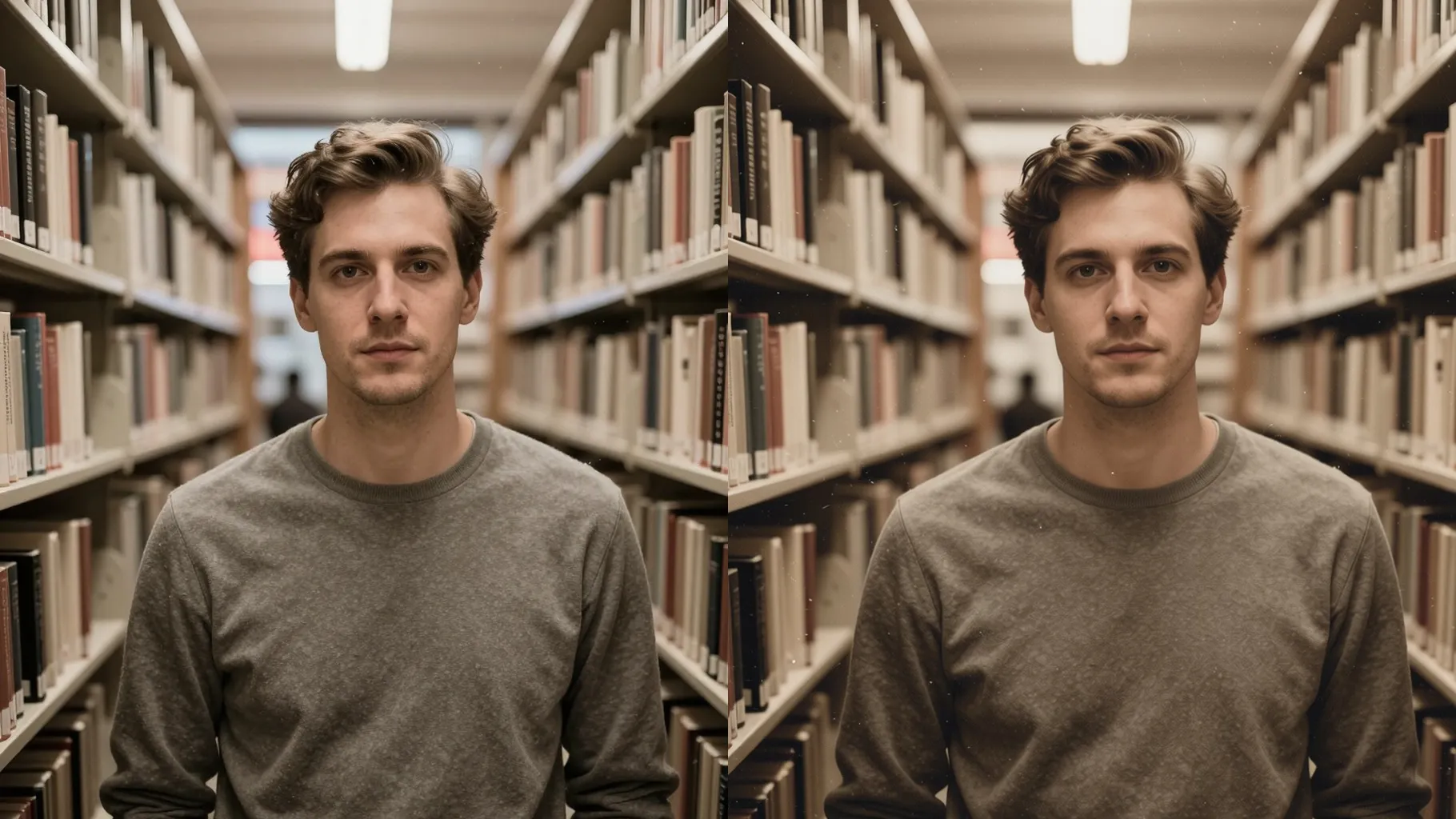
Turn one photo into a clean pencil sketch with defined edges and natural shading.
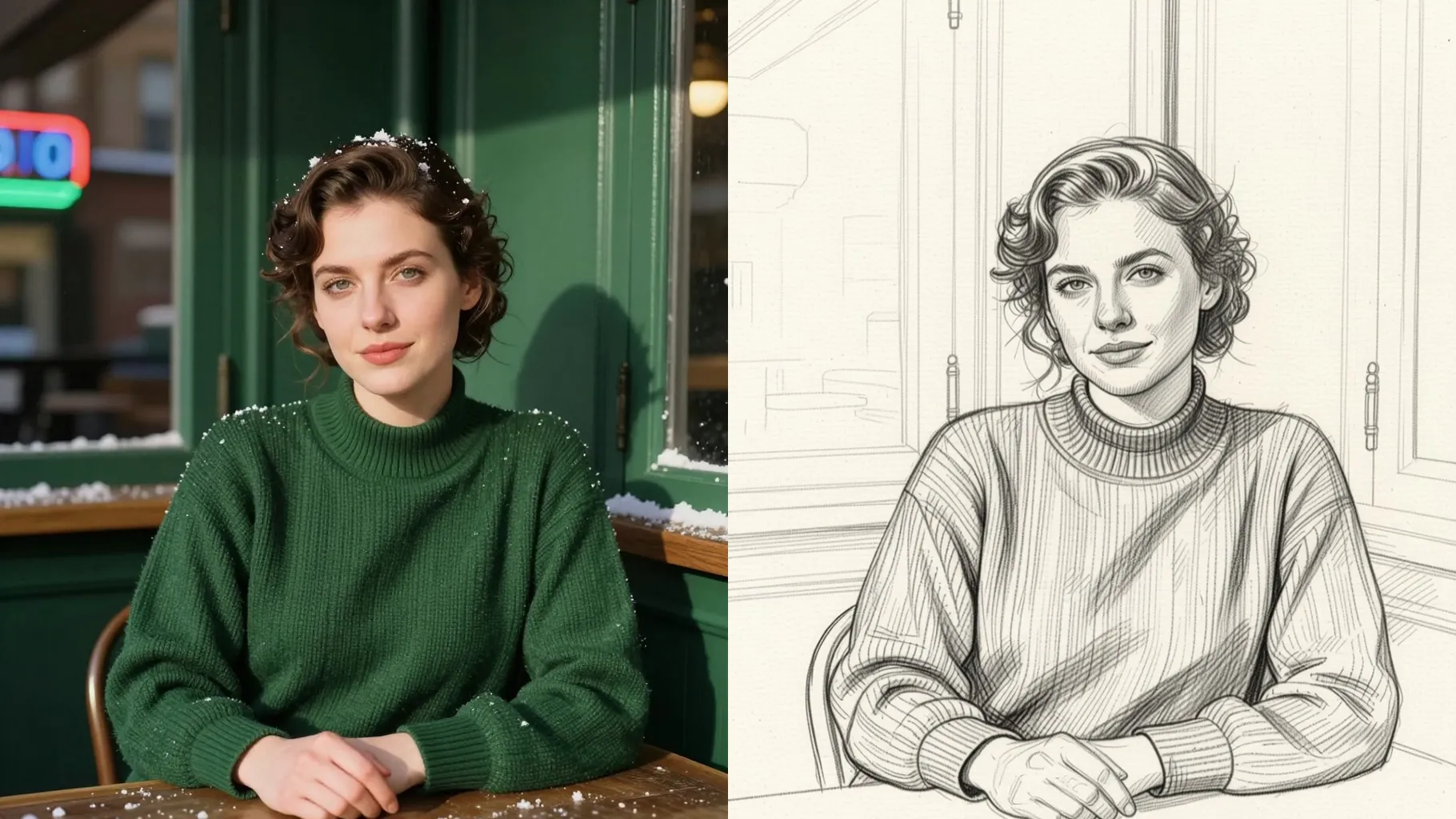
A clear portrait becomes a pencil sketch with crisp outlines, smooth shading, and preserved proportions.
Examples show the target style. Your result depends on the chosen model and reference photo.
Upload one image and get a pencil-style render with clean outlines, cross-hatching shadows, and realistic structure.
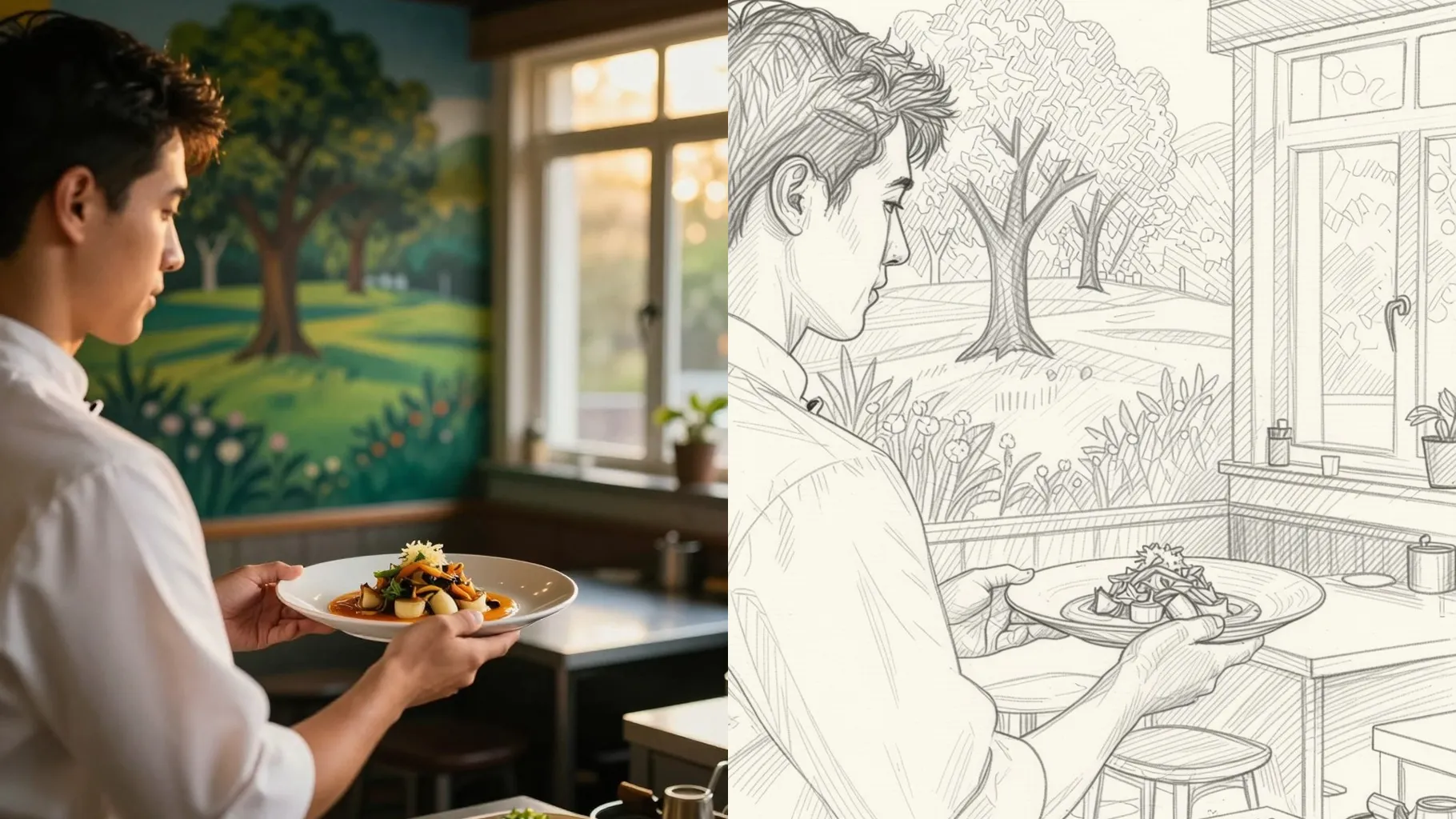
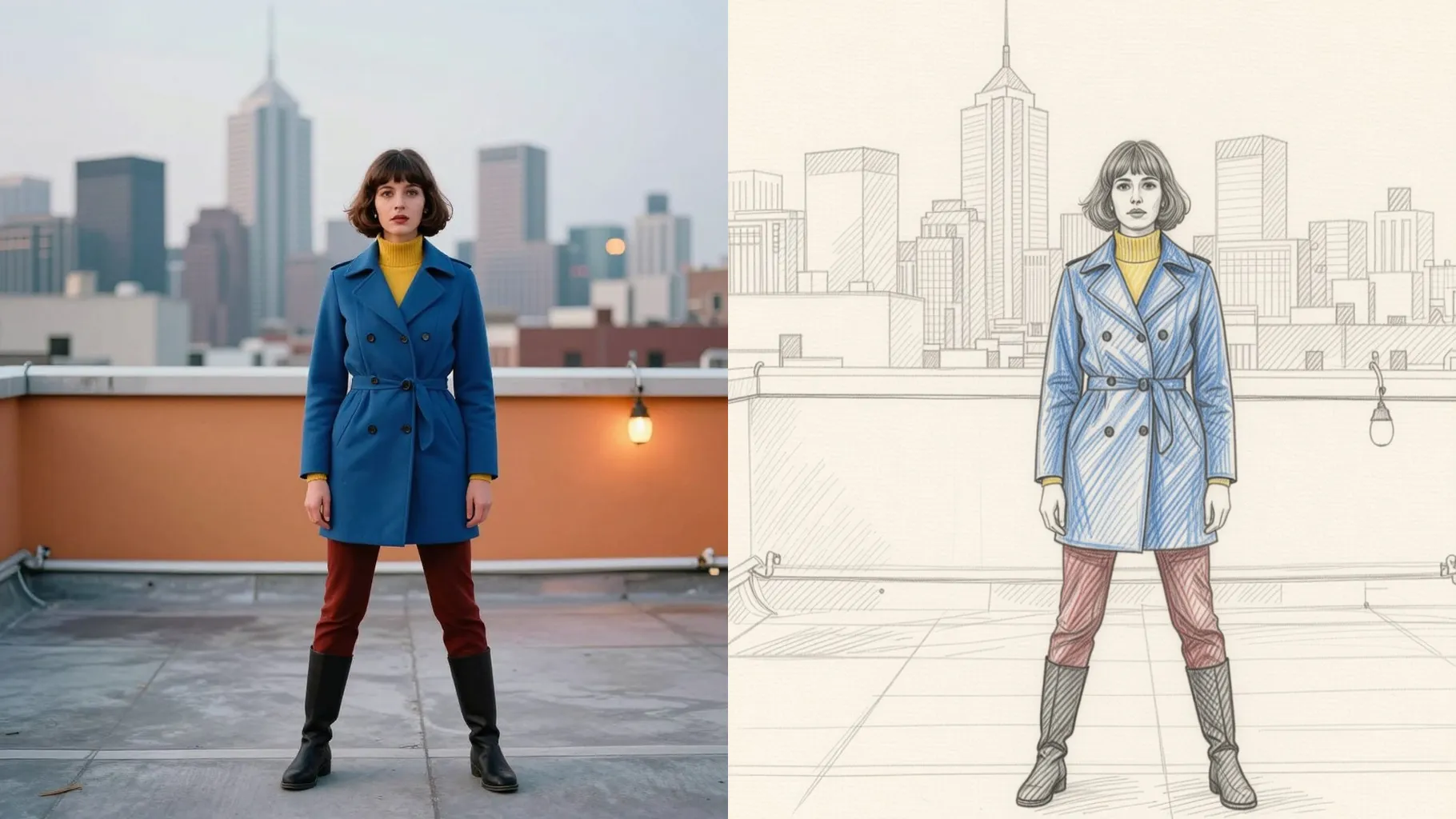
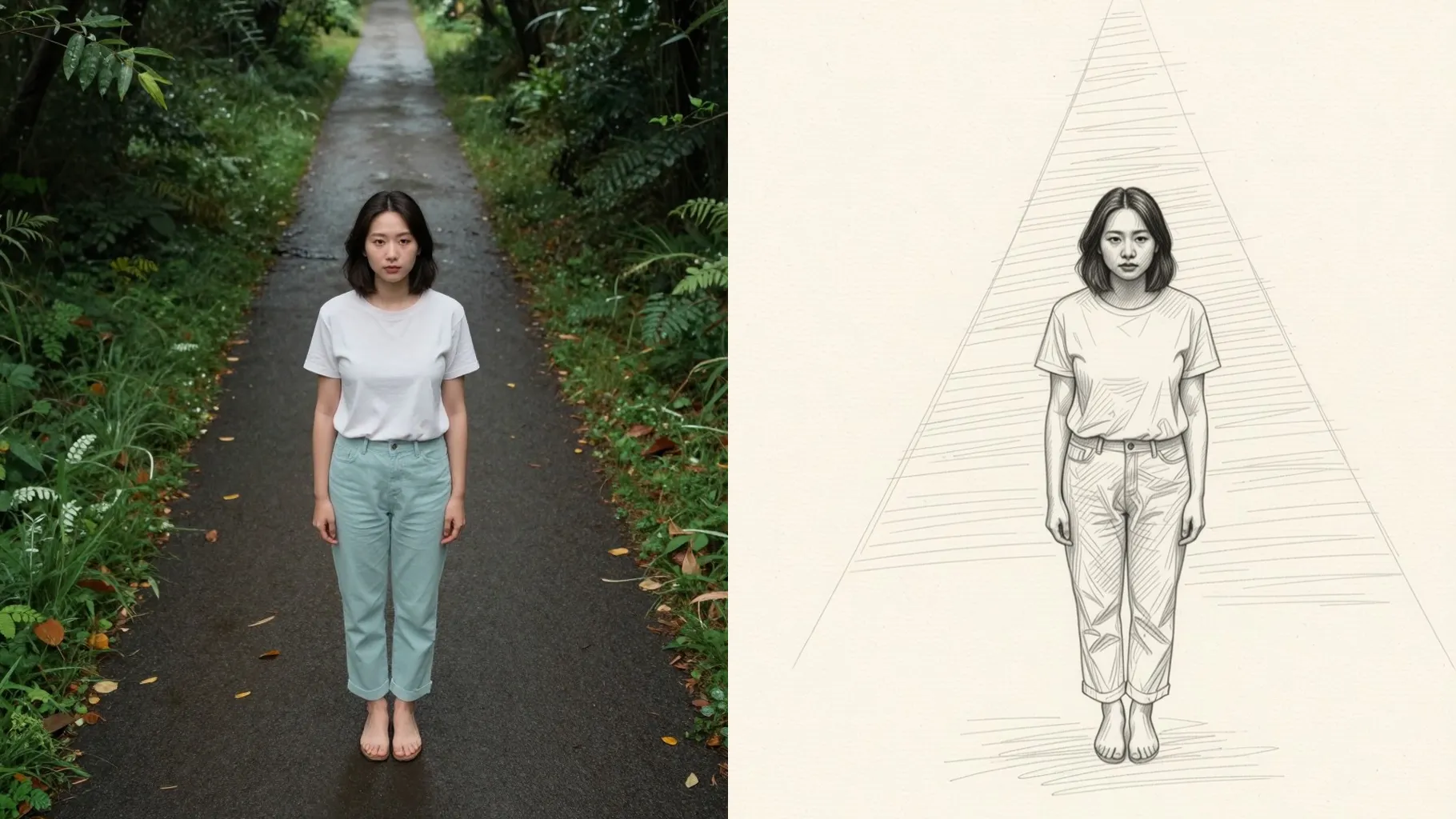
One upload keeps faces and lighting accurate while the filter converts edges into graphite lines and tonal shading.
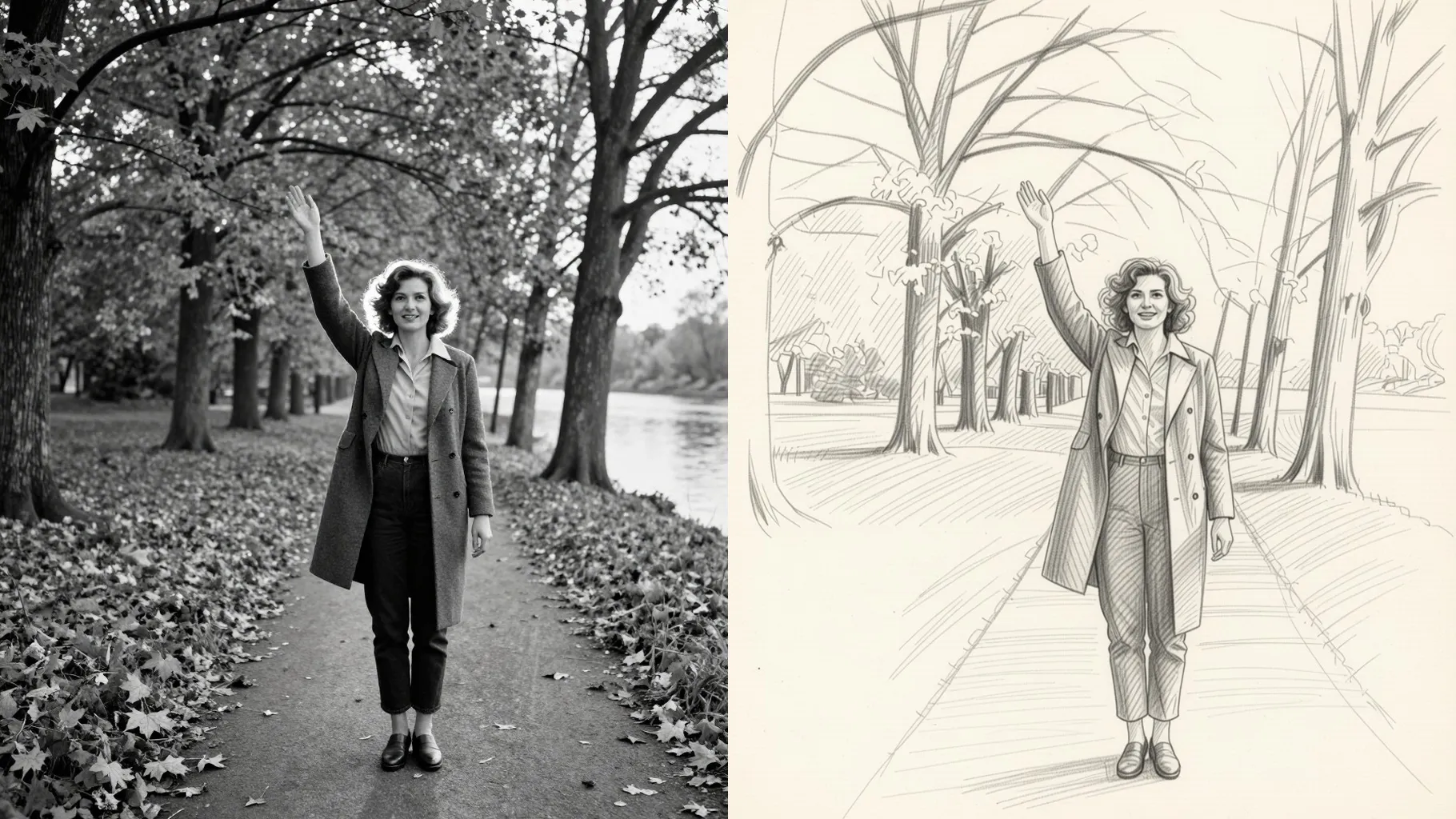
Mention pencil weight, cross-hatching, paper texture, or background simplicity; the render follows without warping your subject.
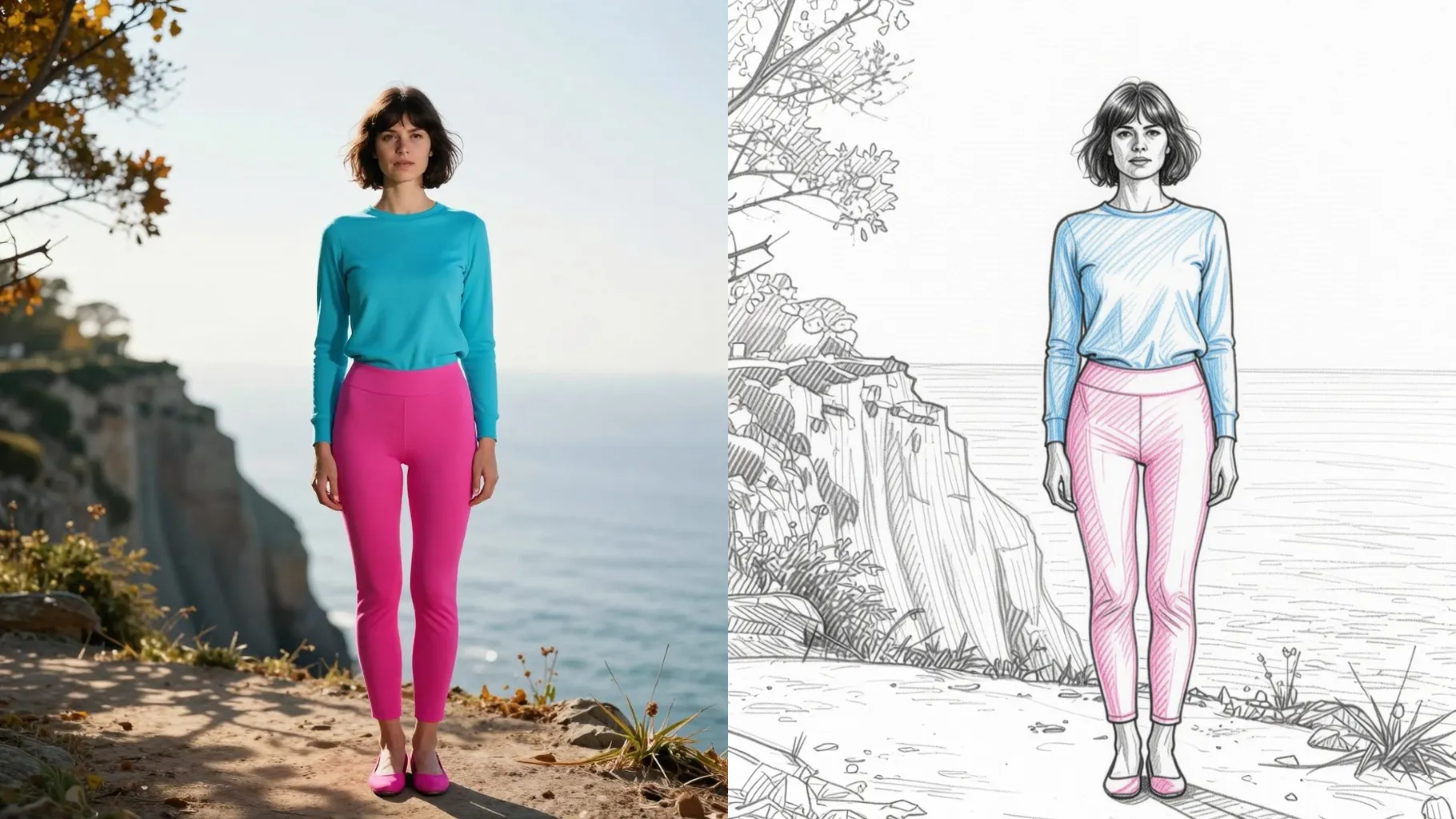
Centered portraits or product shots with even lighting give the sketch clean contours to trace.
Try prompts like pencil sketch, cross-hatching, light shading, or blank background; keep them short for consistent strokes.
Preview the graphite render, rerun if you want a stronger stroke, then save the sketch you like best.
Just one upload. The template converts a single image into a pencil sketch without extra references.
Yes, outputs stay grayscale by default. Add a cue like sepia tone or blue pencil if you want a tinted sketch.
It preserves proportions, expressions, and lighting so the pencil lines still look like your original subject.
Aspect ratio and model switching are locked for stability. Crop before upload if you need a specific frame.
Use a high-resolution photo with balanced light and minimal blur; avoid busy backgrounds for the cleanest edges.
Generation time depends on the model, image size, and queue. Check the task status on this page.

Upload one photo, add a short hint, and download a graphite-style sketch ready for sharing.