
1. How many photos can I upload per run?
Upload one photo at a time so the brow alignment, shading, and symmetry stay accurate.
Shape, fill, and lift your brows from one selfie while keeping your natural face details.
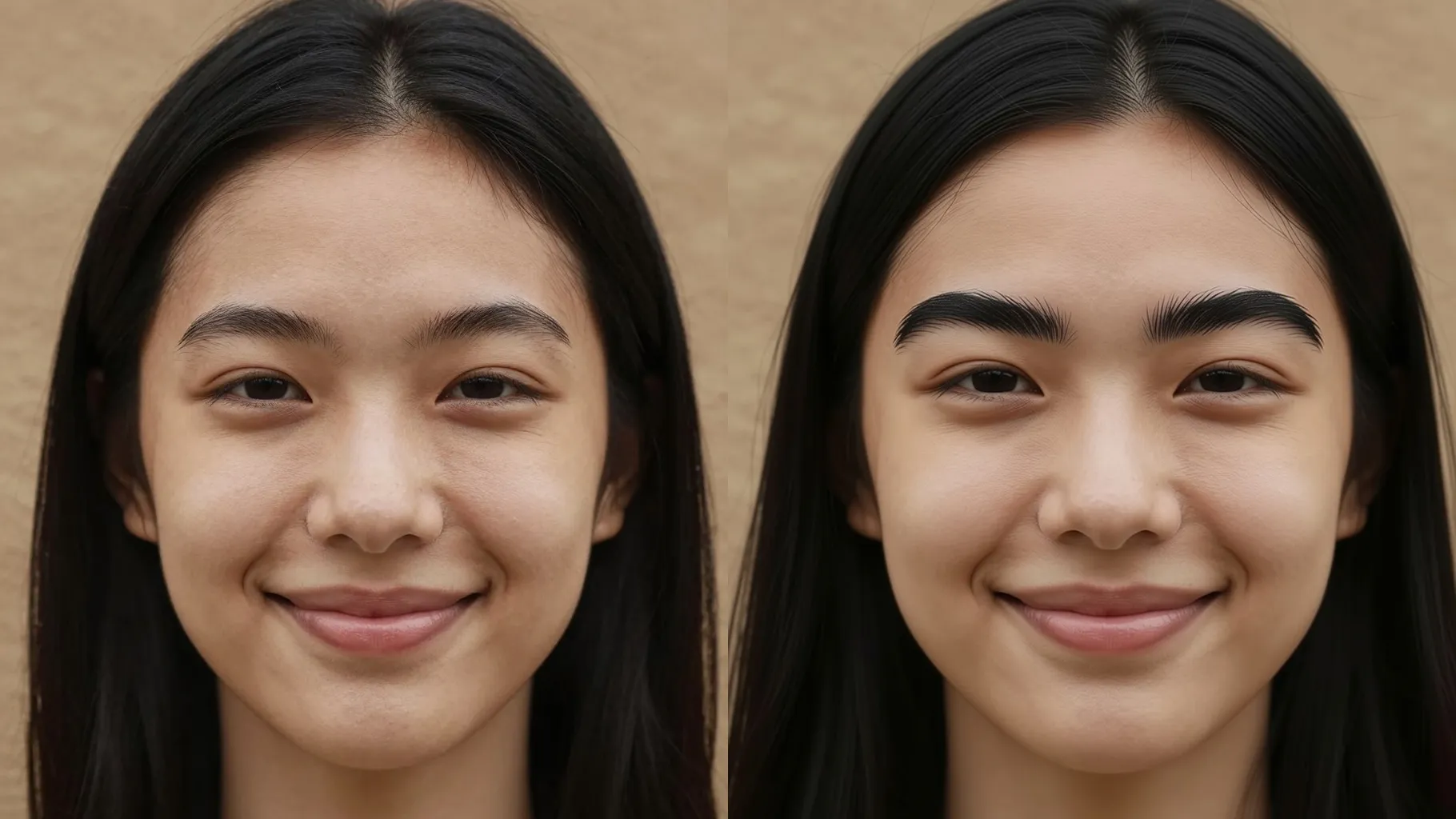
Fill in sparse brows and shape balanced arches from one selfie while keeping your skin texture and lighting true.
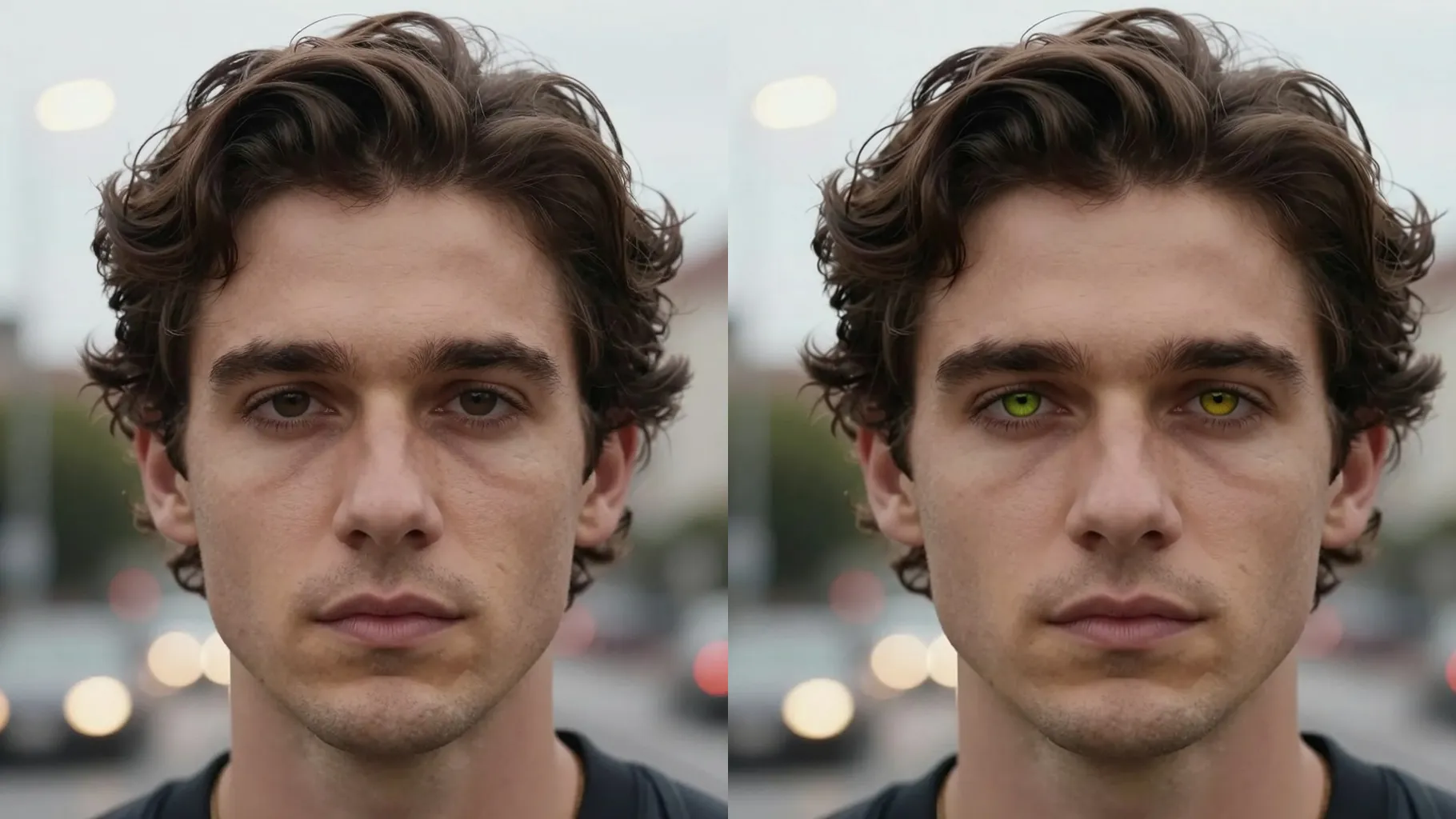
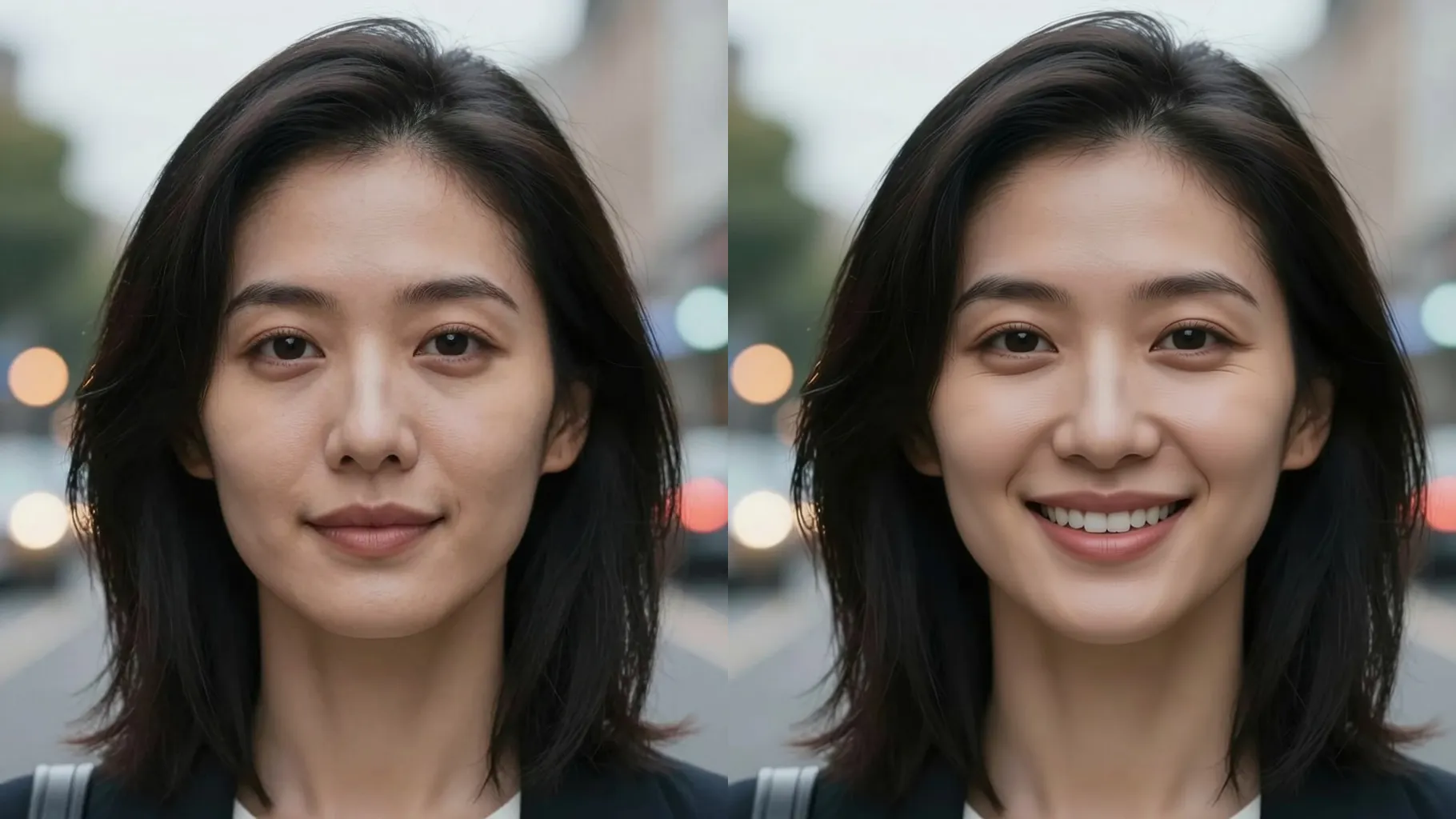
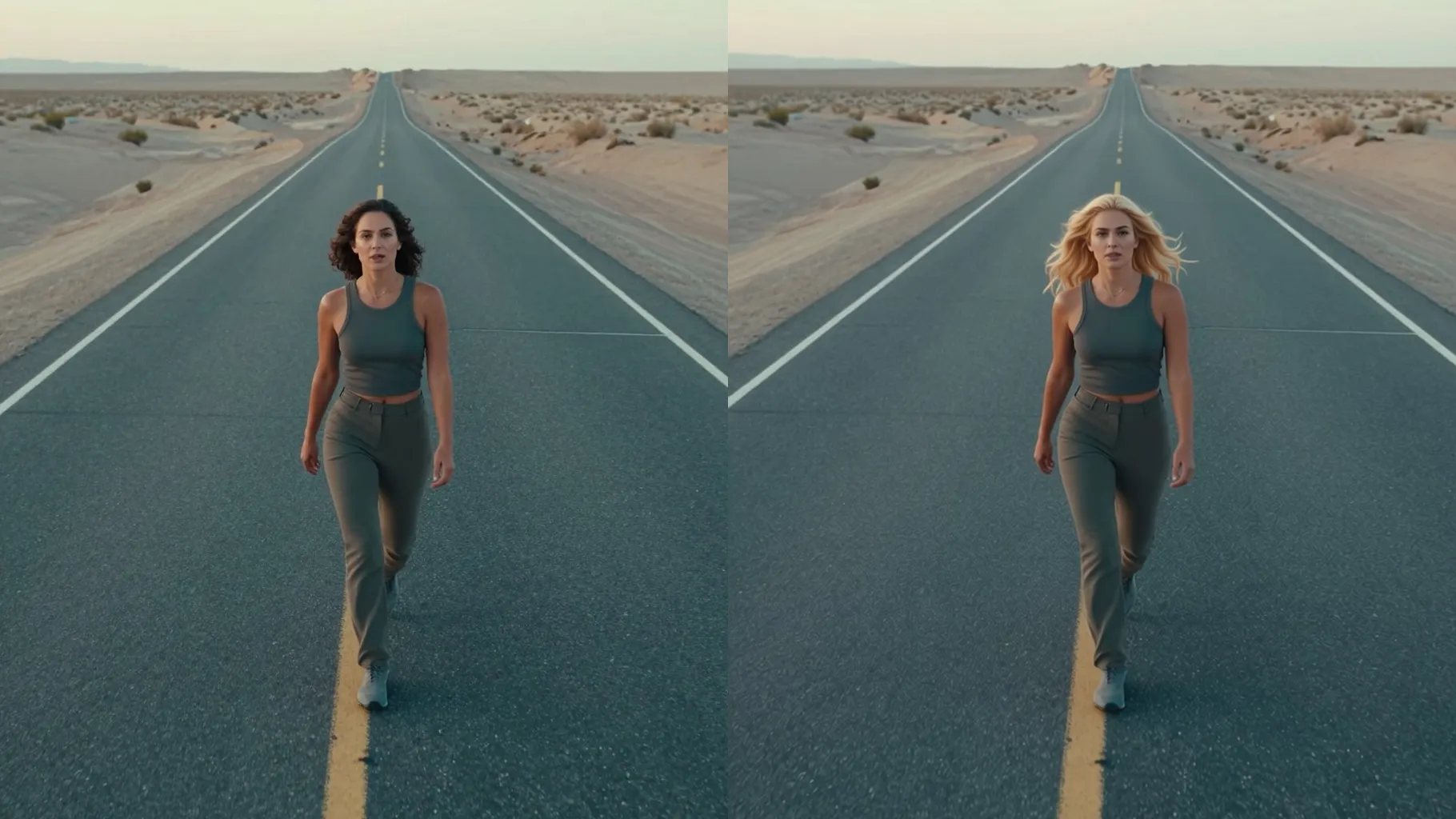
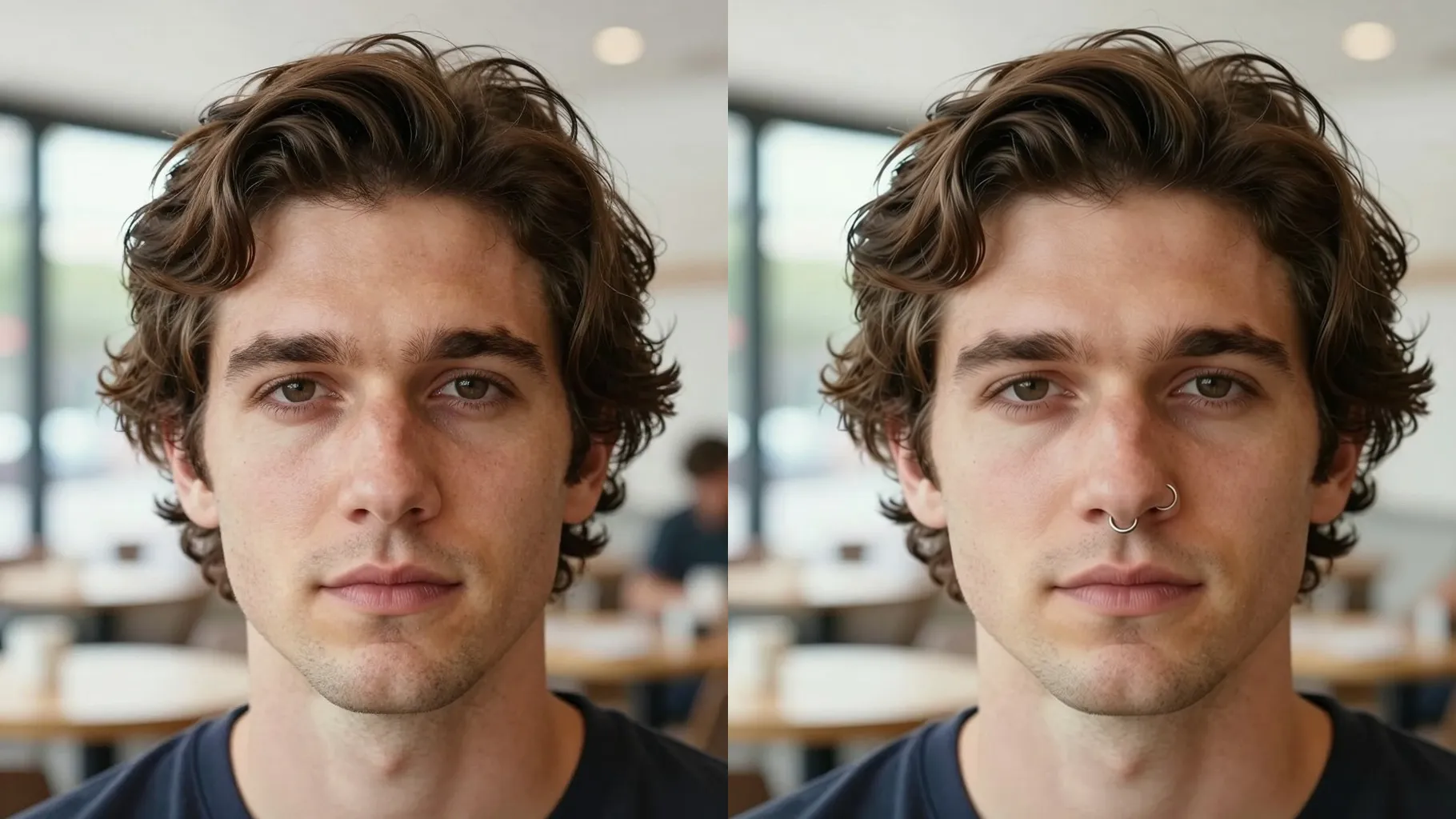
Examples show the target style. Your result depends on the chosen model and reference photo.
Upload one portrait to lift, fill, and define eyebrows with realistic hair strokes while keeping your original face intact.
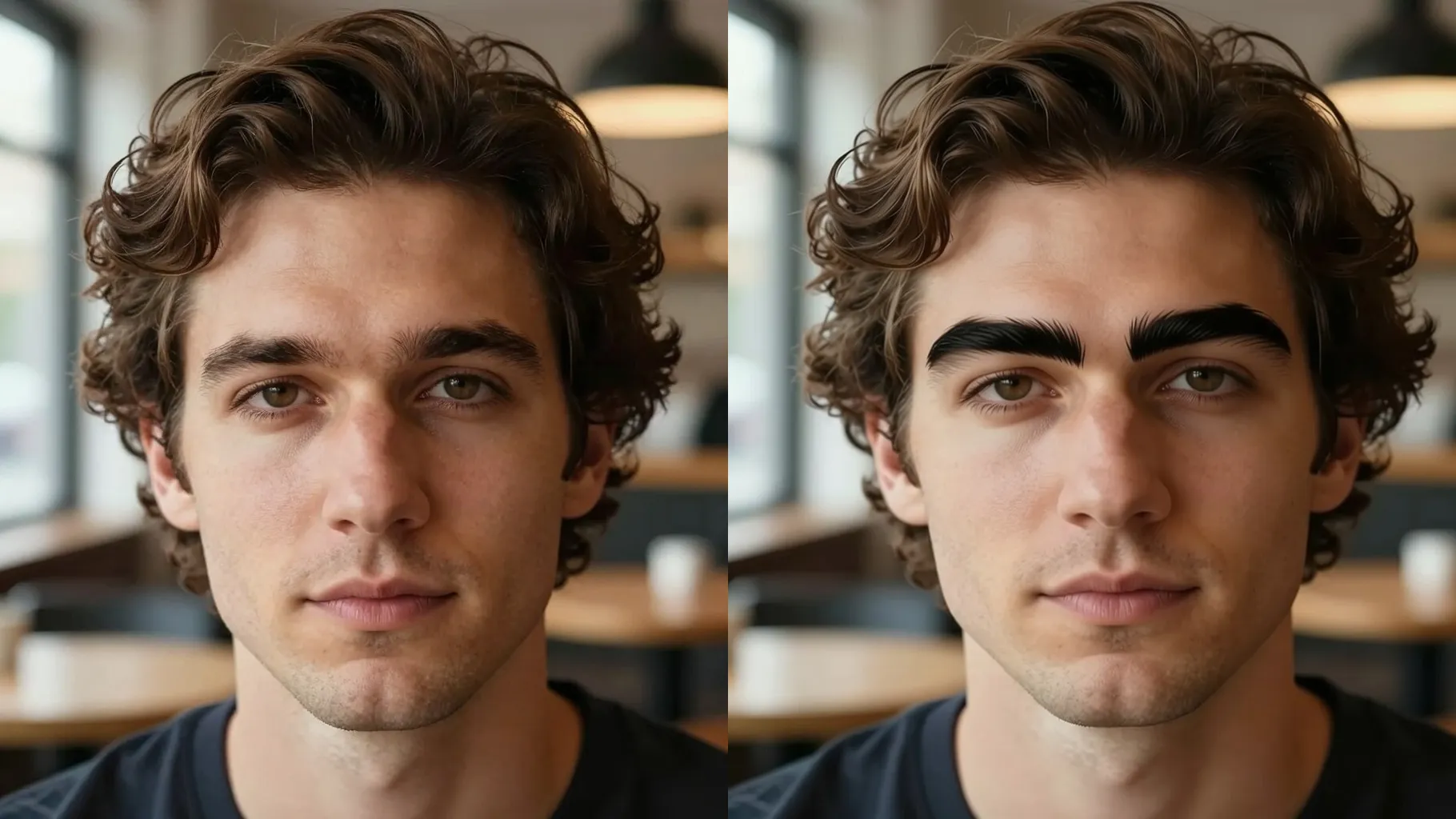
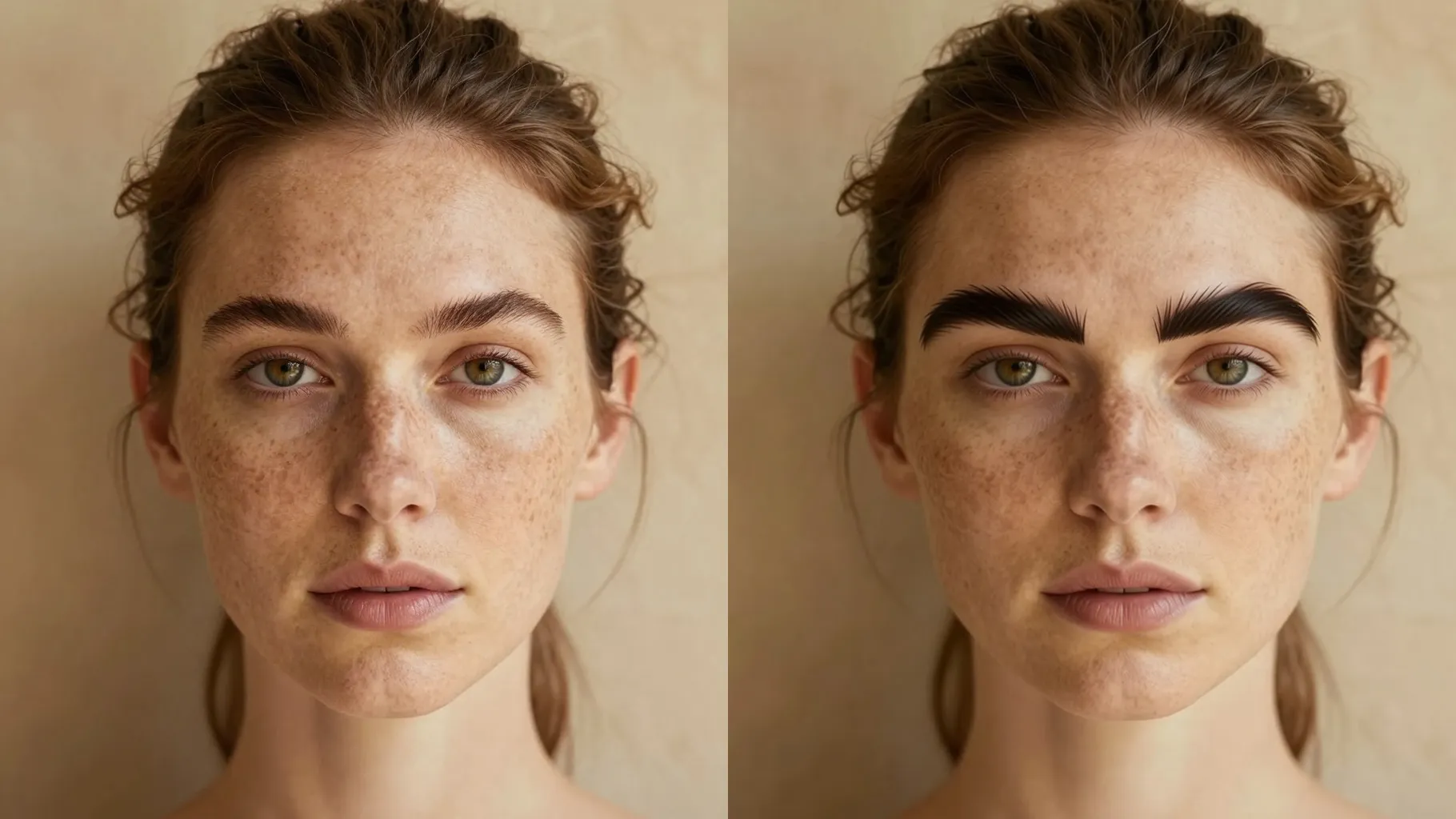
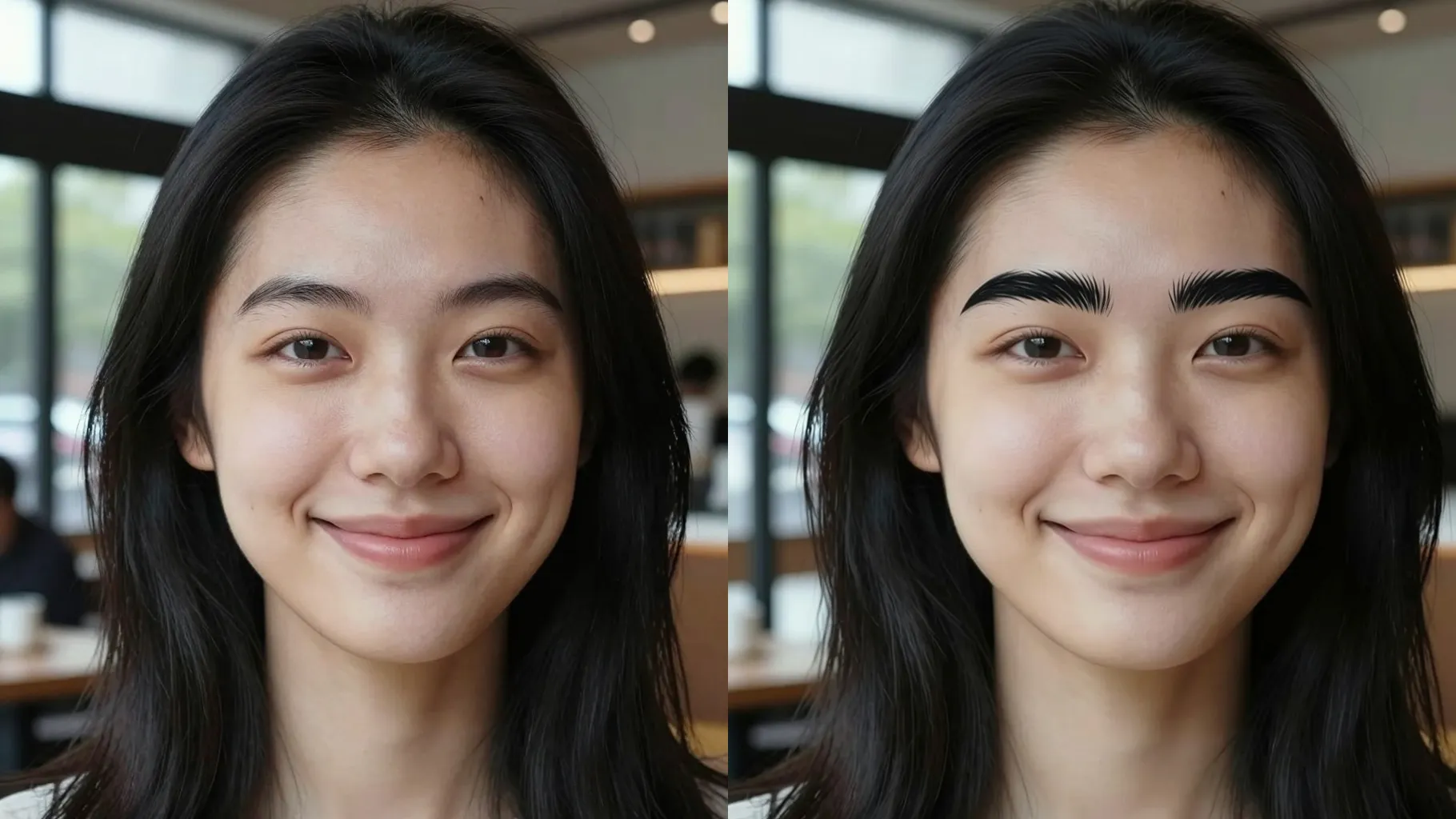
AI refines arches, thickens sparse areas, and balances both brows while keeping your brow bone, eyes, and lashes untouched.
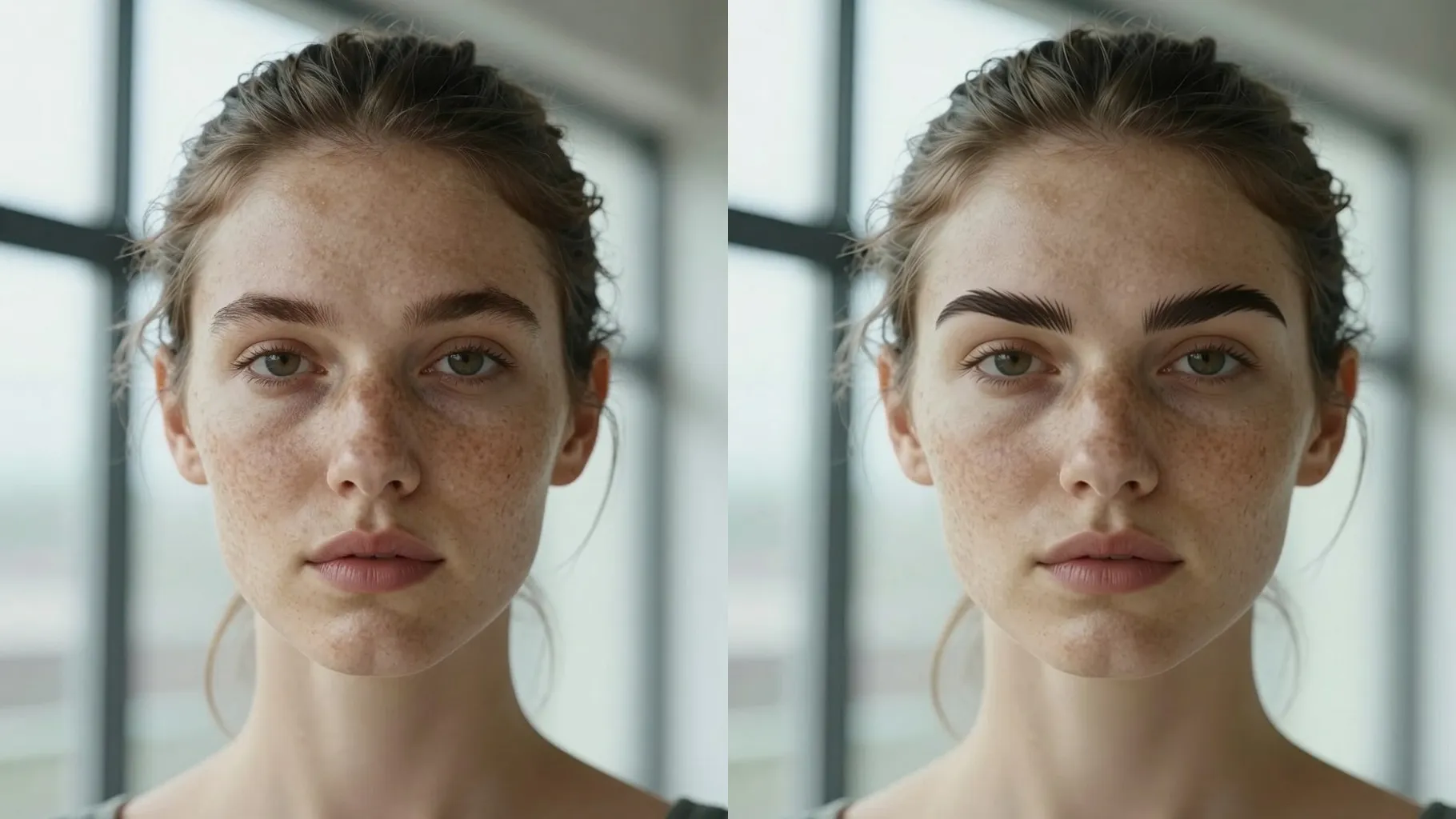
Adds crisp strokes and soft shading that match your brow color and lighting—no plastic skin or harsh lines.
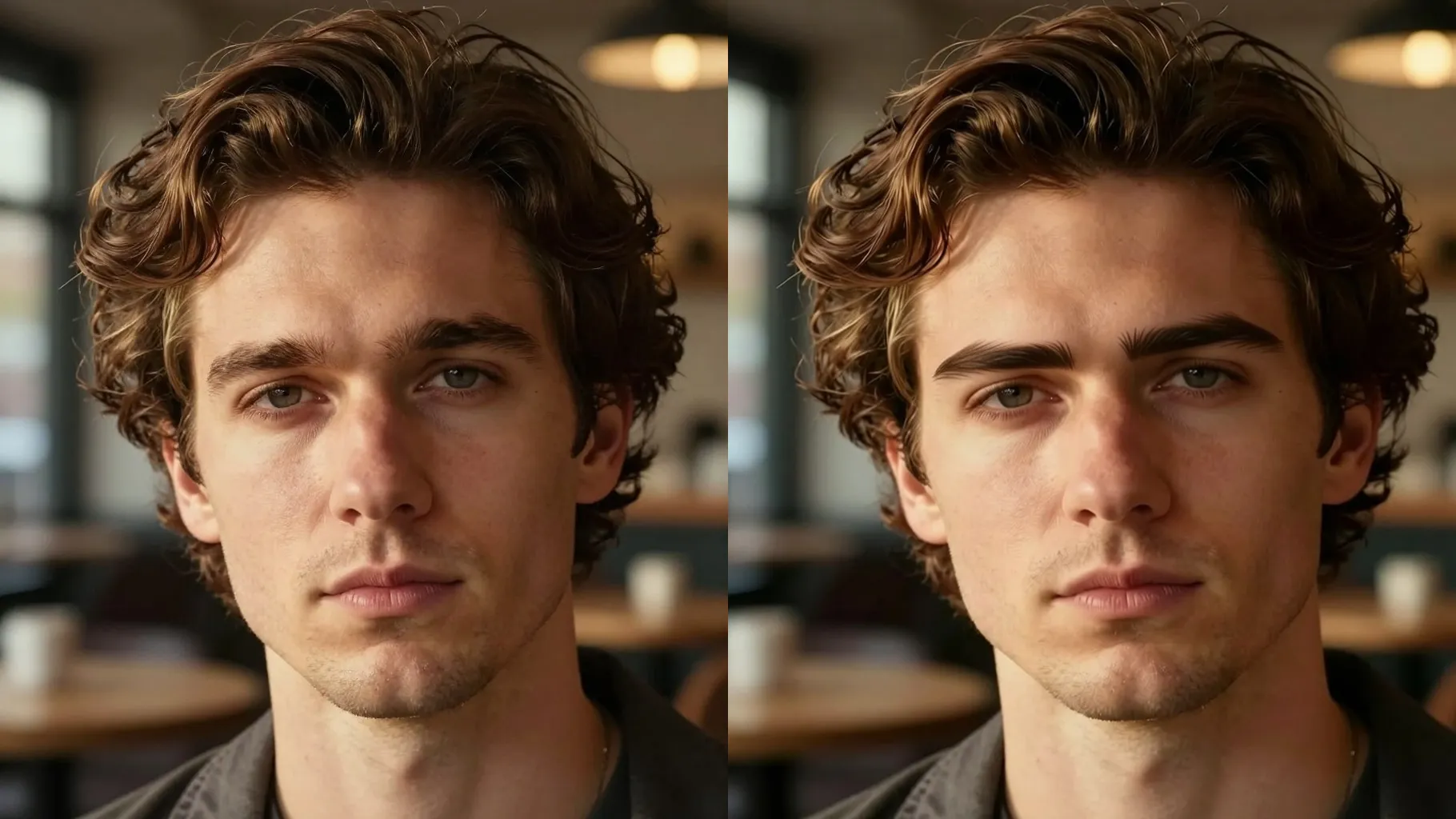
Keep eyebrows visible; avoid heavy bangs, hats, or shadows that hide the brow line.
Mention soft arch, straight brow, fuller tail, or feathered front to steer the render.
Preview the refined brows, re-run for variations, then save your favorite look.
Upload one photo at a time so the brow alignment, shading, and symmetry stay accurate.
No. This is an image-to-image eyebrow filter and needs one selfie or headshot upload.
It focuses on eyebrows and keeps your bone structure, hairline, and facial proportions intact.
Yes. It supports straight, arched, soft, or bold brows for any gender—just keep brows visible.
Use even lighting, avoid brow filters or heavy makeup, and keep your eyes open for clearer alignment.
Aspect ratio and model switching stay off to keep results consistent across runs.

Generation time depends on the model, image size, and queue. Check the task status on this page.