
1. How many photos can I upload per run?
Upload one portrait at a time to keep smile alignment and facial detail accurate.
Add a natural smile to one portrait while keeping your real facial features and lighting.
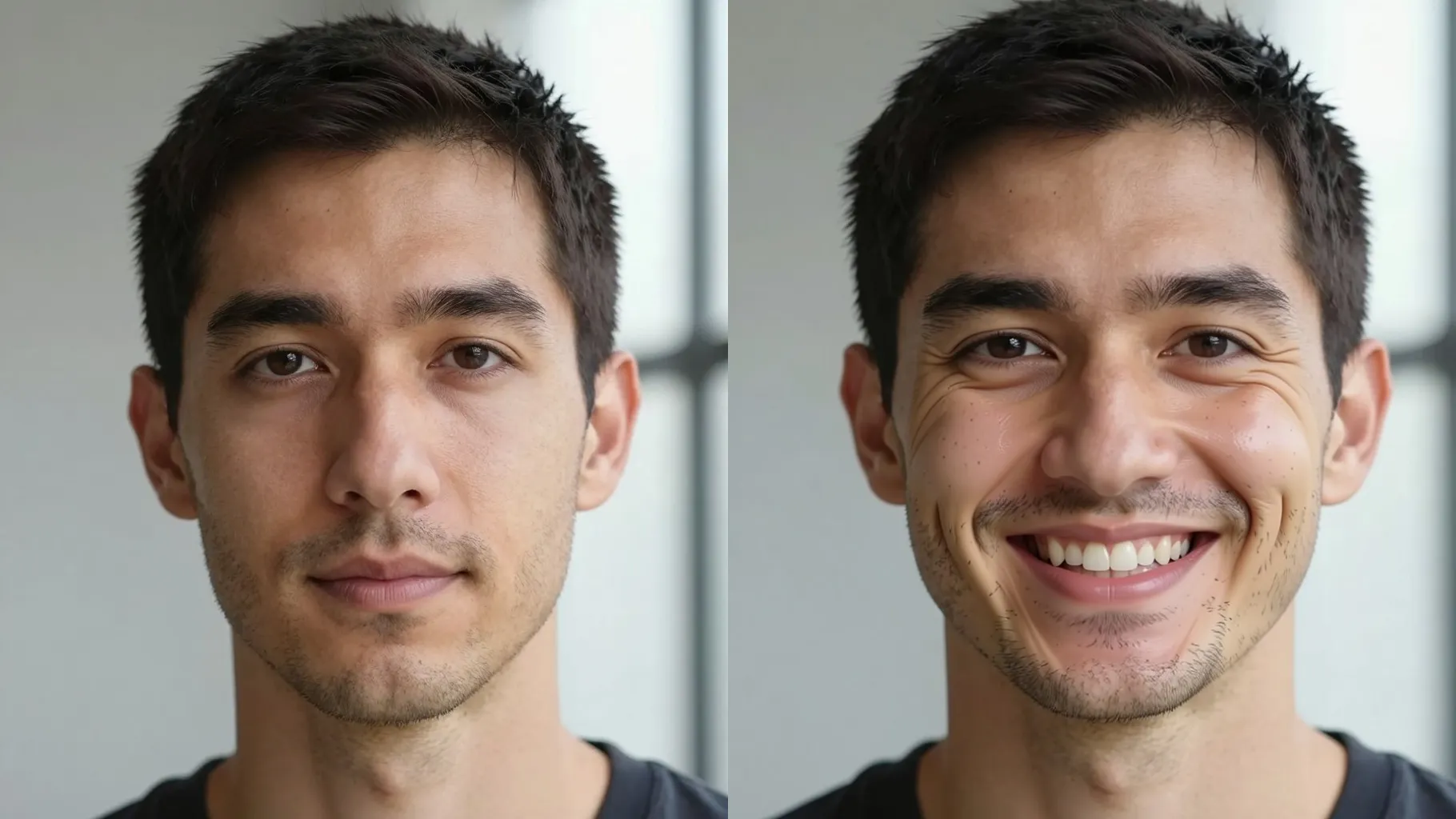
Turn a neutral expression into a natural-looking smile from one upload while keeping face shape and lighting stable.
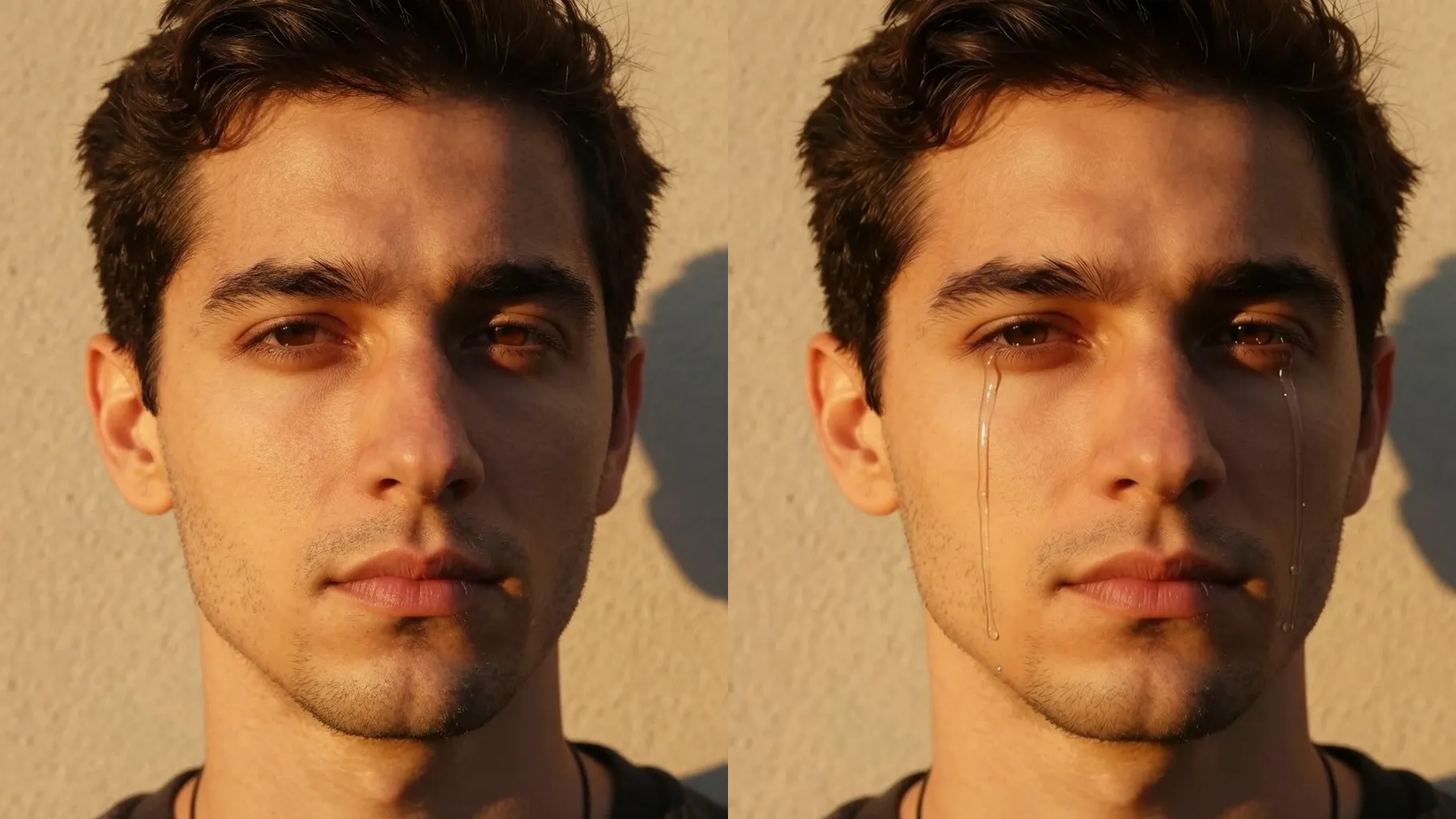
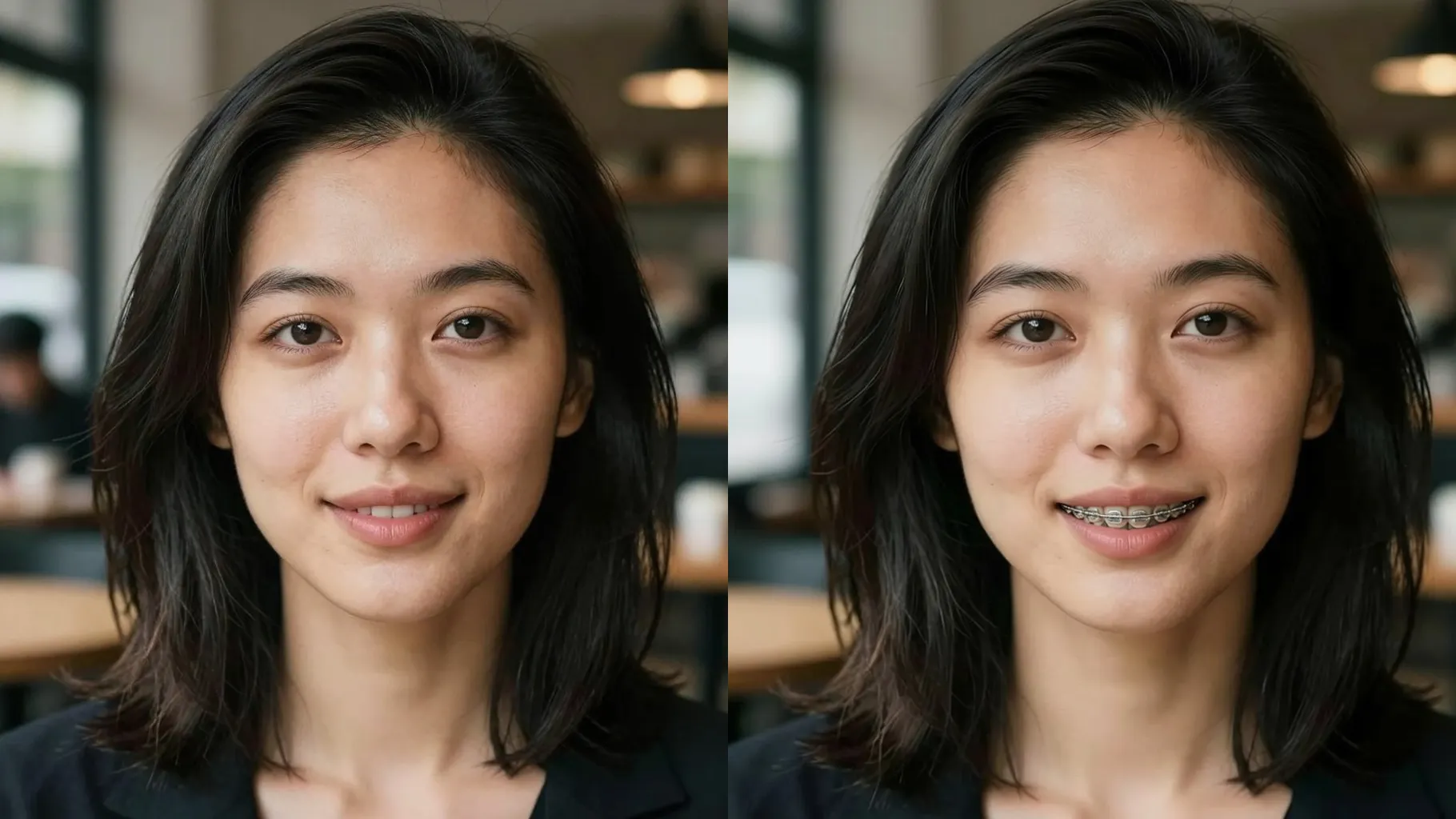
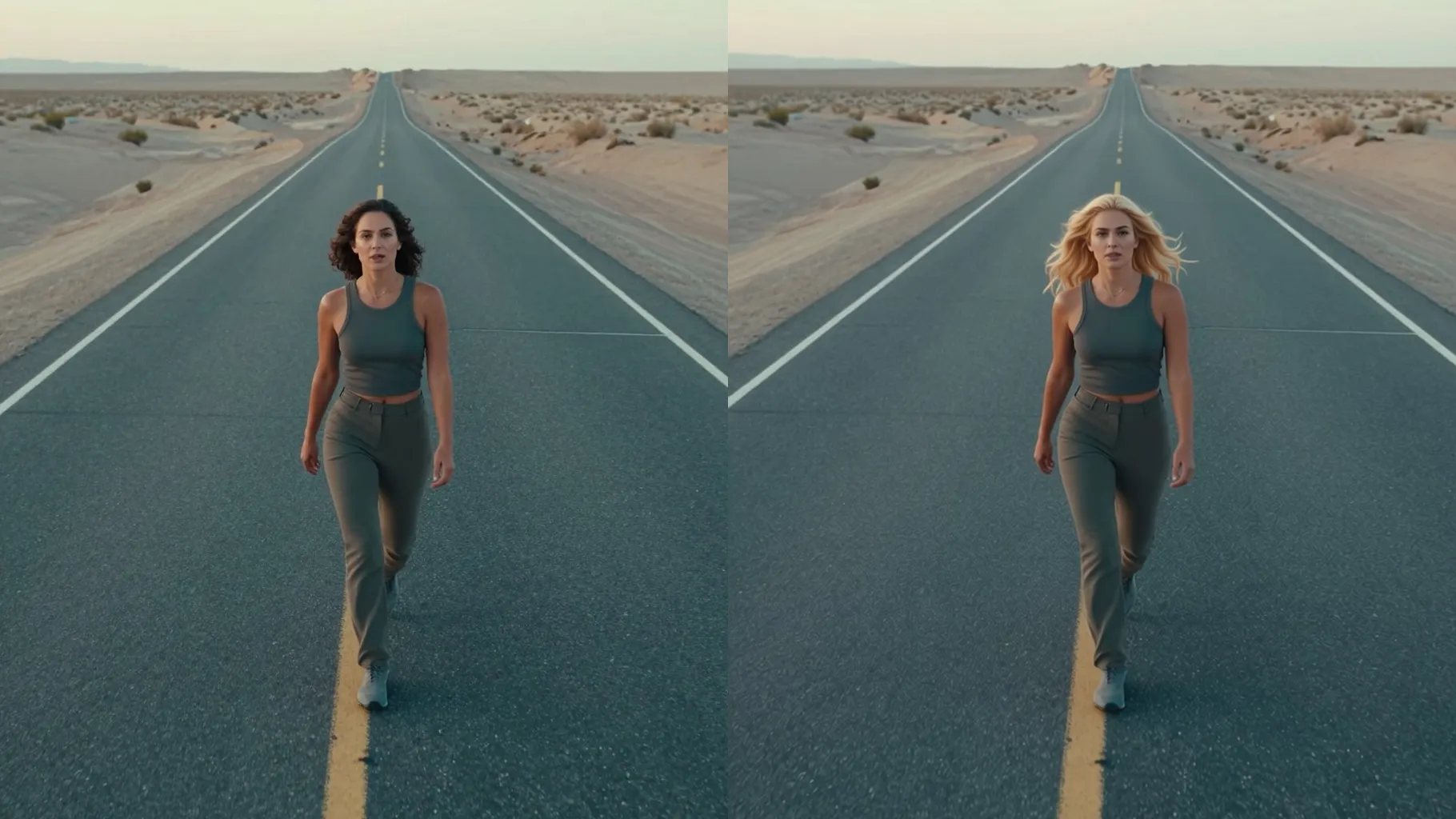
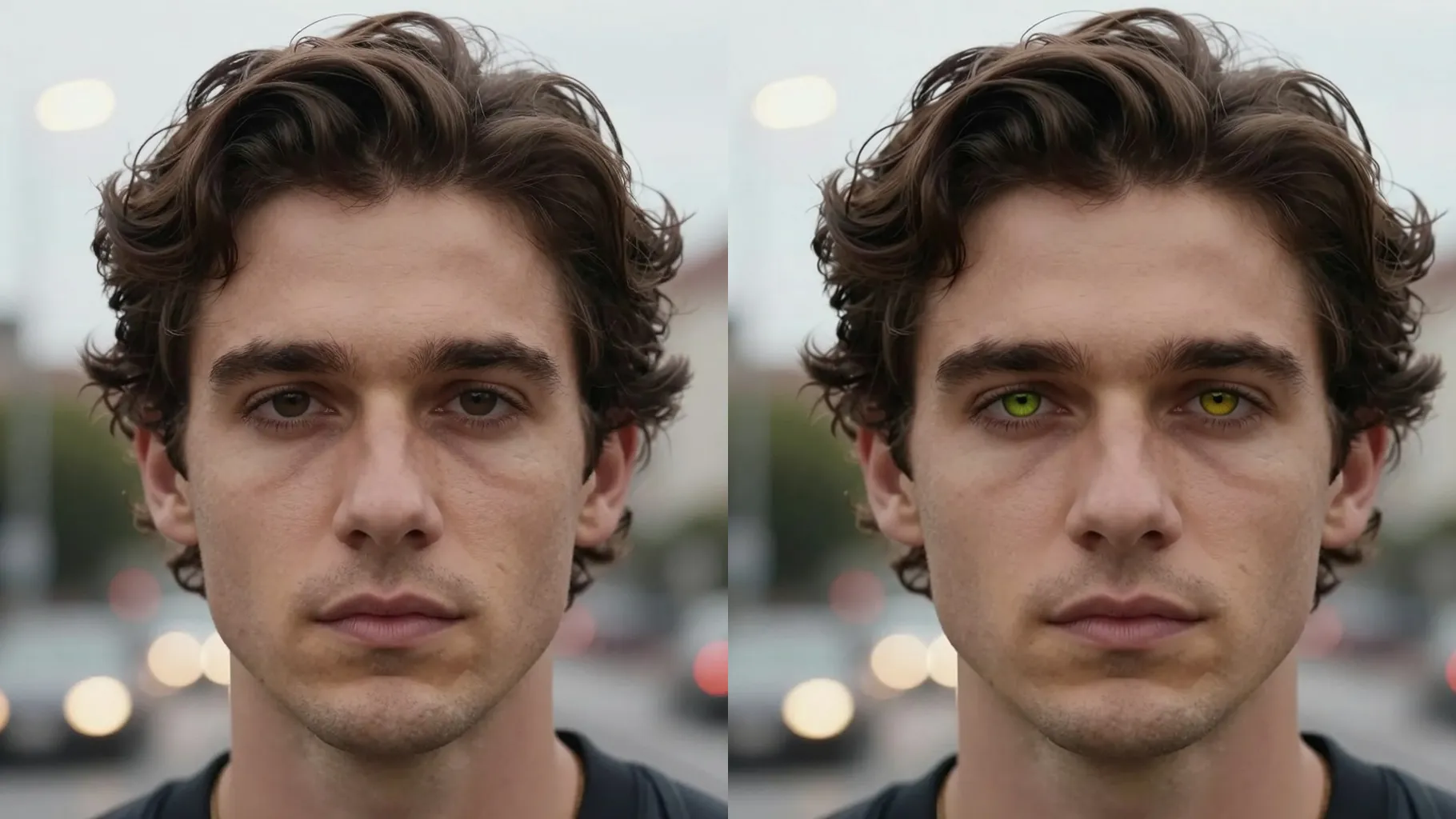
Examples show the target style. Your result depends on the chosen model and reference photo.
Upload one portrait to add a genuine, balanced smile while preserving your real facial features and lighting.
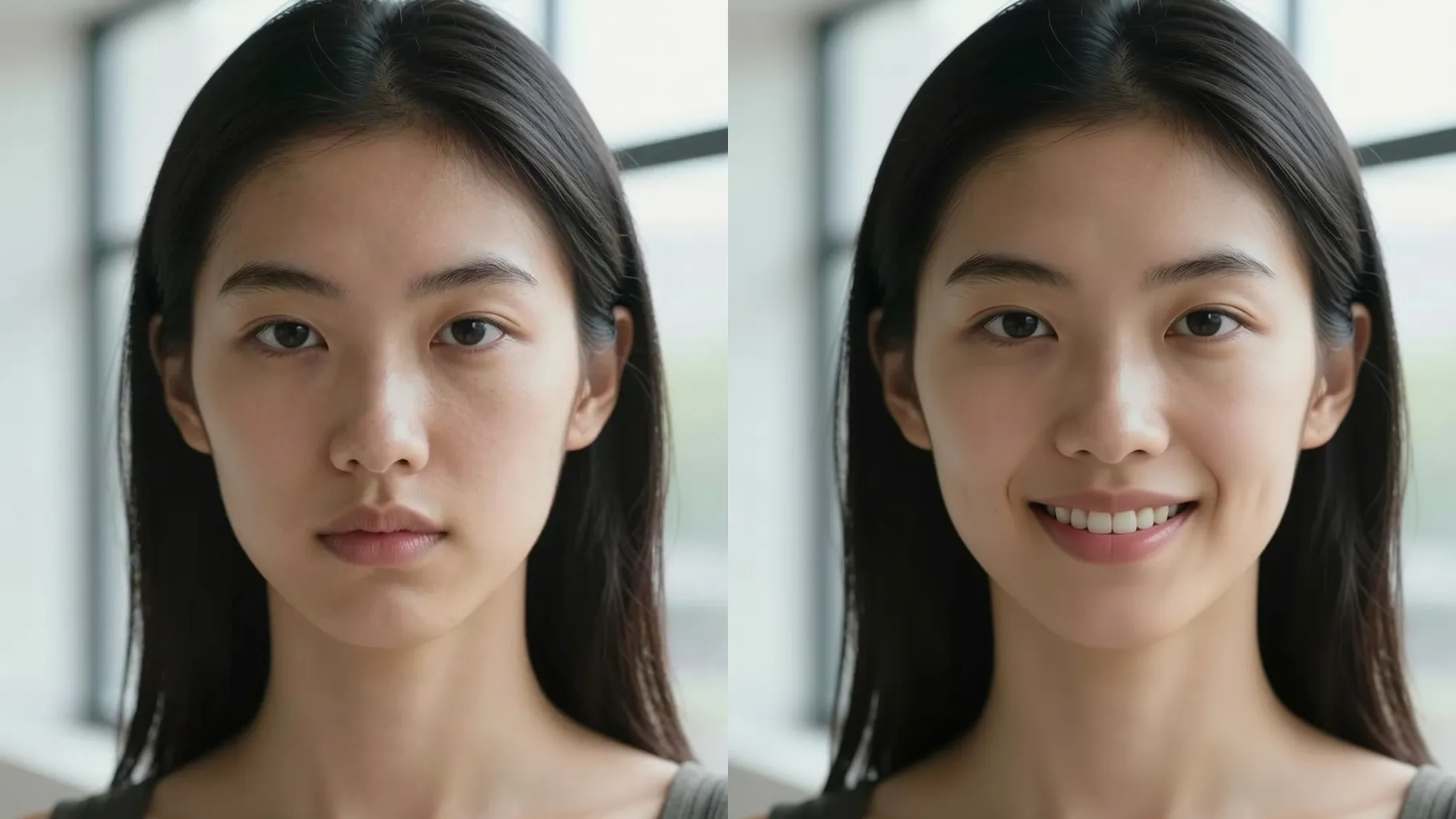
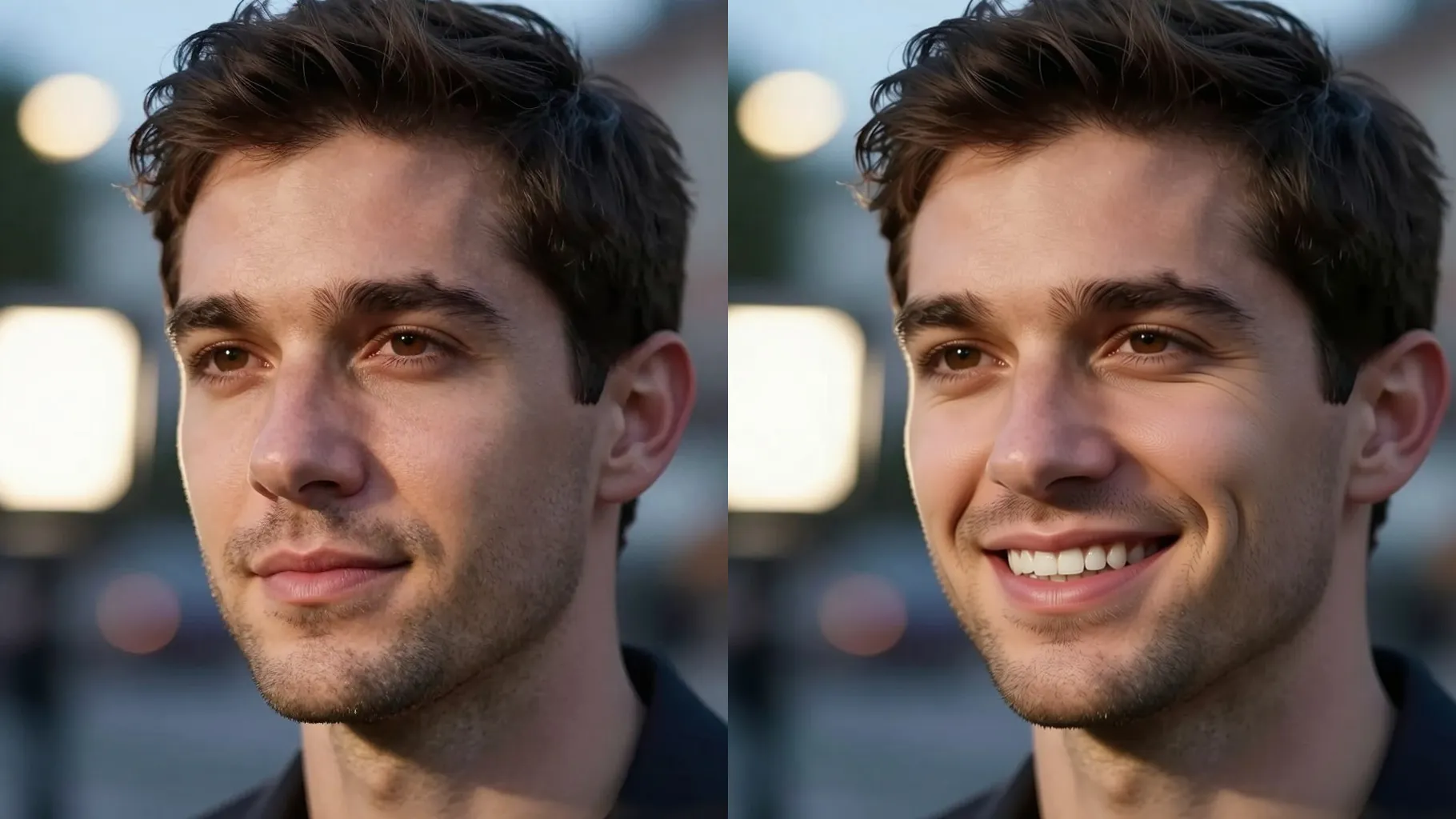
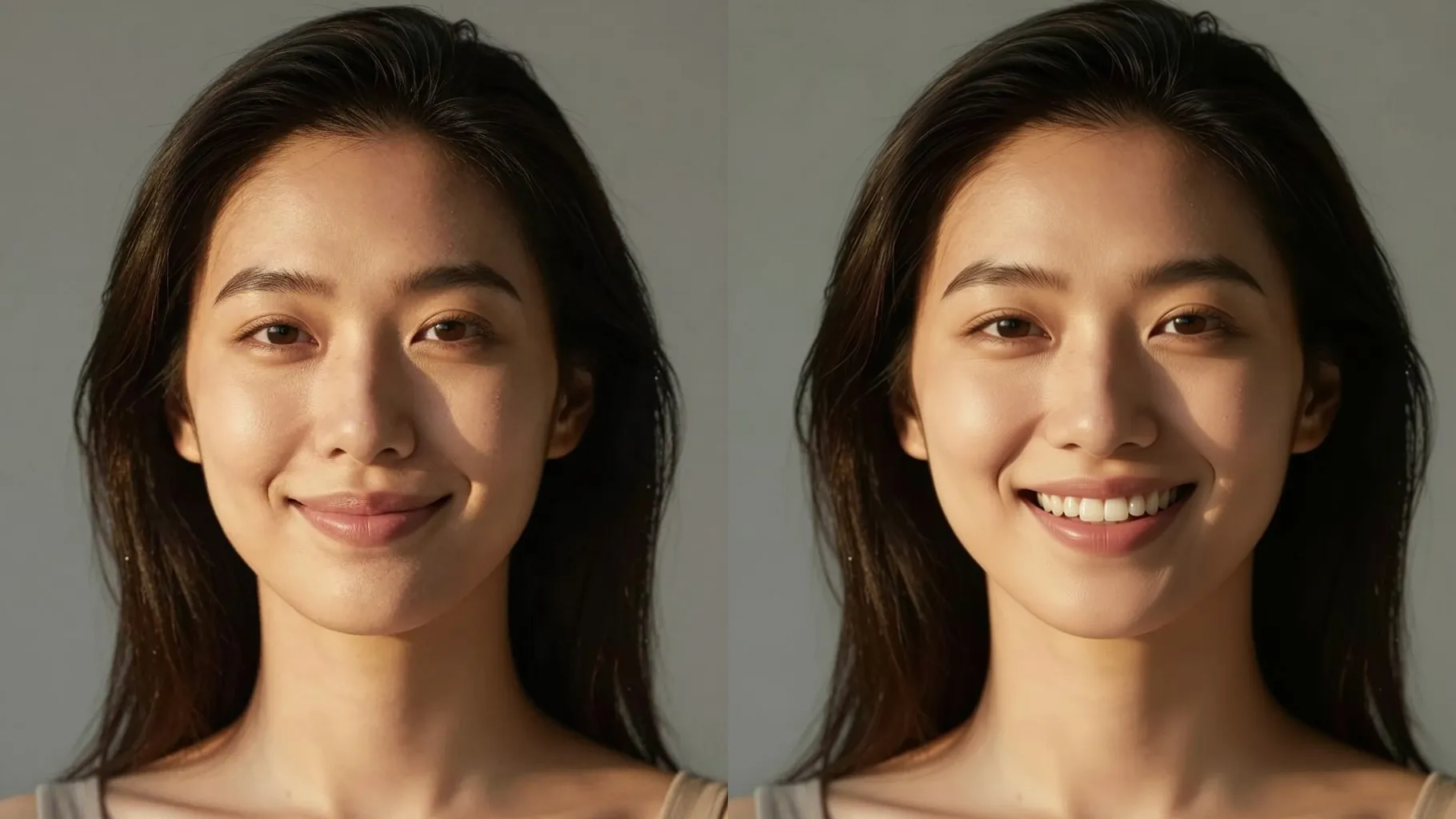
Gently lifts mouth corners, reveals aligned teeth, and keeps skin texture sharp so the smile still looks like you.
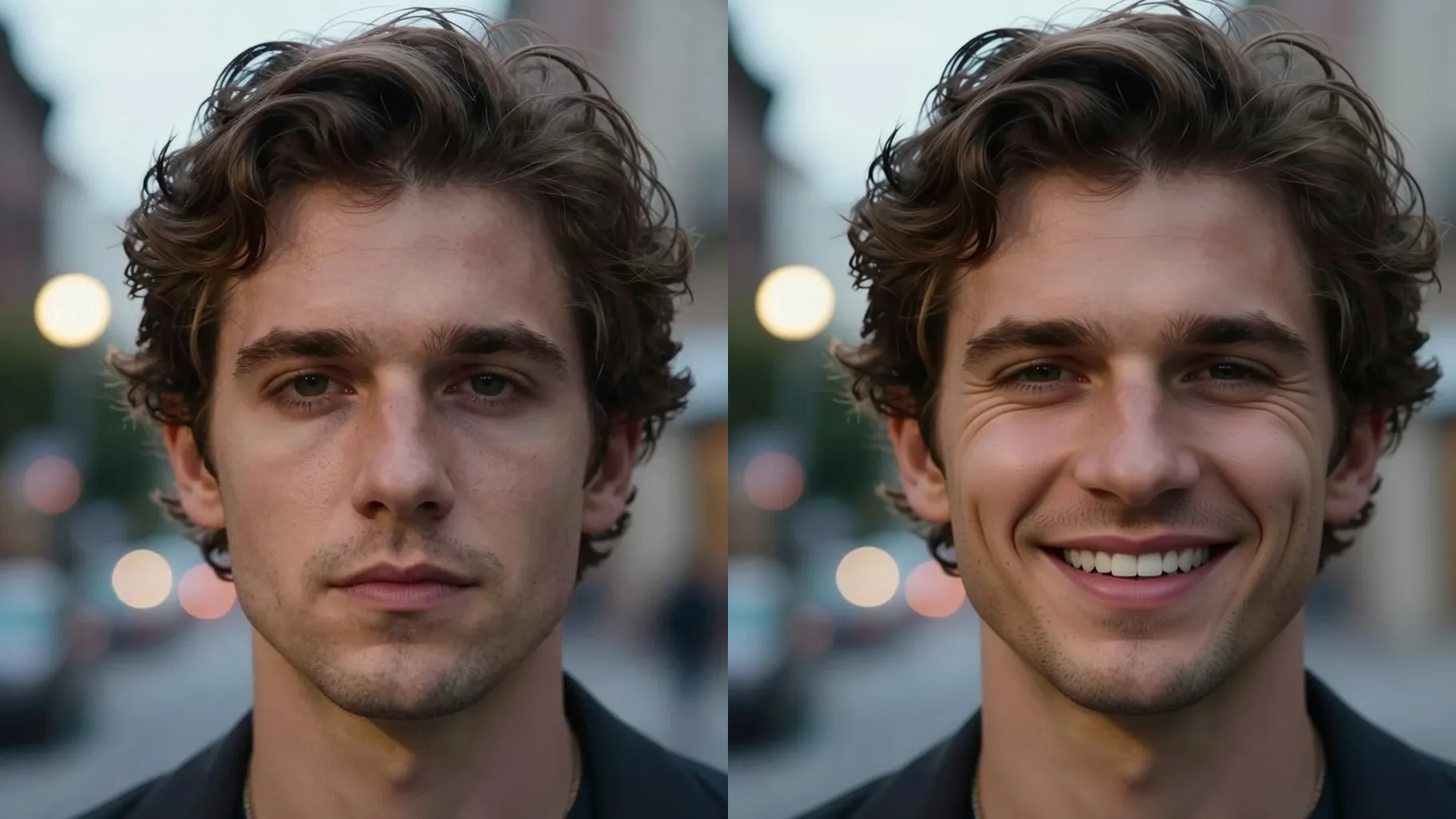
Adds soft brightness to eyes and adjusts lighting without changing your jawline, hairstyle, or background.
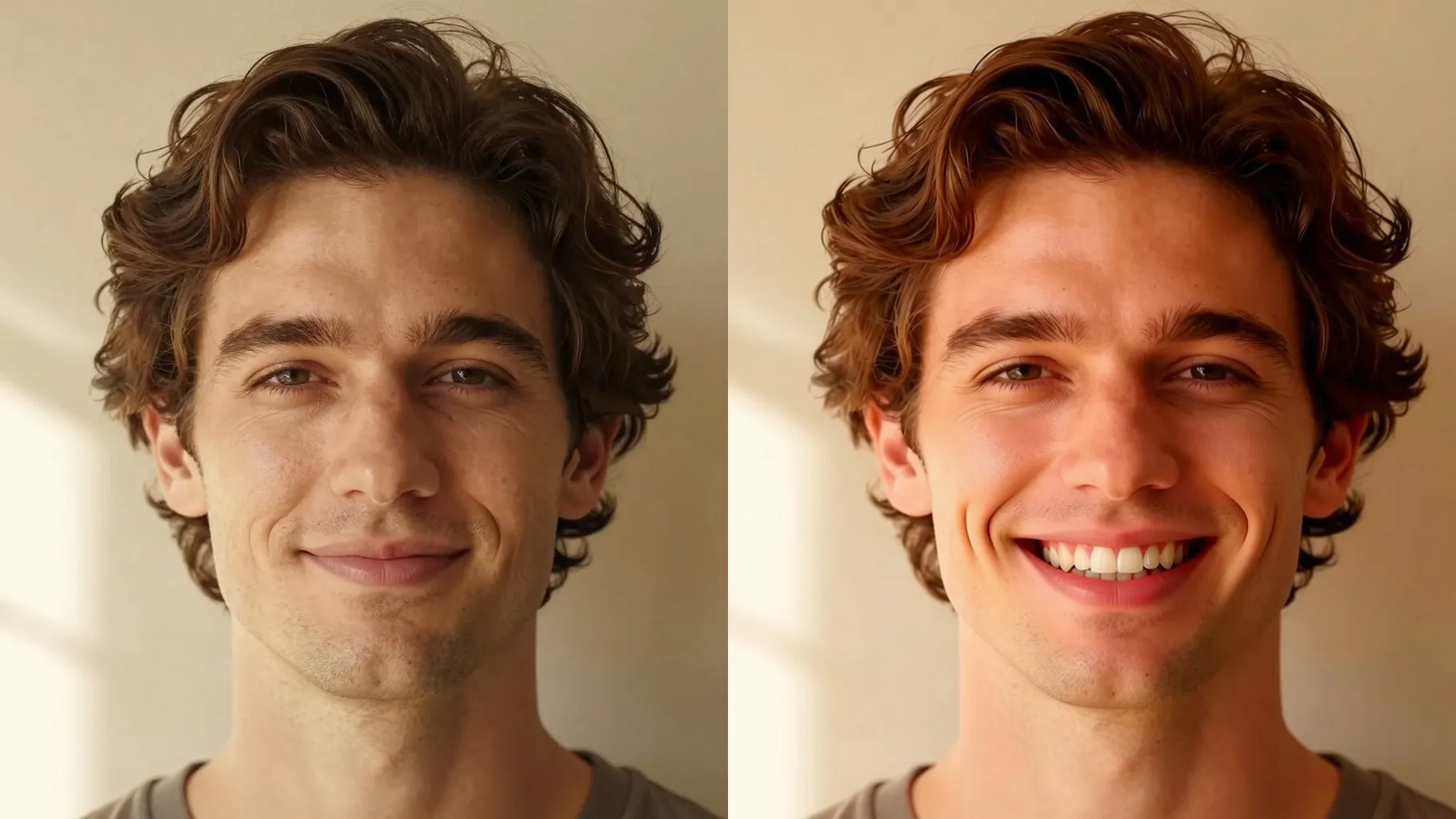
Use a front or 3/4 portrait where your face is clear; avoid sunglasses, masks, or motion blur.
Optional: mention warm smile, studio light, candid vibe, or gentle teeth show to steer the result.
Preview the smiling version, rerun for variations, then save your favorite render.
Upload one portrait at a time to keep smile alignment and facial detail accurate.
No. This smile filter is image-to-image and needs one uploaded selfie or headshot.
It focuses on mouth and eye expression while keeping your jawline, nose, and hairstyle intact.
Use even lighting, a centered face, and visible mouth area; avoid heavy makeup that hides lip edges.
JPG, PNG, or WebP under 10MB work best for quick, detailed renders.
Aspect ratio and model switching stay off to keep smiles consistent across runs.

Generation time depends on the model, image size, and queue. Check the task status on this page.