
1. How many photos can I upload per render?
Upload one image each time so the outline tracing stays precise.
Upload one photo to turn it into a crisp silhouette with gradient or solid backgrounds.
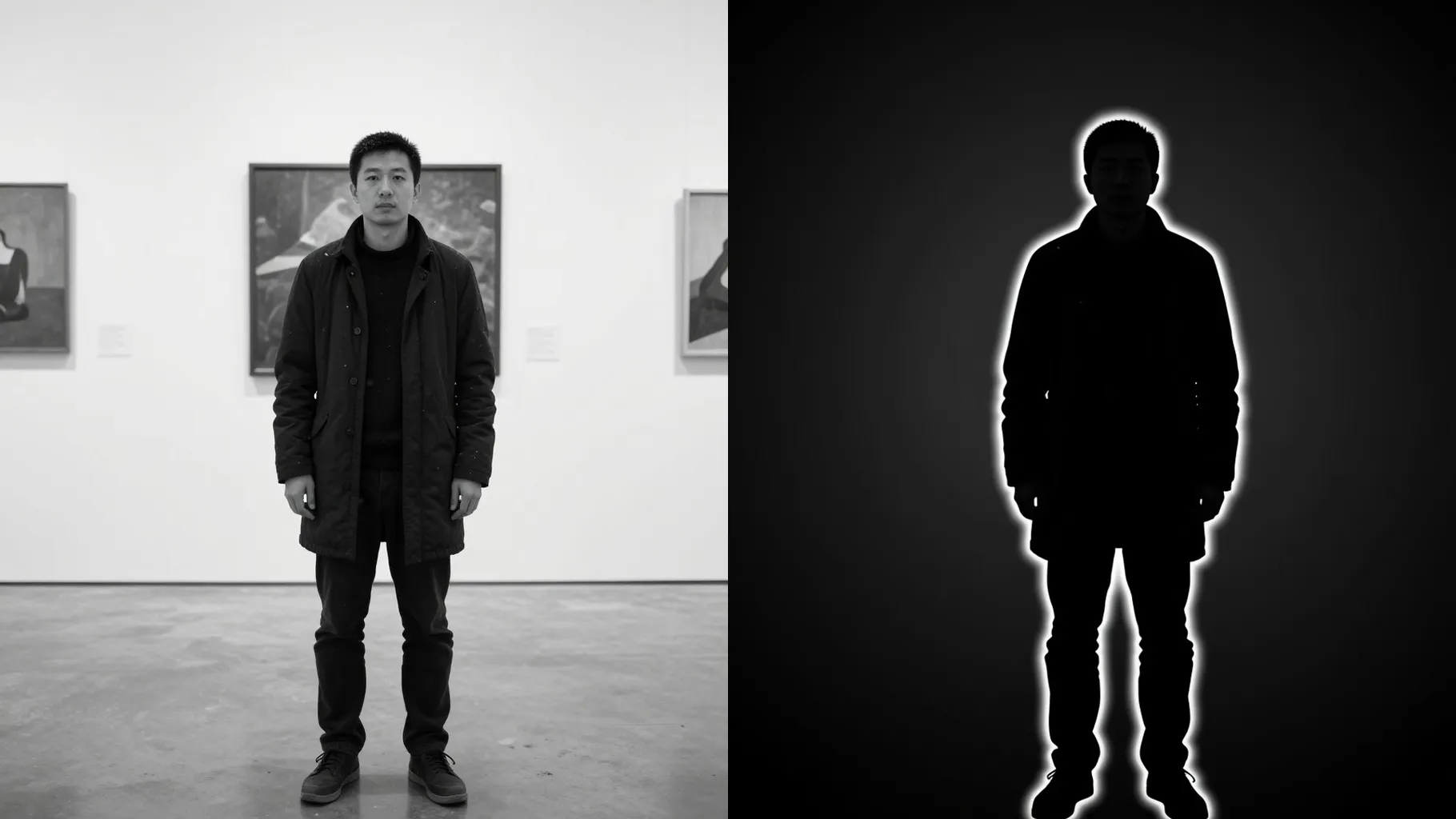
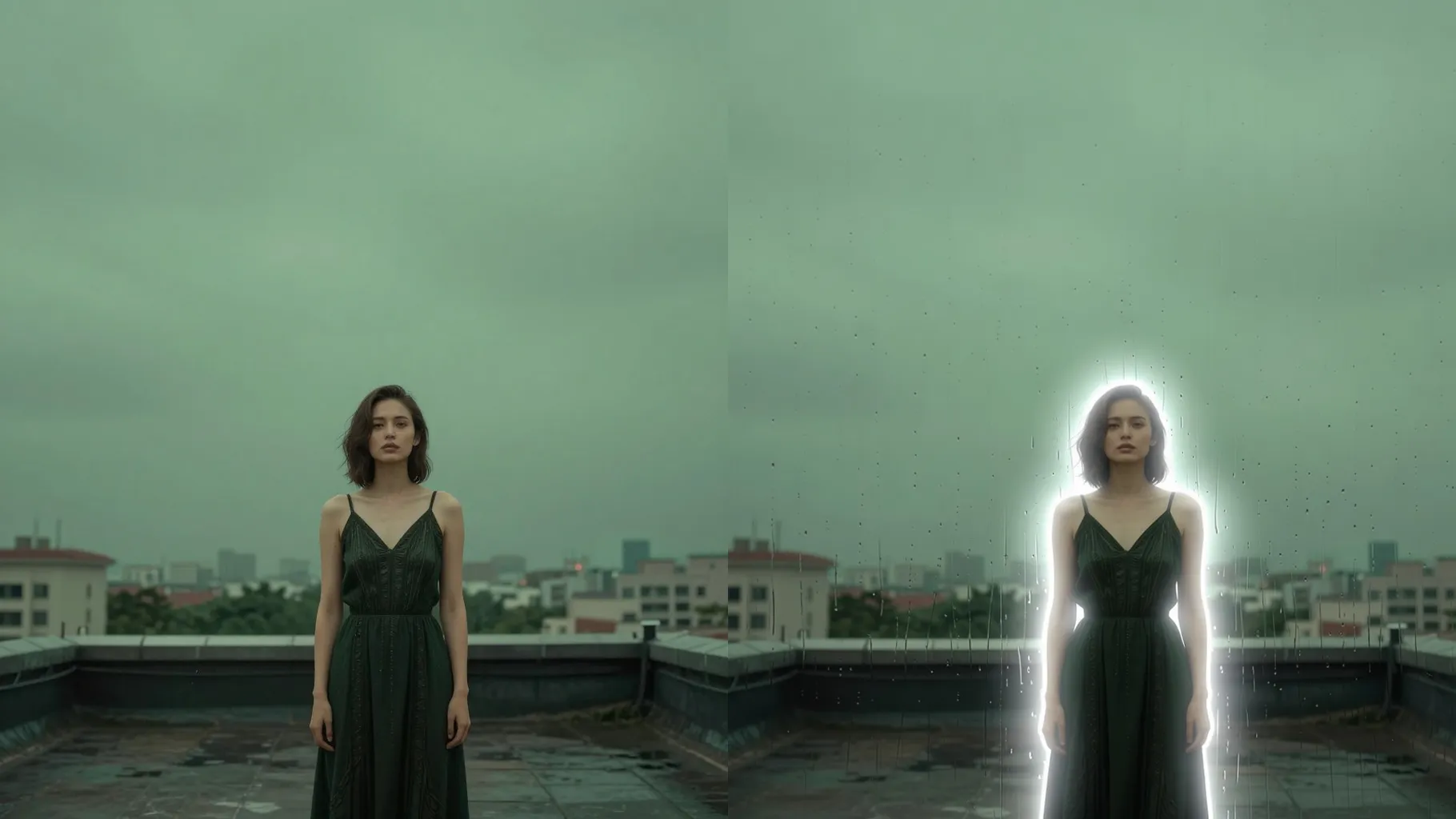
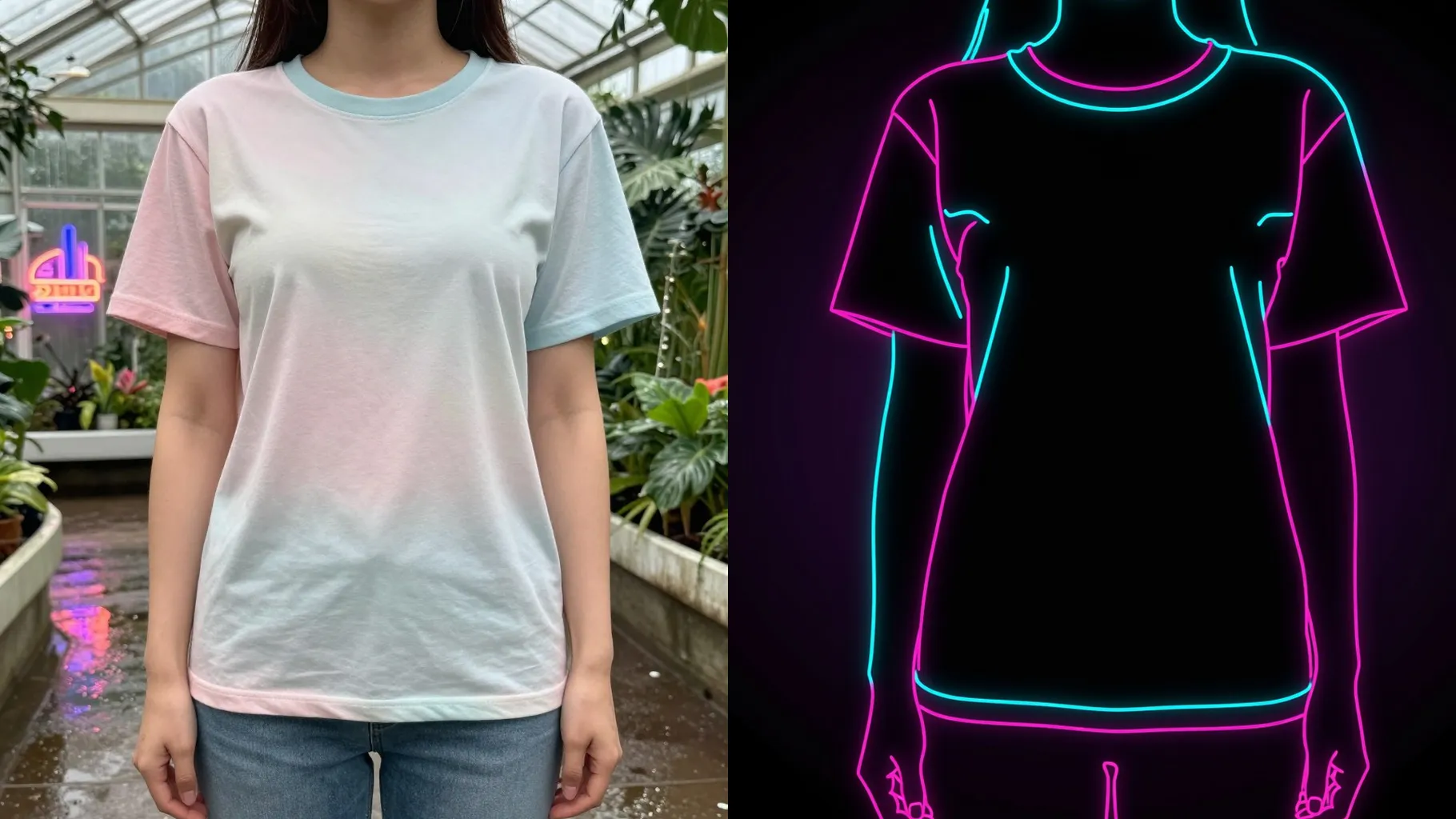
Turns your uploaded portrait into a clean silhouette with sharp outlines, even contrast, and smooth gradient glow.
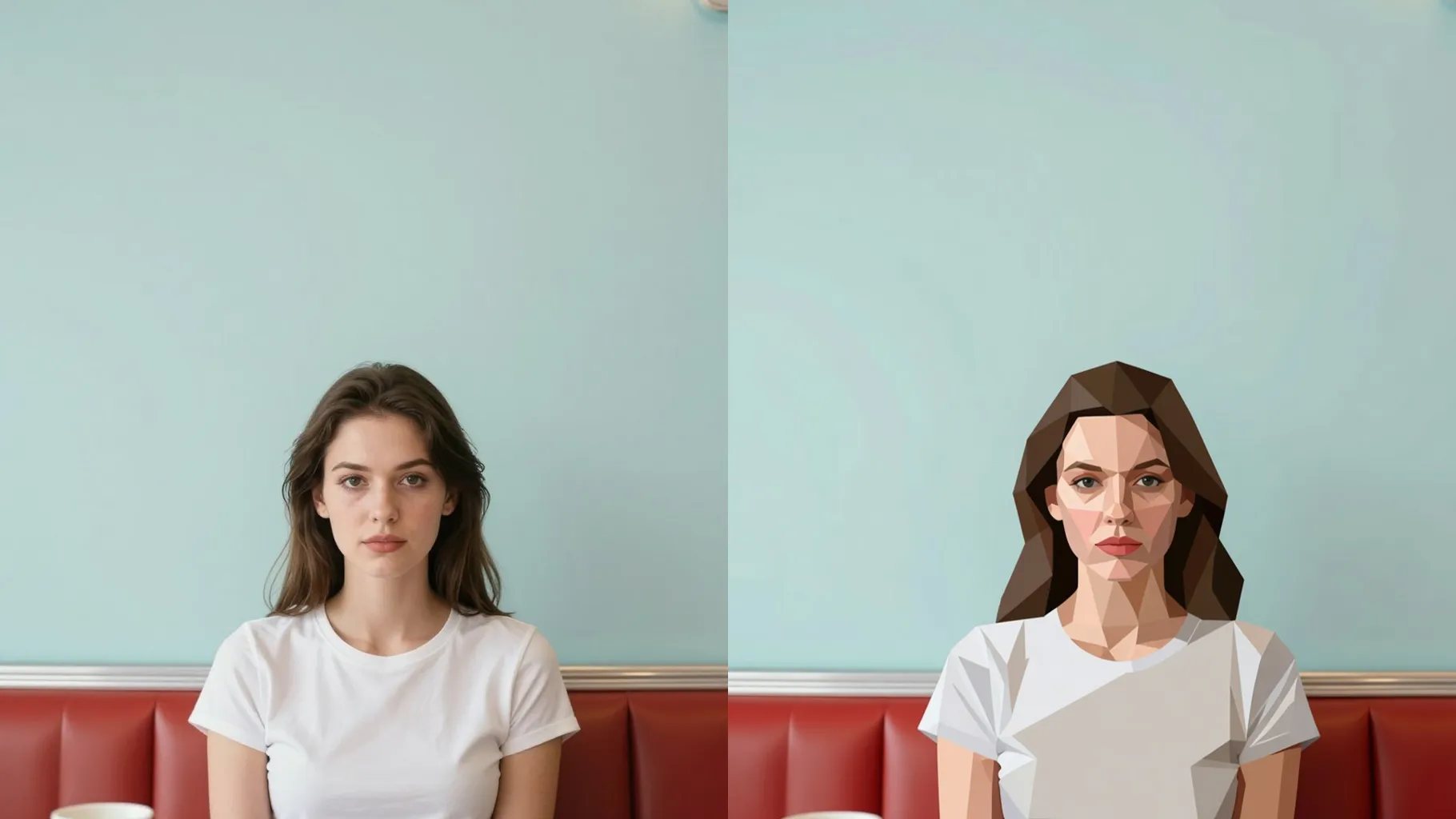
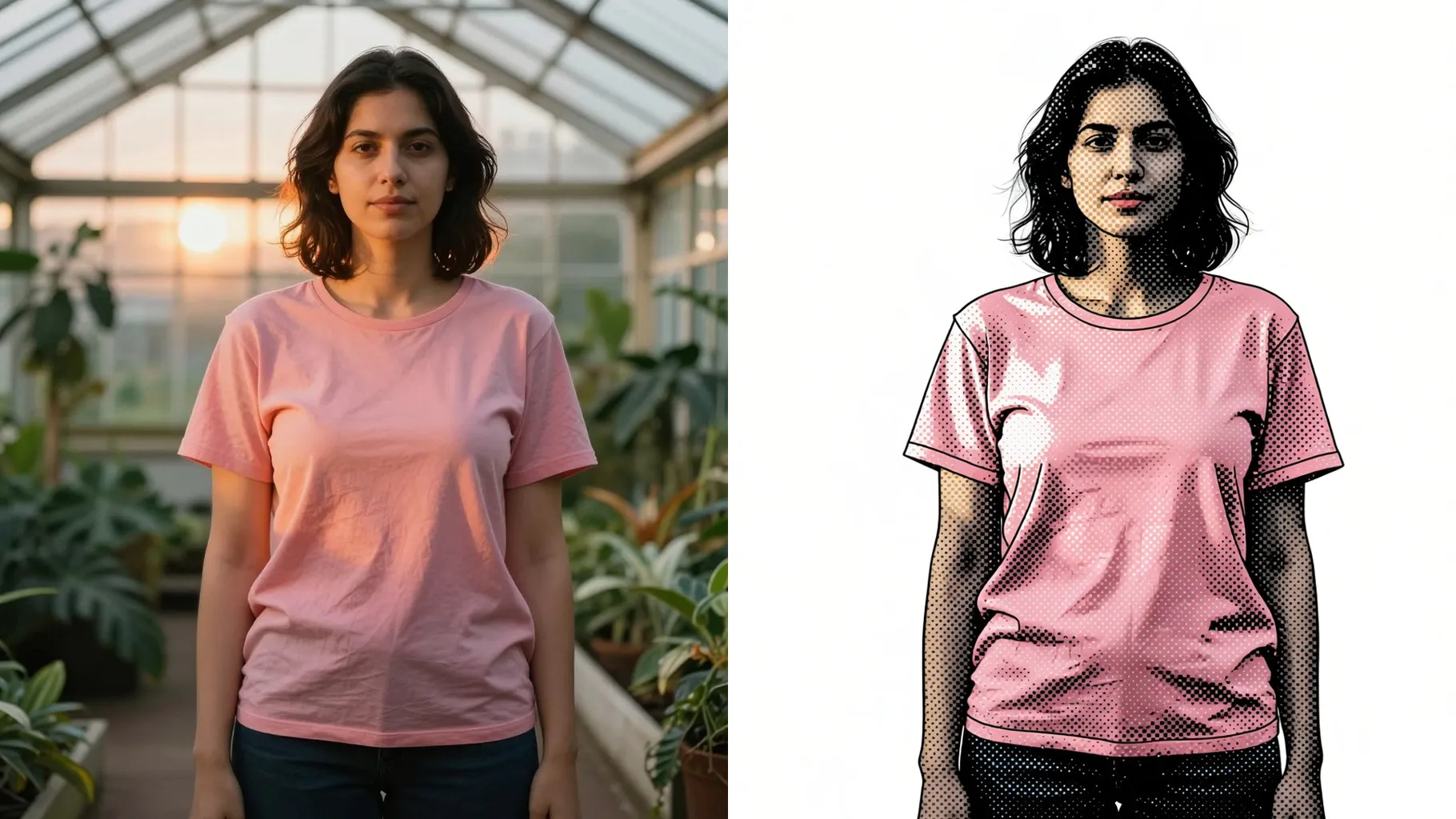
Examples show the target style. Your result depends on the chosen model and reference photo.
Upload one photo to convert it into a high-contrast silhouette with crisp edges and controllable background colors.
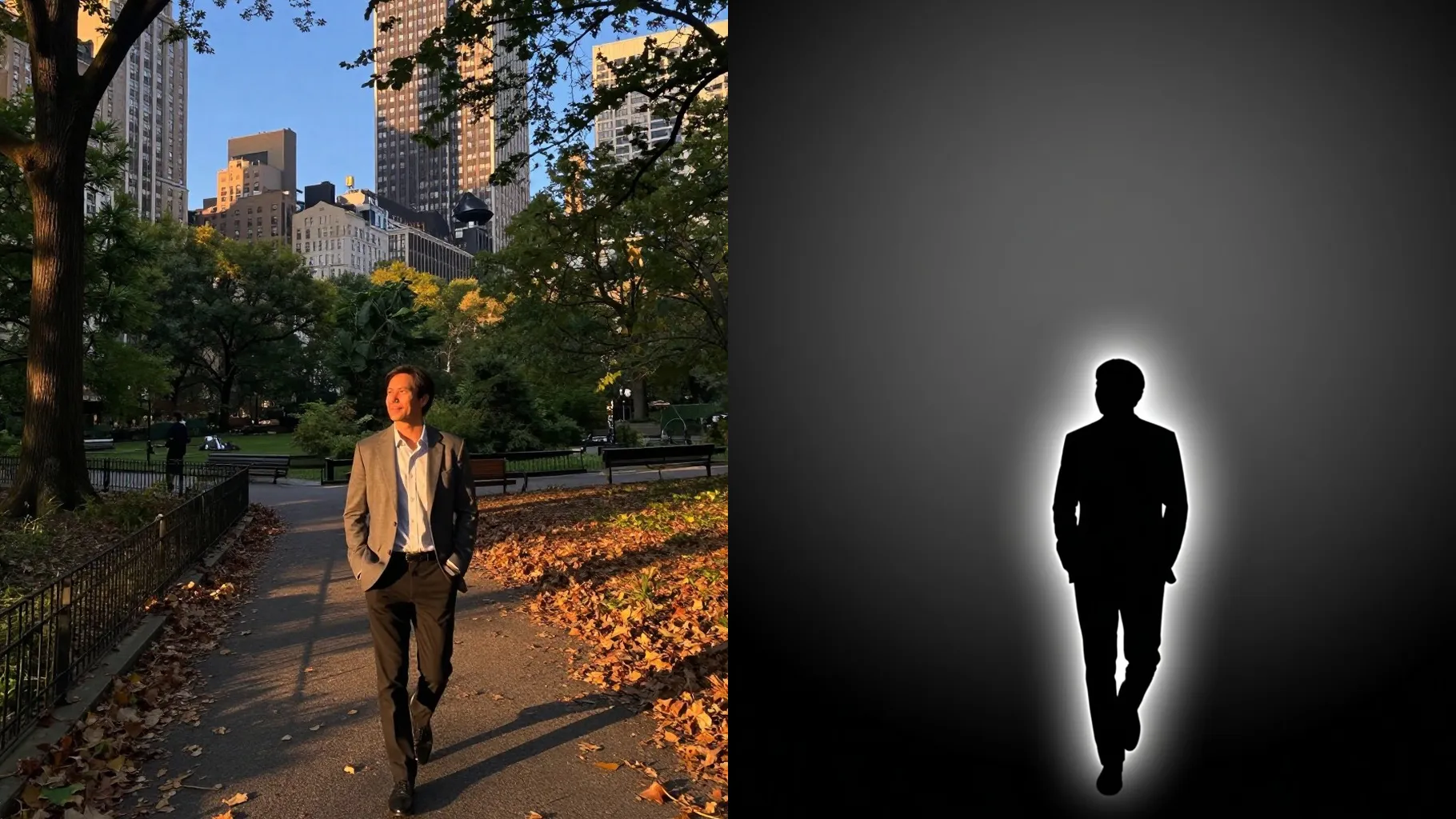
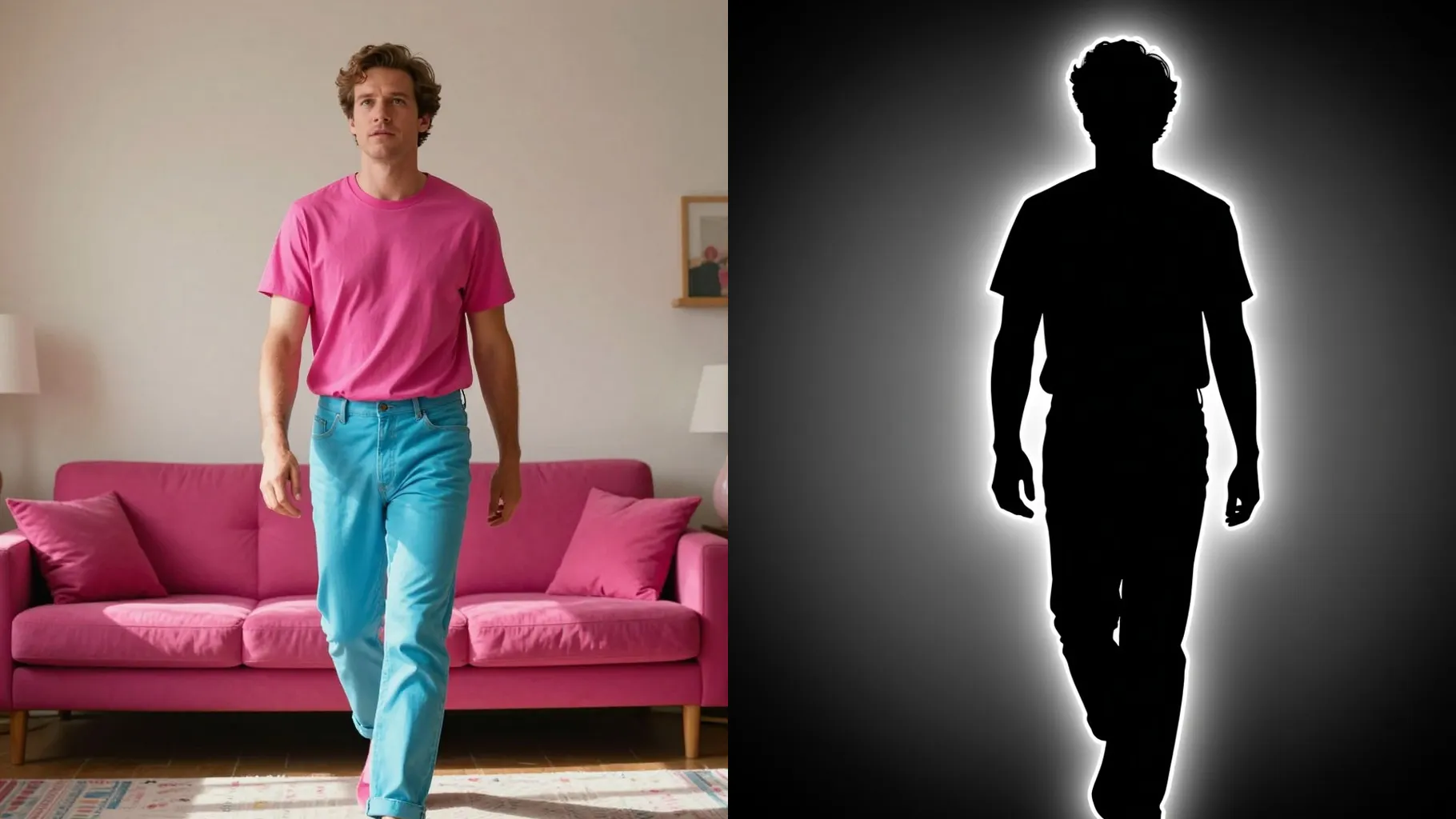
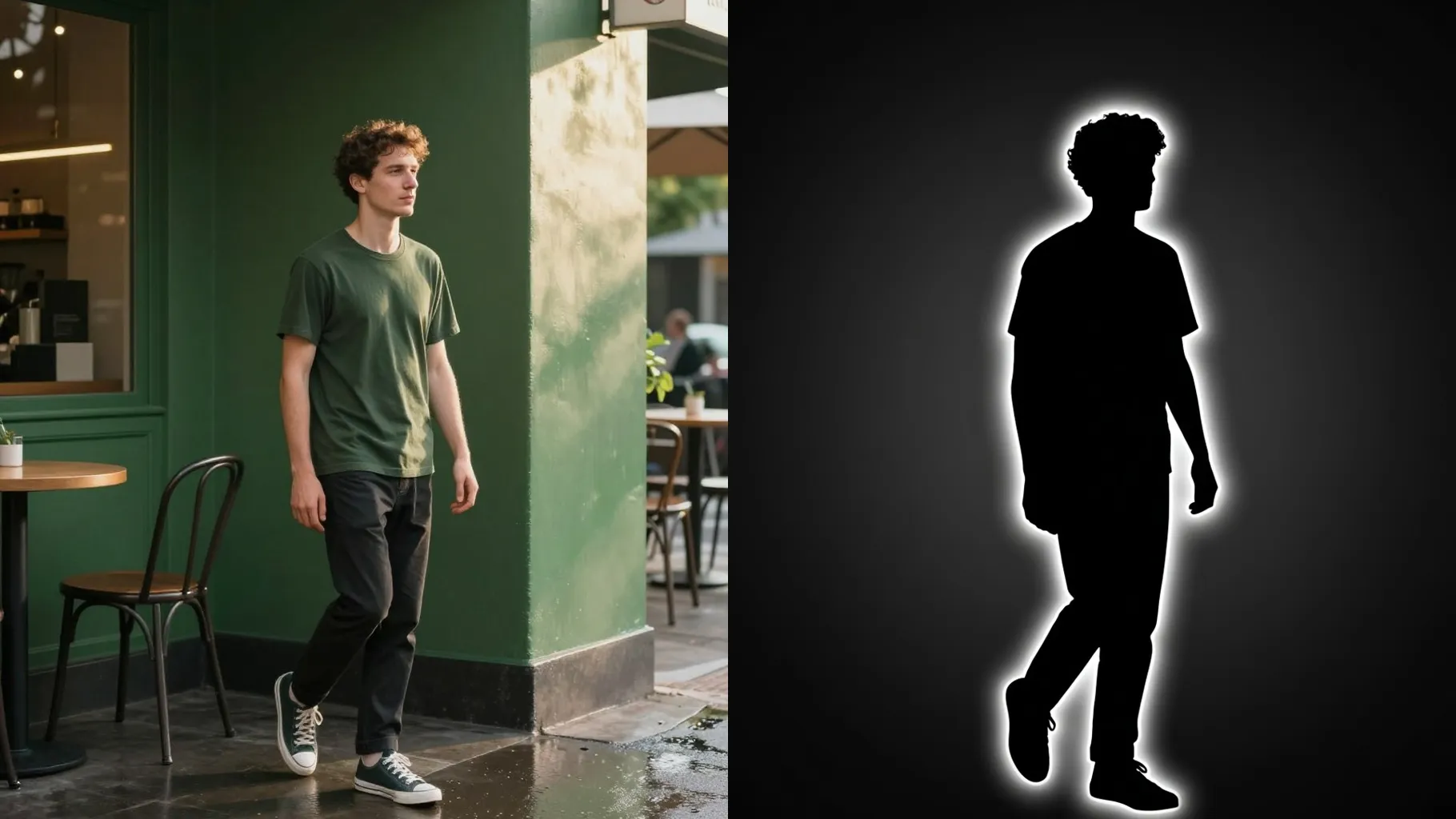
The model traces your subject, removes interior detail, balances black and white contrast, and keeps posture and proportions intact for print-ready silhouettes.
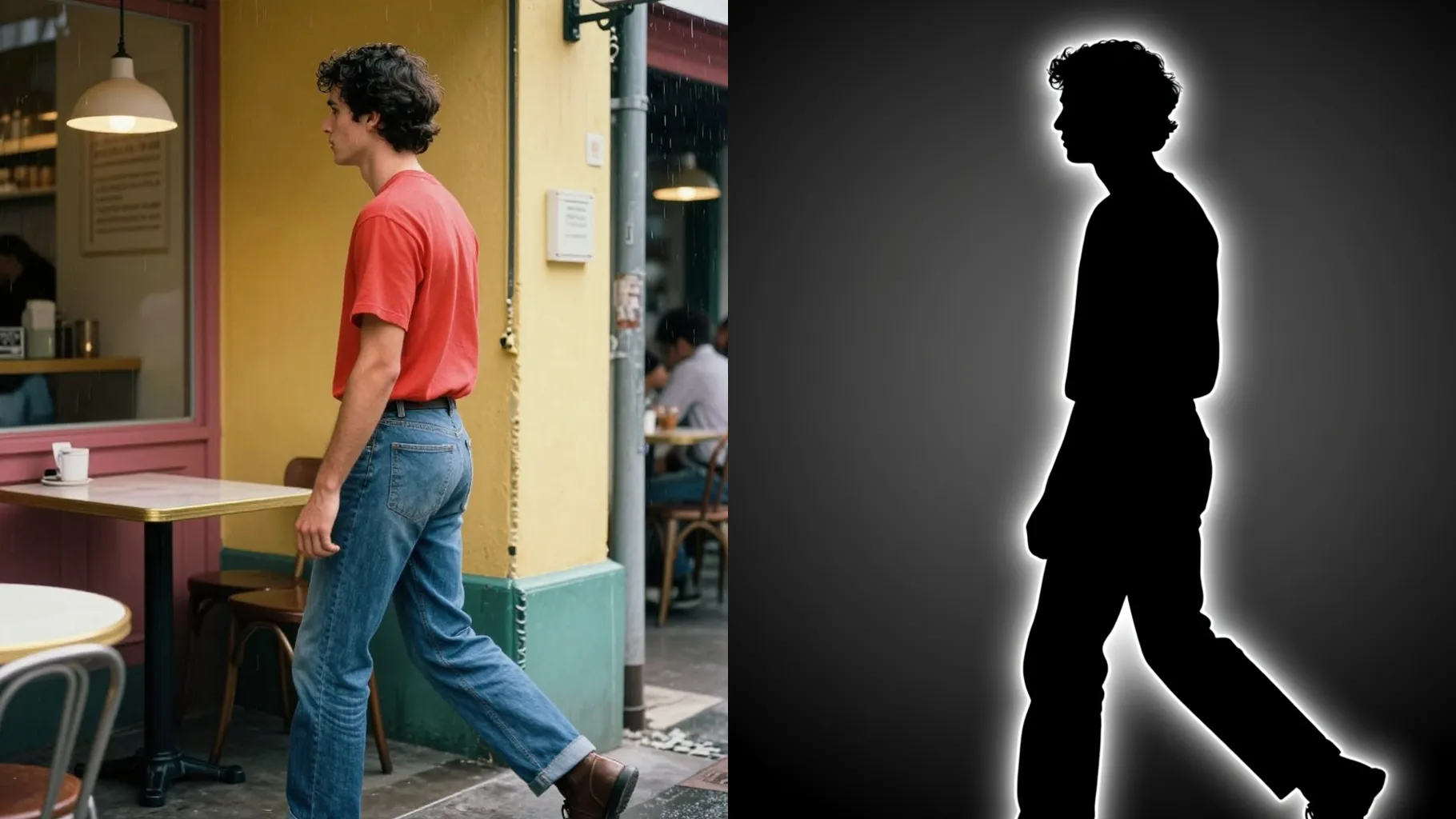
Use a short prompt to pick gradient glows, solid fills, rim lights, or subtle background blur while the silhouette stays crisp.
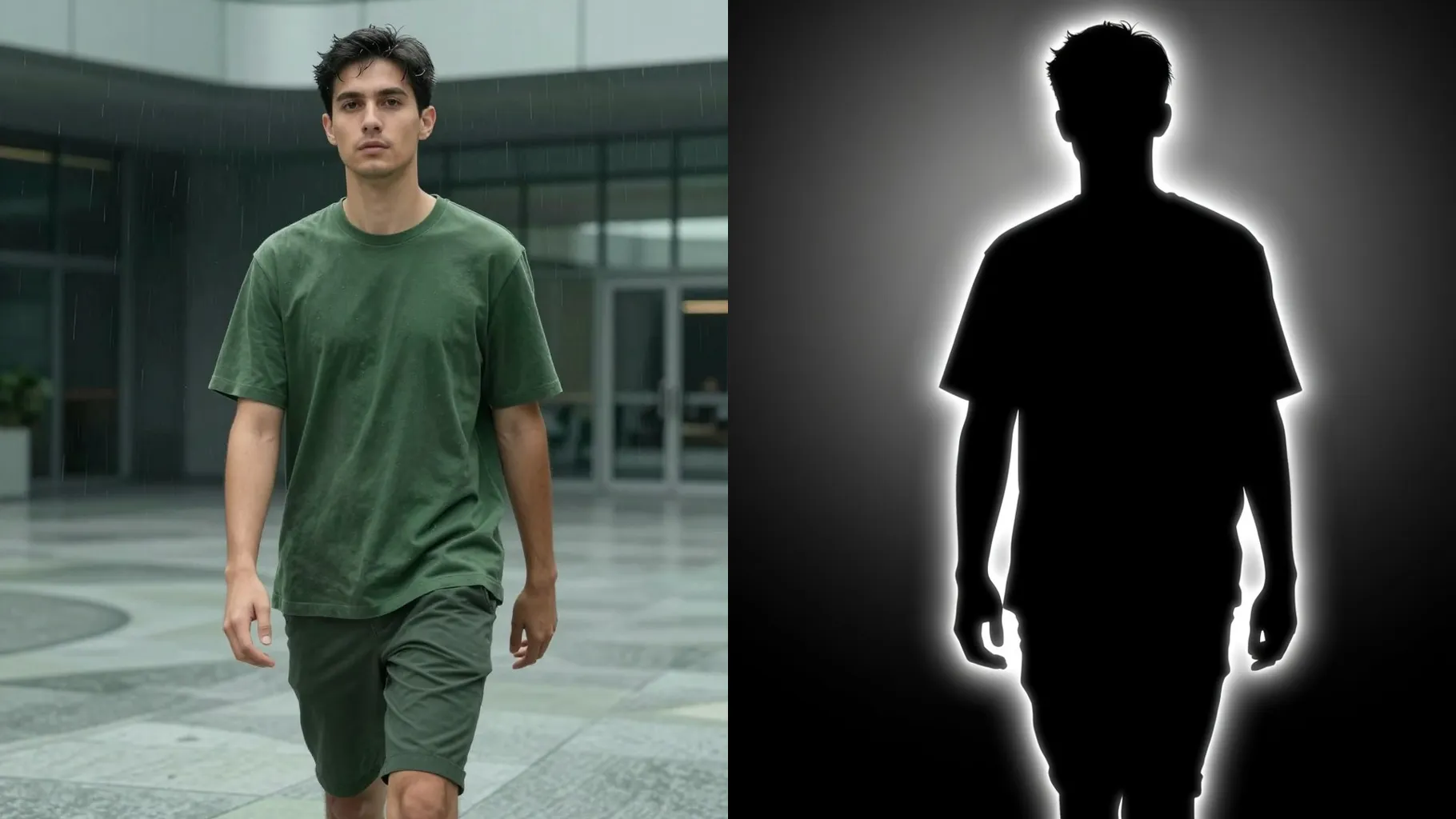
Choose a photo with a single subject, good edge contrast, and minimal clutter so the outline stays accurate.
Mention gradients, rim light, or solid color ideas in one line to steer the background and glow.
Create the silhouette, rerun for variations, and save the version with the cleanest outline.
Upload one image each time so the outline tracing stays precise.
No. This effect is image-to-image and needs your photo to generate the silhouette.
Use well-lit portraits with clear subject separation, no heavy crops, and avoid busy backgrounds hiding the edges.
Yes. Add a short prompt like \"teal to purple gradient\" or \"solid black with rim light\" to steer the backdrop.
The model simplifies the background into gradients or solids while following your subject outline for clean silhouettes.
Aspect ratio and model switching are off to keep silhouette results consistent.

Generation time depends on the model, image size, and queue. Check the task status on this page.