
1. How many photos can I upload at once?
Upload one image per run to keep the cover framing stable and faces clean.
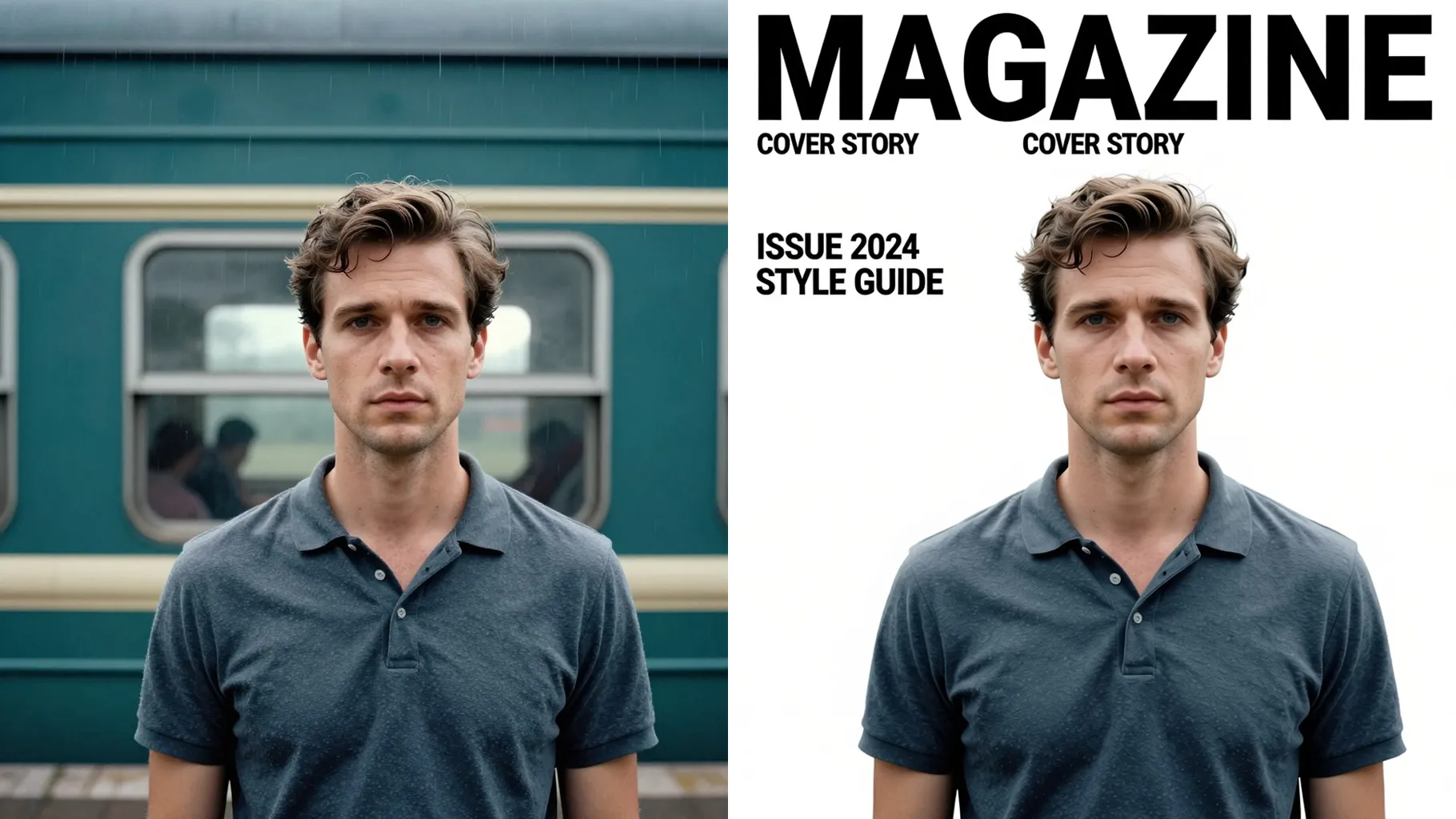
Turn one portrait into a glossy fashion magazine page with editorial lighting and bold layout.
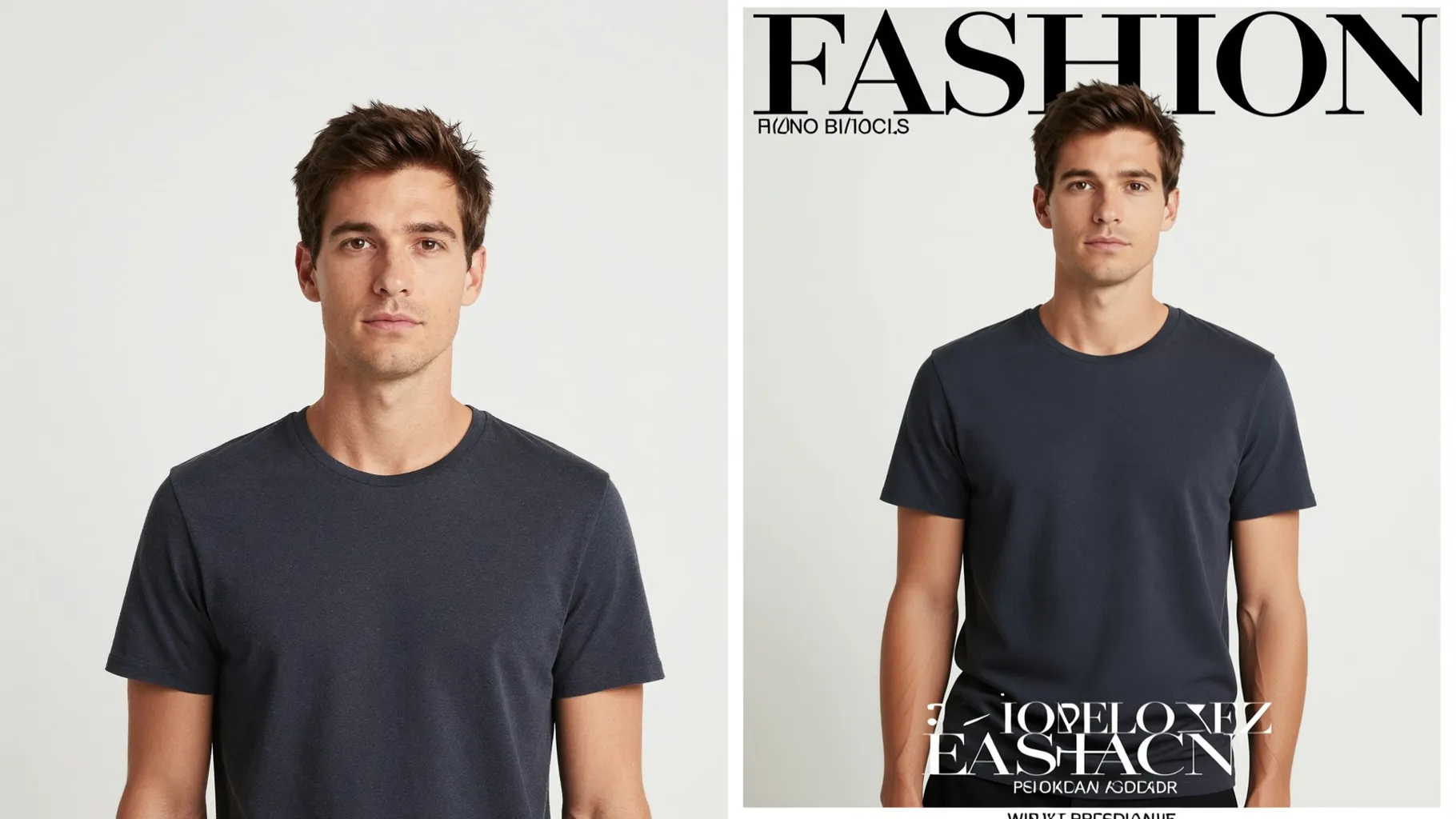
Give one portrait a couture magazine glow with crisp lighting and luxe retouch.
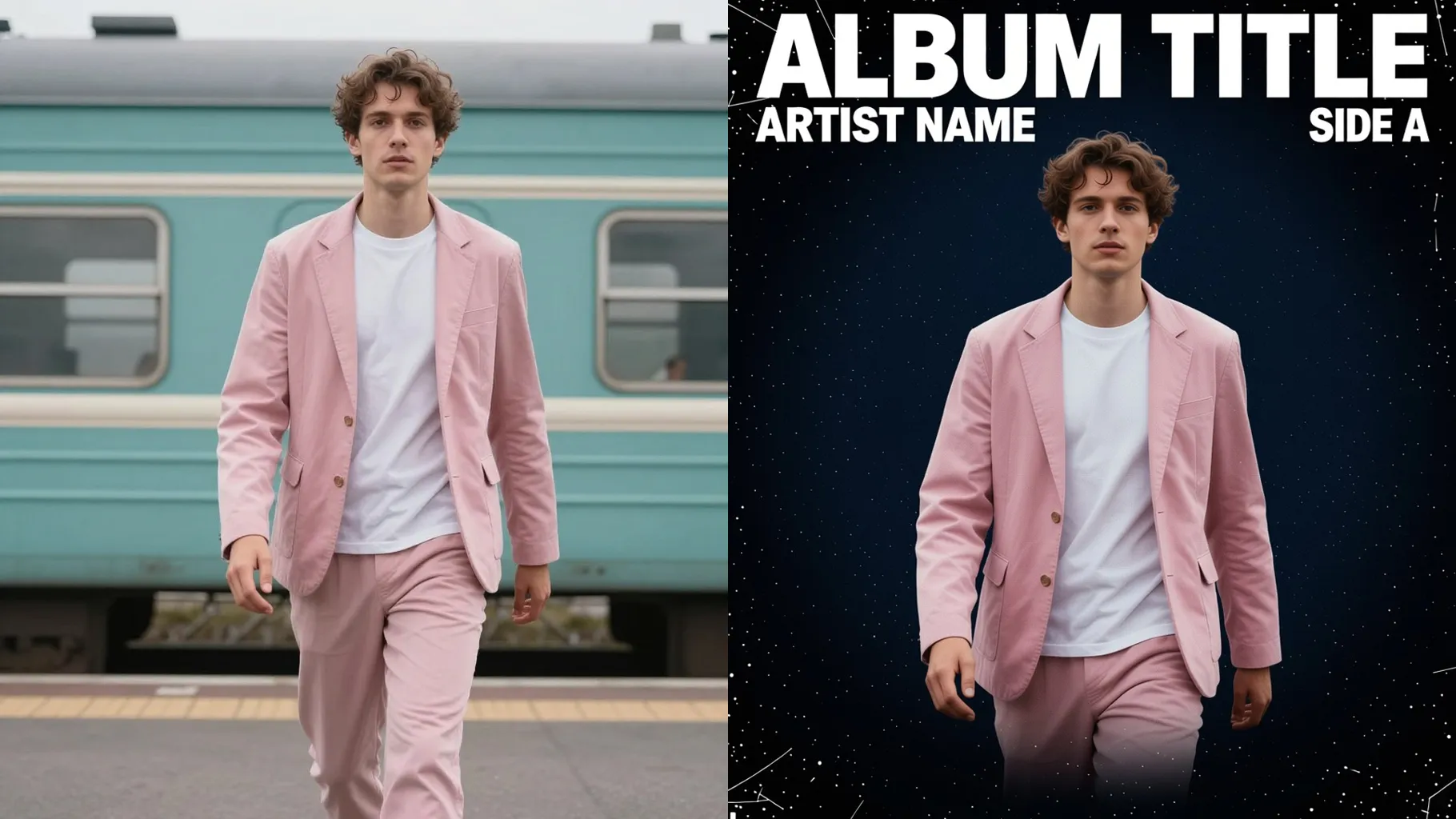
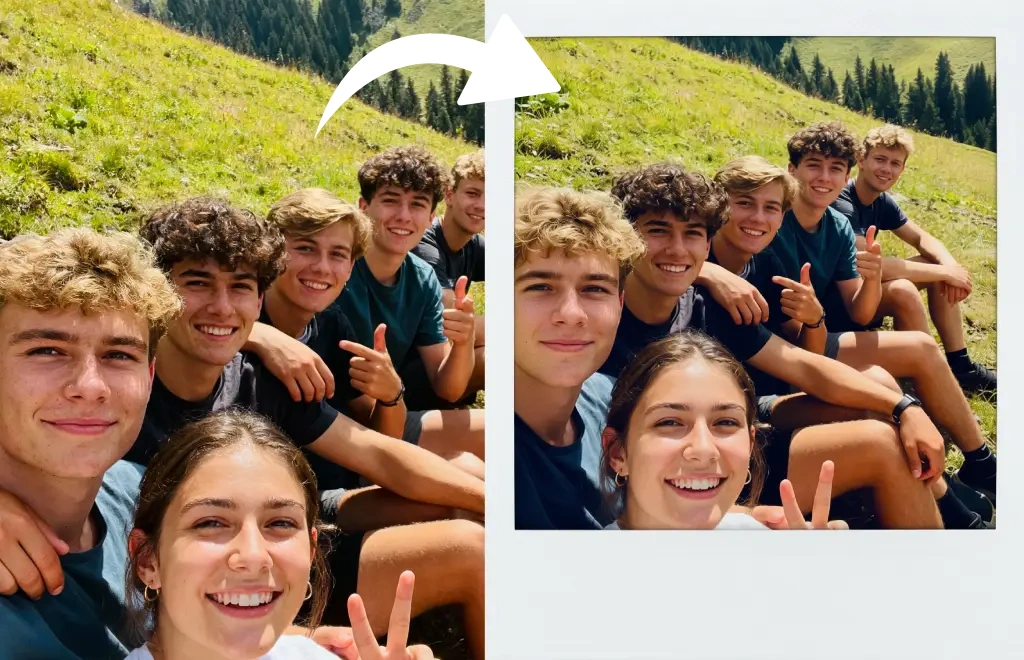
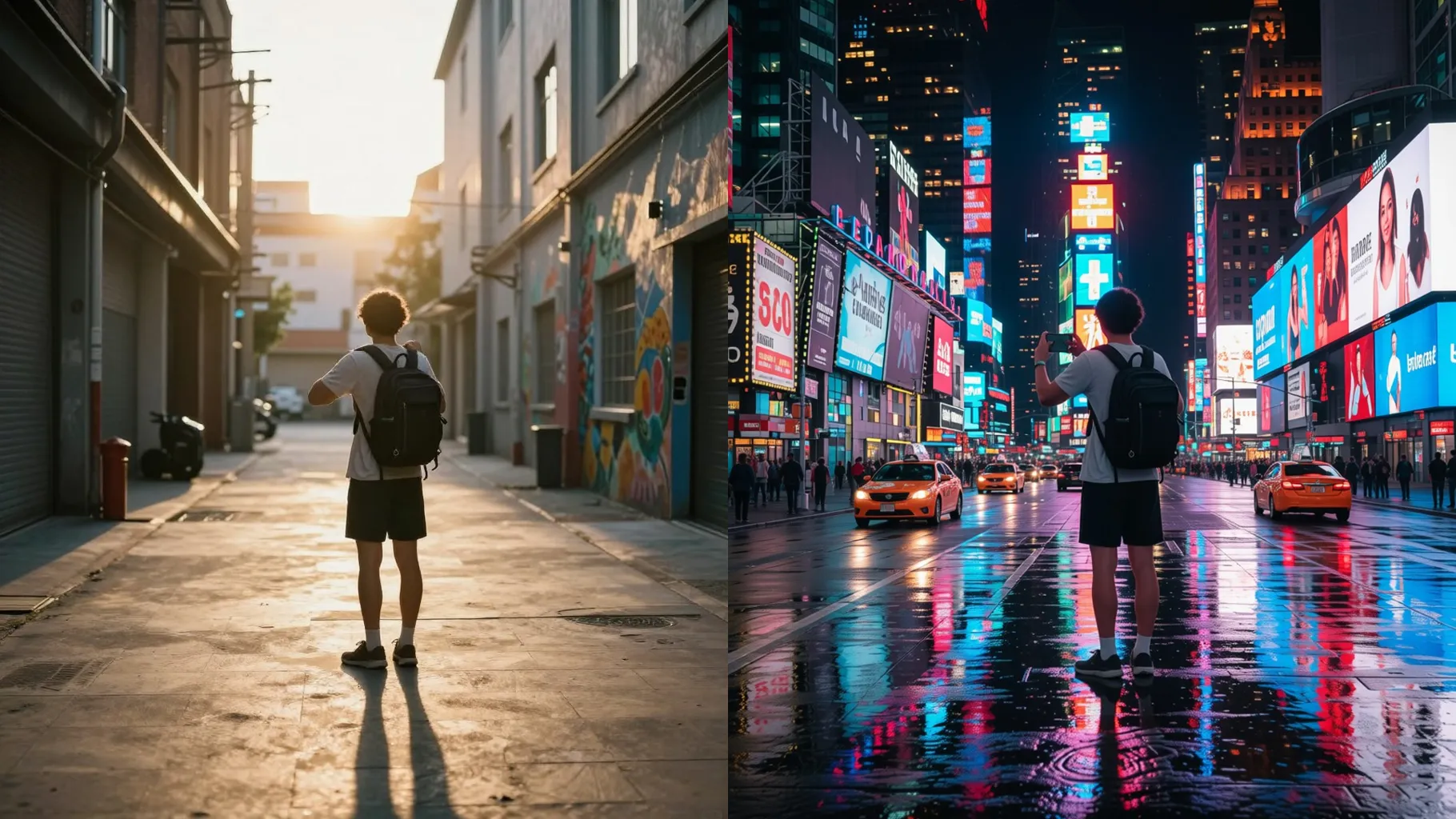
Examples show the target style. Your result depends on the chosen model and reference photo.
Upload one portrait to get a fashion magazine cover look with couture lighting, glossy grain, and space for bold headlines.
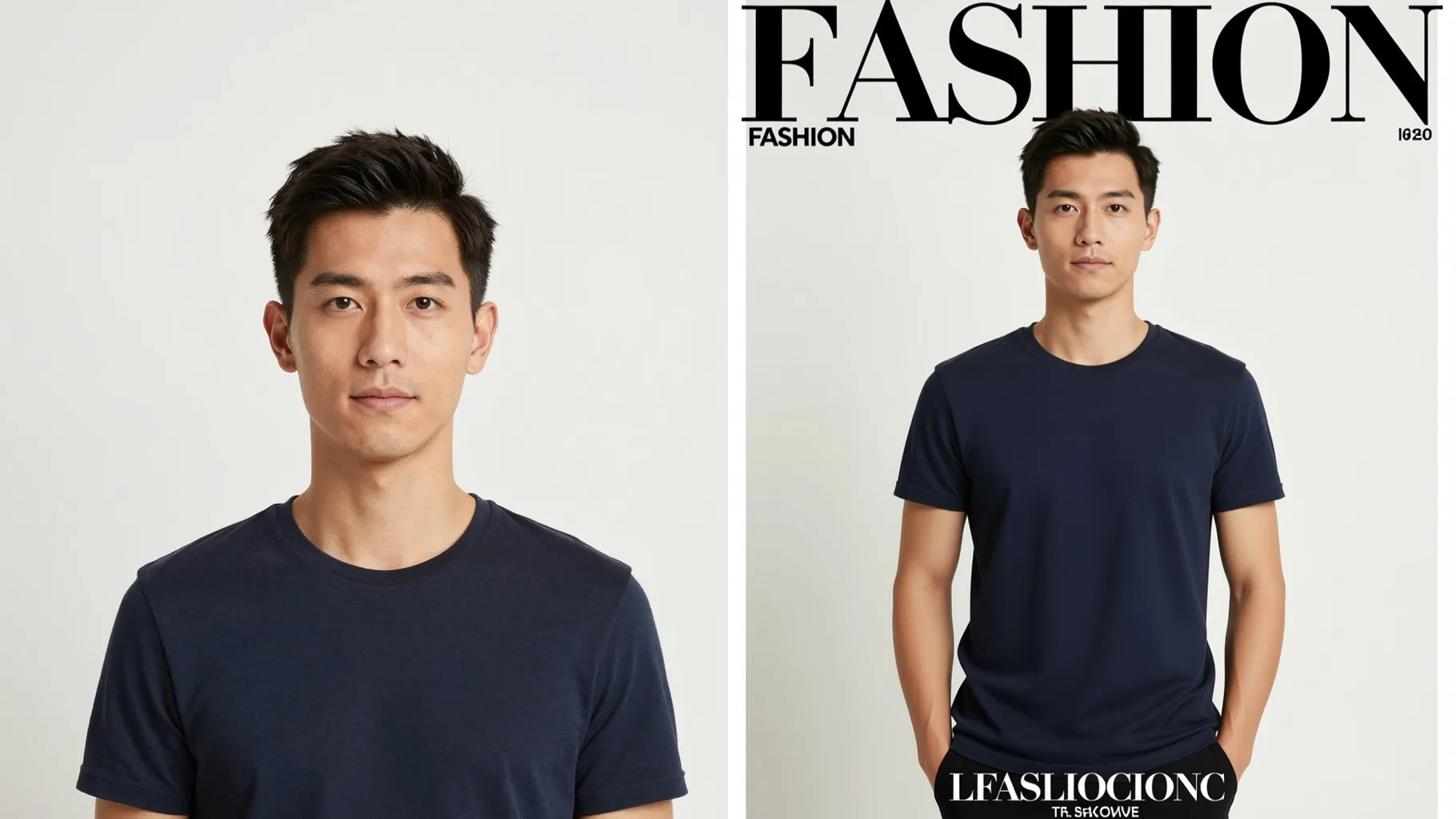
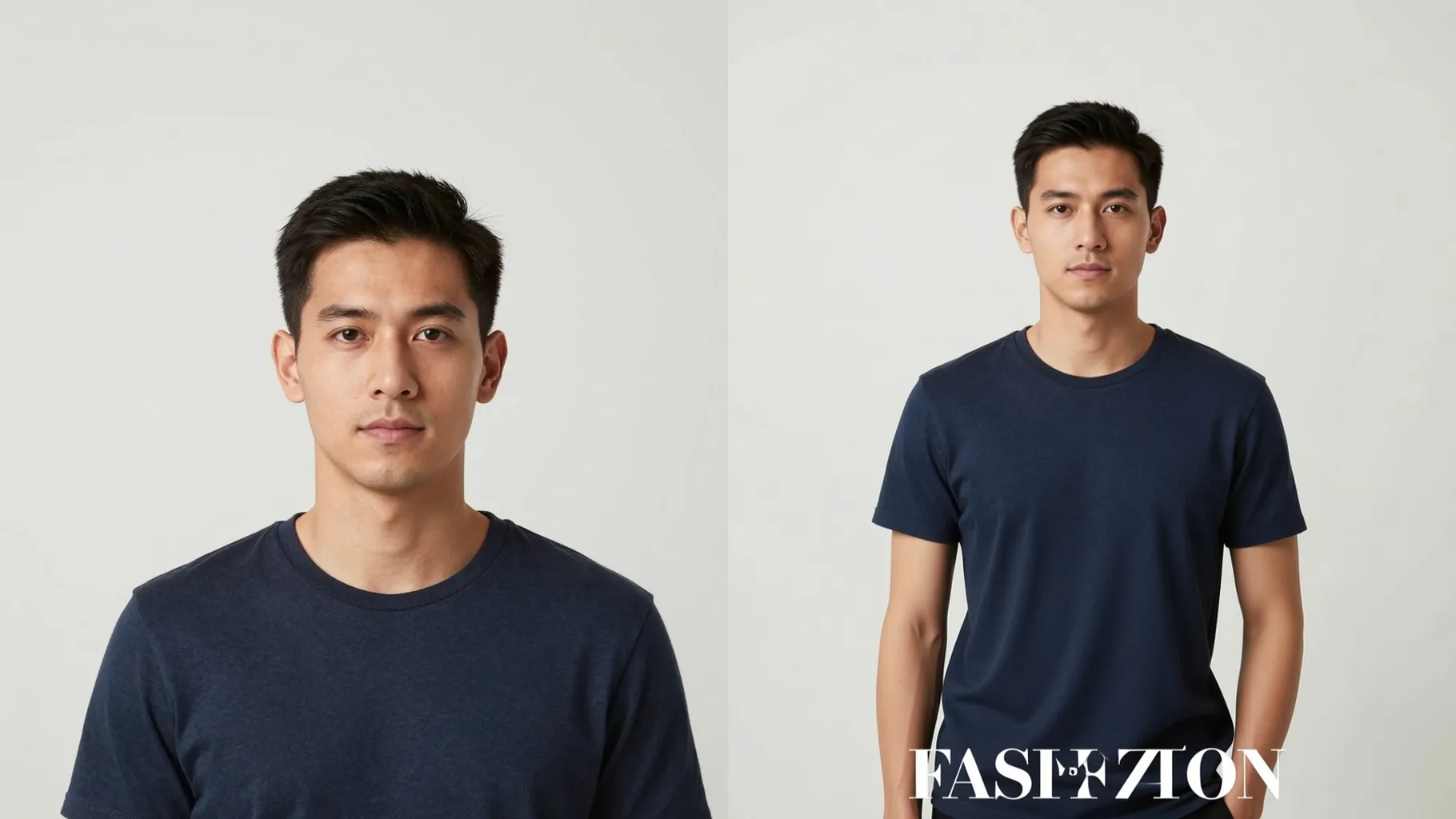
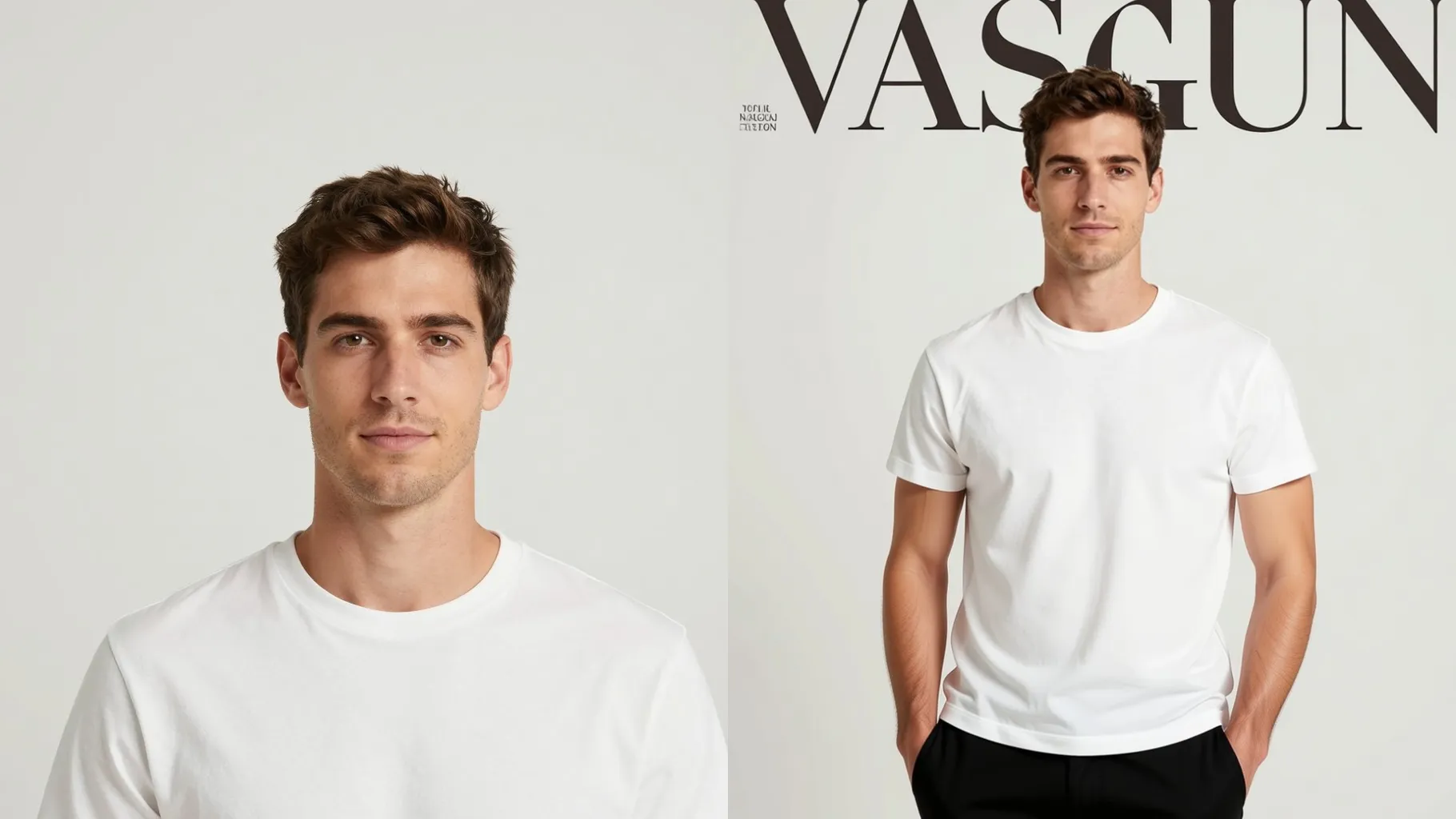
Keep skin luminous while adding soft rim light, clean contrast, and subtle retouching that fits a fashion cover.
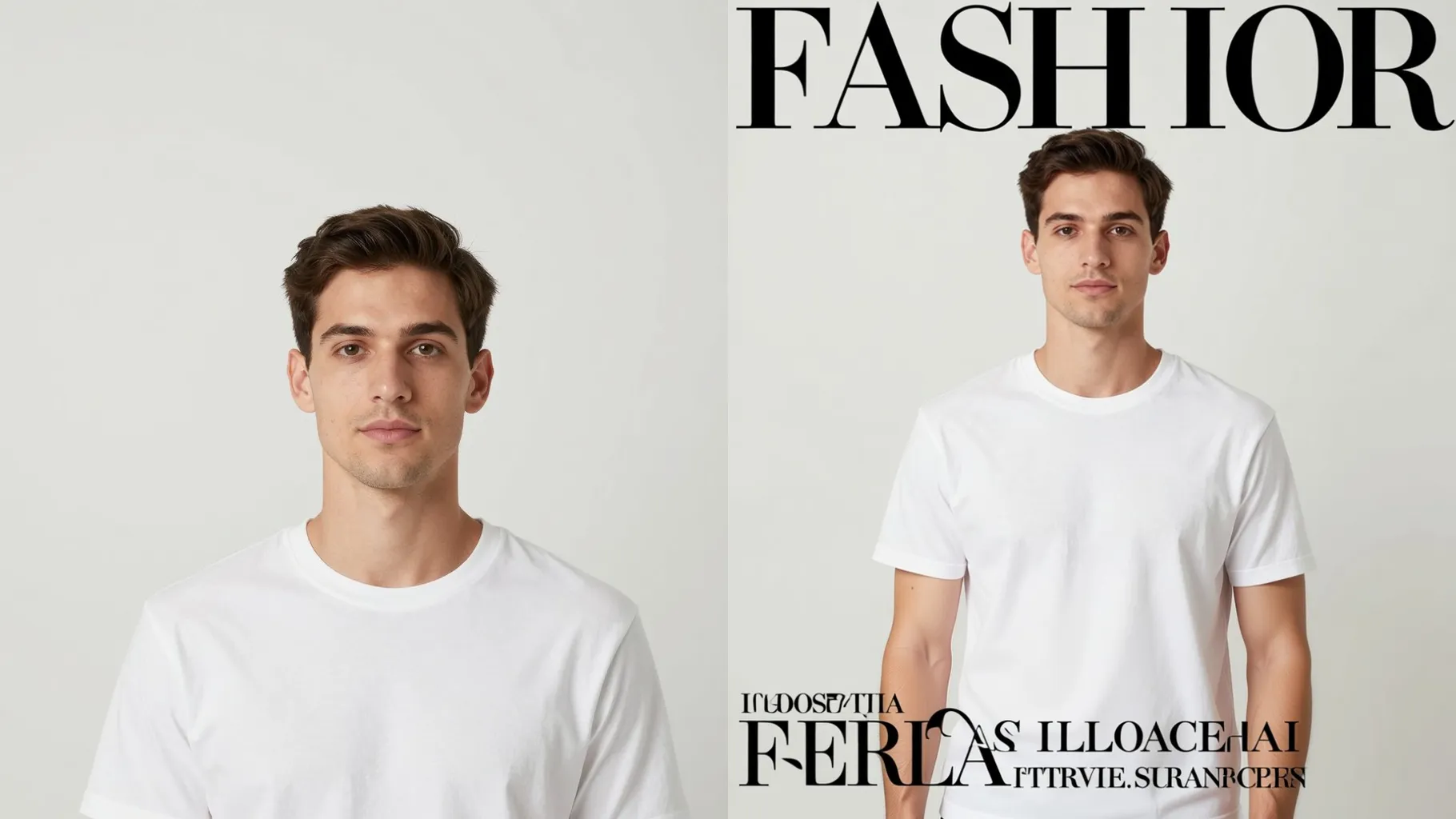
Frame your subject with masthead spacing, gradient overlays, and bold accent colors that feel like a runway issue.
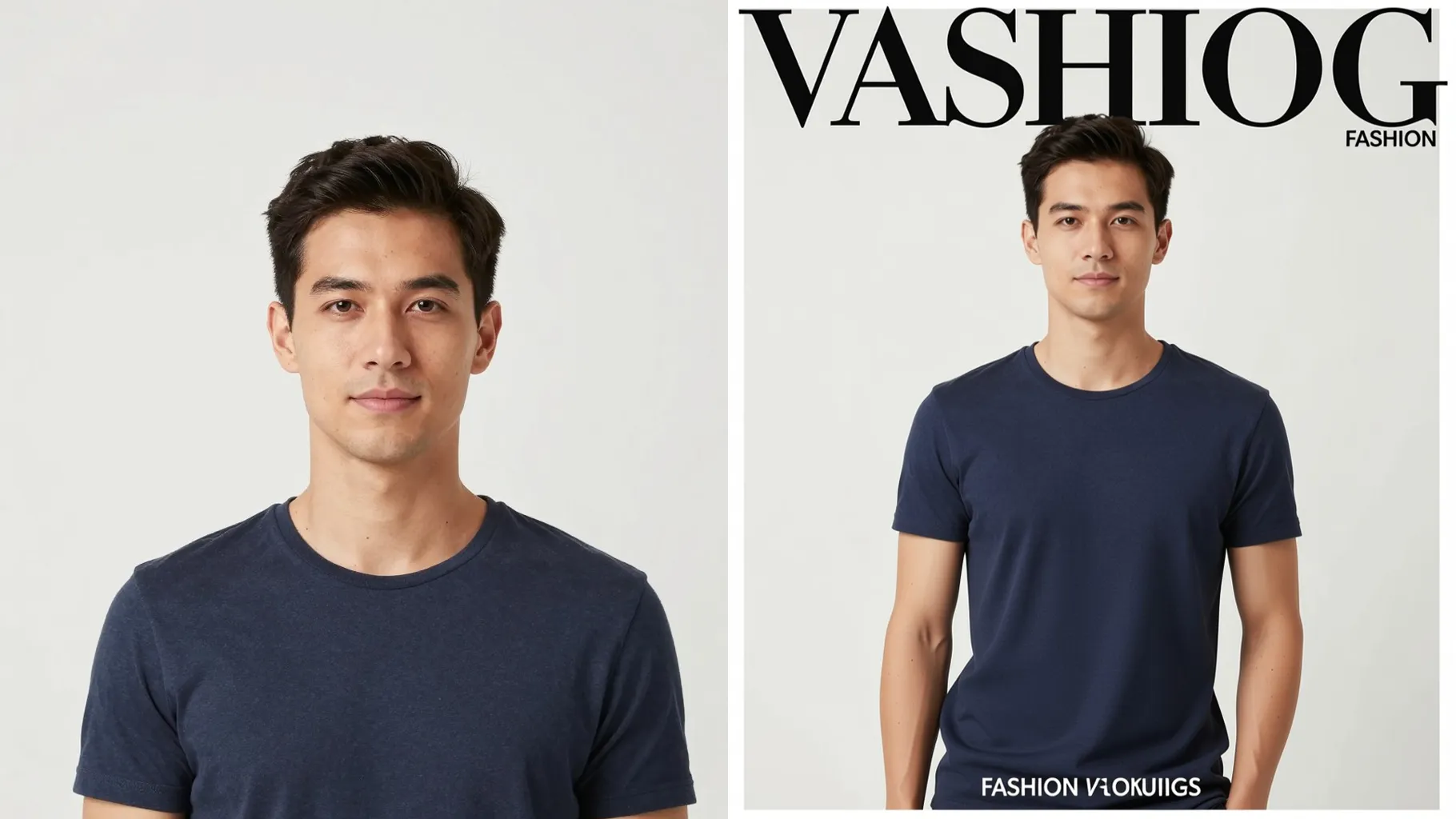
Use a centered shot with good lighting and some headroom so the cover layout stays balanced.
Mention mood, season, or magazine section in a short prompt to steer styling.
Preview the render and save the cover that fits your announcement or lookbook.
Upload one image per run to keep the cover framing stable and faces clean.
A short style direction works best—mention mood, colors, or magazine section instead of long paragraphs.
Use JPG, PNG, or WebP under 10MB for faster processing and sharper details.
The ratio stays fixed to preserve the magazine layout; crop your photo first if you need a specific frame.
Model switching is disabled here to keep the high-fashion lighting and layout consistent.
It leaves space for mastheads and cover lines but keeps real text off the render for a clean result.
Yes. It stylizes lighting and texture while preserving key facial proportions from your upload.
Generation time depends on the model, image size, and queue. Check the task status on this page.
Single-subject images give the most stable cover framing. Multiple faces may compete for focus.
No. This effect is image-to-image and needs one portrait upload to build the magazine cover.

Upload one portrait, add a quick direction, and download a glossy cover ready to share.