Everygen AI

GPT Image 2.5 AI Image Generator

Build a new picture from a clear brief, or upload a photo and explain an edit. GPT Image 2.5 gives you a place to try scenes, layouts, and details with text or reference images. Choose the frame and output size, then review the credits before you generate. Start with one useful change and judge the draft at Everygen AI.

OpenAI Text prompts and reference images 1K / 2K / 4K
Text to image
0/2000

JPEG, PNG or WebP · Up to 10 images · 10 MB each · 30 MB total

GPT Image 2.5 Examples and Prompts

Use these images to plan a scene of your own. Load a brief in the tool, change the subject or light, and review the output against your goal. GPT Image 2.5 image editing can also start from a reference photo when you want to guide a specific change.

Reference images from Raphael. The briefs here are our own.

GPT Image 2.5 Image Creation and Editing

Write the change you want in plain words. These tasks show ways to use GPT Image 2.5 with a subject, a setting, and a clear plan. Name what should stay, add the details that matter, and review the result before using it in a larger project.

Turn a Detailed Brief into a Scene

Turn a Detailed Brief into a Scene

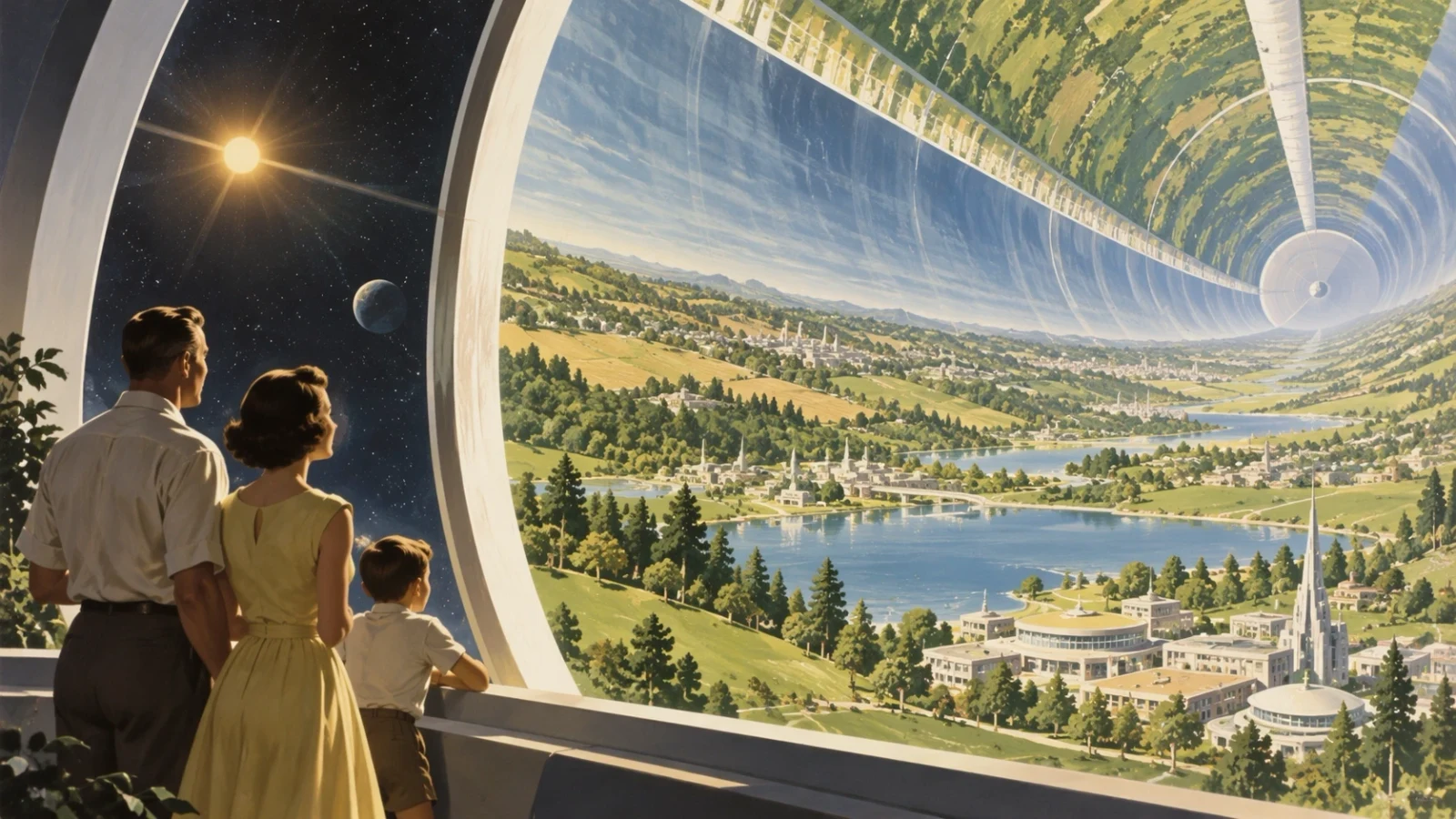
Split a long brief into subject, setting, light, and layout. Put essential details first and give clear roles to secondary objects. GPT Image 2.5 lets you choose Flare or Sunburst in the model menu for this workflow.

Design a retro city square with rounded towers, a tram, and people near a cafe. Use warm sunset light, pale teal walls, and a clear path through the scene.
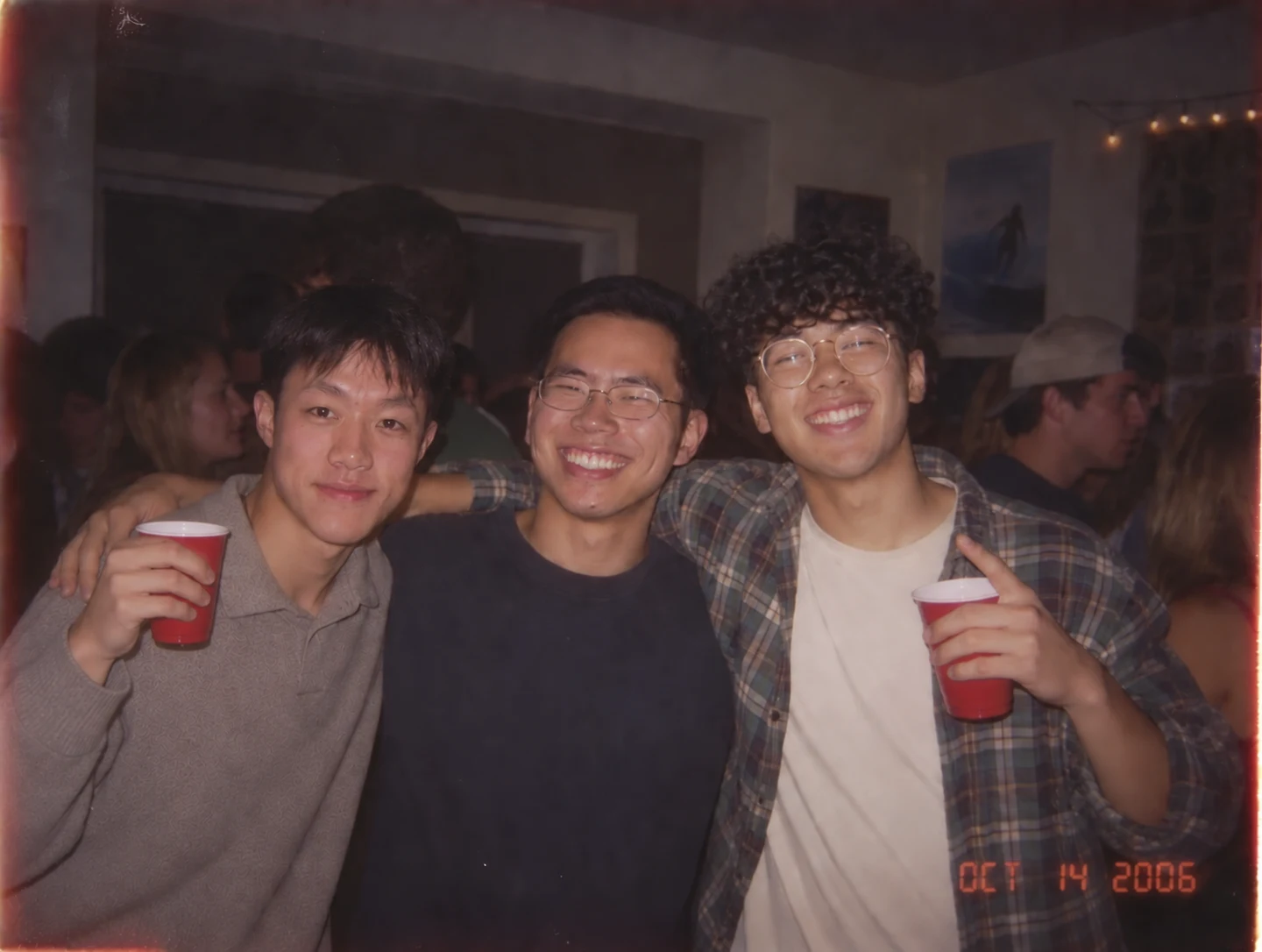
Change the Setting of a Group PhotoBefore

Change the Setting of a Group Photo

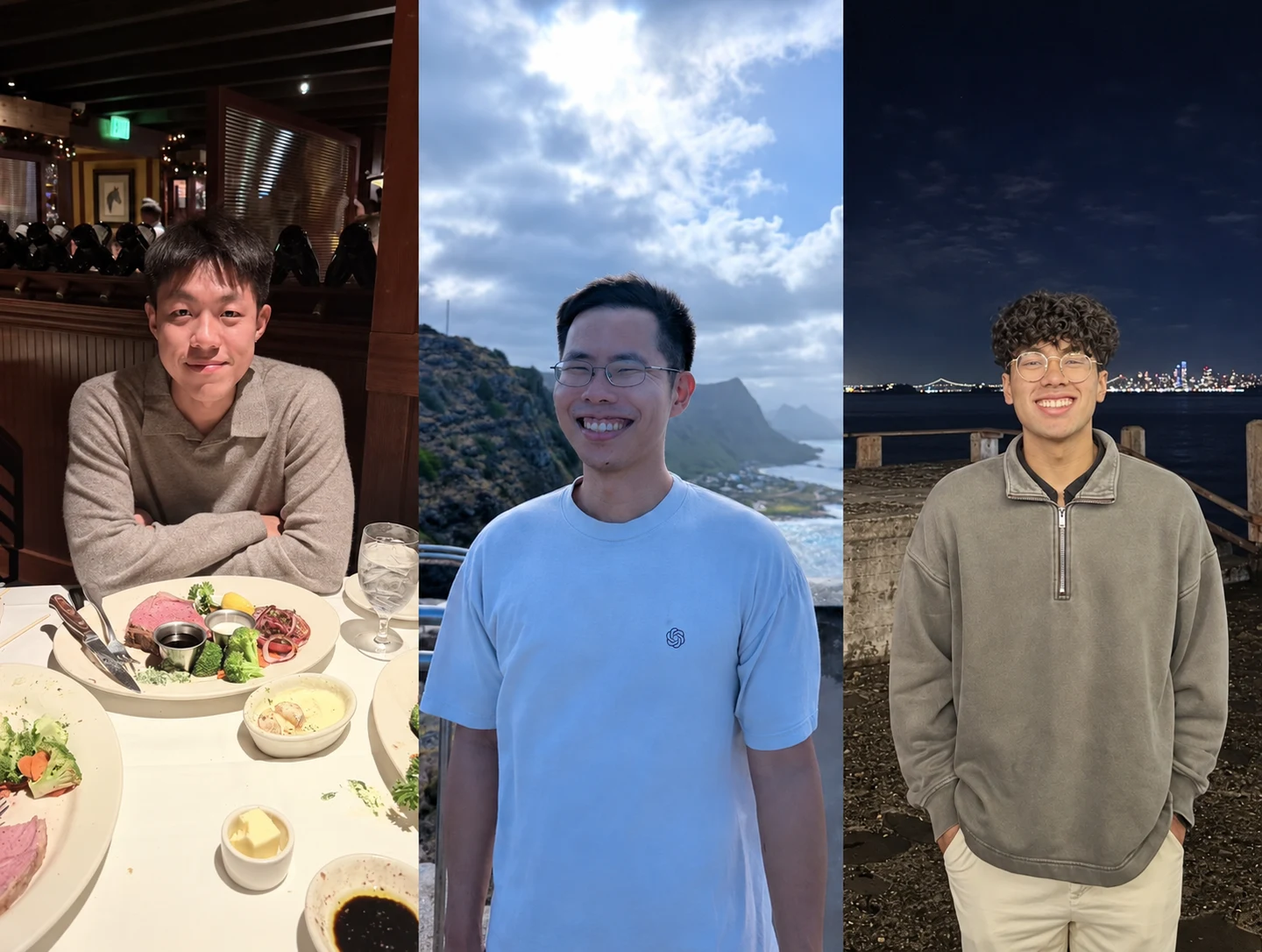
Use a source photo and name the people or objects you want to keep. Describe the new backdrop, time of day, and mood. Check faces, hands, and clothing after the edit, especially where subjects overlap.

Move the group in the reference photo to a bright outdoor garden party. Keep the number of people and their outfits. Add soft evening light and subtle paper lanterns.
Make One Change and Review the RestBefore

Make One Change and Review the Rest

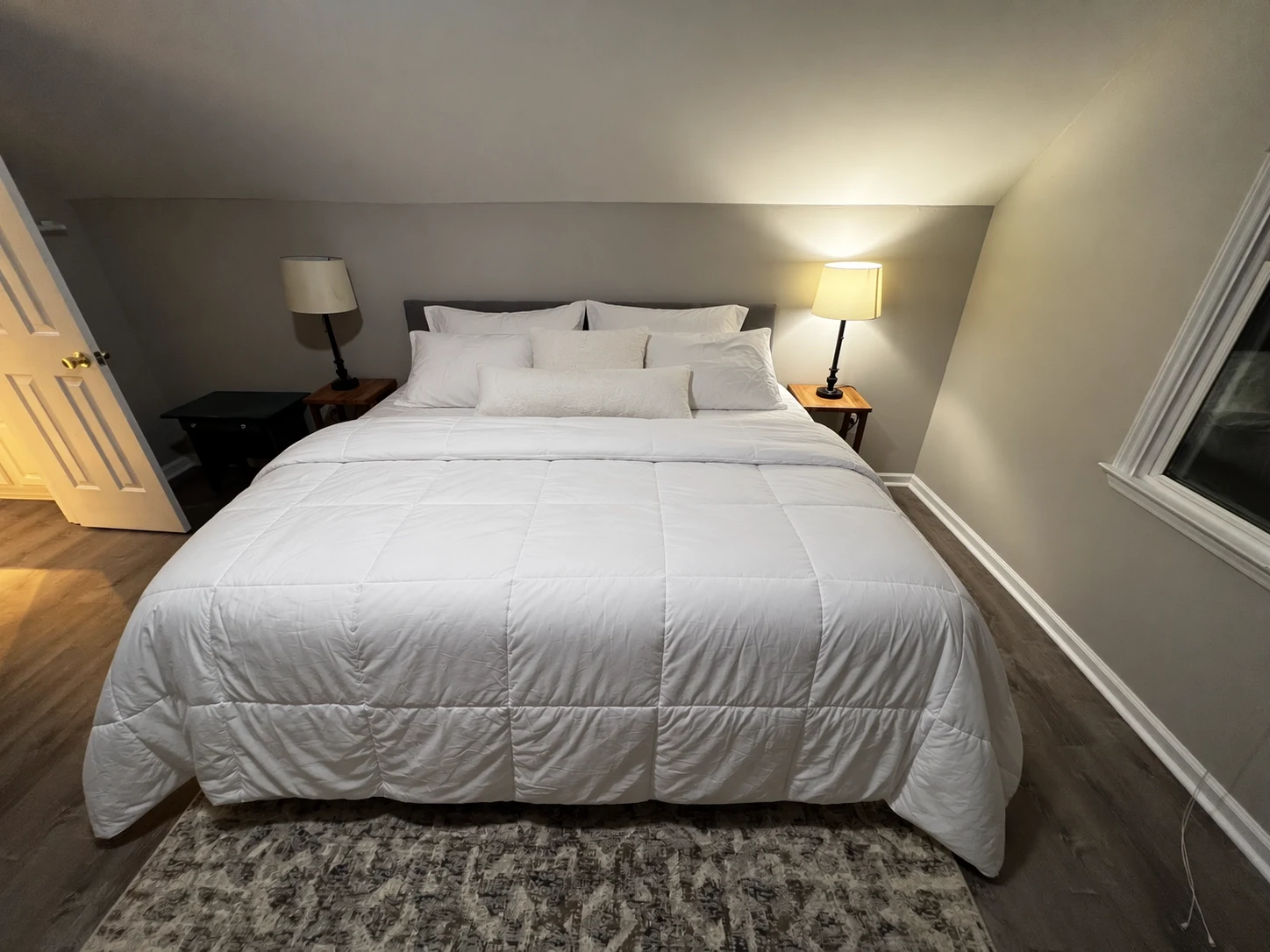
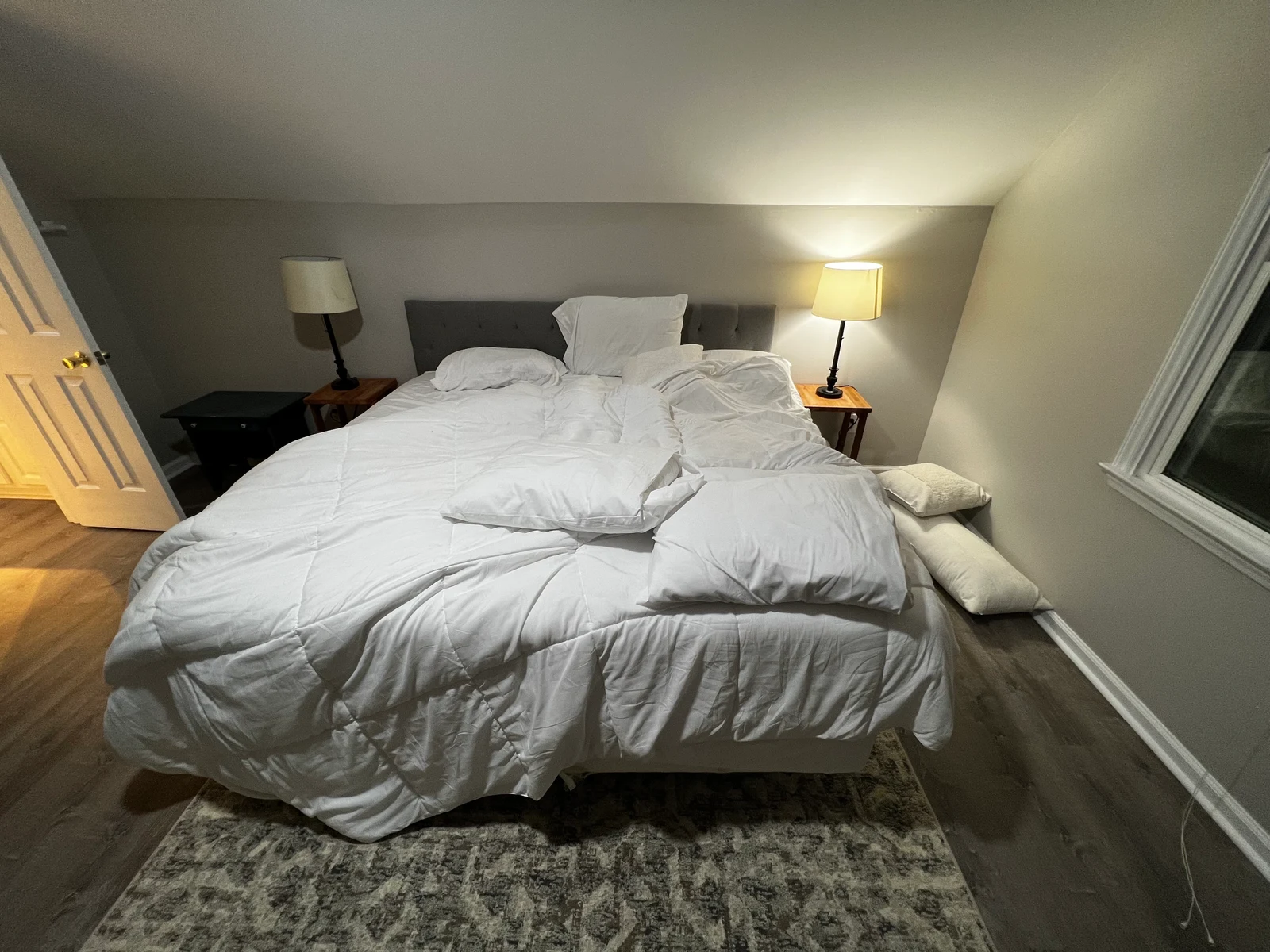
A narrow edit is easier to judge. State the object to change and list the surrounding parts to preserve. Start with a single instruction, then refine the result if the layout needs a second pass.

Edit the bedroom photo so the bed is neatly made with plain white linen. Keep the room layout, furniture, wall color, and window light.
Give Type a Clear Place in the Design

Give Type a Clear Place in the Design

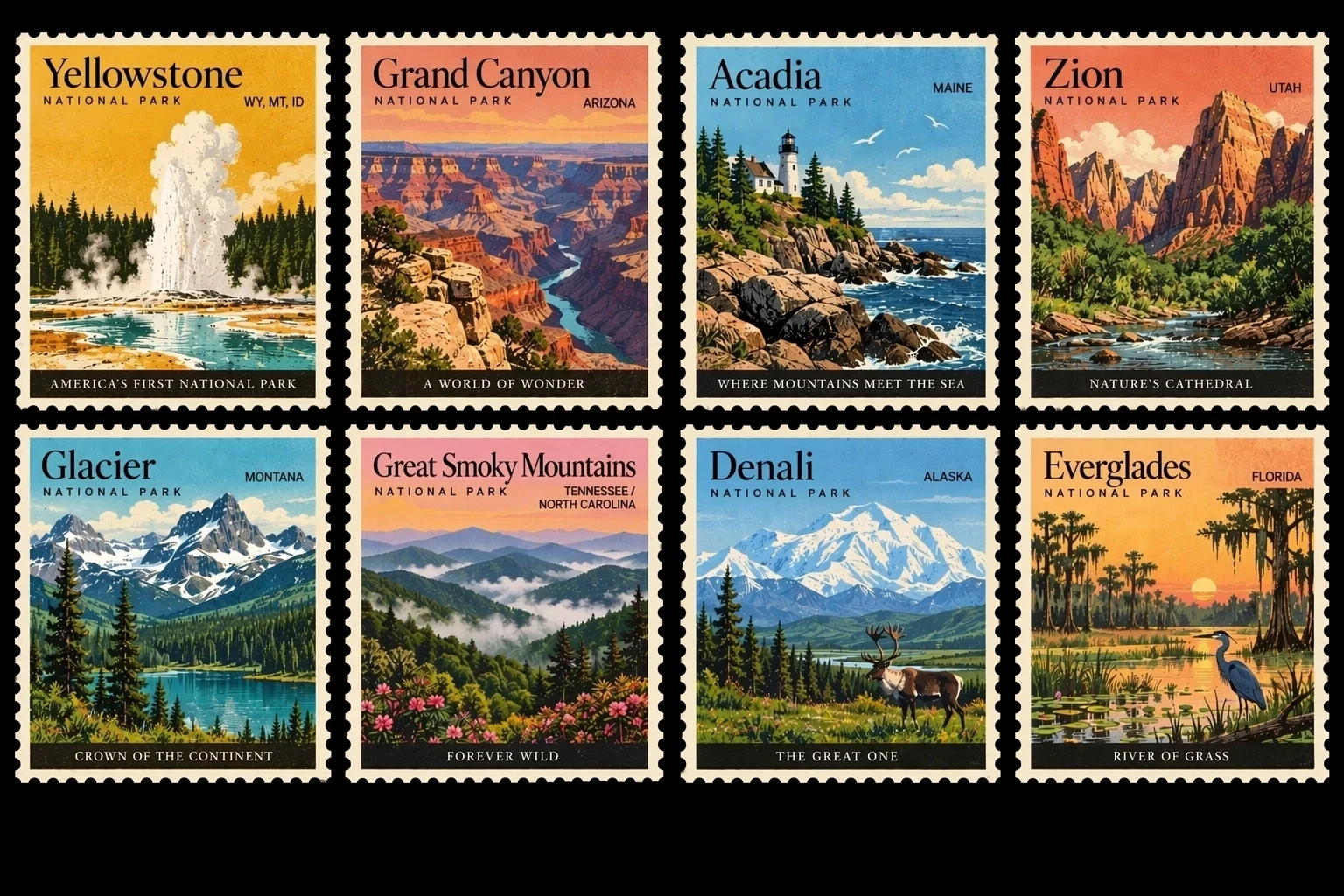
Write the exact wording and its place in the frame. Use short text when the design has many small elements. Leave a quiet area behind the letters so the result is easy to check and read.

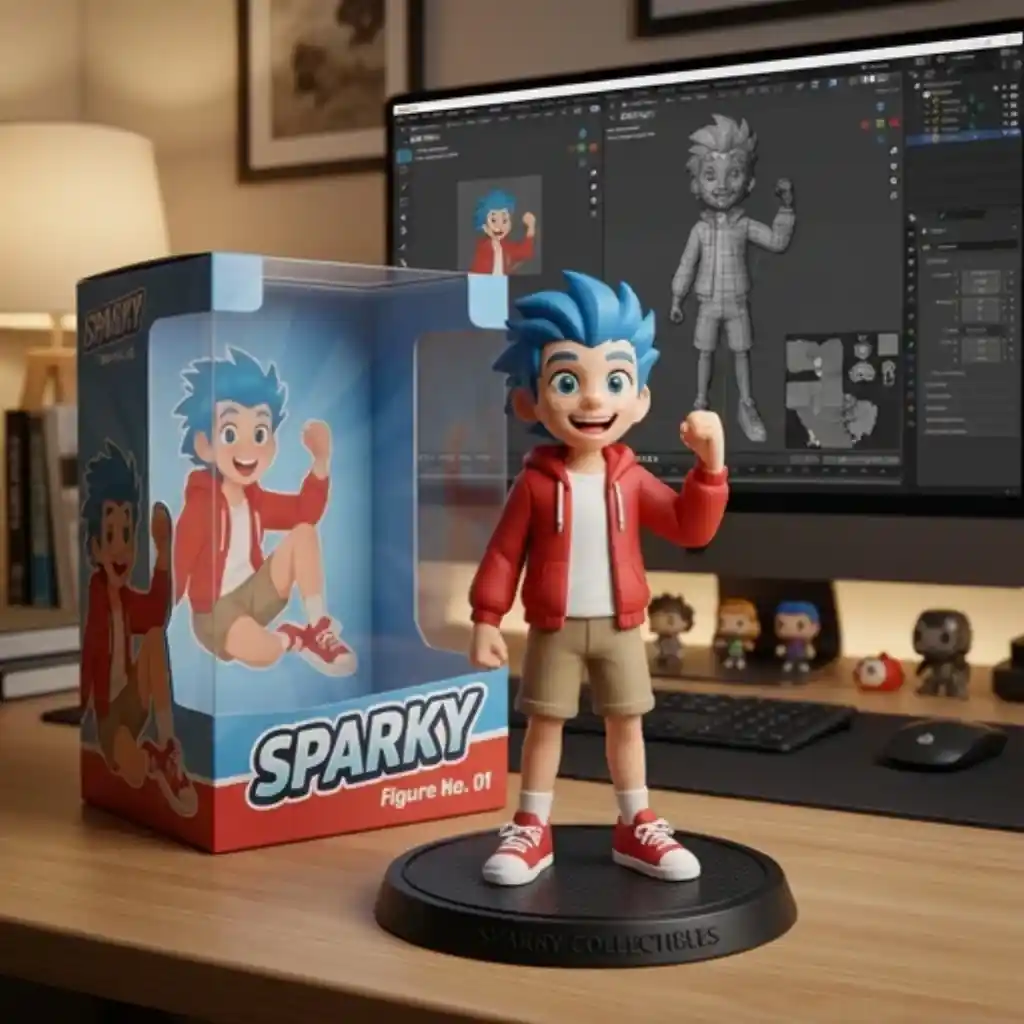
Create a sheet of four vintage nature stamps with mountains, a lake, trees, and a small bird. Use muted colors and the word WILDLANDS on each stamp.

Reference images from Raphael. The briefs here are our own.

Explore More Image Models

Compare other tools for your next image. Each card opens its model page, where you can review examples, output options, and the current credit estimate.

GPT Image 2.5 and Related Models

These are the options and base rates used by our workbench. Editing can add a reference charge. Select the model and add your files to check the total before generating.

FeatureGPT Image 2 GPT Image 2.5 Flare GPT Image 2.5 Sunburst
Maker OpenAI OpenAI OpenAI
Output sizes 1K / 2K / 4K 1K / 2K / 4K 1K / 2K / 4K
Base credits
1K: 6
2K: 10
4K: 14
1K: 20
2K: 35
4K: 55
1K: 30
2K: 50
4K: 80
Reference credits Included in the base estimate 3 for each extra reference after 0 included 3 for each extra reference after 0 included
Open modelOpen modelOpen modelOpen model

How to Use GPT Image 2.5

The GPT Image 2.5 AI image generator uses the same workflow for a new scene and an edit. Set the goal, check the options, then review one result. A small, clear change makes the next draft easier to judge.

Write a Brief or Add a Photo

Describe the subject, setting, and change you want. Add source photos when they help show what to preserve. Use short, direct instructions and keep each file within the limit shown by the tool.

Check Model, Size, and Credits

Choose an available model and its output size. Set the aspect ratio and file format. The total reflects the selected options and any added reference charge; review it before starting the request.

Review and Save the Result

Open the output at full size and check the details that matter. Download the file when it fits your goal. To refine a draft, use it as the source for another edit with a focused new instruction.

Use your existing account credits. The workbench shows the estimate for the chosen model, size, and reference images. Each request creates one output; plan credits also cover other supported tools.

Pricing

Plans for Image Creation

Make a few images, bring a scene to life, or create every day. Start with a credit pack, then subscribe when you need more.

Start with a credit pack

Pay once. Use your credits for images or videos whenever you need them.

One video

10 credits

$9.90

≈ 5 videos

  • ✓ Never expires

Duo Pack

41%

50 credits

$29.00

≈ 25 videos

Or about 3–25 images

  • ✓ Never expires
Most Popular

Crew Pack

71%

350 credits

$99.00

≈ 175 videos

Or about 25–175 images

  • ✓ Never expires

Studio Pack

78%

900 credits

$199.00

≈ 450 videos

Or about 64–450 images

  • ✓ Never expires

Label Pack

83%

3000 credits

$499.00

≈ 1500 videos

Or about 214–1500 images

  • ✓ Never expires

Create regularly? Choose a plan.

Images and videos share one balance. Monthly and yearly plan credits are both released each month.

Most Popular

Basic

34 credits / month

$8.33mo

≈ 17 videos/month

Or about 2–17 images

Billed annually at $100.00

  • ✓ See video and image model credit rates
  • ✓ High-resolution watermark-free downloads
  • ✓ All style templates included

Pro

334 credits / month

$41.67mo

≈ 167 videos/month

Or about 23–167 images

Billed annually at $500.00

  • ✓ See video and image model credit rates
  • ✓ High-resolution watermark-free downloads
  • ✓ Commercial Use License

Studio

500 credits / month

$50.00mo

≈ 250 videos/month

Or about 35–250 images

Billed annually at $600.00

  • ✓ See video and image model credit rates
  • ✓ High-resolution watermark-free downloads
  • ✓ Commercial Use License

Payments are handled by our payment providers. We do not store full card numbers.

Prices are listed in USD. Confirm the payment method, currency, and final amount at checkout.

What an image costs

Credits per image. Choose a model and resolution; the generator shows the cost before you submit.

Model1K2K4K
GPT Image 261014
Gemini 3 Pro Image8814
Gemini 3.1 Flash Image5812

What a video costs

Credits per clip at the duration shown, from the same rate rules as the generator. Duration changes are prorated and rounded up. A dash means the resolution is unsupported; available settings and modes are shown in the generator.

ModelDuration480P720P1080P2K4K
Veo 3.18s—80100—200
Veo 3.1 Lite8s—3046——
Veo 3.1 Fast8s—4050—150
Veo 38s—70100——
Veo 3 Fast8s—3040——
Seedance 2.55s204060—200
Seedance 2.5 Turbo5s—2530——
Seedance 2.05s153075—150
Seedance 2.0 Mini5s81535—70
Seedance 2.0 Mini Turbo5s—1012——
Seedance 2.0 Fast5s122560—120
Seedance 1.5 Pro Fast5s—34——
Kling 3.05s—1520—50
Kling 2.65s—1015——
Wan 3.05s51520——
Wan 2.75s—10153050
Wan 2.2 Ultra Fast5s2————
Grok Imagine 1.56s122030——
Grok Imagine6s1010———

GPT Image 2.5 FAQ

Answers about GPT Image 2.5 prompts, reference files, output options, and the credit estimate at Everygen AI.

What does the GPT Image 2.5 AI image generator do?

GPT Image 2.5 creates an image from text and supports edits guided by pictures. Describe the scene or the change, choose the options shown in the tool, and generate one result. The maker is OpenAI; the workbench displays the models currently enabled for your account.

How should I write a GPT Image 2.5 prompt?

Start with the main subject and its setting. Add the light, layout, and the exact words that should appear in the image. For edits, name both the change and the details to keep. A focused brief is easier to review than several unrelated goals.

Which reference files can I upload?

Use JPEG, PNG, or WebP. You can add up to ten pictures, with a limit of 10 MB for each file and 30 MB in total. The source images are added to the request when you choose Generate. Pick files you have permission to use.

Which output sizes does GPT Image 2.5 support here?

The model menu and settings show the choices available for the selected model. The comparison table below this tool lists base sizes and credits. Pick a supported size before generating; actual pixel dimensions vary with the frame you choose.

How many credits does an edit use?

Check the estimate on the Generate button after choosing the model, size, and files. Some models charge for added references. A reference example only fills the draft; it starts a paid request when you choose Generate. Each request makes one output.

Do I need to sign in to generate?

You can read the guide and try the draft controls before signing in. Generation needs an account, enough credits, and an enabled model. Your task result and its download use the same account that created the request.

Create with GPT Image 2.5 AI

Bring a clear idea to the GPT Image 2.5 AI image generator. Use a short brief or a source picture, check the frame and credit estimate, and make your next draft.

Start creating