
Original video
BEFOREEdit prompt
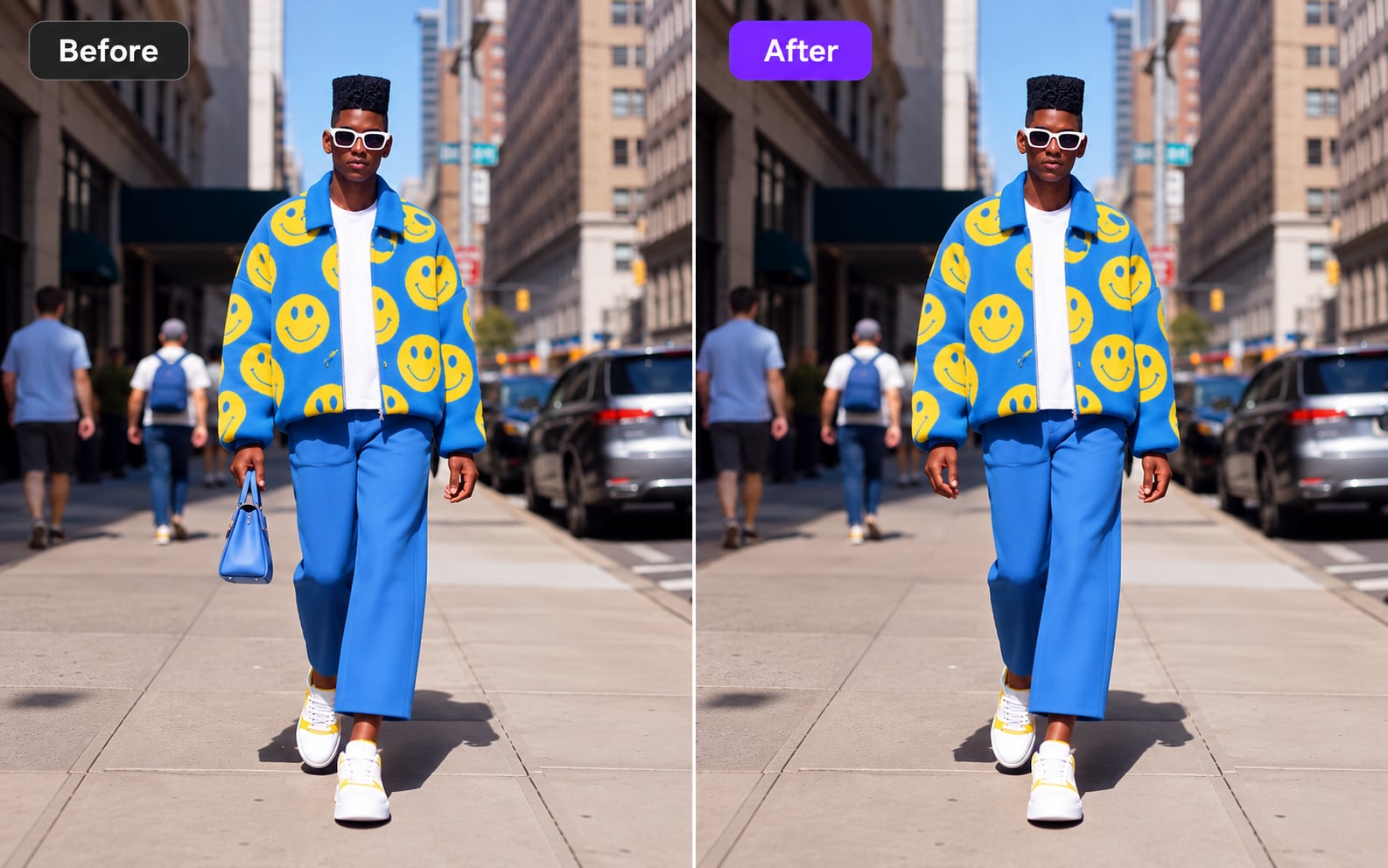
Erase the handbag carried by the person. Preserve the clothing, street setting, light and movement of the shot.
MP4 and MOV. Source limits depend on the task. Anime restyling uses a source from 4 to 30 seconds.
Checking video editing availability…
Review the cost first. Credits are used when you confirm processing.
Bring a video and tell us the result you want. Find a short clip or try an anime look. Check the full credit cost before you start.
Choose a video to editCompare the source clip with three edited variations. Each reference shows a different request and the details the prompt asks to preserve.
Erase the handbag carried by the person. Preserve the clothing, street setting, light and movement of the shot.
In the reference result, the handbag is removed while the person and surrounding street remain recognizable.
Give the person white sunglasses. Retain their identity, outfit, surroundings and original motion.
The reference adds sunglasses to the moving subject while retaining the setting and the person's appearance.
Change the blue jacket to a black leather jacket. Preserve the person, body position, framing and street backdrop.
This reference replaces the jacket while keeping the original subject, camera framing and street scene.
Video editing reference examples. This editor currently supports clipping and anime restyling.
Describe one clear result. Review the source, the settings and the price before processing.
Ask for one complete idea, answer or action. The clip uses your source picture and sound, with a start and end you can review.
Name the event you want to see. For a game or sports video, include the action and the result that should stay in the clip.
Start with a short source and describe the look. Check faces, movement and small details against your original video before using the result.
Keep source audio or mute it. For clipping, you can request captions in the spoken language and choose a supported frame shape.
Start with your own footage, describe the result, and review the settings before processing. The illustrations below show reference examples.
Describe the moment to cut or the anime look to explore. A clear request helps keep the task tied to the video you already have.
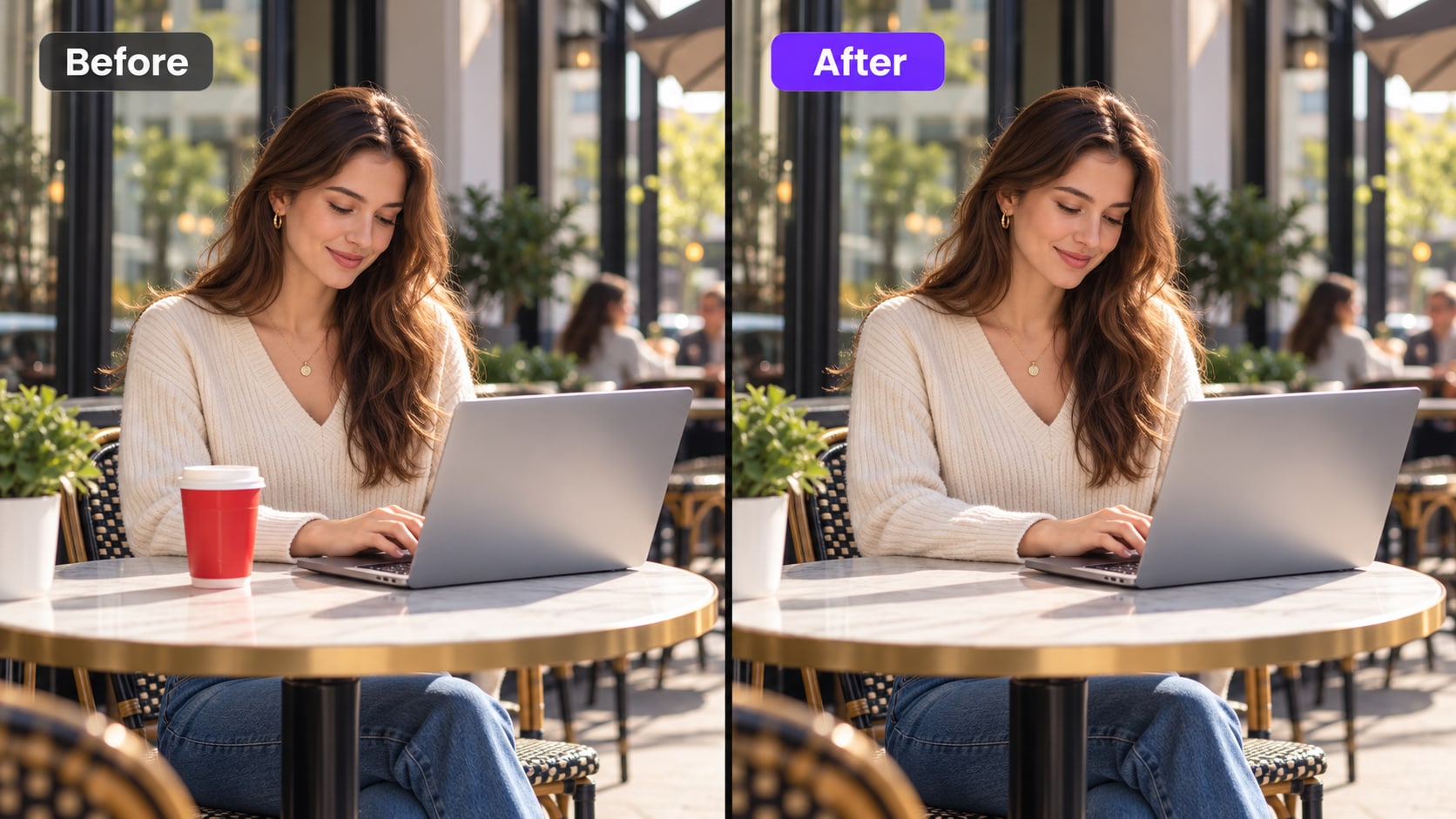
A useful instruction names the style, subject, and details that matter. For anime restyling, describe the look you want while using the original clip as the starting point.
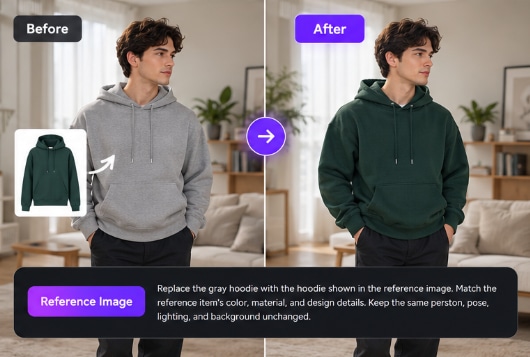
Work from a shot you already like. Find a shorter moment or explore a different visual style, then compare the result with the original footage.
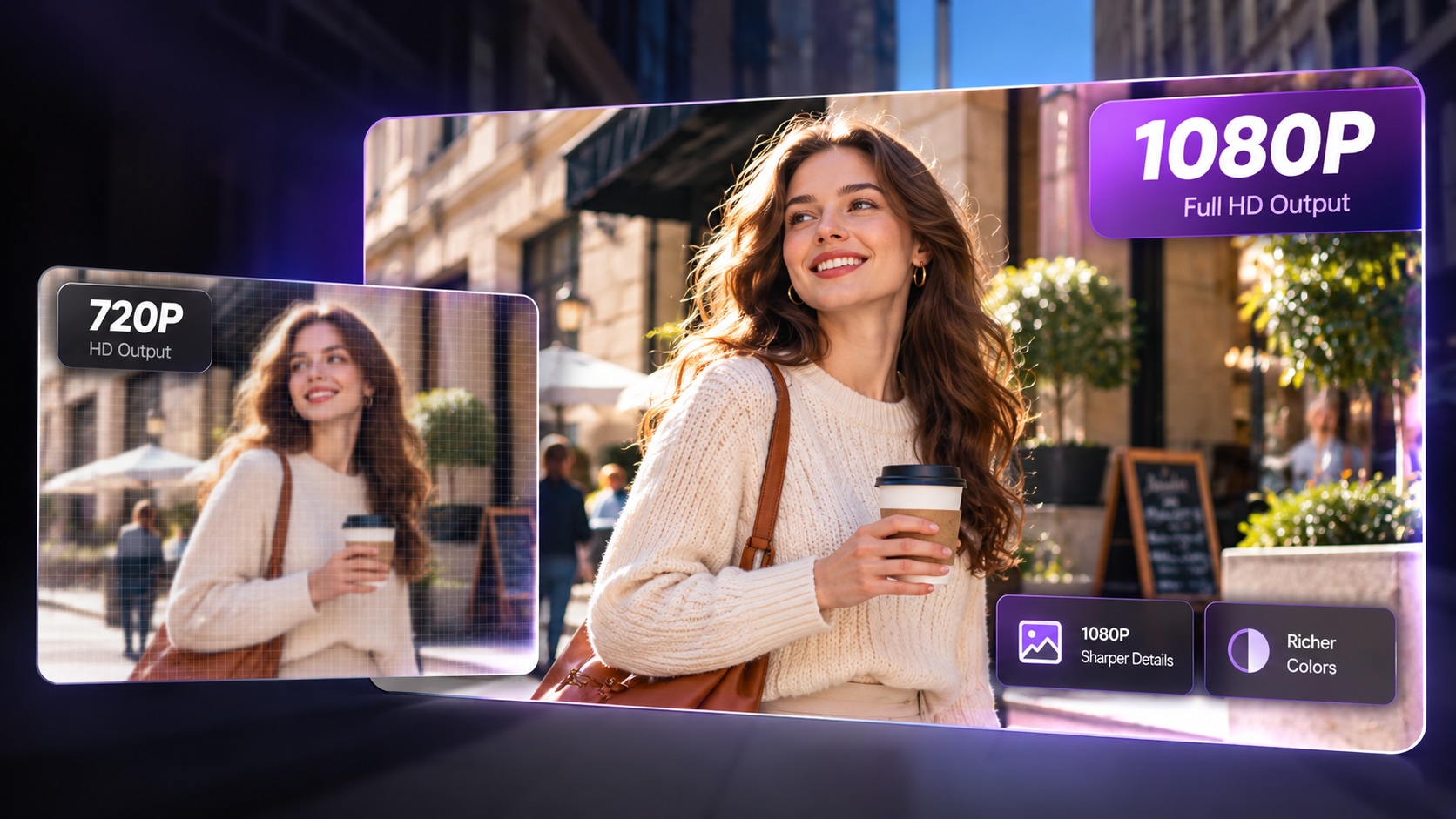
The current workflow offers 480p and 720p output settings. Check the selected task, sound, and frame options before preparing a quote.
MP4 and MOV. Source limits depend on the task. Anime restyling uses a source from 4 to 30 seconds.
One source, one request and one confirmed price.
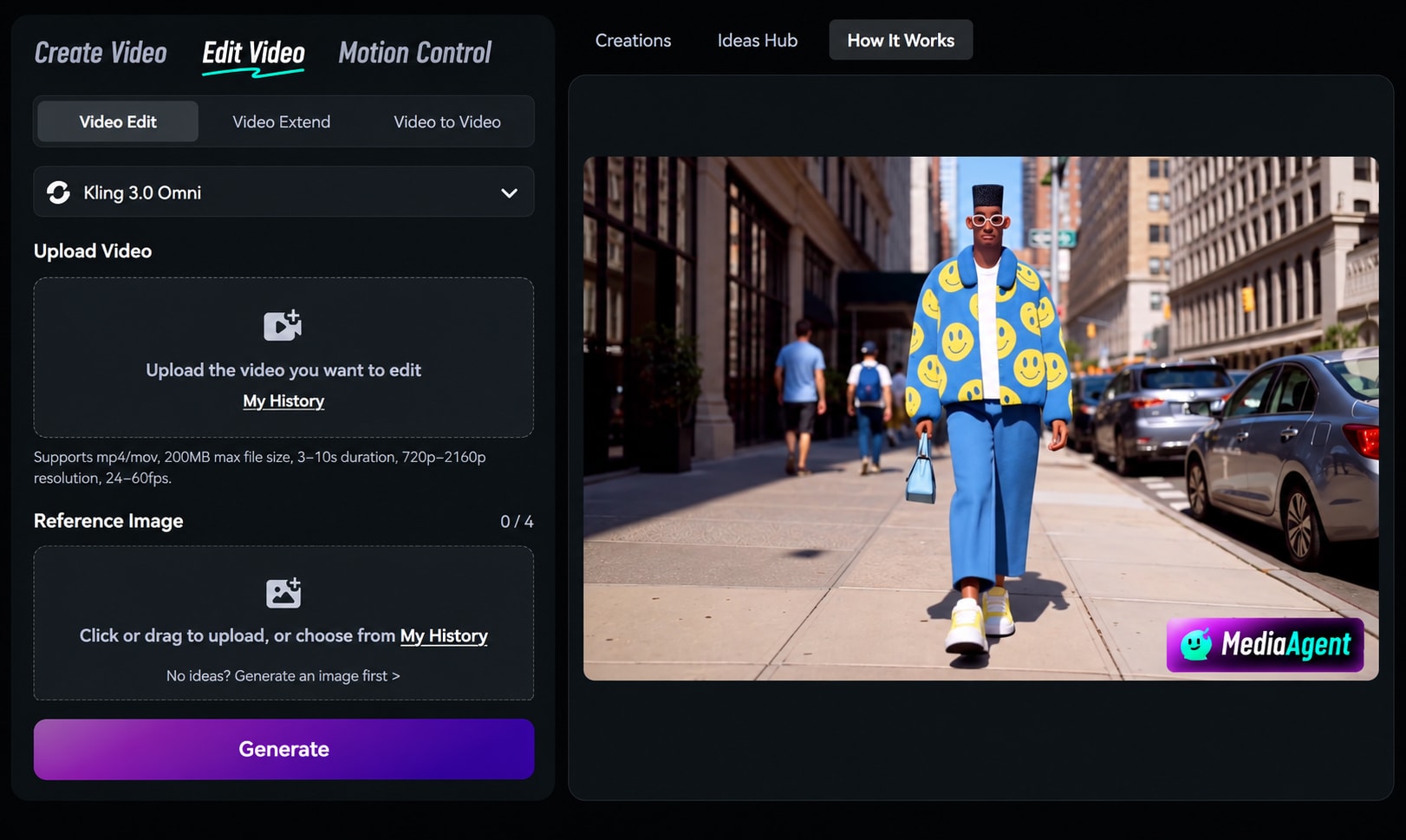
Upload a file, paste a supported link or choose a finished creation. Wait for the video checks to finish.
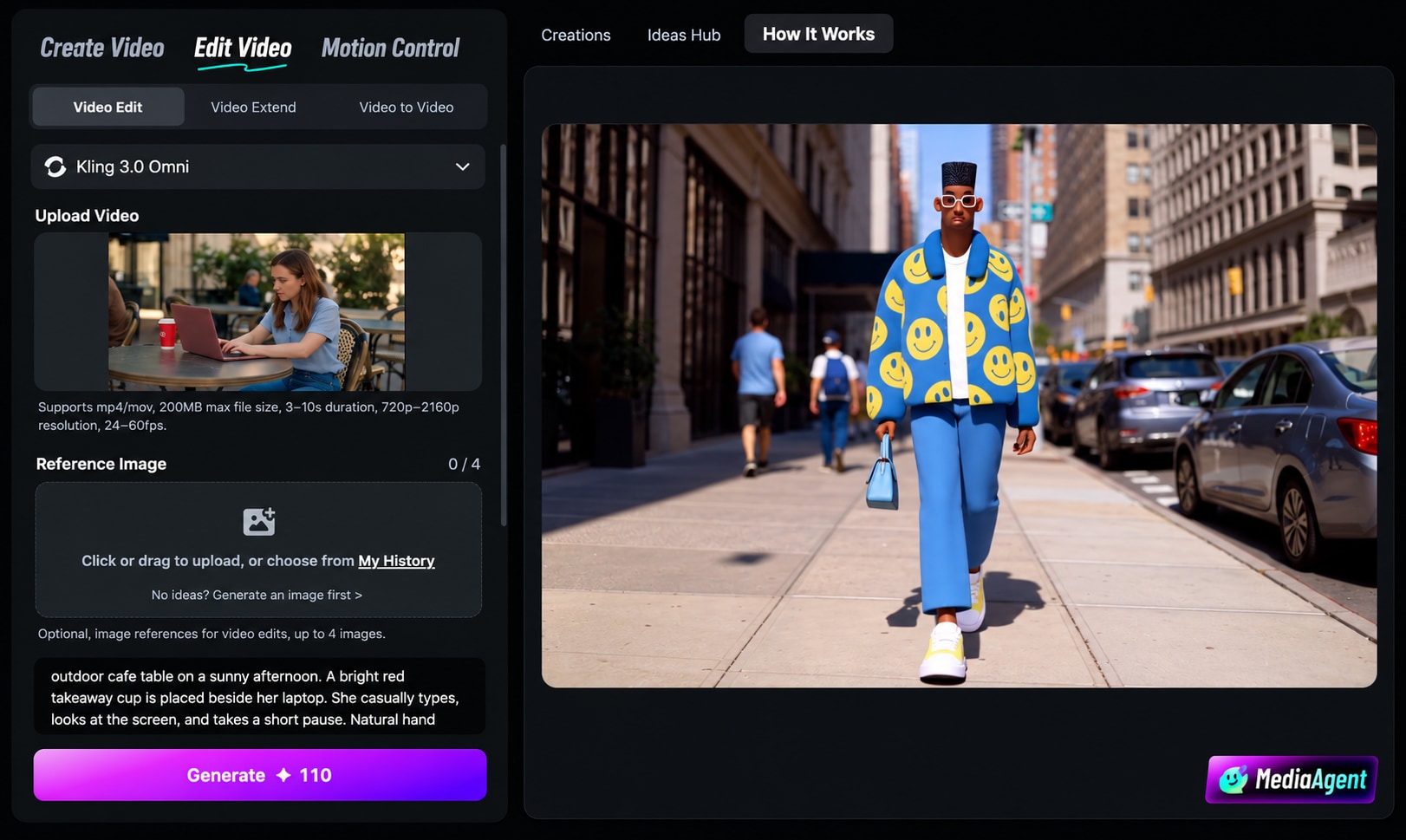
Choose a clip or anime task. Explain what should change and what should stay. Check the full price, then start processing.
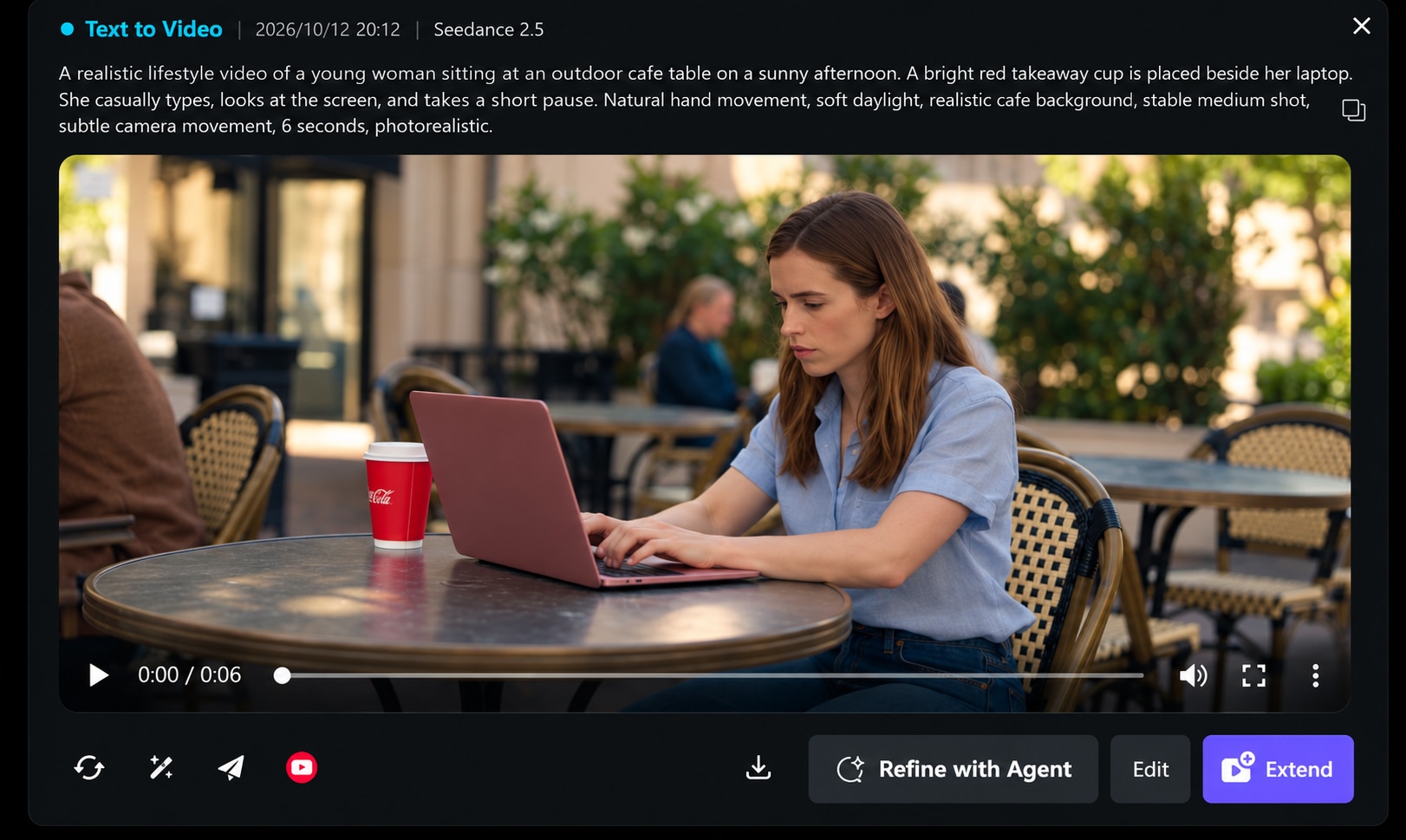
Play the result and check it against your source. Find it again in My Creations. A revised request gets a new quote.
These examples show different ways to change an existing shot. Everygen's currently supported tasks are listed in the editor above.
The reference workflow replaces a visible product or prop while using the existing shot as its context.
Compare how a jacket or an accessory changes while the person continues moving through the same scene.
Look at alternate versions of one shot to explore a different visual direction without changing the whole composition.
The removal example focuses on one distracting detail. Compare the subject, background and motion on both sides.

For a clip, identify the answer, action or event to keep. For an anime version, describe the visual style in concrete terms.
Mention the people, movement, framing and audio you want to preserve. Compare these details with your source when you review the result.
Start with one clip or one short restyle. Check the source limits and available settings, then review the quote before processing.
Learn about sources, processing, credits and saved results.
It works on your source video to select one short clip or create an anime version. The tool shows which tasks are currently available. Shorts Studio makes new videos from text, photos and templates.
For supported sources, ask for one complete idea or event within the source limit shown above. Each task delivers one clip. If no useful matching segment is found, the task fails and its credits are refunded.
Check the link options shown for your account in the editor. You can also upload a video file you can use or choose a completed creation.
Start with MP4 or MOV. File type alone does not prove that a video is readable. The tool checks the actual media and shows an error if its format, size or length is outside the supported range.
When anime restyling is available, use a 4–30 second source and describe the look you want. Check the result for changes to faces, movement and small objects. Fine detail may change.
Choose Keep source audio or Mute before processing. Voice separation, new voiceovers and complex mixing are outside the current workflow.
For clipping, request captions in the spoken language when the source has speech. You can fix caption text or change the clip range after it finishes. Review a new price before another render. Translation is not supported yet.
The quote uses the checked source length, task and output settings. Preparing it spends no user credits. Start processing confirms the price. Video tasks use eligible paid credits.
A failed delivery refunds the task credits. If the submit result is unclear, we check the existing attempt instead of sending it again. The task shows refund or review status and a support link.
Open My Creations to find a saved task. Source and result access lasts until the retention date shown in the tool. Reopening a finished result spends no new credits. Remove the source to revoke its access.
Choose one task and review the cost before processing.
Choose a video to edit