AI Video Cloner for Shorts
 Shorts Clone
Clone templates
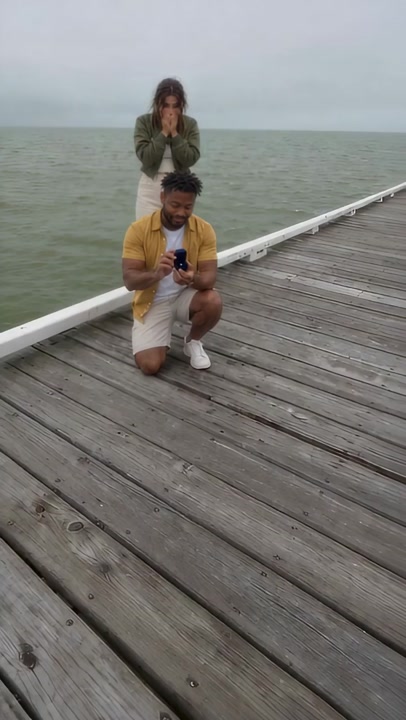
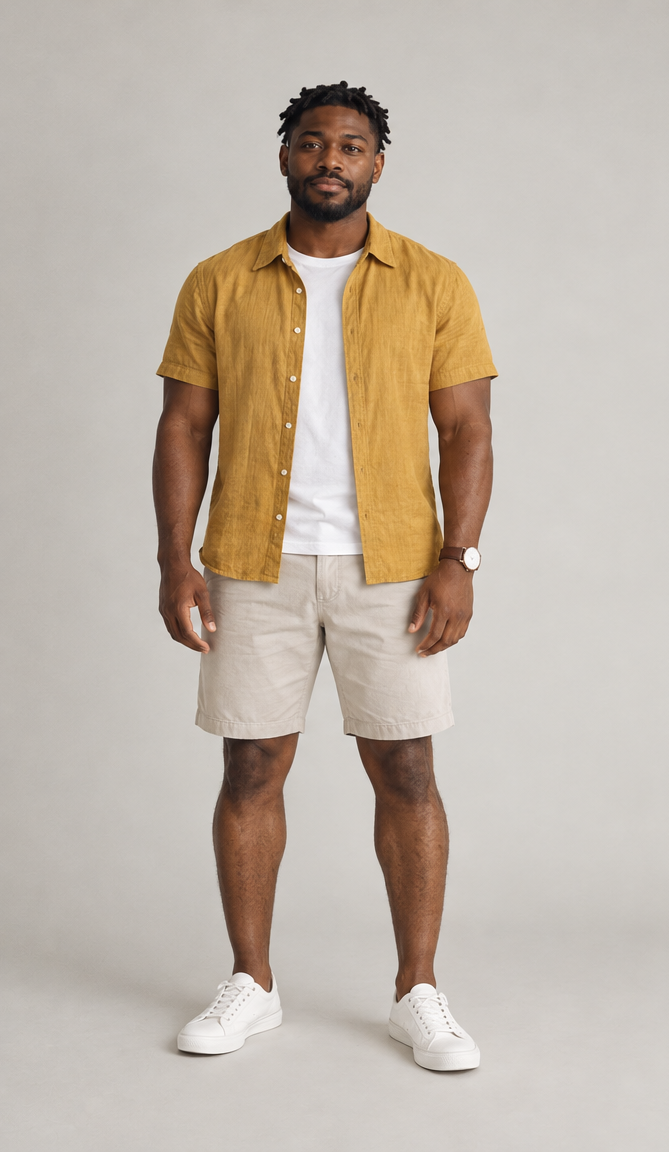
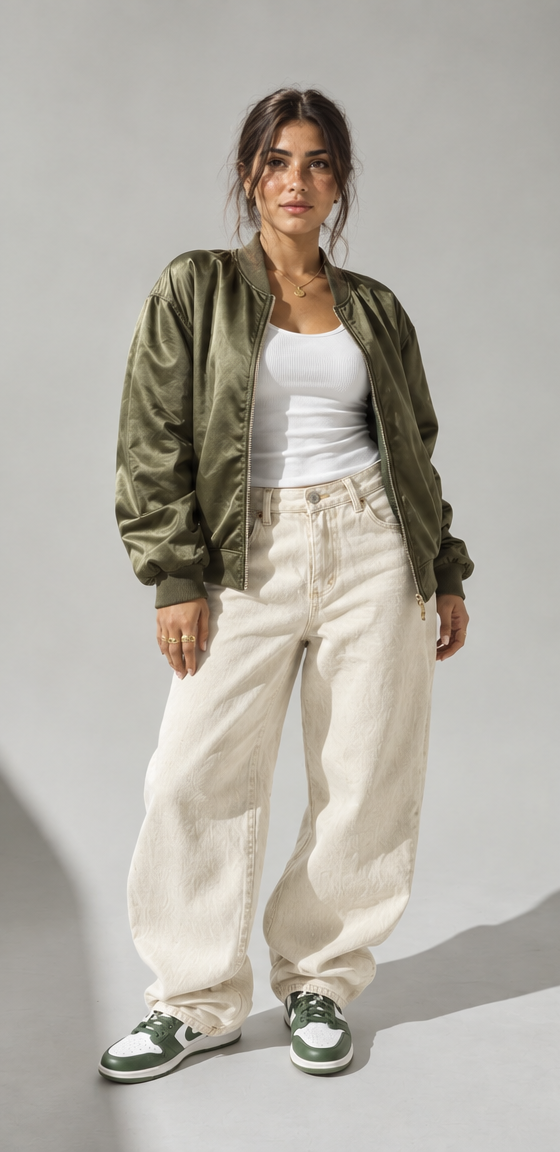
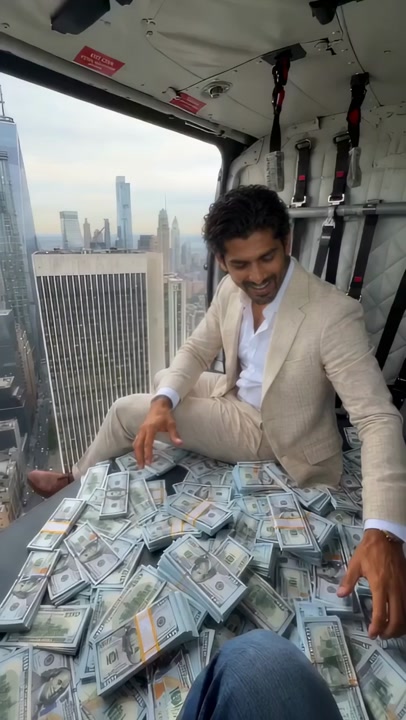
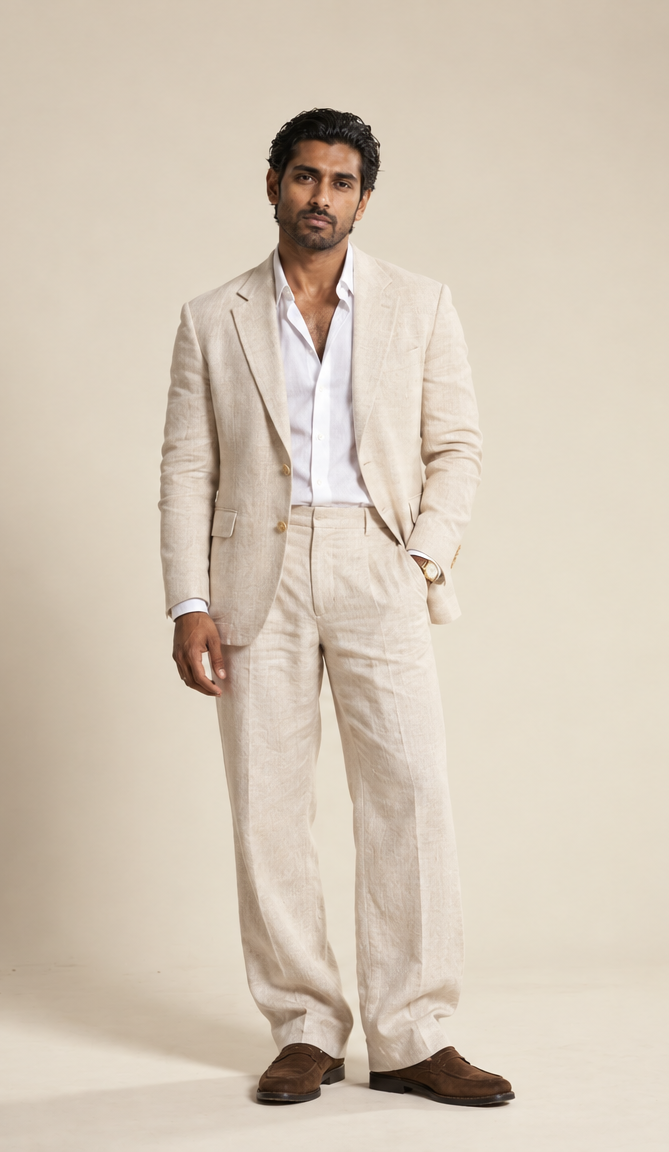
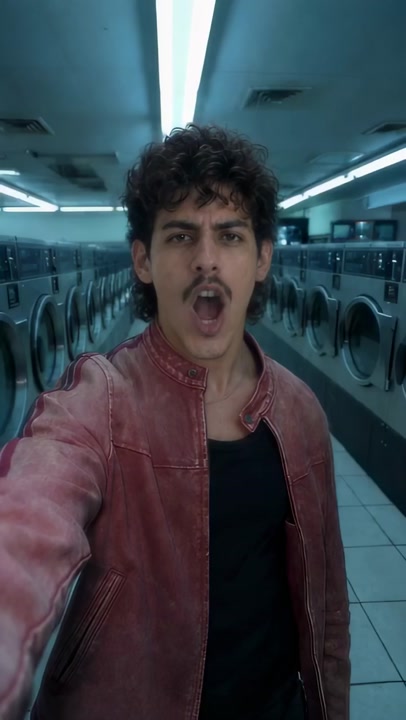
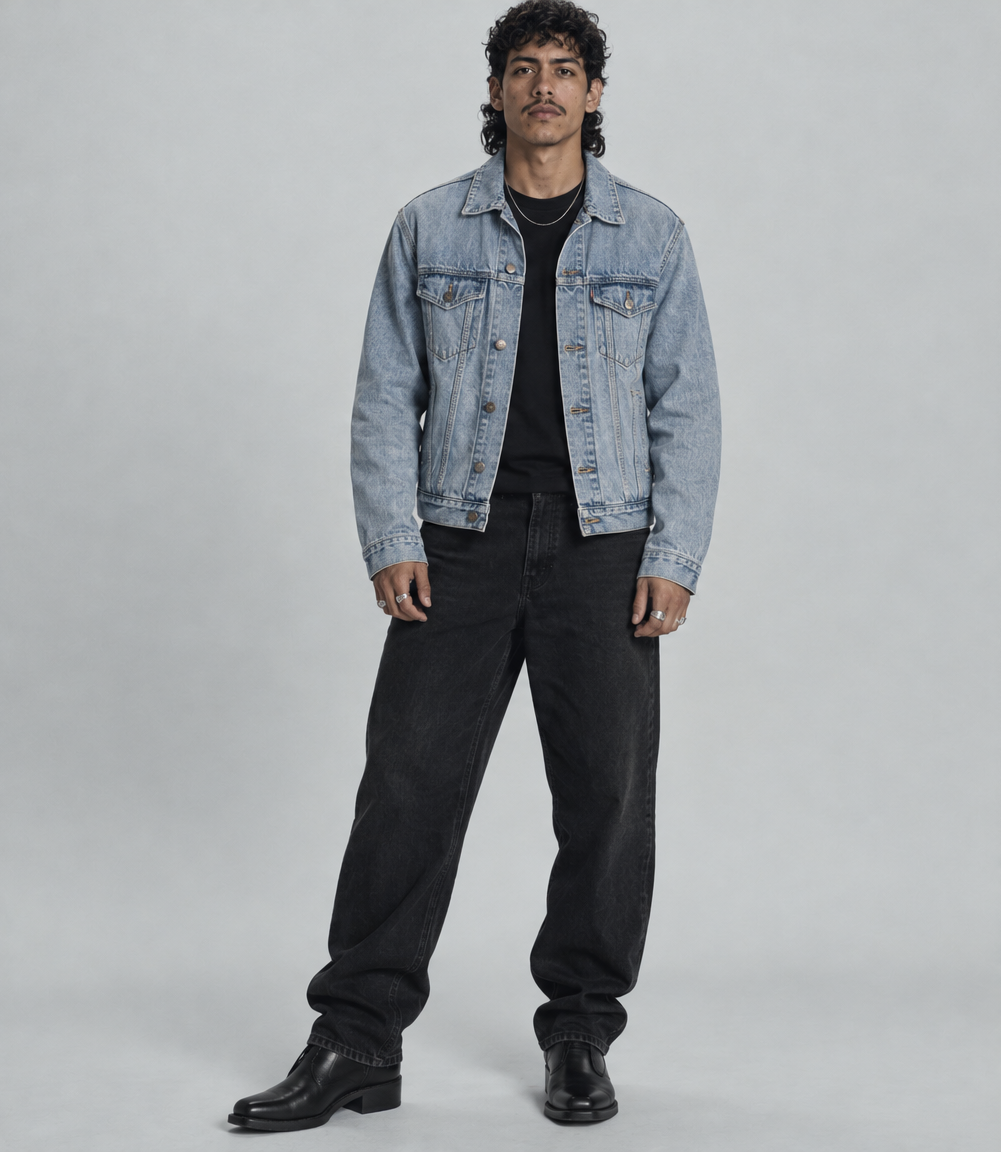

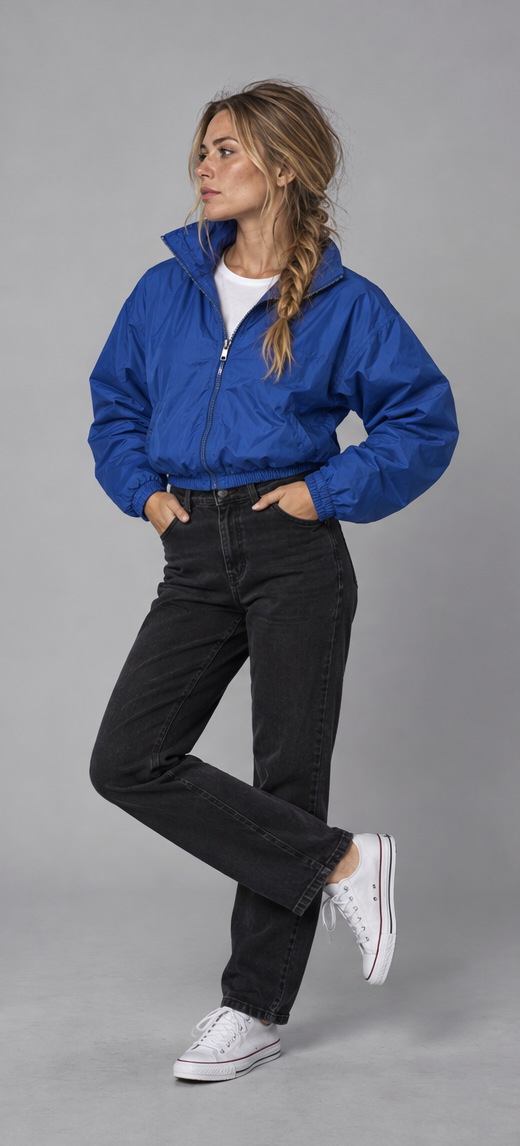
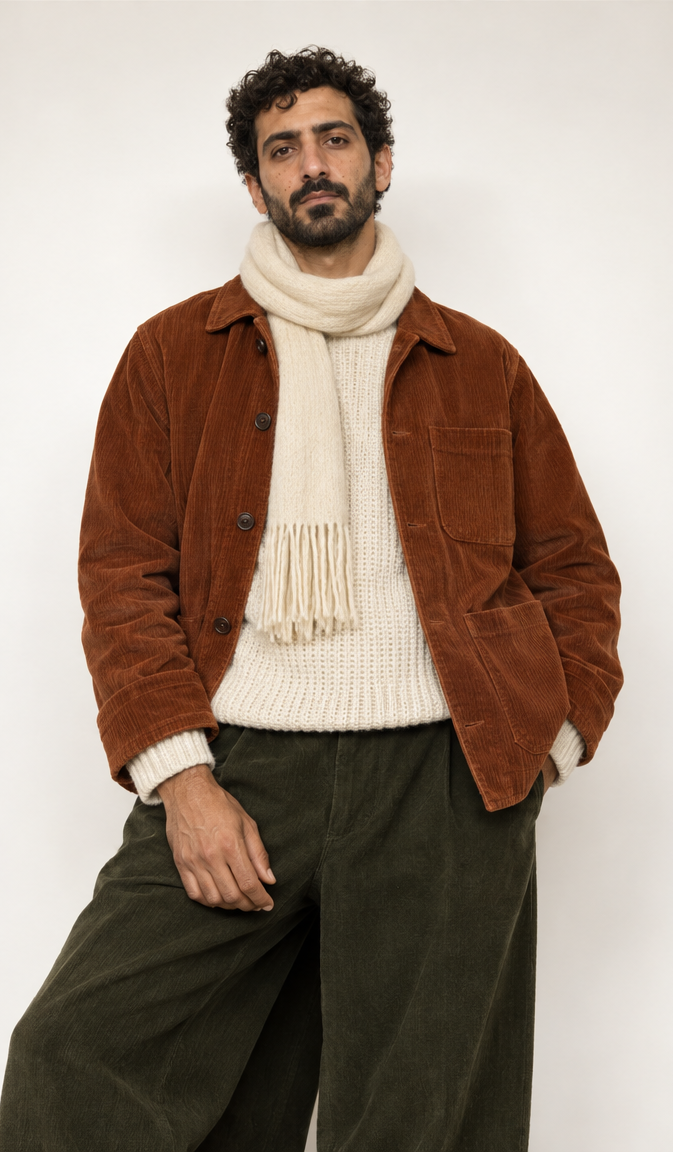
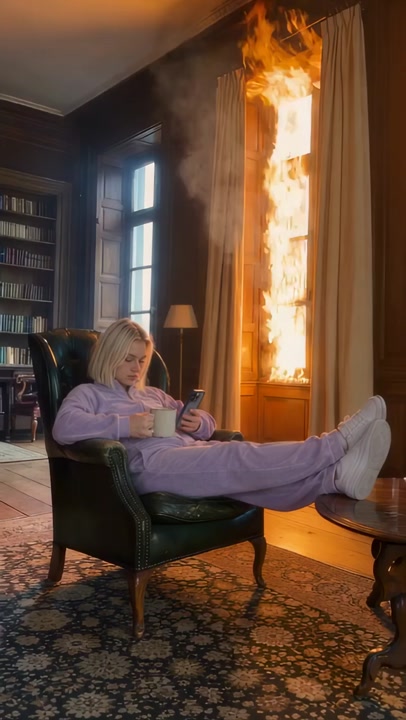
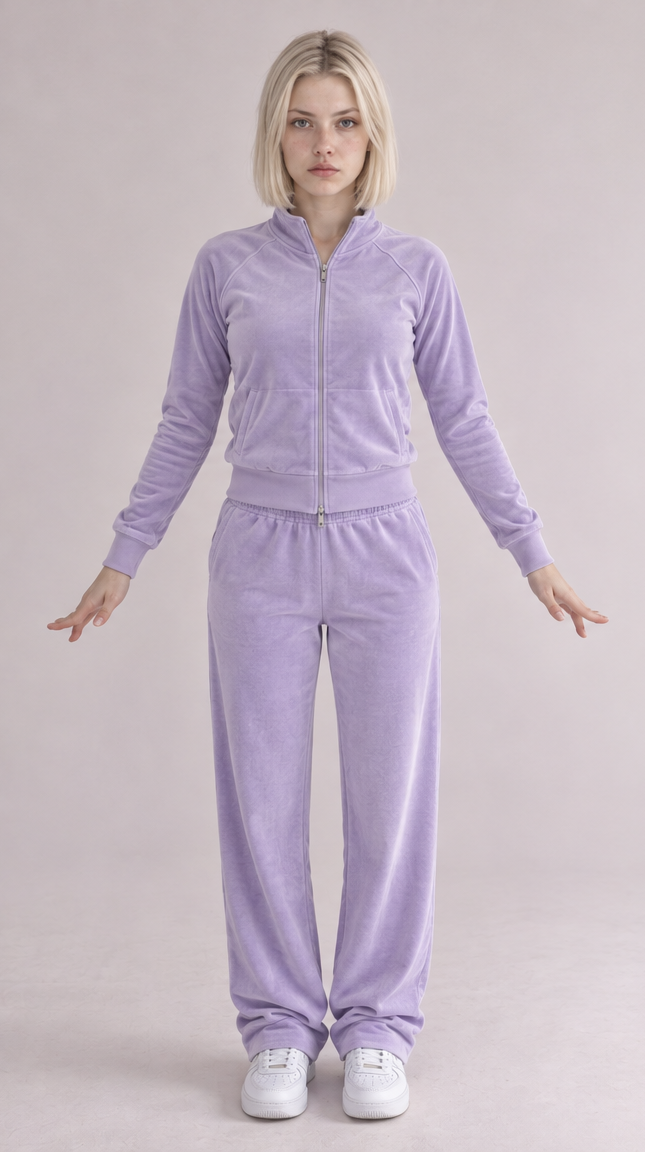
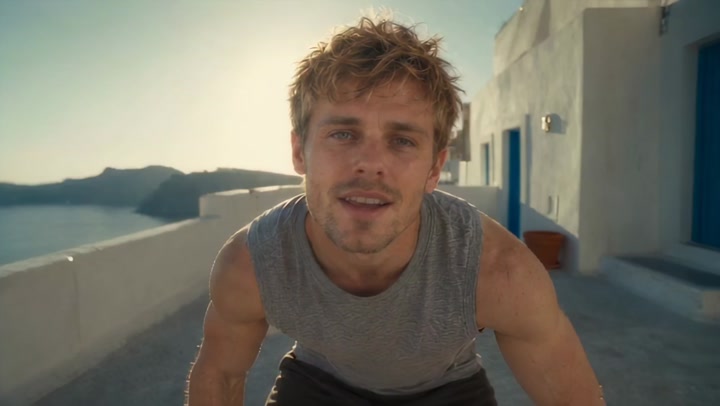
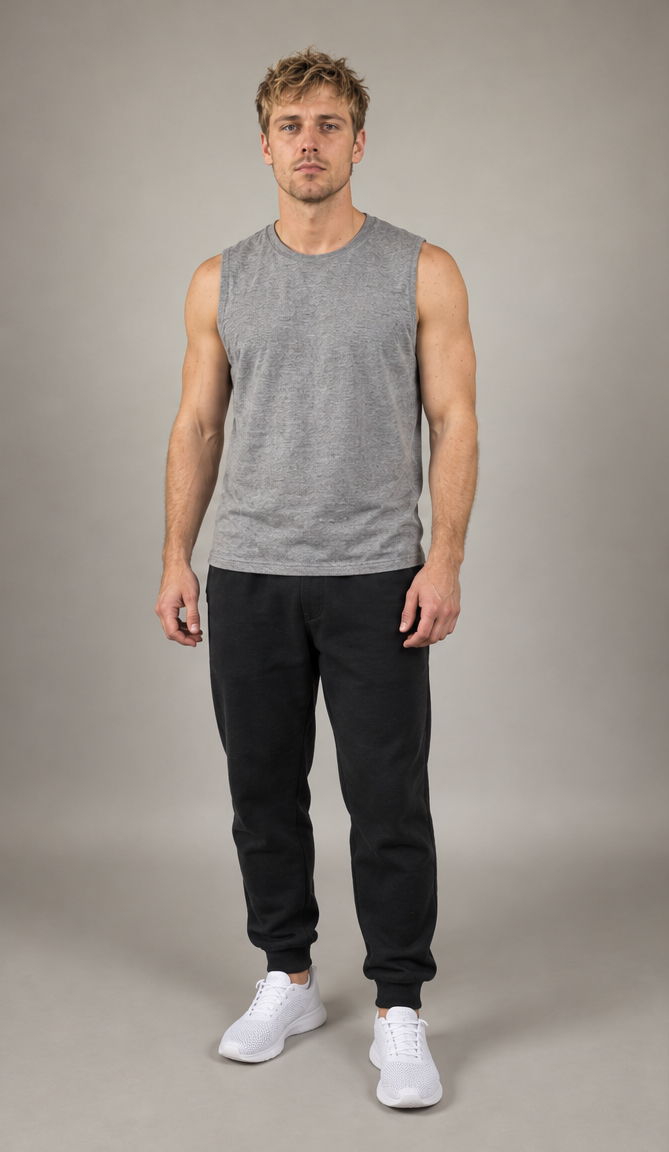
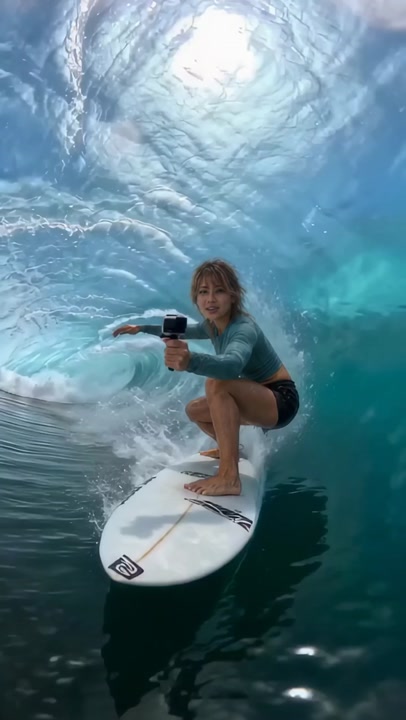
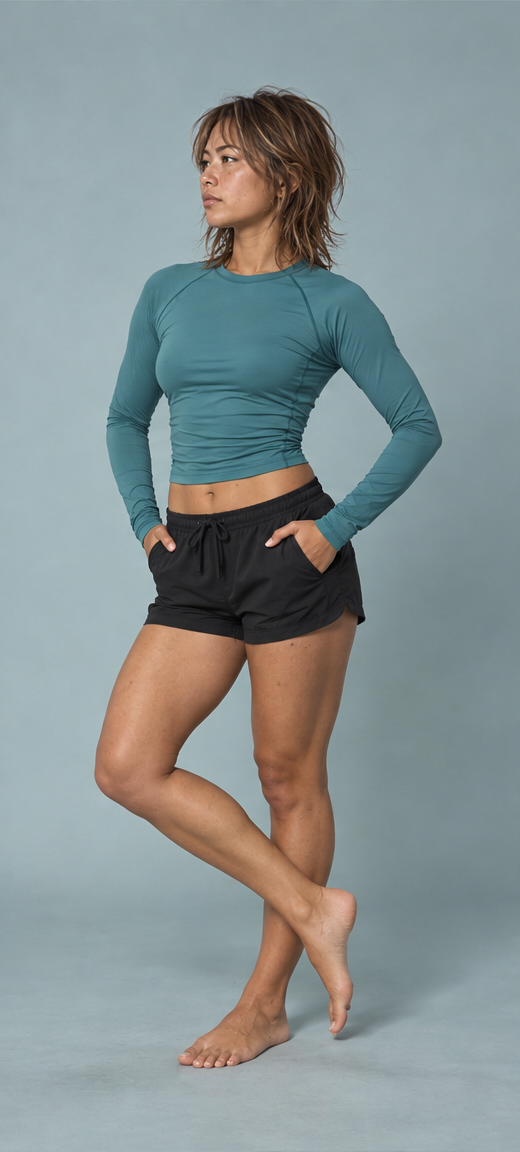
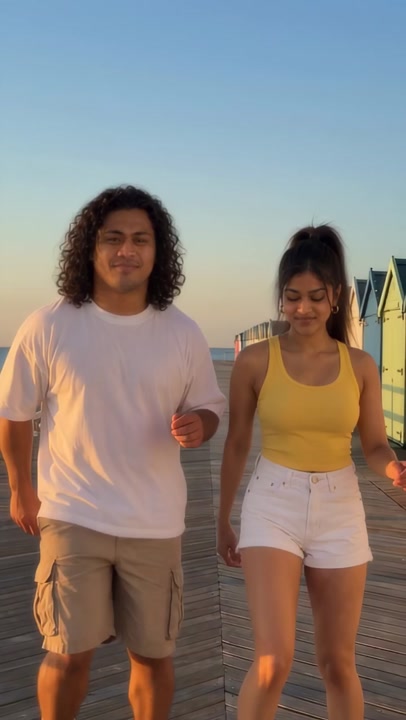
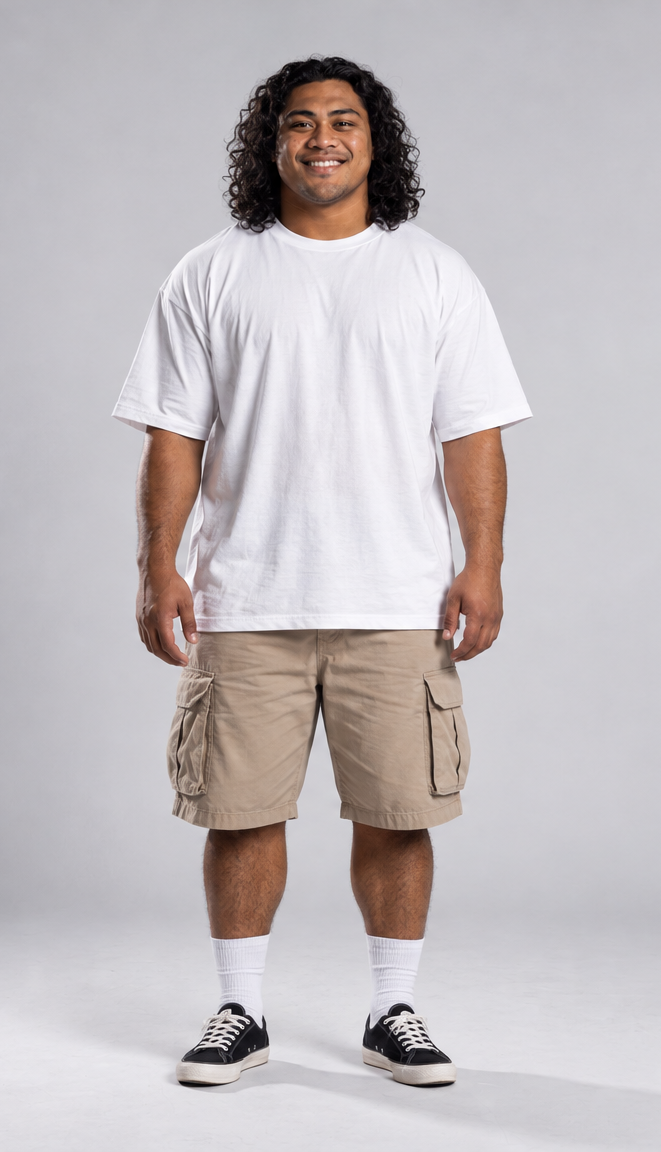
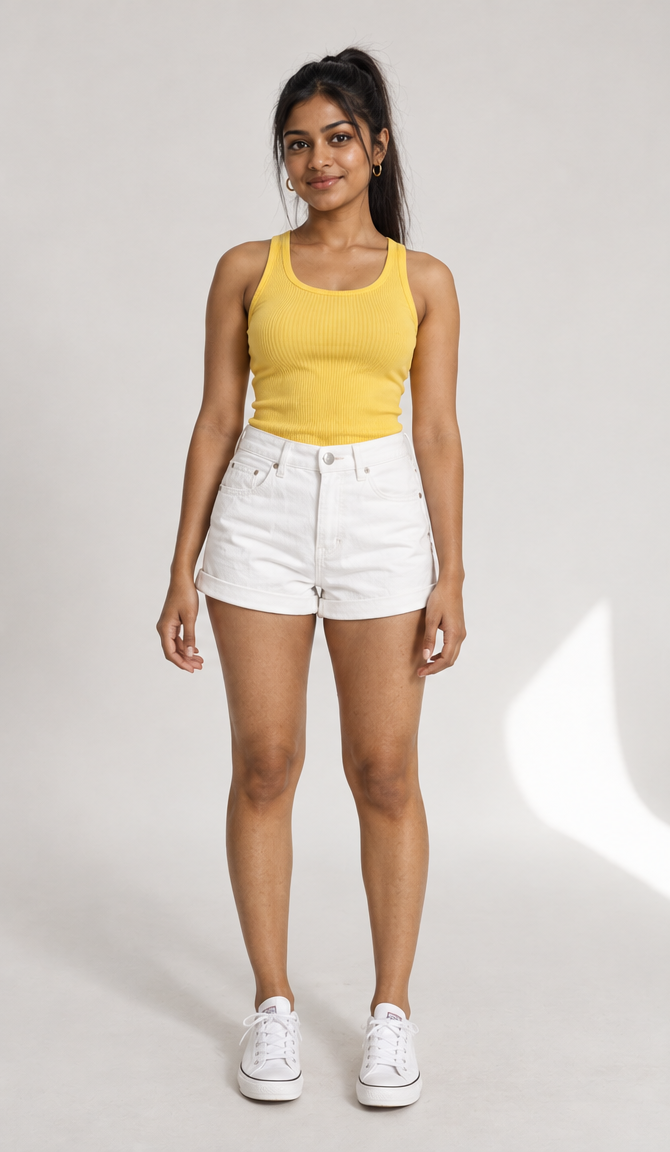
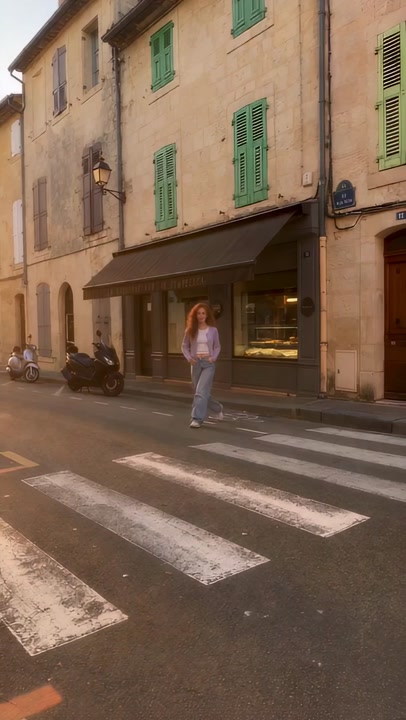
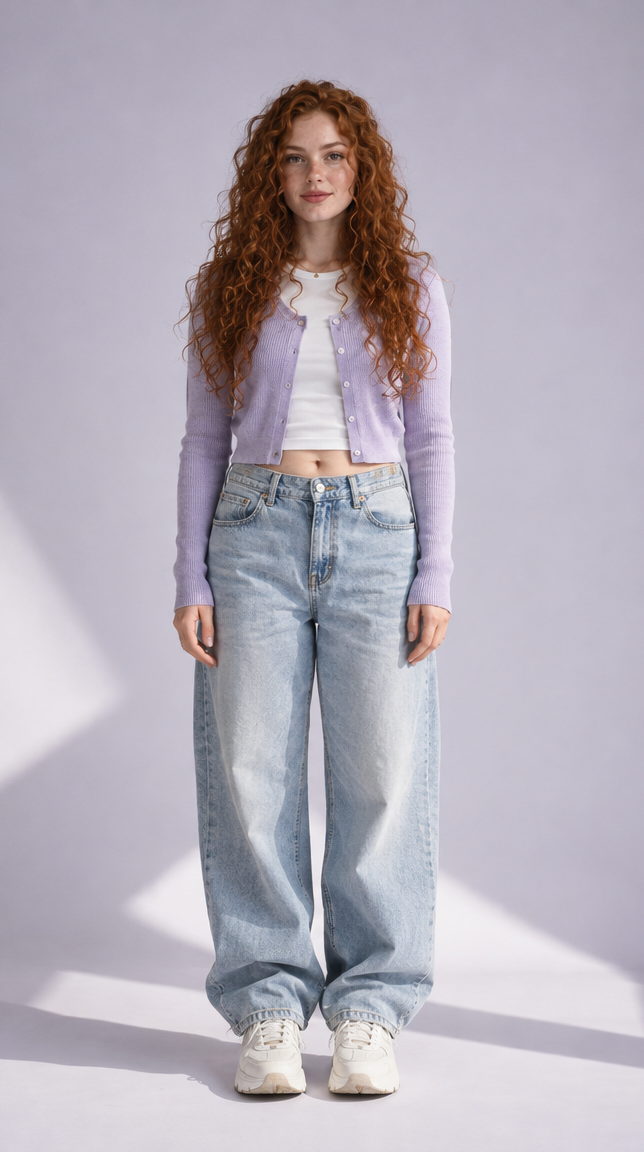
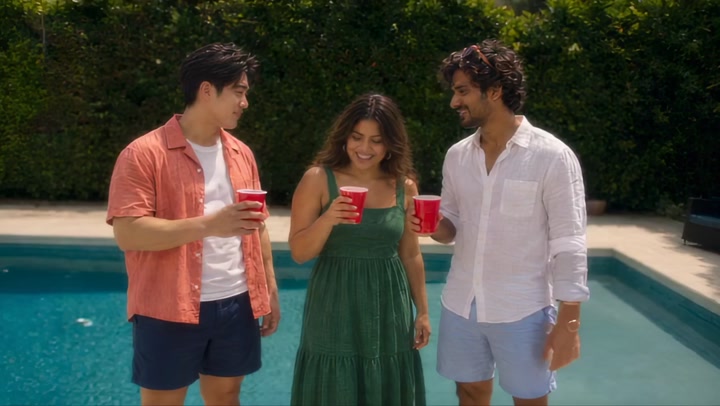
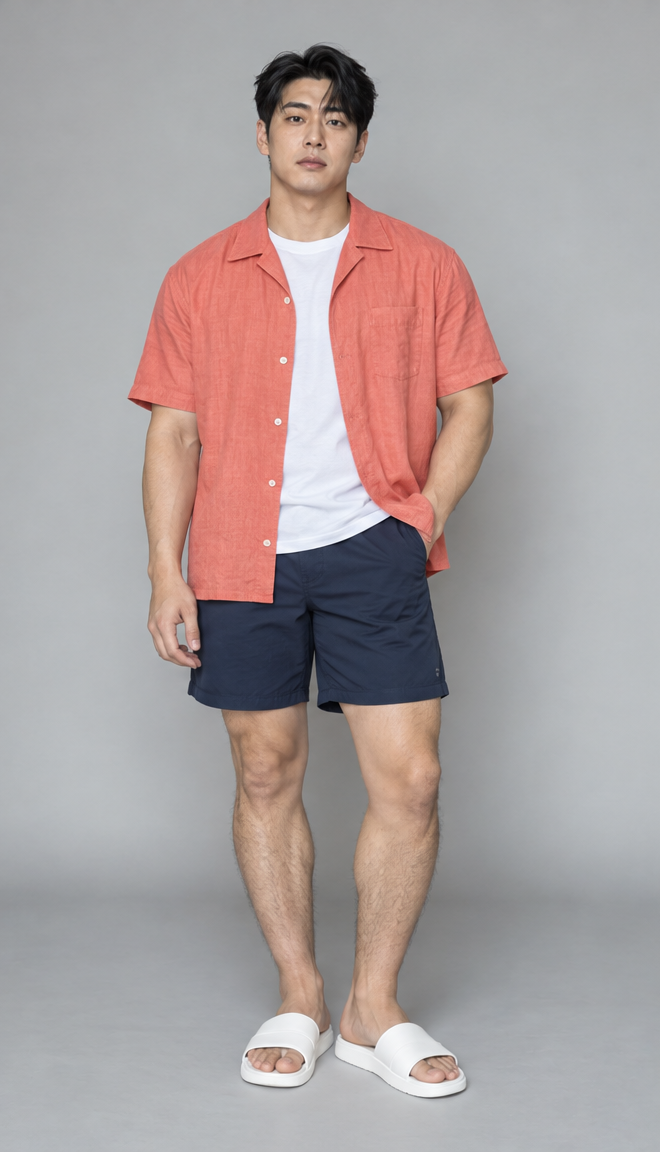
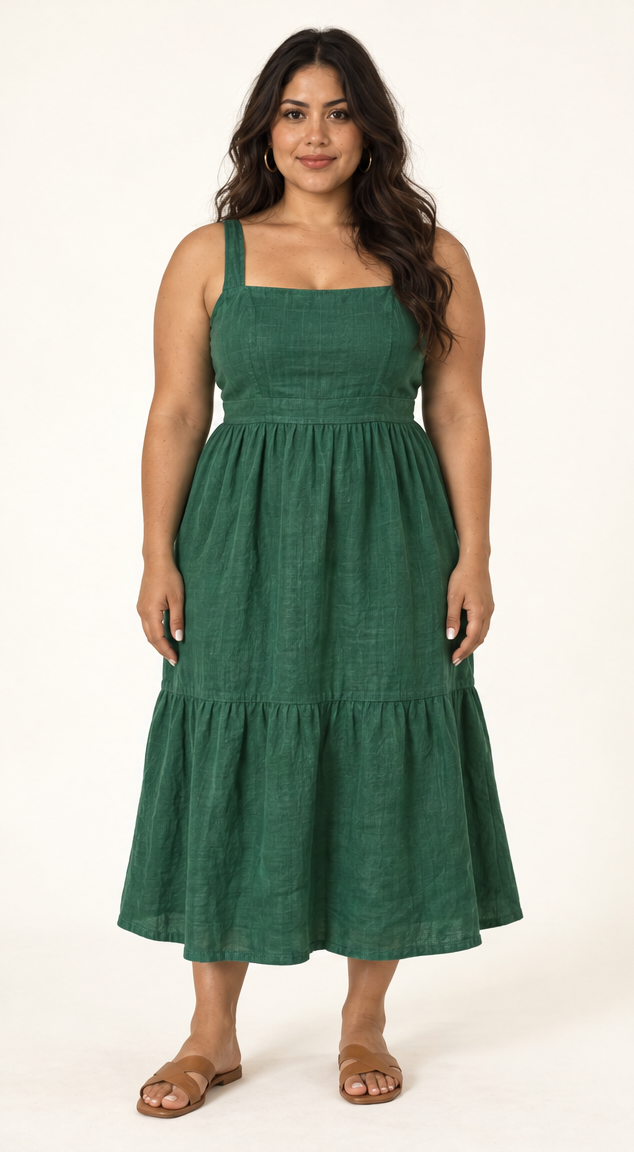

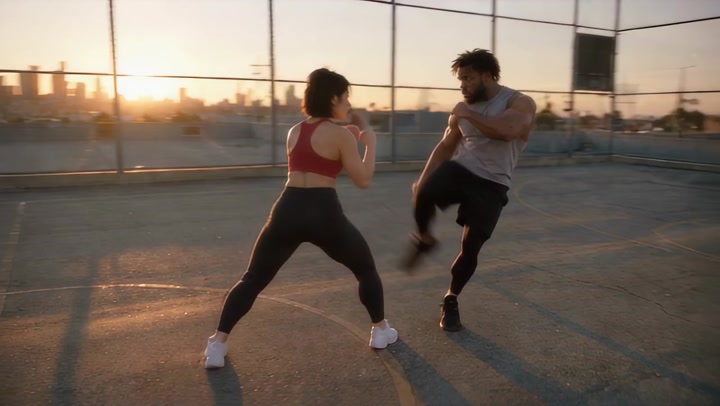
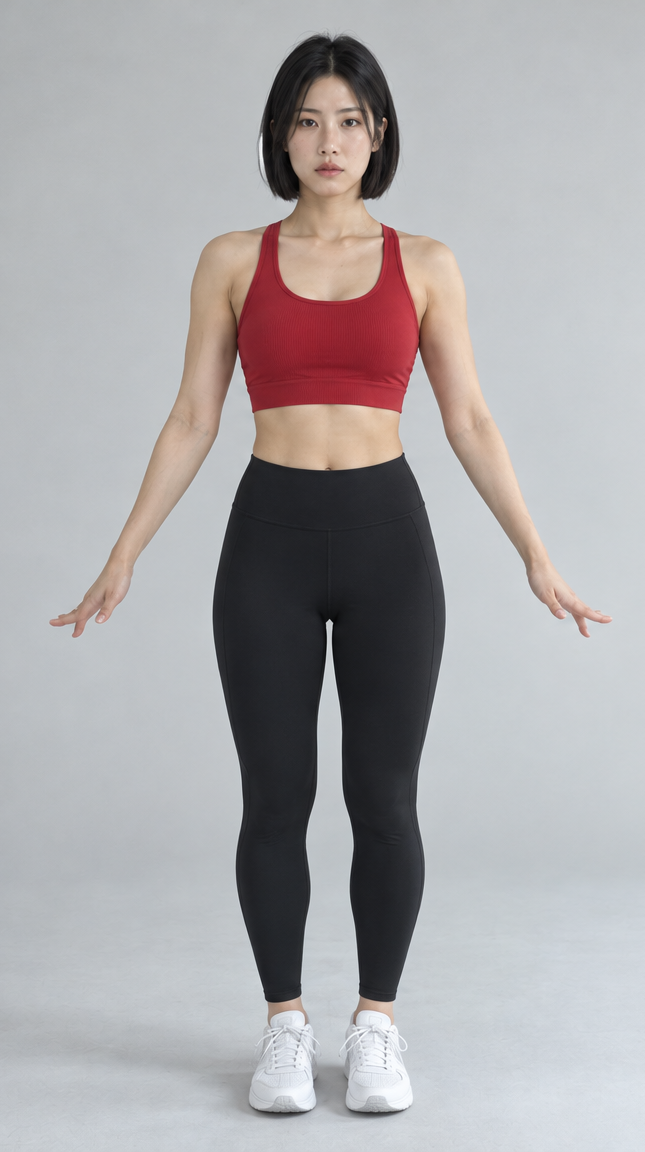
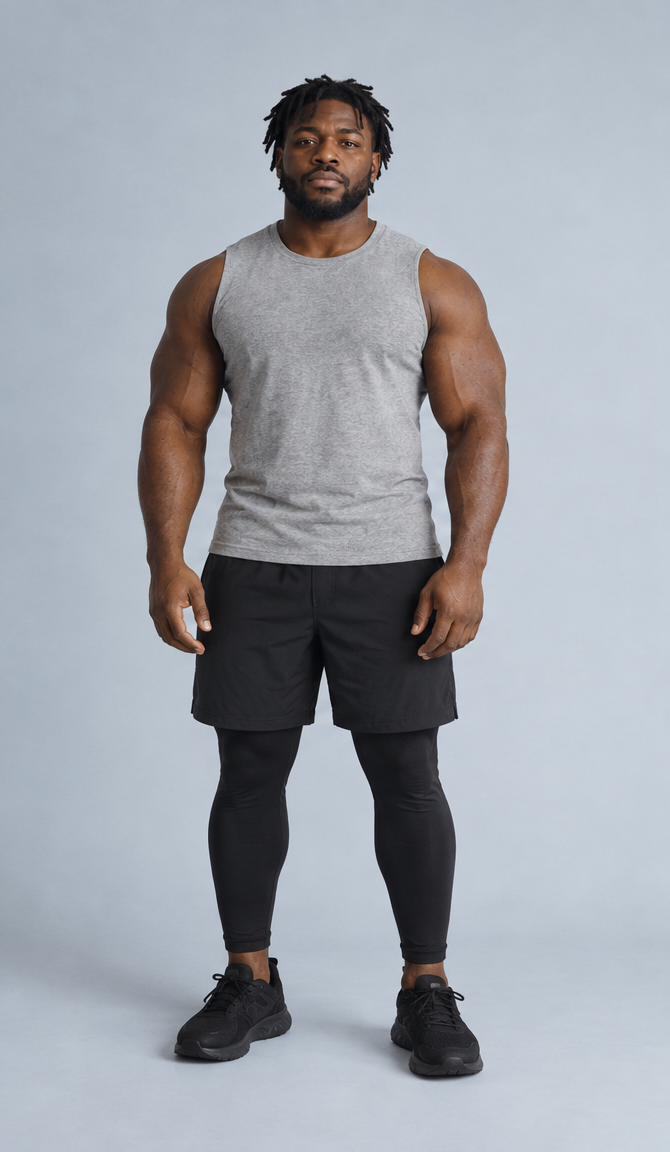
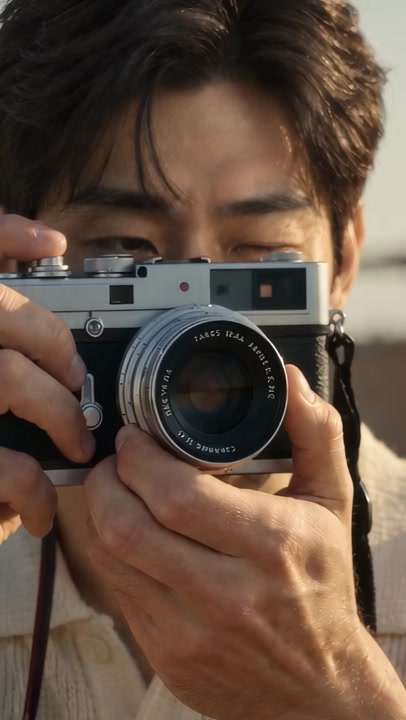
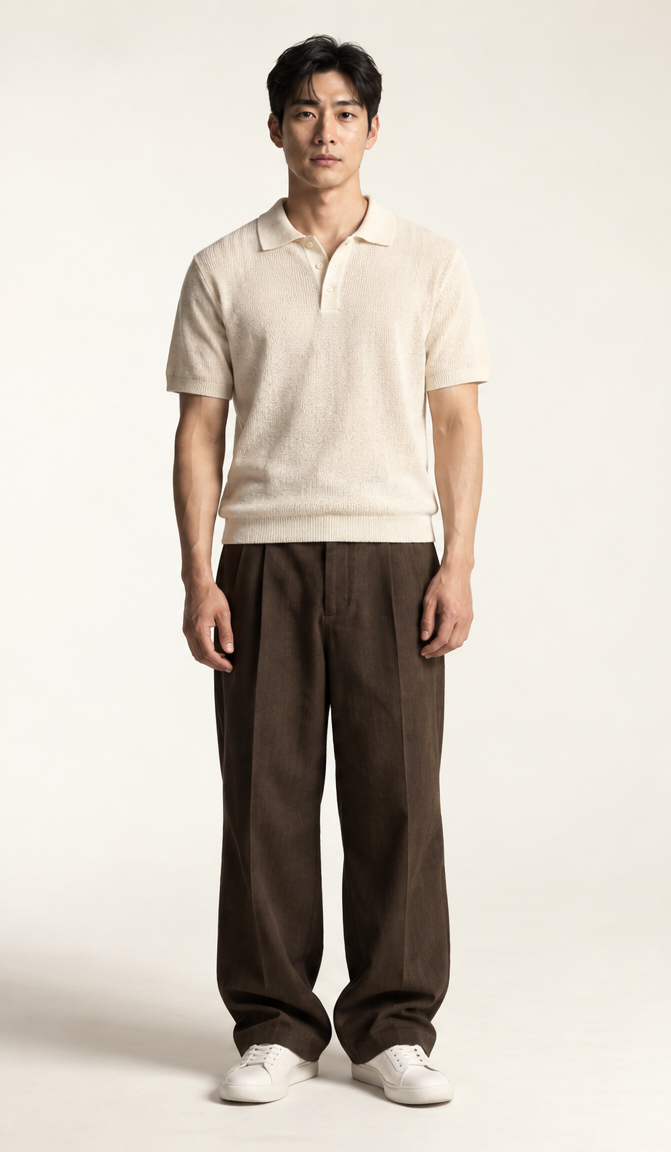
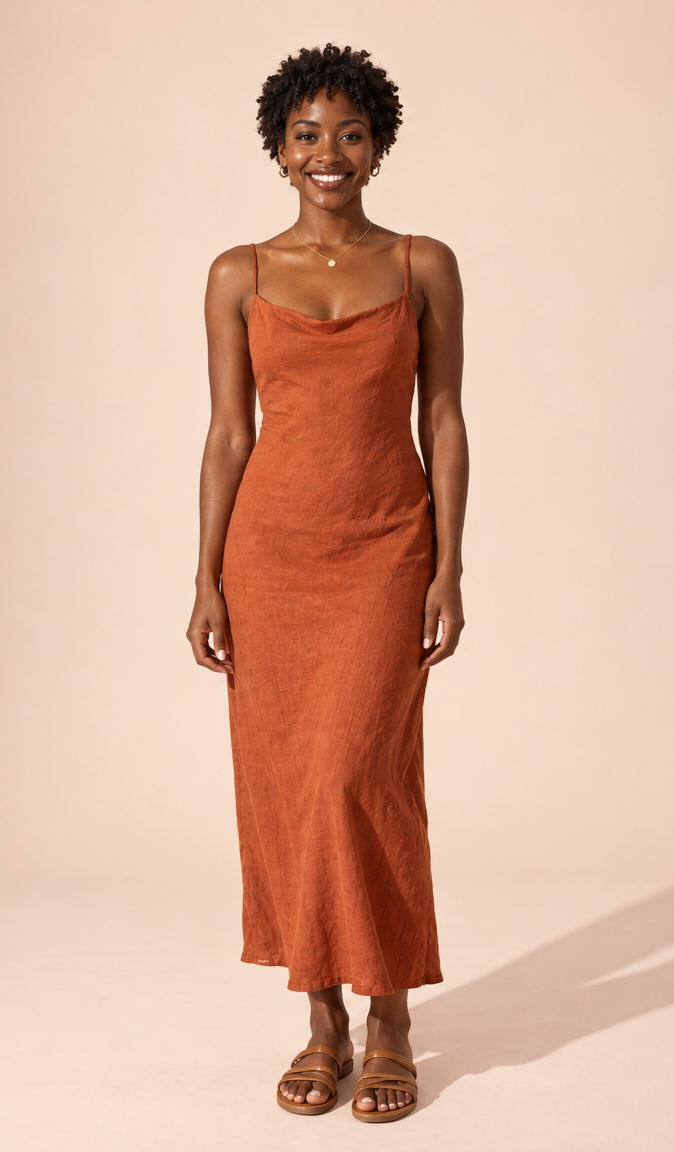
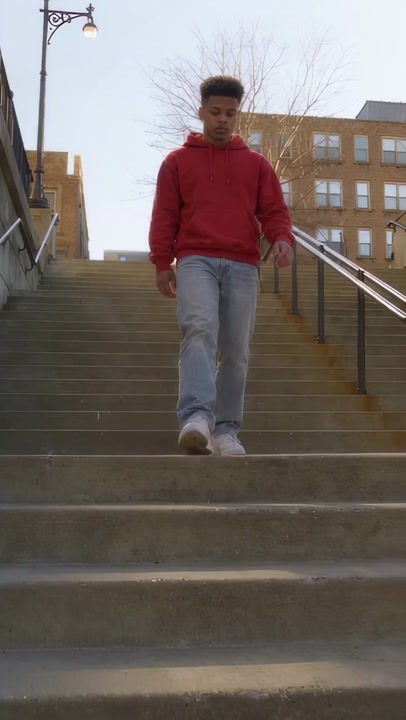
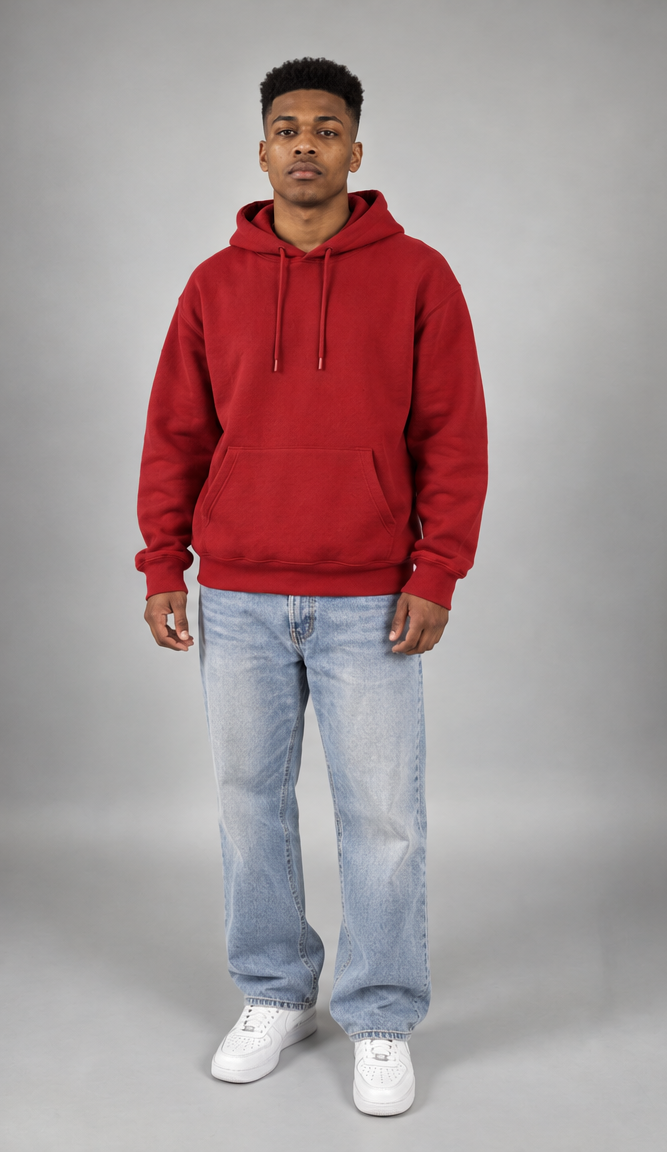
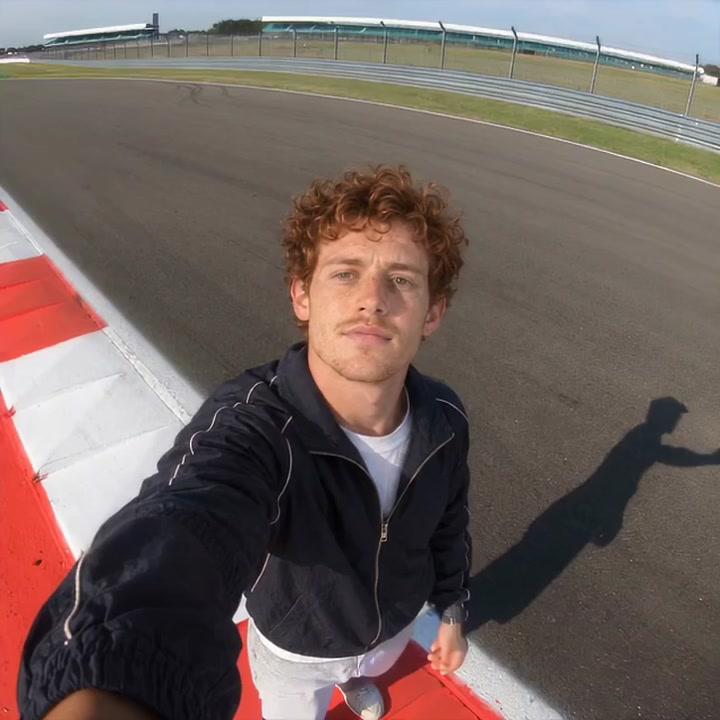
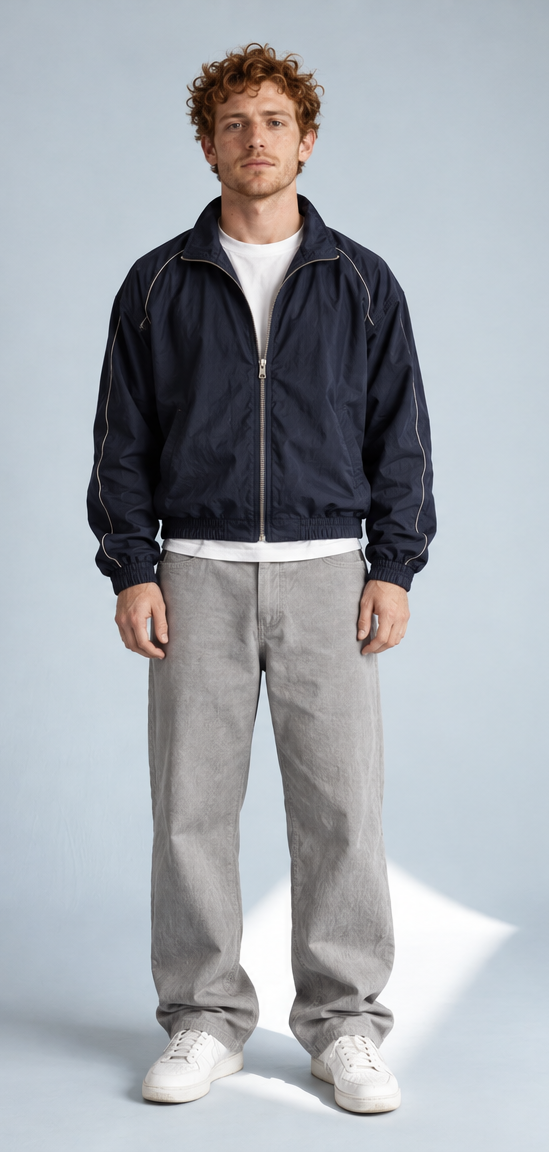
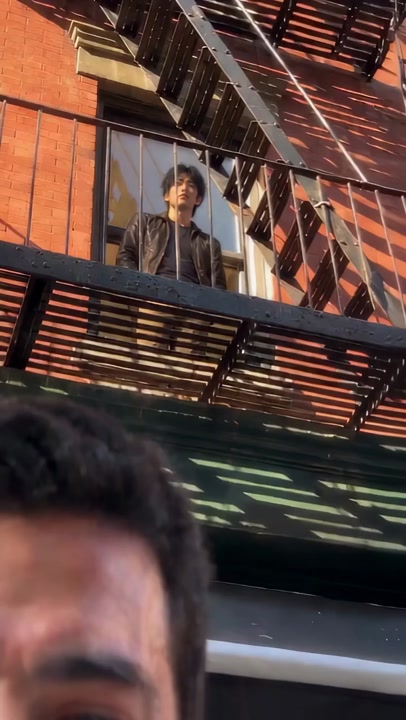
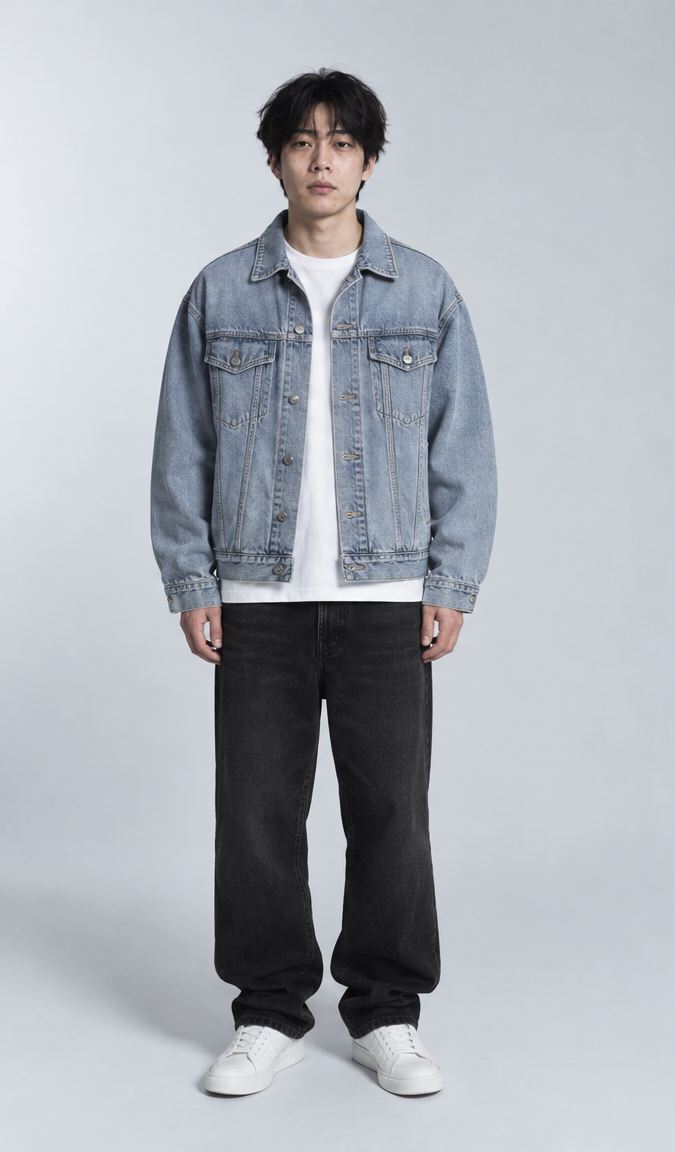
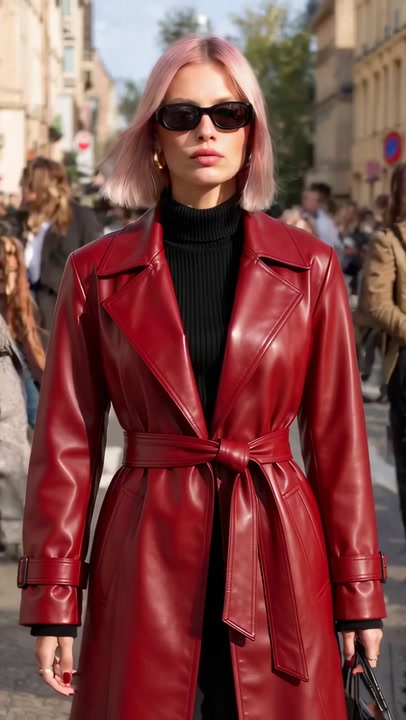
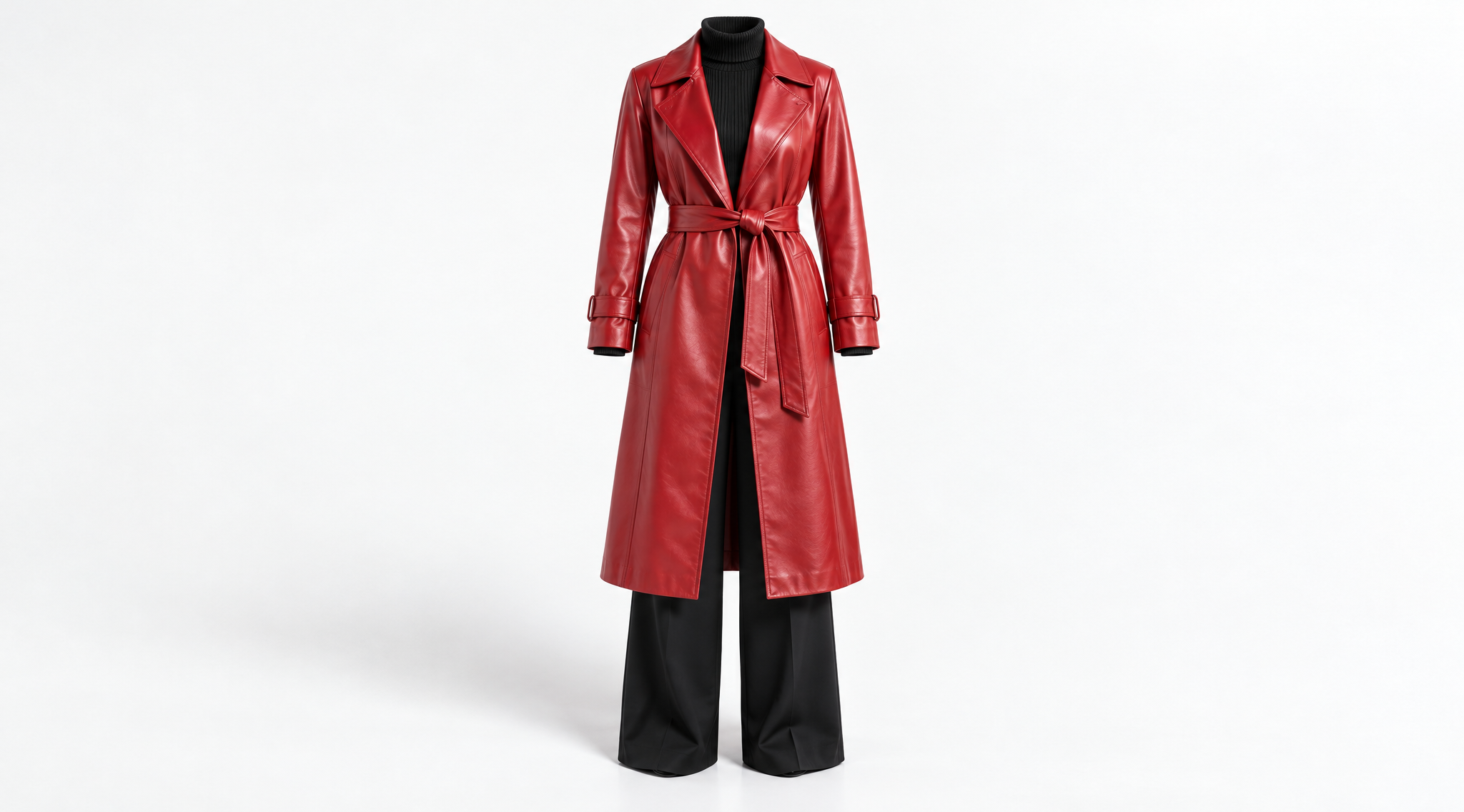
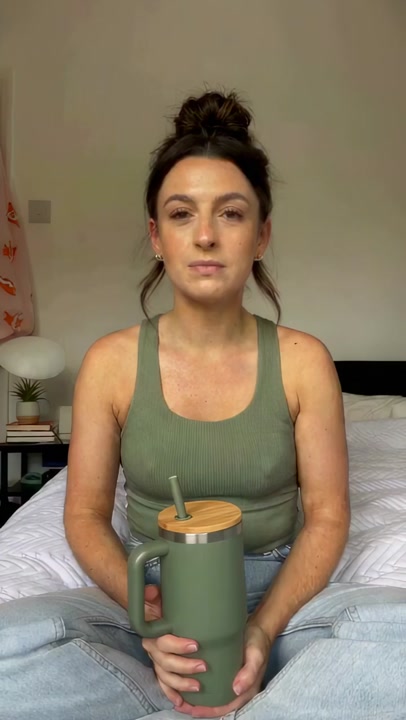
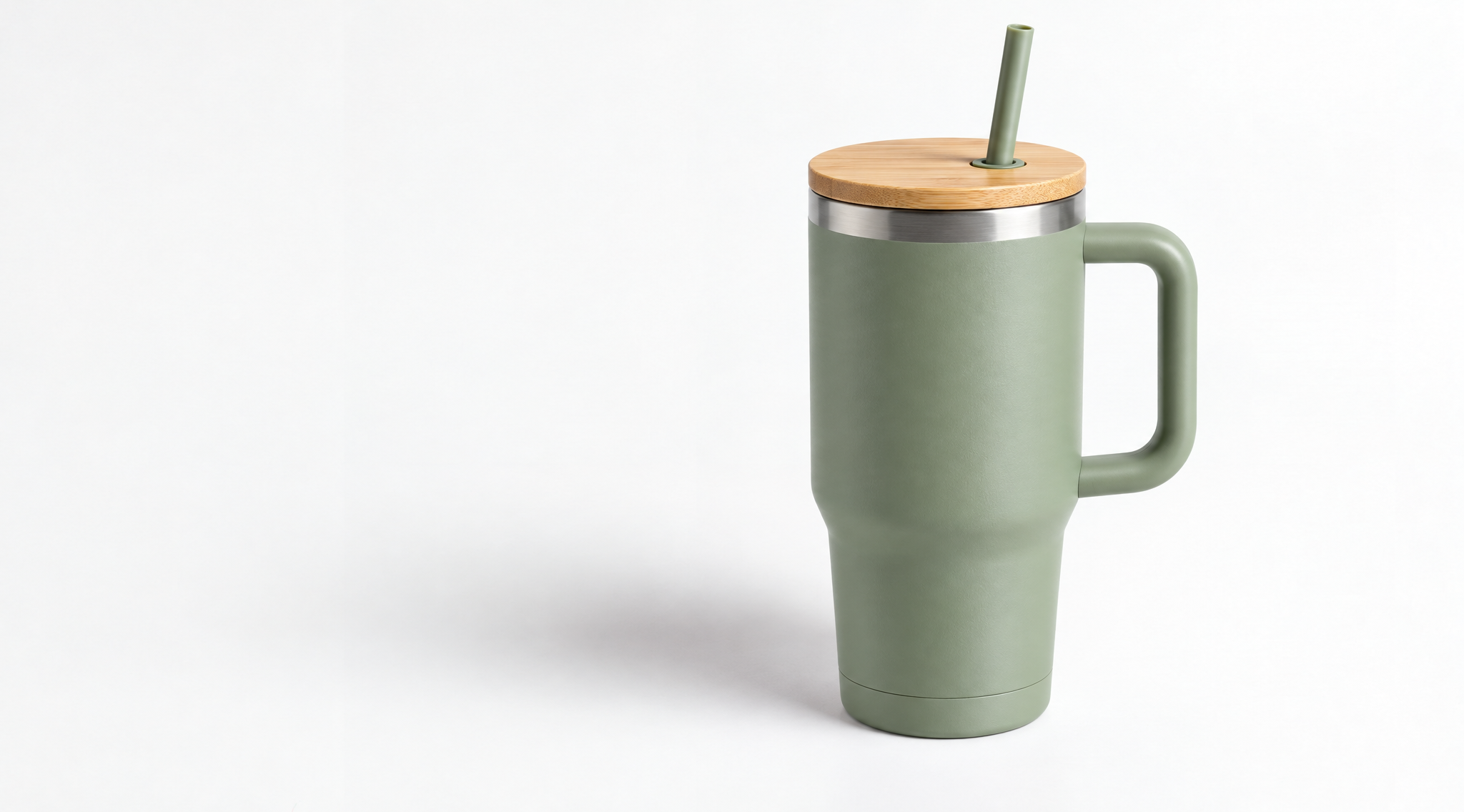
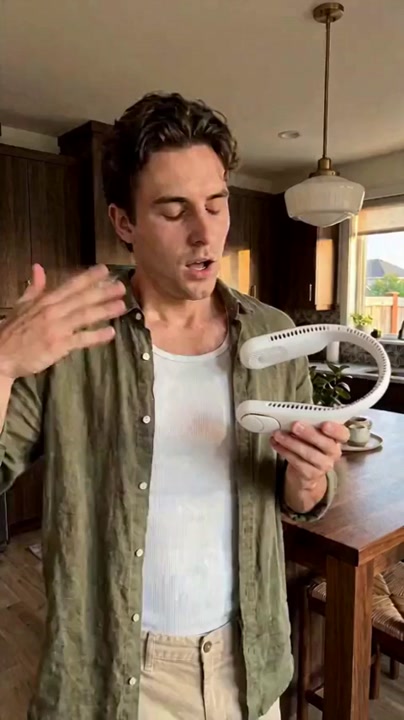
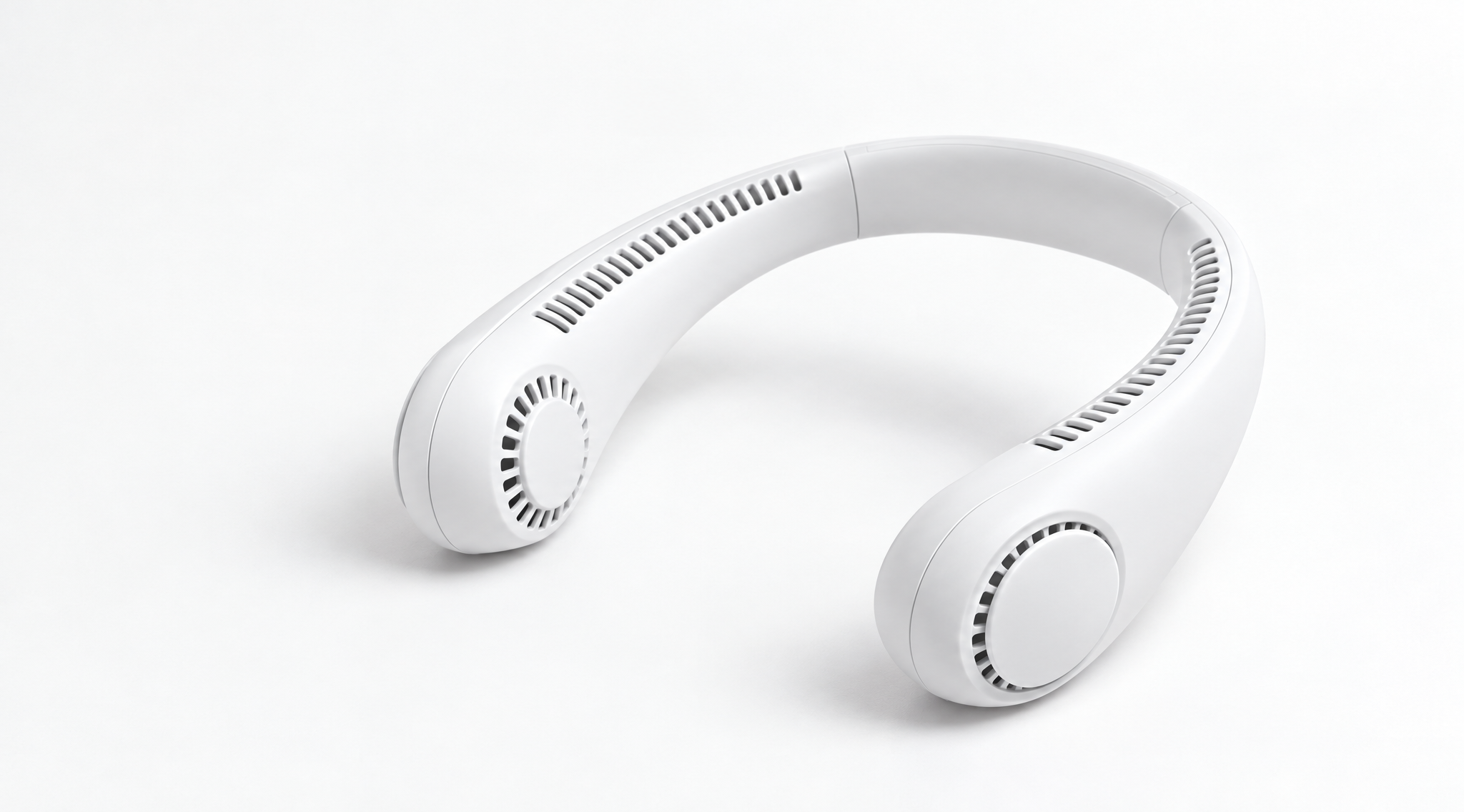
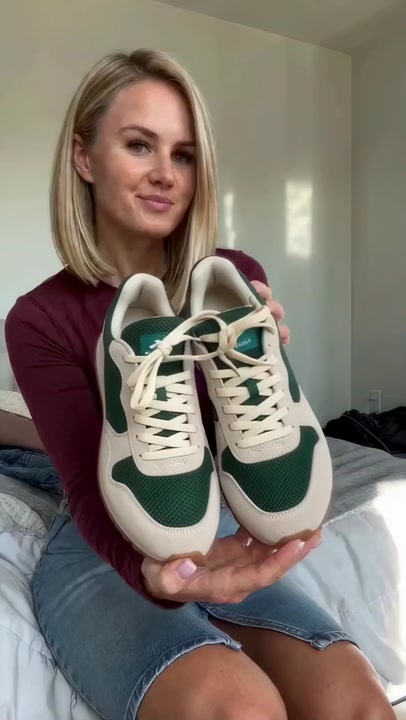
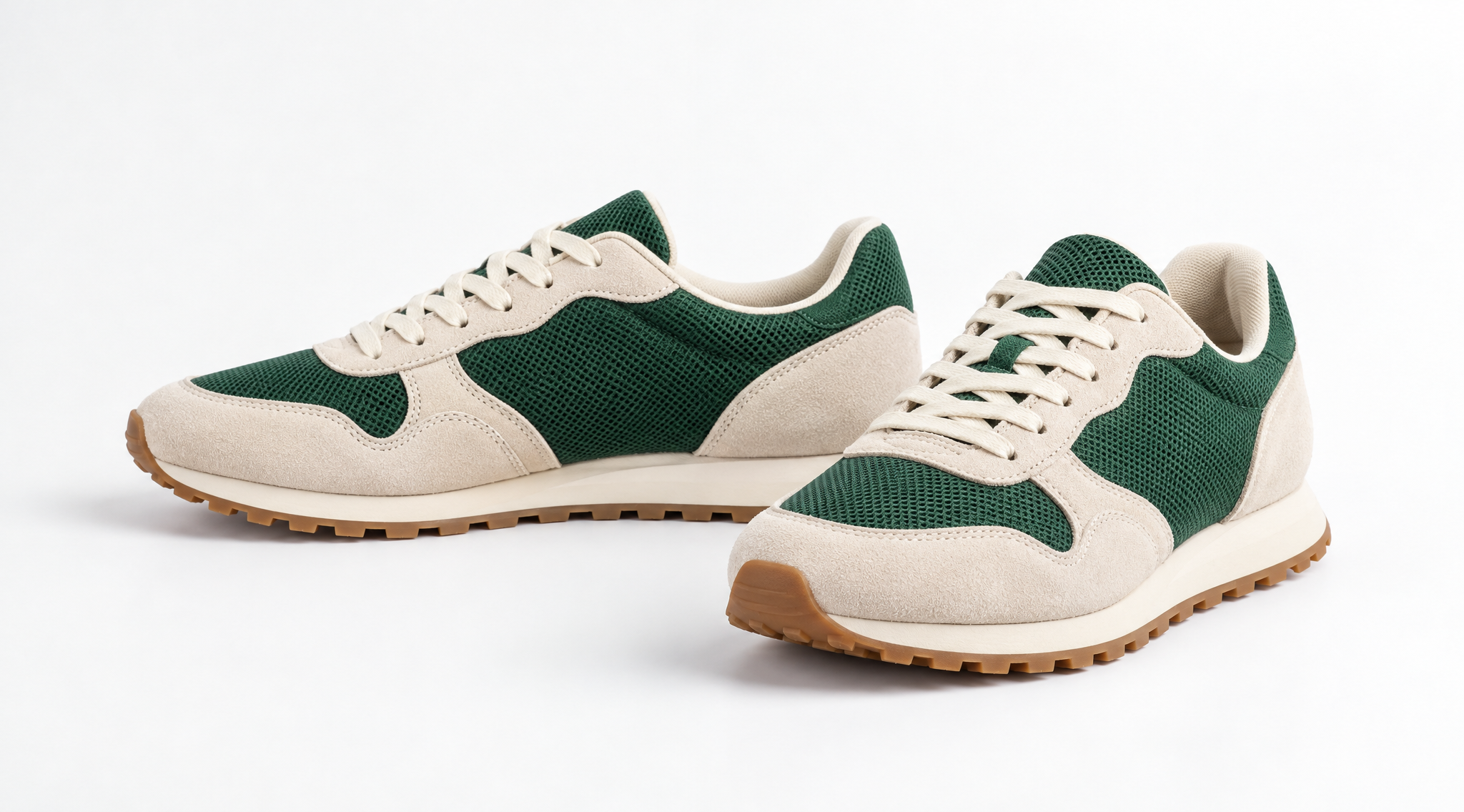
19 of 19 templates
How to clone a short video
An AI video cloner uses an existing clip to guide a new generation. Start with a template or upload a short MP4, then add the people, clothing, products or location you want to see. The reference video supplies movement, camera direction and pacing. Your images and written instructions describe what the new version should contain. This workflow suits a dance reference, a short performance, a product reveal or a social video you want to reinterpret for YouTube Shorts, TikTok or Reels. Review the source, image order and quoted credits before starting.
- 1
Choose the movement
Upload a 4–30 second MP4 from your device, or select Recreate on a template. Preview the original and result to check the camera movement and timing. A clear, short source with a visible subject gives you a more specific starting point. Uploaded files can be up to 20 MB.
- 2
Add your references
Add up to 10 JPG, PNG or WebP images, each up to 10 MB. Use clear photos of the subject or product you want to introduce. Image order becomes @Image1, @Image2 and so on. Mention those references in the prompt when several people or products need different roles.
- 3
Review quality and credits
Choose 720p or 1080p and check the quote for your selected reference. The output length follows the reference clip, rounded up to a whole second within the 30-second limit. Start generation when the inputs are ready. Your task then follows the same account, payment and result workflow as the other Everygen AI video tools.
Choose what the new version should change
Explore three ways to use a reference clip. These examples illustrate creative directions; your own result depends on the source, images and instructions.
Motion transfer
Use the reference for subject movement, camera direction and rhythm while describing a new setting or appearance. This is a starting point for dance clips, performances and camera-led reveals. Tell the model which elements matter most, such as a turn, a gesture or the movement toward a product.
Keep the movement specific
Choose a reference with a clear action and describe the movement you want to carry into the new scene. Use the template preview to compare its original and generated version.
Object swap
Focus your instructions on a particular person, outfit, product or place. Add the matching reference image and identify it in the prompt. For a product shot, describe the object to introduce and the surrounding details you want to preserve. Generated details can vary, so inspect the result before using it.
Name the element to replace
Mention the matching @Image number and describe the replacement. Keep the request focused so you can inspect the object, its shape and its placement in the result.
Character movement
Give a person, pet or illustrated character a movement reference. Choose a photo that clearly shows its appearance, and use the prompt to describe the role it should play. You can compare several references before committing to a clip and reuse your own images across different template ideas.
Use a clear character reference
Add one clear photo for each person or character, then identify their roles in the prompt. Check the image order before starting a video with more than one subject.
Check the details before you generate
A short review of the source, reference images and quote makes the intended result easier to define.
Start with the right part of the clip
Upload the 4–30 second section that contains the movement or scene you want to reinterpret. Keep the subject visible and the source within the 20 MB limit.
Use footage and images you own or have permission to edit. The upload input accepts local MP4 files.
Keep the image order clear
Reference images are numbered in the order shown. Use @Image1, @Image2 and the following numbers to identify people, outfits or products in your instructions.
You can replace the sample photos before generating. The current model accepts up to 10 images.
Describe the change you want
Choose Motion Transfer, Object Swap or Character, then describe the details that matter. You can leave the prompt empty when the selected references already express your idea.
The English example prompts can be expanded and copied. Adjust them to match your uploaded images and intended scene.
Review the quote and follow the task
Check 720p or 1080p, the reference duration and the credits shown before you generate. Changing the source or quality refreshes the quote.
Generation uses your existing account and payment flow. If a task fails or remains under review, check its status before starting another request.
Questions about video cloning
References, uploads, quality and credits explained.
The source video provides visual context for a newly generated clip. Reference images describe people, outfits, products or places, and the prompt adds your instructions. Choose a template to inspect its original, result and reference photos. Recreate fills the workspace with that example so you can replace its images and adjust the direction before generation.
Choose Motion Transfer when movement, timing and camera direction are the main reference for a new scene. Choose Object Swap when your request centers on replacing a particular visible element. Character mode focuses the instructions on a reference character performing the movement. These choices guide the video model, and the result should be reviewed for identity, motion and product detail.
The upload input accepts an MP4 between 4 and 30 seconds, up to 20 MB. The server measures its duration before preparing a quote. The current model accepts up to 10 reference images in JPG, PNG or WebP, with a 10 MB limit for each image. Choose images that show the subject clearly and use footage you own or have permission to edit.
Start with a local MP4 file or an included template video. If your reference is hosted on a social platform, prepare a file you have permission to use and select it through Add a video. Keep the source within the upload limits and choose the short section you want the model to reference before uploading.
The quote accounts for the reference video input, generated output length and selected quality. Changing the source or quality refreshes the displayed credits. Preparing a quote lets you review the cost before generation. Payment continues the same saved task, and eligible failed generations use the existing credit recovery workflow. Check the task status or contact support if a request remains under review.