
How to Create AI Product Ads from Photos
Turn a product photo into an image or video ad. Follow the upload, template, credit estimate and result review steps before downloading your creative.
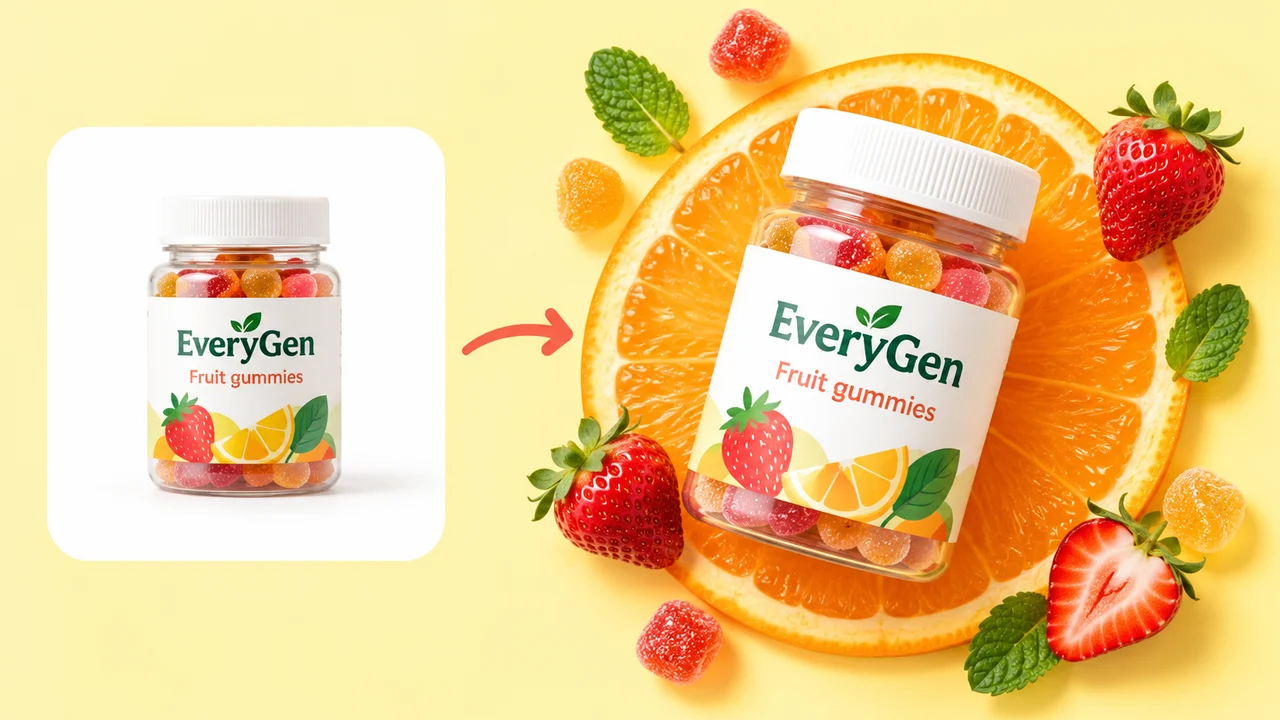
An AI ad generator can turn a product photo and a written brief into a new product image or a short video. A useful brief names the product, the setting, the audience and one visible action. The result still needs a human check before it becomes an advertisement.
Our AI Ad Generator brings image and video ads into the same workspace. You can browse creative examples, load an example image and English prompt, add your own product photo and review the available settings and credit estimate. The examples are licensed creative directions, not evidence of conversion rates or a promise of identical output. Video templates currently display still artwork.
This guide follows the controls in the workspace, from preparing a source photo to checking a downloadable result.
1. Prepare the product photo and facts
Use a sharp JPG, PNG or WebP image up to 10 MB. Put the product in clear view, with the label readable and its edges inside the frame. A photograph of the actual item is a better identity reference than a screenshot of a product listing with surrounding buttons and text.
Both ad modes require a Product image. Image ads also accept an optional Character photo and Reference image. The product is always the first attachment; a character identifies the adult presenter, and a visual reference supplies direction without replacing the product.
You can upload a local file, choose a completed image from Creations, or select a licensed subject example. Keep permission to use any person, product photo or reference you supply. A product link can stay with your draft, but the workspace does not automatically import facts or photos from that link. Upload the photo and enter the information the ad should contain.
Write down only the facts you can stand behind:
- Product name, material, color and size, where relevant.
- A feature that can be shown visually, such as a lid opening or a bag pocket.
- The intended audience and the setting in which the product is used.
- Exact promotional wording, if you want it included and it is current.
Avoid letting the model invent certifications, customer endorsements, discounts or health claims. If a price is important, provide the exact text and check it in the output.
2. Choose a template, then make the brief specific
The gallery starts with ten examples. Filter by product photos, people and products, creator-style concepts or creative concepts; search by title or creative direction, then use Load more examples to explore the rest. Open a card to see the full artwork, scene, ad type and English prompt.
Selecting Use this template fills the English prompt and scene, switches to the relevant ad mode, and loads the shown example image into the Product slot. It replaces the input images in that mode and clears any separate character or reference, so an earlier selection does not get mixed into the new example. This action does not generate anything. The loaded image is the displayed example artwork, not a separate original product photo. Replace it with your own product photo and adapt the brief before creating your brand's ad; in video mode, the image becomes the starting frame.
For a product still, start with a scene such as Product shot, Flat lay, Lifestyle scene or Ecommerce model shot. A plain brief is often easier to review than a long list of competing visual effects:
Photograph the supplied stainless-steel travel mug on a light stone kitchen counter. Use soft morning light, a three-quarter camera angle and one linen cloth beside it. Preserve the exact logo, lid, handle and proportions. Leave clear space above the mug. Do not add a price or promotional text.
For a video, describe an action and the camera movement rather than only restating the photo:
Start from the supplied product image. Move the camera slowly toward the travel mug while a soft reflection travels across the metal. Keep the mug, lid and logo stable. End on a steady close-up. Do not introduce extra products or new written claims.
Template prompts stay in English when the interface language changes. You can edit the brief yourself; changing the interface language does not translate or replace your instructions.
3. Review the model, output settings and credits
Open the model menu to see the available models. The selected model has a visible check and border. Open Generation settings for the supported aspect ratios, resolutions and, for video, durations. These options depend on the generation service and the model you choose.
For image ads, choose one to four outputs. The displayed estimate covers the selected number of images. Each output becomes a separate task; a partial failure does not erase images that already completed. If a submission is interrupted, resume that batch to check the same attempts rather than immediately submitting another one.
For video ads, the displayed credit estimate changes with the actual model, resolution and duration. Some image-to-video models take their framing from the start image, so prepare the image in the shape you want. Do not assume that changing a ratio control will crop an unsuitable source perfectly.
Check the Pricing page for the current credit packages. The live estimate in the generator is the relevant number for the task you are about to submit. A video made from a separately generated image uses two generations, with a separate cost for each.
4. Choose direct video generation or review a script
If your product photo already contains the complete scene, you can generate a video directly from that single start frame.
If you add a separate character photo, the workspace first creates a combined still. Review that image, then select Use as video start frame. The video is only submitted when you choose to generate it. This is how the current single-image video connection can use both the product and the presenter without silently discarding one of your references.
You can also enable Review script first. Draft script provides a free, editable outline with an introduction, a product action and an ending. It is a fixed structure filled from your brief, not an AI script-generation request. Add the exact actions and words you need before creating the video. Language and audience settings guide the request; they do not guarantee perfect speech or regional suitability.
5. Check the result before downloading
Image results appear below the editor. Open a preview to inspect the larger image, download it, reuse its settings or use it as a video start frame. Video generation continues through the existing Creations result page, where you can return to the task and inspect its status and output.
Before using an image, compare it with the uploaded product:
- Are the shape, proportions, lid, buttons and other functional parts correct?
- Is the brand text readable and spelled correctly?
- Did the colors or packaging design change?
- Does every promotional statement come from your supplied facts?
For video, watch the whole clip. Look for a logo changing between frames, fingers merging with packaging, an object disappearing, or an ending that cuts off the demonstration. Listen to any audio as well as checking the picture.
If a task is still processing or its submission is being confirmed, open Task details instead of repeatedly generating. Completed work is also available from Creations. A failed result should be checked there before you decide whether to revise the brief or try again.
Match the creative to a customer question
A useful product ad usually makes one thing easier to understand. Before choosing an example, write the question your viewer should be able to answer after seeing the image or clip. “What does it look like?” suggests a clean product portrait. “Where would I use it?” suggests a lifestyle scene. “How does this part work?” suggests a short demonstration. That choice gives the model a more concrete job than a request to make an advertisement exciting.
For a new travel mug, a simple launch image could show the lid, handle and finish on a quiet background. A separate video could show a slow camera move around the same approved image. Trying to introduce the product, demonstrate three features, show an unboxing and deliver a spoken offer in one short clip creates competing instructions. Split those ideas into separate concepts that you can review independently.
| Customer question | A suitable direction | Source detail to preserve | Review priority | | --- | --- | --- | --- | | What am I buying? | Product hero or packshot | Shape, label and packaging | Recognizable item and readable details | | Where does it fit into my day? | Everyday lifestyle scene | Product scale and materials | Credible placement and contact shadows | | How is it used? | One visible demonstration | The relevant handle, opening or feature | Plausible motion and accurate functionality | | What arrives in the box? | Unboxing concept | Actual package and included contents | No extra accessories invented by the model | | Why is this version different? | Close-up of a supplied feature | The real design difference | A clear visual focus without unsupported claims |
Write a brief someone else could review
A good prompt also acts as a review brief. Name the product, the setting, the action and the details that must stay consistent. Include only a small number of priorities. If the label is essential, say so. If you need room above the product for a headline, describe that empty space. If the current offer matters, supply its exact wording and check it after generation.
For example, a useful image direction is: “Show the supplied green ceramic planter on a light wooden desk beside a window. Preserve the planter shape and glaze. Keep the plant modest in size and leave clear space on the right for a headline.” You can judge the result against each sentence. A phrase such as “make the perfect viral ad” offers much less guidance about what a usable output should contain.
For motion, choose an action that fits the starting image. A gentle push-in, a small turn or a lighting change may be enough to make a product scene useful. If you want a person to handle the item, pay extra attention to the hand positions and the contact between the objects in the first frame. The movement should follow a coherent starting composition.
Compare versions without losing the reason for the change
Give each downloaded version a name that records the creative difference, such as mug-window-light-v1 or mug-studio-closeup-v2. Keep the brief, model, ratio and resolution alongside the file. When a collaborator says a version is better, ask which visible difference helped: product size, light, background, framing or clarity of the action. That feedback makes the next prompt more precise.
Use the image-count control for a small set of variations, then compare them against the same criteria. Generating four images does not automatically create four different marketing strategies. If you want different concepts, write a separate brief for each. Before another round, decide which result is worth developing and which problem you are trying to fix.
When you later test advertising performance, use the reporting tools in your advertising platform. Keep the offer, audience and placement in mind when interpreting a difference. A creative review can establish whether the product looks accurate and the message is clear; it cannot establish a conversion improvement before the campaign has run.
Fix the most useful problem first
If the product changes shape, return to a clearer reference photo and simplify the scene. If text looks unreliable, remove unnecessary generated wording and add the exact campaign copy in your usual editor after approving the visual. If motion is unstable, shorten the requested action and start from a composition that requires less movement. If the crop feels wrong, prepare the source in the intended format before another video attempt.
An unavailable model, an unfinished task and a completed output that needs creative revision are different situations. Check the task status before submitting again. Use My Creations to return to an accepted task, and contact support with the task identifier if its state is unclear. For a finished result, make the next attempt a deliberate creative change and review its new credit estimate.
A useful first project
Start with one product and one message. Make one still image, review its identity and text, and use the chosen image as the video start frame. Change one part of the brief at a time so you can see what helped.
For more preparation advice, see how to choose an image-to-video reference and how to choose a video model. When the product photo and brief are ready, open the AI Ad Generator.
Already have a recorded demonstration? Use the product-video repurposing guide to plan an overview, a feature demonstration and a detail clip from the material you have. The editing vs generation guide explains when to keep recorded footage and when to create a new shot.