

Veo 3.1 AI Video Generator

Create a Veo 3.1 video from a written scene in Everygen AI. Explore light, materials, and camera movement, then choose supported parameters and check the quoted credits.

Google Text to Video Video Examples Prompt Control
AI ImageAI Video
0/2000
More creative powerSAVE UP TO 67%Choose annual billing for more image and video credits.Explore plans

Veo 3.1 Ideas in Motion

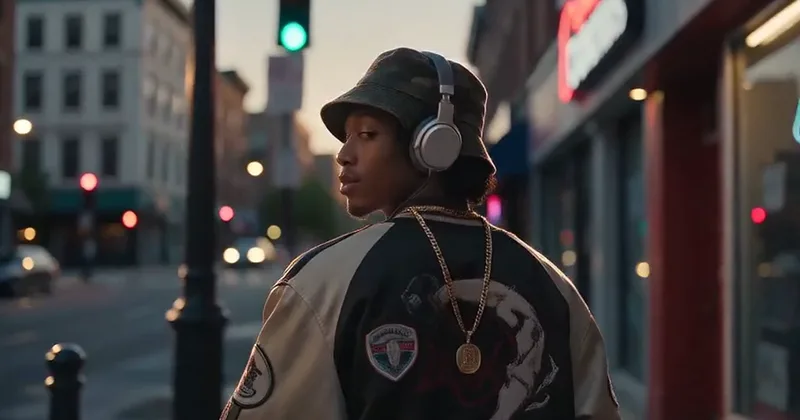
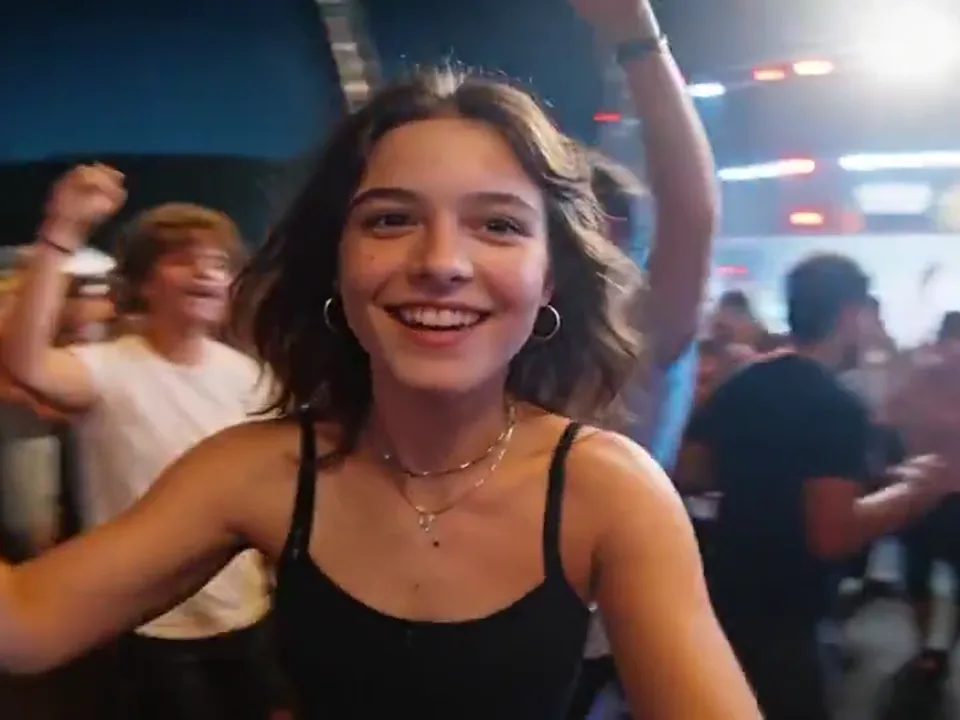
Explore a watch reveal, a rainy detective scene, a quiet coffee moment, and a recording-studio exchange. Each offers a different cinematic mood and camera direction.

A Closer Look at Veo 3.1

Look at scene atmosphere, composition, material detail, and focused iteration. The generator's actual parameter choices define the available workflow, rather than every control shown by the example source.

Give the Scene a Clear Atmosphere

The examples pair light, gesture, and surroundings to make a scene's mood readable. Describe these visible cues in the prompt and keep the action focused. This tool has no audio switch or dialogue editor, so a particular soundtrack or spoken performance is not guaranteed.

Compose for the Intended Frame

Landscape and portrait framing need different space around a subject. Choose an aspect ratio offered in the toolbar and describe the important visual area before generating. Quality options depend on the selected parameter combination; examples do not guarantee a particular output resolution.

Use Specific Light and Material Cues

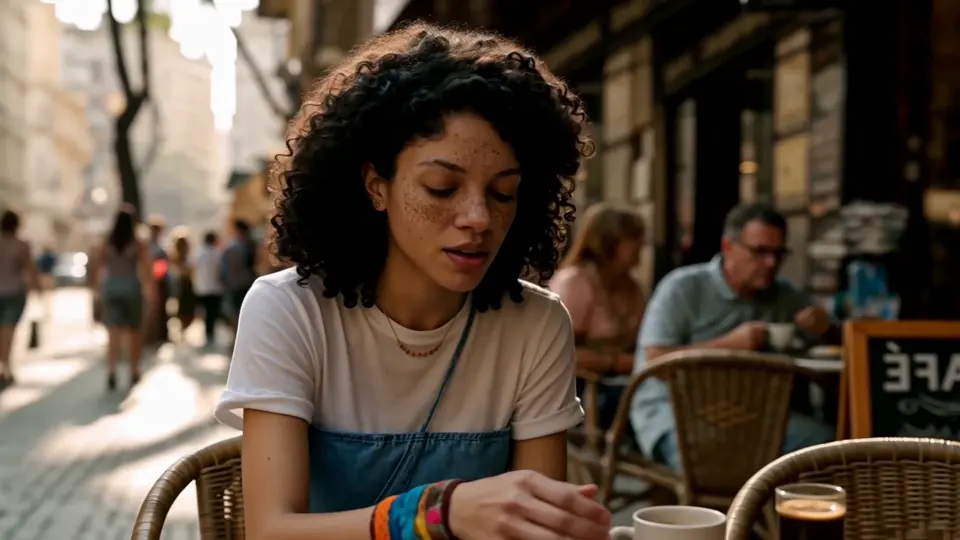
The watch and coffee scenes make metal reflections, steam, fabric, and soft light part of the visual brief. Name a few important details rather than filling the prompt with competing styles. Review the result for the realism and camera behavior your project needs.

Change One Setting at a Time

A focused iteration makes it easier to see whether a prompt or parameter improves the shot. Keep the scene idea stable while changing one supported setting. The tool does not provide clip extension, transition editing, or automatic substitution with the separate Veo 3.1 Fast edition.

Pricing

Choose Your Plan

Create images, edit references, and generate videos with one credit balance. Buy credits when you need them, or subscribe for a monthly allowance.

Need a few more credits?

One payment, no recurring subscription. Use these credits across image and video tools; credit packs do not expire.

One video

Pay once. No subscription.

10 credits

$9.90

One generation with eligible video settings

  • ✓ Never expires

Duo Pack

41%

A small top-up for your next creation.

50 credits

$29.00

Up to 25 basic clips (5s, 480P)

Up to 12 images with lower-cost settings

  • ✓ Never expires
Most Popular

Crew Pack

71%

Keep exploring images and short videos.

350 credits

$99.00

Up to 175 basic clips (5s, 480P)

Up to 87 images with lower-cost settings

  • ✓ Never expires

Studio Pack

78%

Extra credits for a series of creative projects.

900 credits

$199.00

Up to 450 basic clips (5s, 480P)

Up to 225 images with lower-cost settings

  • ✓ Never expires

Label Pack

83%

A larger reserve for ongoing production.

3000 credits

$499.00

Up to 1500 basic clips (5s, 480P)

Up to 750 images with lower-cost settings

  • ✓ Never expires

Create every month

Choose monthly billing or pay annually. Credits arrive each month, and the generator shows the cost for your selected model before you start.

Most Popular

Basic

A monthly allowance for ideas, edits, and occasional videos.

34 credits / month

$8.33mo

Up to 17 basic clips/month (5s, 480P)

Up to 8 images with lower-cost settings

Billed annually at $100.00

  • ✓ Access to supported image and video models
  • ✓ Download your generated images and videos
  • ✓ Use prompts and reference images

Pro

More room for regular image and video projects.

334 credits / month

$41.67mo

Up to 167 basic clips/month (5s, 480P)

Up to 83 images with lower-cost settings

Billed annually at $500.00

  • ✓ Access to supported image and video models
  • ✓ Download your generated images and videos
  • ✓ Credits work across image and video tools

Studio

A larger allowance for frequent creation and higher-cost models.

500 credits / month

$50.00mo

Up to 250 basic clips/month (5s, 480P)

Up to 125 images with lower-cost settings

Billed annually at $600.00

  • ✓ Access to supported image and video models
  • ✓ Download your generated images and videos
  • ✓ Credits work across image and video tools

Payments are handled by our payment providers. We do not store full card numbers.

Prices are listed in USD. Confirm the payment method, currency, and final amount at checkout.

Image credit usage

Credits for one image at the selected resolution, using the same prices as the generator. Editing may add reference-image credits; review the final quote before you generate.

Model1K2K4K
GPT Image 2.5 Sunburst305080
Nano Banana 2.1203060
Seedream 5 Pro714—
GPT Image 2.5 Flare203555

Video credit usage

Text-to-video examples at the duration shown, using the same quote as submission. Higher resolutions, longer clips, or image-to-video settings can cost more. A dash means this combination is unavailable.

ModelDuration480P540P720P768P1080P2K4K
Seedance 2.55s20—40—60—200
Veo 3.18s——80—100—200
Kling 3.05s——15—20—50
MiniMax H35s10——10———

Veo 3.1: Your Questions Answered

Find practical answers about Veo 3.1, the examples on this page, and the generation options currently offered by Everygen AI.

What is Veo 3.1 in Everygen AI?

Veo 3.1 is a Google video-model option in our shared text-to-video tool. Select a supported combination of length, quality, and aspect ratio, then review the quote before starting generation.

How is this different from choosing Veo 3?

They are separate versions with their own parameter choices and quotes. This page selects Veo 3.1. Compare actual outputs for your scene instead of assuming a version change guarantees every detail will improve.

Can I control native audio here?

There is no audio toggle, dialogue editor, or uploaded soundtrack input on this page. A provider may return audio with the clip, but the interface does not guarantee a specific line, effect, or soundtrack.

How should I compare Veo with Seedance or Kling?

Start with the same scene brief and examine framing, motion, light, and detail. Check each available model's parameters and quote. The gallery demonstrates different visual directions rather than a guaranteed ranking across models.

What scenes should I try first?

Try a restrained product reveal, a quiet character moment, or a scene with clear lighting and one camera move. Keep the prompt focused and review the result before building a more involved sequence.

How much does Veo 3.1 cost here?

The number beside Generate is the quote for your selected quality, length, and aspect ratio. It updates as settings change. Use Everygen AI pricing rather than the credit rates shown on the reference website.

Put Your Veo 3.1 Idea into Motion

Open the video generator